
Transcribe by Moliri
Editor
The editor shows a recording with its transcript. At the very top is playback with the title of the recording, below it the timeline with the waveform, speakers and languages, then the text by speaker with time marks, and on the right the speakers, clips and corrections. At the bottom is the bar with search, undo, save status, export, full screen and controls. You choose which recording is open by its title at the top next to the play button. Its keywords appear beside it; clicking them or the label changes the recording’s name and keywords.
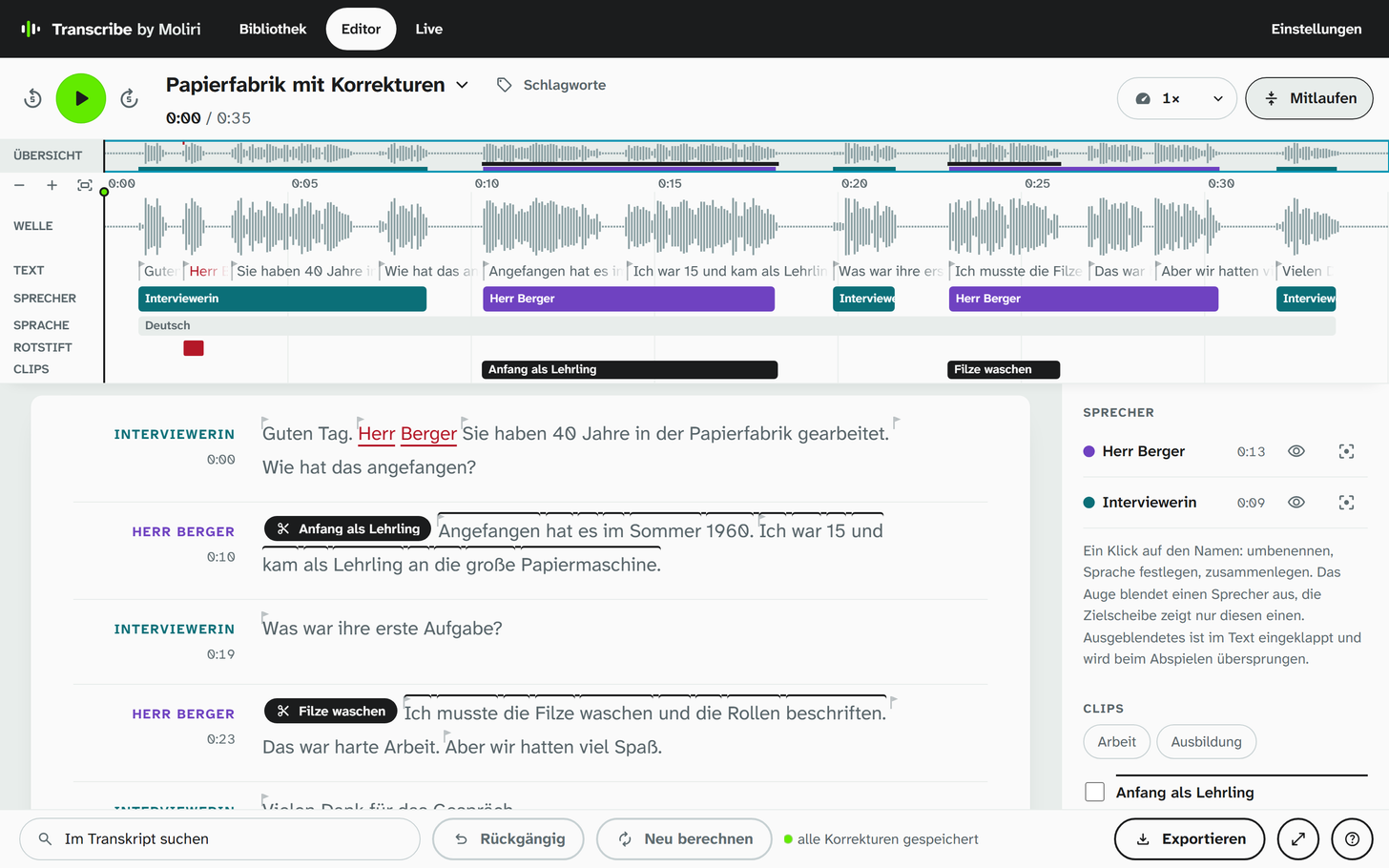
An interview in the editor, the speakers named.
Listening and reading along
The green button at the top left starts and pauses playback, as does the space bar; the buttons next to it and the arrow keys jump five seconds. Below the title you see the time and who is speaking, and on the right the speed. During playback the spoken word is highlighted, and with Mitlaufen (follow) the text and timeline move along. Clicking a word shows a bar above it; Ab hier (from here) plays from that word.
In the timeline, a click jumps to that point and the mouse wheel zooms. When you zoom in close, the text appears in the track „Text“.
Correcting the text
Click straight into the text and type. After a short pause the editor takes over the change and saves it; the bar at the bottom shows when it last saved. Rückgängig (undo) reverses the last change.
Corrections are kept separately from the machine’s result. Neu berechnen (recompute) does not overwrite them. They are marked in the text, as are passages where the machine was unsure; the side column explains the marks under Zeichen im Text (marks in the text). Im Transkript suchen (search the transcript) finds a word anywhere in the recording.
Speakers
Click a name, in the text or in the side column. There you can rename the speaker, set their language or merge them with another one if the machine has counted a voice twice. The eye hides a speaker, and the target shows only that one.
Clips
Select a passage in the text, across several speakers if you like, or drag in the timeline, and choose Als Clip (as clip). A clip gets a title and keywords. In the side column you can play it and export it: as audio (MP3), for videos as video (MP4), or as text with title and keywords. Several clips go out as one compilation in chronological order.
Exporting
Exportieren (export) in the bar at the bottom downloads the transcript with all corrections. The file has the same name as the recording in Transcribe, that is, the name you gave it in the library .
| Format | What for |
|---|---|
| Text (.txt) | With speakers and time marks |
| Untertitel (.vtt) (subtitles) | For video players |
| HTML (Word, MAXQDA) | For further editing |
The button with the question mark at the bottom right shows how to use the editor at a glance.