
Transcribe by Moliri
Connecting to Moliri
Moliri can use Transcribe for four things: for speech input into text fields, for text recognition in scans and photos, for finding fields by meaning and for the filter in your own words. All of it then runs on your computer; sound, images and search words do not leave it. Transcribe has to be running for this, ideally with Mit Windows starten (start with Windows) switched on (see Installing and first start ).
The settings apply to you personally and are in your profile in Moliri. There, Download and Manual also lead to Transcribe.
Speech input
-
In Moliri, open the profile and choose Speech input.
-
Switch on Speech input on and choose Transcribe by Moliri as the service. The address under Live transcription (API) is already filled in,
ws://localhost:8765/api/live. If Transcribe runs on a different port, the app shows the valid address on the page Live under Programme verbinden (connect programs). -
Decide who records: Transcribe records uses the microphone chosen on the Live page in Transcribe; Moliri records in the browser sends the sound from the browser to Transcribe.
-
Test connection, then Save.
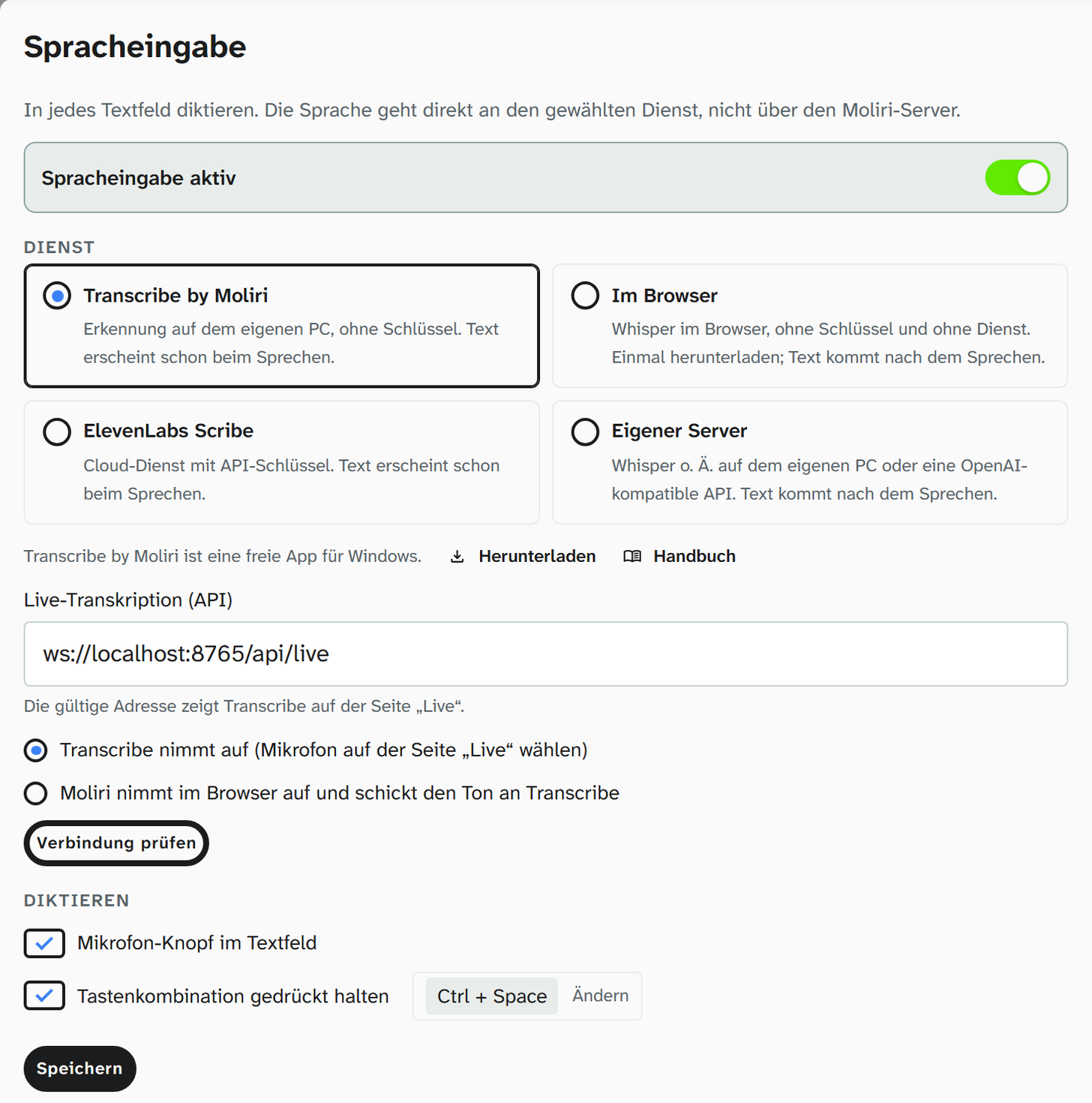
Transcribe as the speech input service in Moliri.
After that, every text field in Moliri has a microphone; alternatively, hold down the keyboard shortcut, at first Ctrl + Space. The text appears while you are still speaking. Transcribe recognises the language itself.
Text recognition
-
In Moliri, open the profile and choose Text recognition.
-
As the Default place, choose Transcribe on this computer. The Address of Transcribe is usually
http://localhost:8765. -
Check connection, then Save. When everything is ready, the place’s box says „connected“ and names the recognition engine Transcribe uses.
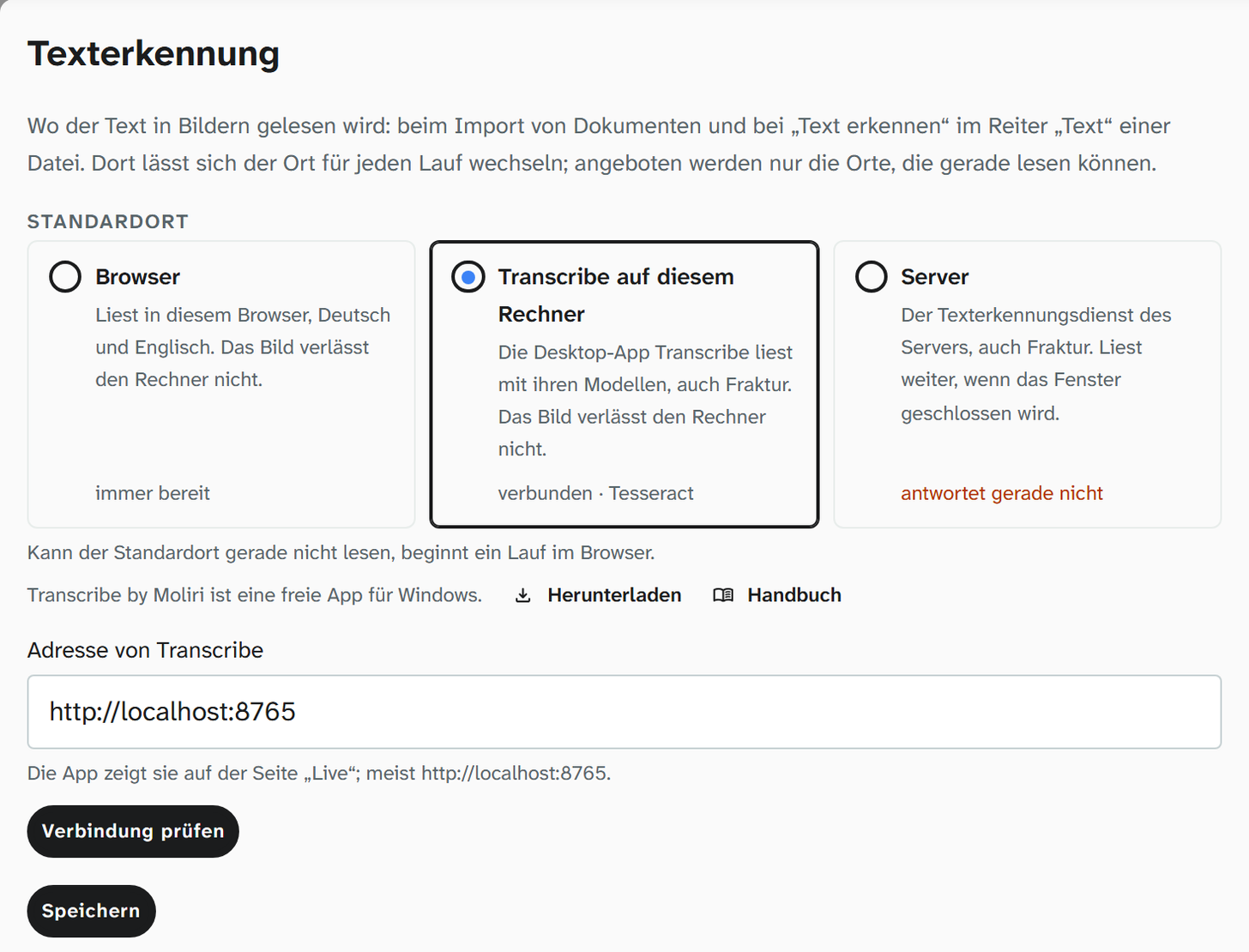
Transcribe as the default place for text recognition.
The import of documents and Recognise text in a file’s „Text“ tab then start with Transcribe. You can also choose a different place there for a single run. If Transcribe does not answer, Moliri starts in the browser.
Transcribe reads print, typescript and Fraktur. Which recognition engine it uses and how it reads your own images, you can try out in Transcribe under Einstellungen → Texterkennung (settings, text recognition). Transcribe downloads the models the first time it reads.
Field search
The field selection in Moliri also finds fields by their meaning: „artist“ finds Creator. The language model for this can run in the browser or in Transcribe. In Transcribe it is kept once for all browsers on the computer, and a search there takes about a tenth of a second instead of a second.
-
In Moliri, open your profile and choose Field search.
-
Switch on Also find fields by meaning and under Where the model runs choose Transcribe on this computer. The Address of Transcribe is usually
http://localhost:8765. -
Check connection. If Transcribe does not have the model yet, Download in Transcribe (295 MB) fetches it once; after that the place’s box says „connected · model ready“. Then Save.
In Transcribe the model is listed under Einstellungen (settings) as „Suche nach Bedeutung (EmbeddingGemma)“ (search by meaning) and can be downloaded there as well. Once loaded, it takes up about 1.4 GB of memory; after a quarter of an hour without a search, Transcribe frees it again. If Transcribe does not answer, the model runs in the browser, provided it is stored there. There is more on this on the page Field search in the profile.
Filter in your own words
The Detailed Search in Moliri turns a sentence such as paintings after 1900 without a location into the conditions of a filter. Instead of your instance’s AI account, Transcribe can read the sentence, with the language model Qwen 2.5 7B on your computer. The sentence and field names then do not leave it.
-
In Moliri, open your profile and choose Field search.
-
Under Filter in your own words choose Transcribe on this computer. The Address of Transcribe is usually
http://localhost:8765. -
Check connection. If Transcribe does not have the language model yet, Download in Transcribe (4490 MB) fetches it once; after that the place’s box says „connected · language model ready“. Then Save.
In Transcribe the model is listed under Einstellungen (settings) as „Filter in eigenen Worten (Qwen 2.5 7B)“ (filter in your own words) and can be downloaded there as well. Without a graphics card, the first question about a project takes just under two minutes, and each further one about half a minute to a minute; Moliri shows below the input field how far Transcribe has got. Once loaded, the model takes up about 5.5 GB of memory; after a quarter of an hour without a question, Transcribe frees it again. There is more on this on the page Field search in the profile.
Allowing Moliri in Transcribe
Programs on the same computer may always connect to Transcribe. Moliri, however, runs as a website at your institution’s address, and Transcribe only admits websites once you allow them. On the first attempt, Moliri reports that Transcribe refuses the connection.
-
In Transcribe, open the page Live and choose Programme verbinden at the bottom left.
-
Under Wollten sich verbinden (wanted to connect) you see the address of your Moliri instance. Choose Erlauben (allow).
-
In Moliri, click Check connection again.
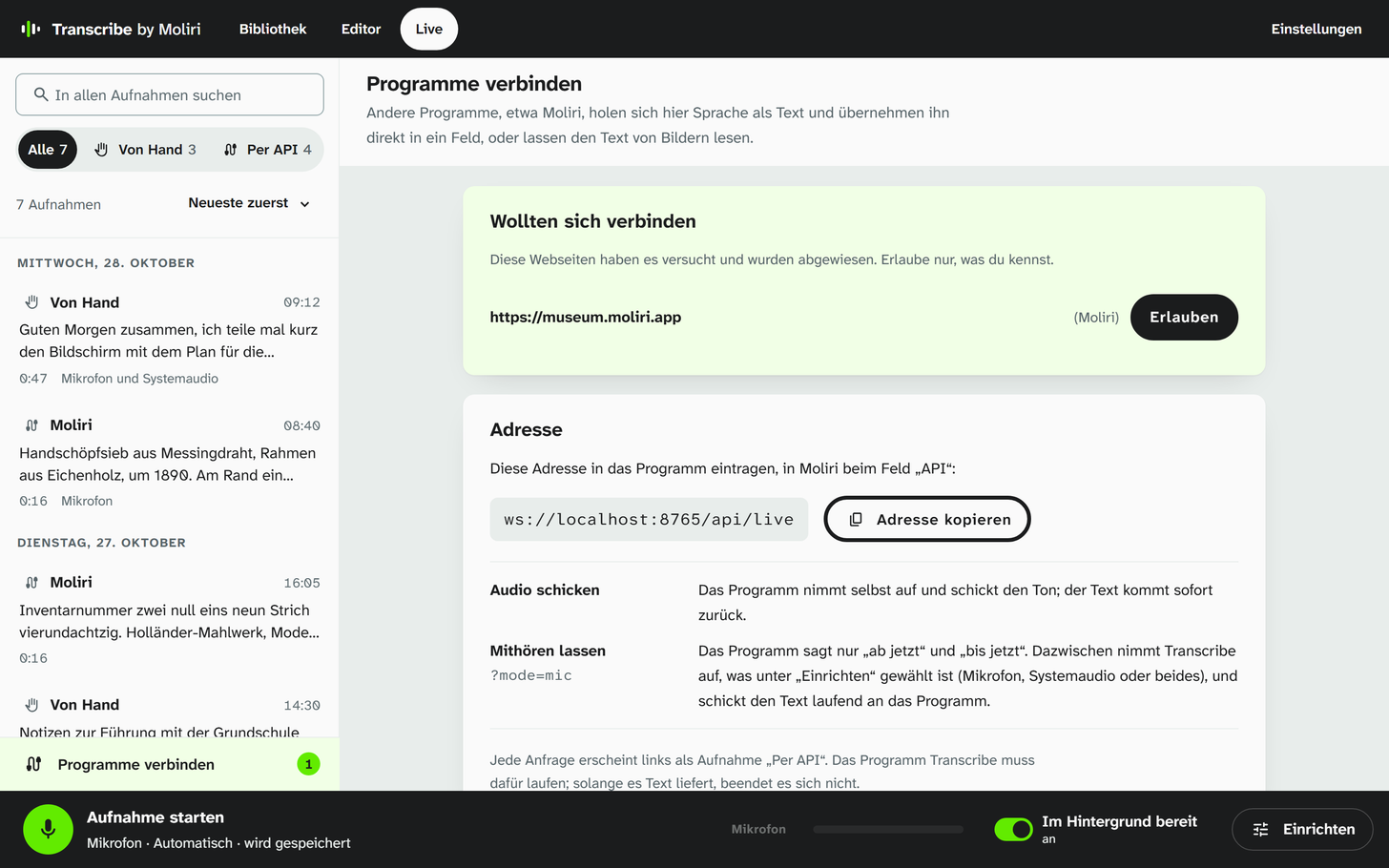
A Moliri instance that wanted to connect.
The permission applies to speech input, text recognition and field search at once. Under Wer sich verbinden darf (who may connect) you can withdraw it with Nicht mehr erlauben (no longer allow). Whether the live notes from Moliri stay in Transcribe is set with Anfragen als Aufnahme speichern (save requests as recordings) on the same page.