
Profile
Field search
The Field search page in the profile decides whether the field picker also finds fields by their meaning. Without this setting it finds a field only by its name: if you type “Künstler” (artist), it does not find a field called Urheber (creator). With it, a row By meaning: appears above the list as you type, with fields that have a different name but mean the same. The setting applies to your own account only.
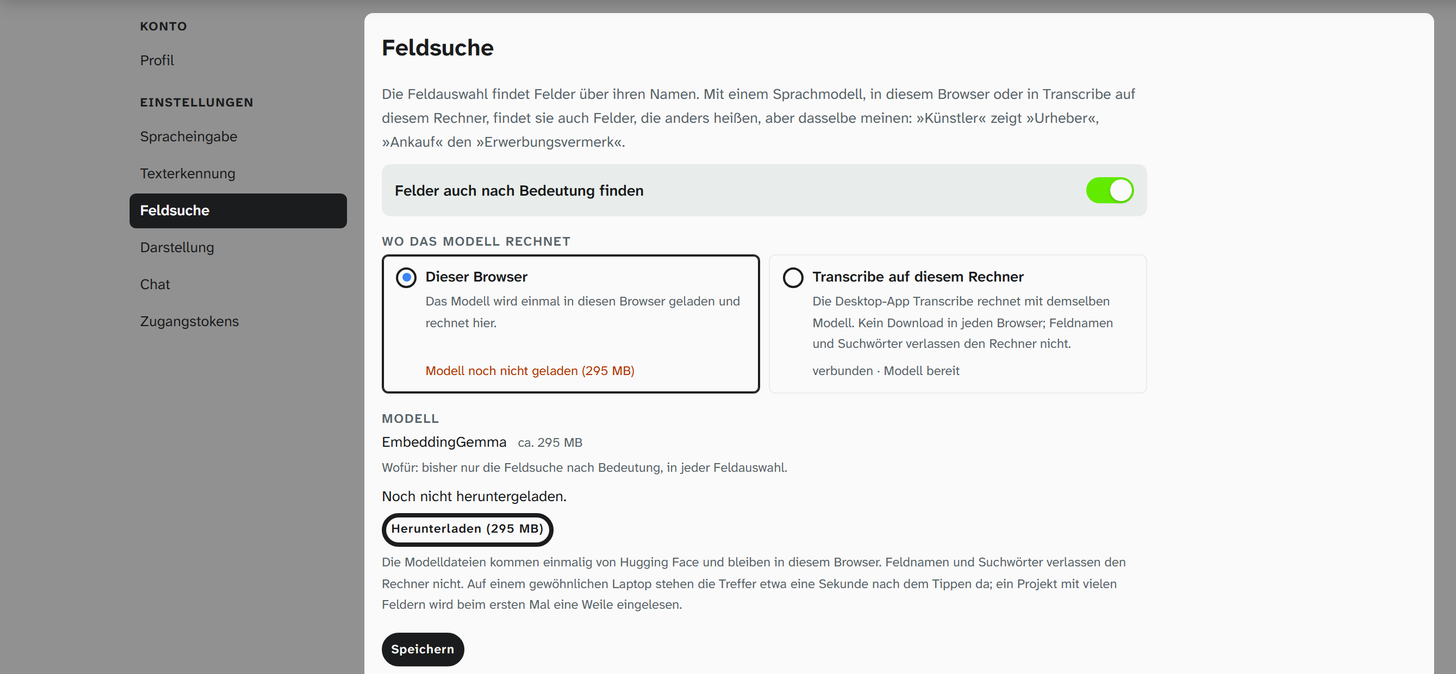
Where the model runs
Under Where the model runs you choose between two places, each shown with its state:
| Place | What happens |
|---|---|
| This browser | The model is downloaded into this browser once (295 MB) and runs there. In another browser or on another computer you download it again. |
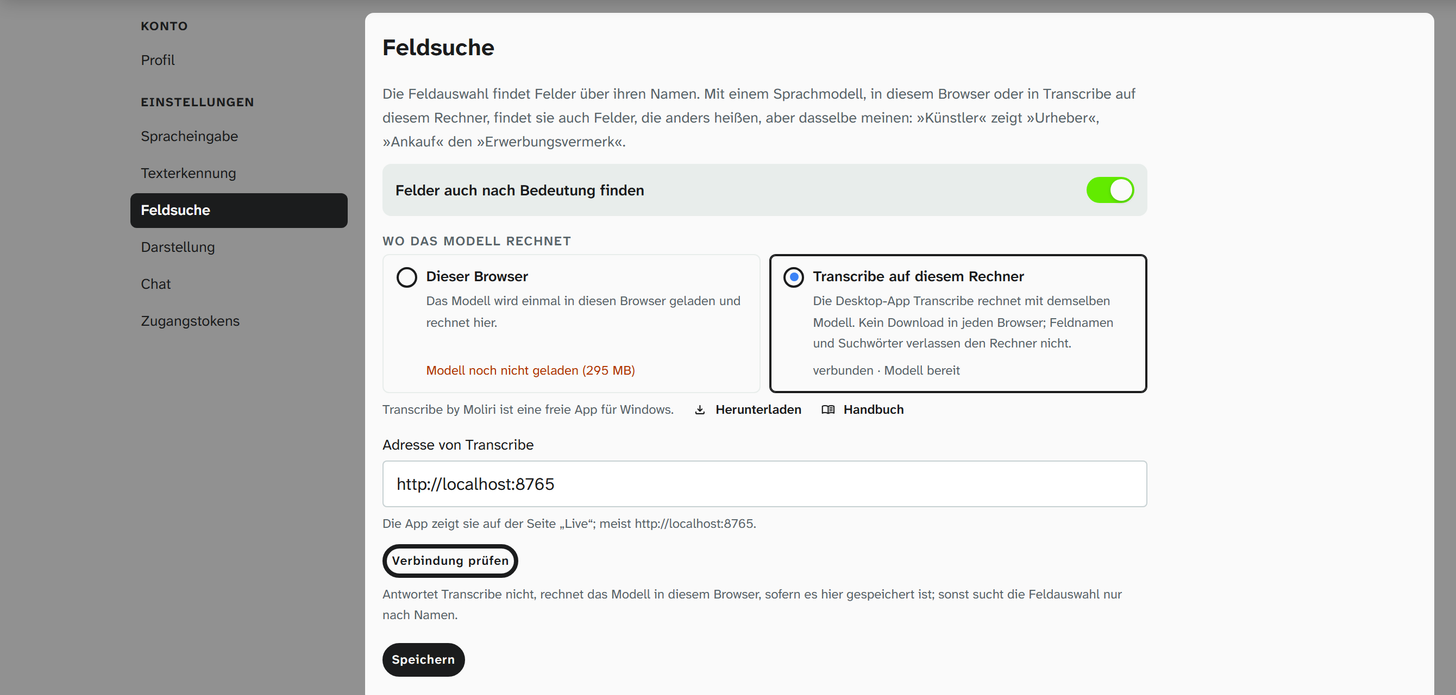
| Transcribe on this computer | The desktop app Transcribe by Moliri runs the same model. It is stored once in Transcribe, for all browsers on the computer, and a search there is clearly faster. |
Both places give the same results, and the fields already read in count for both. In neither place do field names and search words leave the computer.
Switching on in the browser
- Switch on Also find fields by meaning.
- Choose This browser.
- Under Model, click Download (295 MB). A bar shows how far the download has got. Afterwards it reads Stored in this browser and loaded.
- Save.
Below the model’s name it says what the model is used for: the field search by meaning in every field picker and suggestions by the column header in the Excel import . This helps you weigh up whether the roughly 300 MB in the browser are worth it.
The model files come from Hugging Face once and stay in this browser. On another computer or in another browser you download them there again. Field names and search words do not leave the computer. Remove from browser deletes the model and the stored details about the fields again; the switch stays as it is.
Switching on with Transcribe
Transcribe must be running on this computer (see Installing and first start ).
- Switch on Also find fields by meaning.
- Choose Transcribe on this computer. The Address of Transcribe is usually
http://localhost:8765. - Check connection. If Transcribe does not have the model yet, the place’s box reads connected · model not in Transcribe yet, and Download in Transcribe (295 MB) appears next to it. A click downloads it into Transcribe; a bar shows how far it has got. Afterwards it reads connected · model ready.
- Save.
Moliri runs at your institution’s address and has to be allowed in Transcribe once, as for speech input and text recognition (see Allowing Moliri in Transcribe ). Until then the place’s box reads this page is not yet allowed in Transcribe.
If Transcribe does not answer, for example because the app is not running, the model runs in this browser, provided it is stored here; otherwise the field picker finds fields by their name only. If the model is stored in the browser as well, the page says so and offers Remove from browser: with Transcribe, the browser does not need it.
In the field picker
The row By meaning: appears in every field picker, for example in the detailed search , in the view settings or in the export, as soon as three characters have been typed. It shows up to three fields; a click chooses the field just like an entry in the list.
| Typed | By meaning, example |
|---|---|
| Künstler (artist) | Urheber (creator) |
| Ankauf (purchase) | Erwerbungsvermerk (acquisition note) |
| Herkunft (origin) | Entstehungsort (place of creation), Provenienz (provenance) |
What the list already shows by name is not repeated in the row. If the model finds nothing suitable, the row reads nothing more. The model can also be wrong; the row is a suggestion, and the list below it is what counts.
The comparison uses the name of the field, its labels in the project’s layouts and the hint text on the field. A well-described field is therefore found more reliably.
Waiting time
Hits by name appear at once, hits by meaning come later; until then the row reads searching …. In the browser a search takes about one second on an ordinary laptop, in Transcribe about a tenth to a fifth of a second. The first time you open a field picker in a project, the model first reads in the project’s fields: in the browser about a third of a second per field, in Transcribe about a fifteenth of a second, so a few seconds for 86 fields. After that they are stored in this browser, and only new or renamed fields are read again.
The model starts as soon as a field picker gets the focus, but only if it is already stored in the browser or in Transcribe. Without a download the field picker stays as it is. After starting, Transcribe needs about ten seconds until the model is loaded, and it frees the memory again after a quarter of an hour without a search.
Filter in your own words
Below the field search you choose where the sentence in the Filter in your own words input of the detailed search is read.
| Place | What happens |
|---|---|
| The instance’s AI account | The chat model that the administration has set up reads the sentence and the field names. The place’s box shows its name or no AI account set up |
| Transcribe on this computer | The desktop app asks Qwen 2.5 7B on your computer; the sentence and the field names do not leave it. No AI account is needed then |
For Transcribe, Address of Transcribe and Check connection work as for the field search. If Transcribe does not have the language model yet, Download in Transcribe (4490 MB) downloads it once; afterwards the place’s box reads connected · language model ready. Then Save.
Without a graphics card, the first question about a project takes just under two minutes, because the model reads the field catalogue; each further one takes about half a minute to a minute. Transcribe keeps the catalogue it has read, even across a restart. While Transcribe is working, the text below the input says whether it is loading the model, reading the field catalogue (as a percentage, with a bar) or writing the suggestion, and since when. Once loaded, the model takes up about 5.5 GB of memory; after a quarter of an hour without a question, Transcribe frees it again.
Further reading
- Profile : all pages of the profile
- Filter : detailed search and field picker
- Speech input : a second model in the browser, for dictation
- Connecting Transcribe to Moliri : speech input, text recognition and field search with the desktop app