
Profile
Text recognition
The Text recognition page in the profile determines where Moliri reads the text in images: in the OCR import of documents and scans, and with Recognise text in a file’s Text tab. Each person chooses their own default place. Every run starts there; in the tab and in the import you can switch the place for a single run.
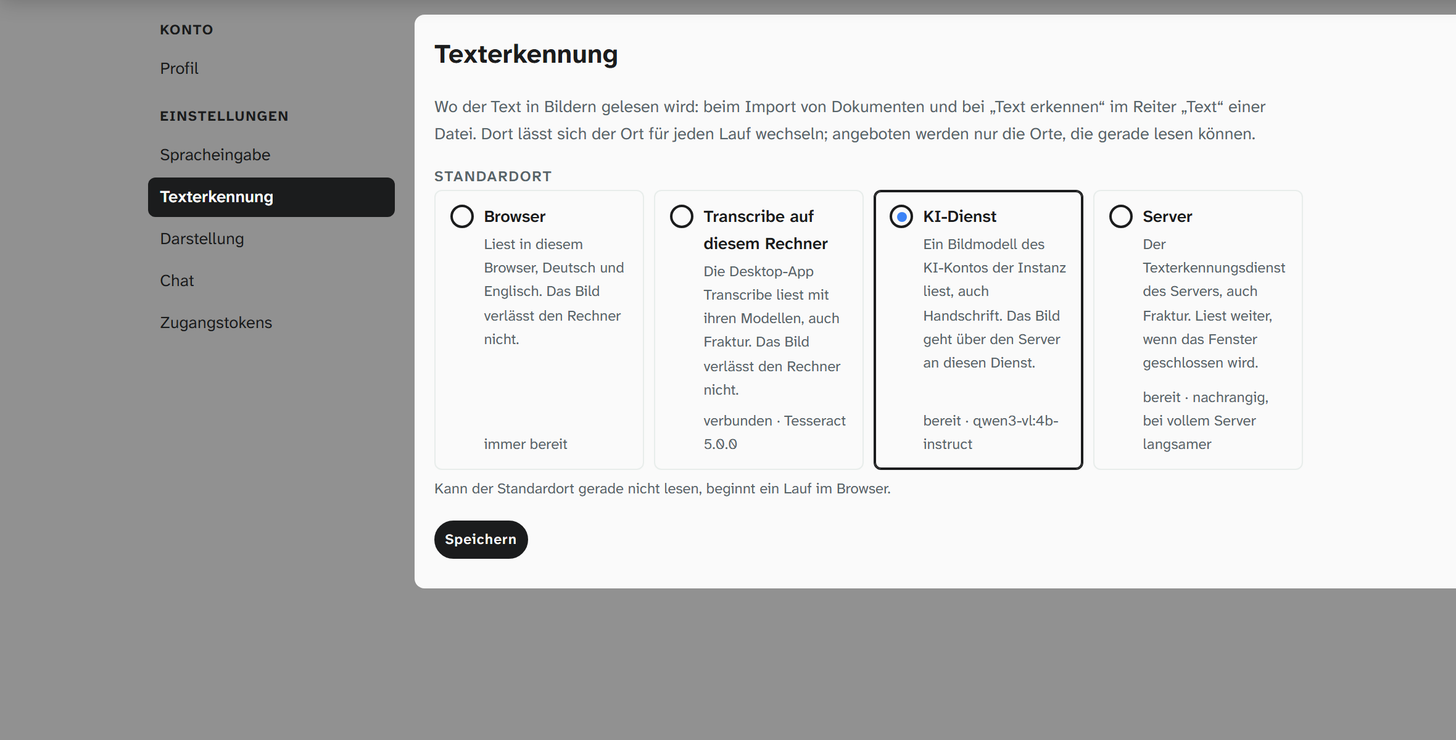
Default place
The places stand side by side, each with a sentence on what it can do and its state below. In a new setup the browser is selected.
| Place | What reads there | Languages | State |
|---|---|---|---|
| Browser | The text recognition in this browser. The image does not leave the computer | German and English | always ready |
| Transcribe on this computer | The desktop app Transcribe with its models. The image does not leave the computer | German and English, Fraktur too | connected with the name of the recognition engine, not reachable or this page is not yet allowed in Transcribe |
| AI service | An image model of the instance’s AI account, also for handwriting in Latin script. The image goes to this service through the server | all, Fraktur too | ready with the name of the model, or not available on this instance |
| Server | The server’s text recognition service. It keeps reading when the window is closed | German and English, Fraktur too | ready · last in line, slower on a busy server or not answering right now |
The page only shows the AI service where the instance has set it up for text recognition: the AI account has a Model for text recognition, and it is not switched off on the instance’s Text recognition page. It does not read Kurrent reliably; more on this under Recognised text .
When it opens, the page asks Transcribe, the AI service and the server whether they can read; until the answer arrives, it shows checking …. If the default place cannot read at the moment, for example because Transcribe is not running or the AI service is switched off, a run starts in the browser. The default place stays saved all the same and applies again as soon as it can read.
Save applies the choice. It applies to your account in all projects, on every computer where you sign in.
Transcribe on this computer
Transcribe is a Windows app from Moliri. It recognises speech for speech input and reads the text in images, both on your own computer. When Transcribe on this computer is selected, these appear below it:
| Field | Meaning |
|---|---|
| Address of Transcribe | Usually http://localhost:8765. The app shows the valid address on its Live page |
| Check connection | Queries Transcribe. If the app answers, Moliri reports Transcribe is connected with the name of the recognition engine, otherwise the reason |
The address applies to the account, not to the computer. If you work on several computers, you need Transcribe at the same address on each of them, otherwise Moliri reads in the browser there.
Allowing Moliri in Transcribe
Pages from this computer (localhost) may use Transcribe without further ado. A Moliri instance at a
different address first has to be allowed in Transcribe. Until then the place shows this page is not
yet allowed in Transcribe, and Check connection names the address to allow.
-
Open Transcribe, the Live page, Programme verbinden (connect programs). Under Wollten sich verbinden (wanted to connect) you see the address of your Moliri instance.
-
Click Erlauben (allow) next to the address. It then appears under Wer sich verbinden darf (who may connect).
-
In Moliri, click Check connection. The state changes to connected.
The permission applies to speech input and text recognition at once. If you have already allowed Moliri for dictation, there is nothing more to do.
Messages
| Message | Cause |
|---|---|
| Transcribe does not answer. Is the app running on this computer at the address in the profile („Text recognition“)? | Transcribe has not been started, or the address is wrong |
| Transcribe has not allowed this page yet. | Moliri is not yet allowed in Transcribe, see above |
| connected, but without text recognition | This version of Transcribe cannot read text in images yet. Update Transcribe |
| Transcribe answers in a format Moliri does not know. Please update Transcribe. | The versions of Transcribe and Moliri do not match |
Further reading
- Recognised text : the Text tab with the choice of place for each run
- Speech input : Transcribe for dictation
- Profile : the other pages of the profile