
Files
Rules and night window
In the file window you can transcribe any recording by hand and recognise the text in any image. For many files there are rules: when a file gets a particular keyword, Moliri queues the job by itself. The rules and the night window are under System → Settings → Text recognition and require status 9.
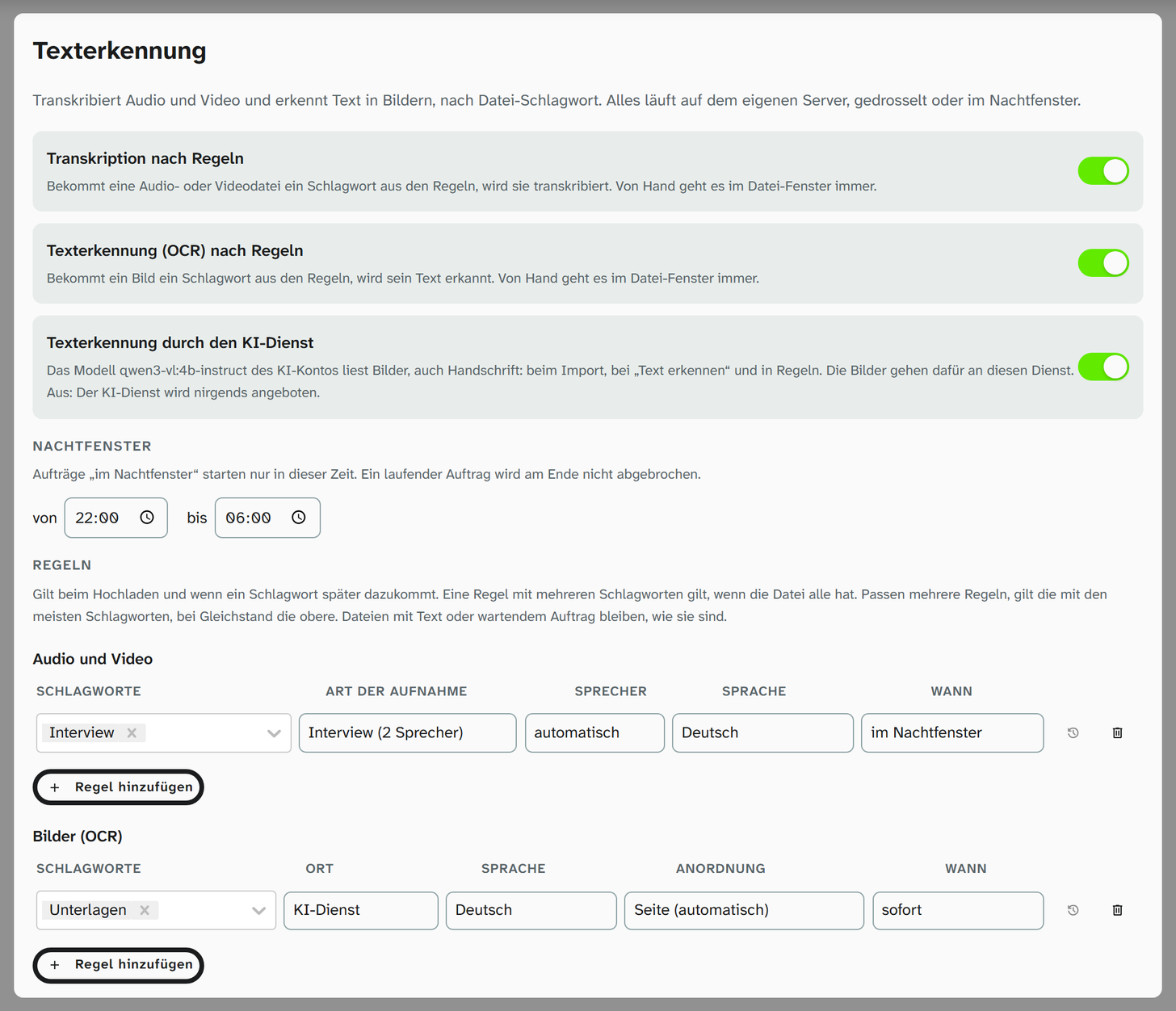
Switches
| Switch | Effect | Default |
|---|---|---|
| Transcription by rules | When an audio or video file gets a keyword from the rules, it is transcribed | off |
| Text recognition (OCR) by rules | When an image gets a keyword from the rules, its text is recognised | off |
| Text recognition by the AI service | The AI account’s model for text recognition reads images: in the OCR import, with Recognise text and in rules. Off: the AI service is not offered anywhere | on |
Doing either by hand in the file window always works, even with the rules switched off.
Text recognition by the AI service
The switch appears as soon as the AI account has a Model for text recognition; the name of the model is shown next to it. It applies to the whole instance. When it is on, the Text tab, the OCR import and the profile offer the AI service as a place, and the rules for images get the Place column. The images then go to the service of the AI account. If you do not want that, for example because the AI account is an outside provider, switch it off.
The AI service reads handwriting in Latin script, but Kurrent not reliably. What it can do and what its result looks like is described under Recognised text .
Night window
Jobs in the night window only start between the times from and to; the default is 22:00 to 06:00. A running job is not stopped at the end of the window. A job that is waiting for the window can be brought forward in the Transcript tab with Start now.
Rules
There are two tables, Audio and video and Images (OCR). A rule names one or more keywords and the settings for the job:
| Table | Settings |
|---|---|
| Audio and video | Kind of recording, Speakers, Language, When (now or in the night window), as when transcribing |
| Images (OCR) | Place, Language, Layout, When, as when recognising |
The Place column only appears where the AI account has a model for text recognition or a rule already names the AI service. You can choose between Server and AI service; without the column, the server reads. If a rule names the AI service while it is switched off, the page says so: the images of this rule are not recognised until it is on again or the rule names the server.
A rule applies when a file gets its keyword: on upload, when the keywords are edited and when a file with keywords is attached. An upload never waits for the job.
| Case | What applies |
|---|---|
| Rule with several keywords | The file needs all of them |
| Several rules match | The one with the most keywords; on a tie, the one higher up |
| File already has text or a waiting job | It stays as it is |
Example: the rule Unterlagen (documents) recognises German, the rule Unterlagen + Englisch (documents + English) recognises English. A scan with both keywords is read as English, one with only Unterlagen as German.
Keywords are matched regardless of upper and lower case. The page rejects the same keywords appearing twice in one table.
Backfill for existing files
A rule acts on files that newly get its keyword. For files that already have it, each rule has Apply to existing files.
| Step | Audio and video | Images |
|---|---|---|
| Count files | Files with the keyword that have no transcript, their total length, the estimated compute time and, for in the night window, the number of nights | Images with the keyword that have no recognised text, and the estimated compute time (about 10 seconds per image) |
| Start backfill | Queues files until the Limit in hours of recording is reached and says how much is left. Another backfill takes the rest | Queues all counted images |
Nothing is queued before Start backfill. The backfill requires the switch for its kind to be on. The compute time is an estimate; the first jobs show how long it takes on your own server.
Jobs in the worker dialog
In the file library (Libraries → Files) the Upload workers and queue button opens the worker dialog. Transcription and text recognition run there in a worker of their own, labelled Transcription, OCR; next to it you can see whether the Transcription service answers.
| Kind | What runs |
|---|---|
| Transcription | A transcript, by hand, by rule or in a backfill |
| Text recognition (OCR) | The text of an image, on the server or by the AI service |
| Text recognition backfill | Counting and queueing for a backfill |
| Recognise language again | Passages of a transcript whose language has been set |
While it runs, a job shows the step, the progress and its position in the service; a job in the night window shows from and the time. After the run, language, length, words, speakers and the real-time factor are shown with it. Failed jobs are listed on the Failed tab and can be put back with Requeue.
Further reading
- Transcript : the tab for audio and video
- Recognised text : the Text tab for images and PDFs
- File library : the files’ keywords