
Import and export
OCR import
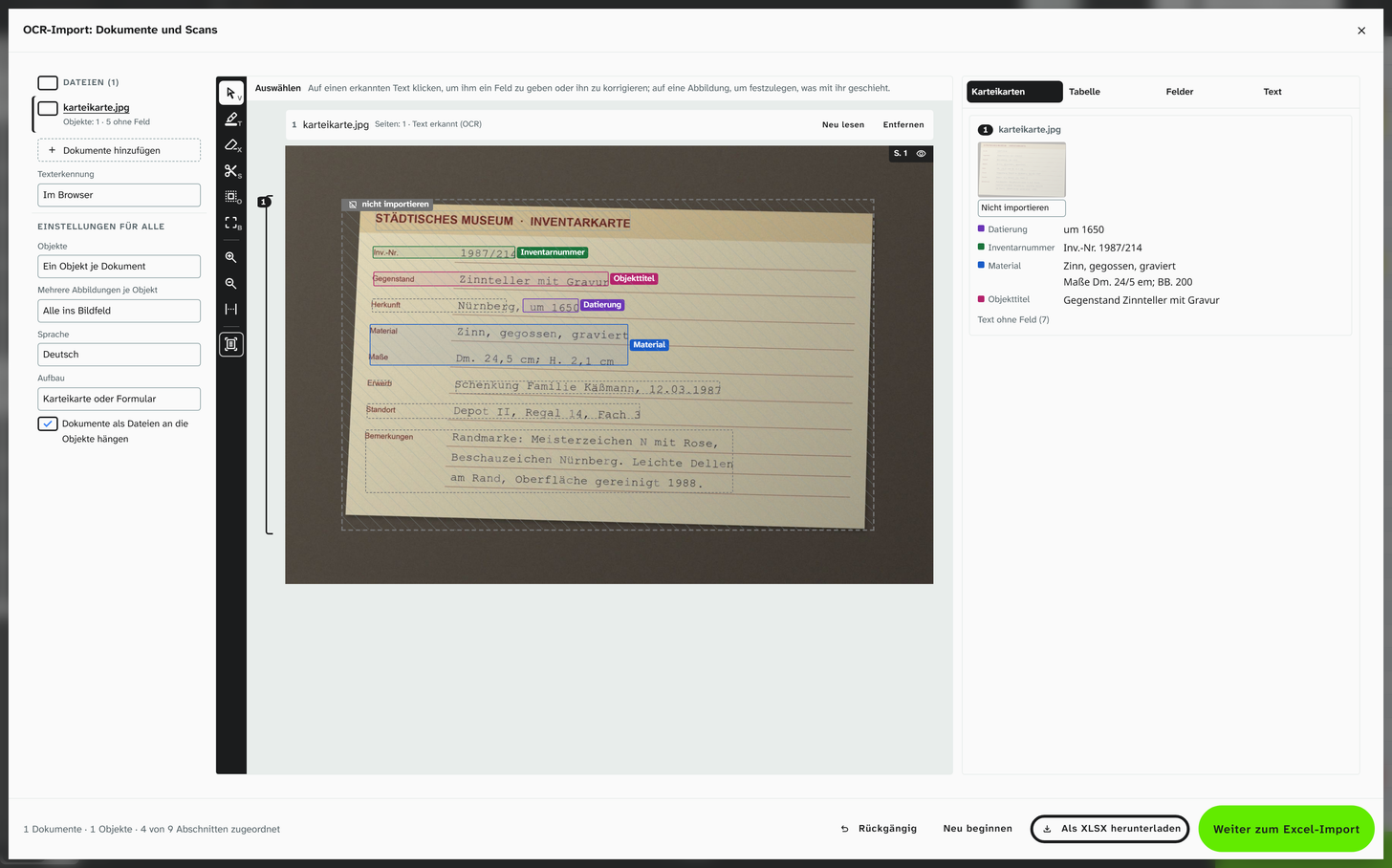
The OCR import turns typed index cards, inventory lists and old catalogues into objects. It reads PDFs and scans, divides the text into objects and gives each section a field of the project. You check what it has read on the pages themselves, and on the right you see which objects come out of it. The result is taken over through the Excel import , with a preview and as one step in the history. It reads printed and typed text. Handwriting in Latin script is read only by the AI service , and none of the places reads Kurrent reliably.
You open it in the sidebar under Data In- & Export, section Import, Documents and scans (OCR). The objects are created in the project in which you open it.
Loading documents
Drag files into the window or click to choose them, many at once. Later you can add more with Add documents or by dragging them onto the review view; while they hover over it, a dashed frame shows that the window accepts them.
| Format | Accepted |
|---|---|
| yes. If a page has its own text, it is read directly, without text recognition | |
| JPG, PNG, WebP, GIF, BMP | yes |
| TIFF, HEIC and others | no, Format not readable. Save as PDF, JPG or PNG first |
The documents are read one after the other. The list on the left shows the status of each document (waiting, reading … n %) and afterwards how many objects come out of it and how many sections still have no field. A click on a document jumps to it in the middle; the document currently in view is underlined in the list. Above each document it says how many pages it has and where the text comes from: Text from the PDF or Text recognised (OCR). Read again reads it once more, Remove takes it out after a confirmation.
Settings
The settings are on the left below the files. Without ticks they apply to all documents and to those you add
later (Settings for all). If you tick documents, they apply only to those (Settings for n selected); this
way a list of works gets One object per page while the index cards next to it keep One object per
document. With Shift and a click you tick all documents between two. If the selected documents have
different values, it says mixed there.
Objects and Several pictures per object take effect at once. A different Language or Layout only takes effect when reading: the document then appears in the list as Settings changed, read again, and Read with new settings (n) reads these documents once more. Text recognition applies to all documents.
| Setting | Choice | Default |
|---|---|---|
| Text recognition | In the browser, With Transcribe on this computer, With the AI service or On the server. What can read at the moment is offered; if only the browser can read, the choice is missing | The default place from the profile, if it can read at the moment, otherwise In the browser |
| Language | German, English, German and English; with Transcribe, with the AI service and on the server also German + Fraktur | German |
| Layout | Index card or form, Text in columns | Index card or form |
| Objects | One object per document, One object per page, Several objects per page. If you have set object boundaries by hand, it says below how many | One object per document |
| Several pictures per object | All into the image field, First into the image field, others as files, Only the first | All into the image field |
| Attach the documents to the objects as files | on, off | on |
In the browser and with Transcribe on this computer, the documents are not uploaded for text recognition. Transcribe is Moliri’s desktop app; its address is in the profile under Text recognition, where each person also chooses their default place. On the server, the instance’s transcription service reads, the same one as on the Text tab of the file window. Transcribe and the server also read Fraktur. On the server, text recognition runs with low priority. If a page waits longer, the list says so and offers Continue in the browser; the browser then reads this page and the remaining ones.
With the AI service, an image model of the AI account reads the pages, one after the other, as long as the dialog is open. Each page goes as an image through the server to the service of the AI account. This place is only available where the AI account has a Model for text recognition and the instance has not switched off text recognition by the AI service . The AI service also reads handwriting in Latin script, for example handwritten index cards in today’s cursive hand. It does not read Kurrent reliably: there the models invent text that sounds fluent and has little to do with the sheet. A model on your own server can take several minutes for one page.
The AI service delivers lines without word boxes, their position on the sheet only approximately, and no uncertain words. The import still forms the sections and their frames; on these pages n unsure has nothing to jump to.
With Several objects per page, a new object begins as soon as a field recurs that is already filled in the current object. In a list of works whose thumbnails are stacked one below the other, each image begins a new object. Where an object begins and ends is shown in the margin next to the pages (Object boundaries ).
With Attach the documents to the objects as files, each object gets its document as a file during the import. If an object consists of single pages of a PDF, these pages are attached as images.
How a section gets its field
Moliri divides the text of each page into sections and looks for a field for each one. Next to the field it says where the assignment comes from:
| Note | Origin |
|---|---|
| from the label | The section begins with the name of a field, such as “Inventarnummer: …”, also in a similar spelling |
| as with other objects | You have already assigned the same label elsewhere, or the section is at the same position on a page of the same size as an assigned one |
| same place in the order as in other objects | The section has the same place in the order of its object as an assigned one in another object: the first text after the figure, the second and so on |
| by content | The text resembles the values the field already has in the project, such as dates or measurements |
| proposed by AI | Assigned after Ask AI |
| assigned by hand | Your decision. It takes precedence over everything else |
| entered by hand | A text you wrote on the page yourself (Entering text ) |
What you decide is picked up by the other documents and objects as soon as the label or position matches. In a list of works you assign the lines of the first work, and the other works of the same document follow.
Where the position on the page says nothing, the order counts. If the caption is centred below figures of different heights, it sits somewhere else on every page; title, date, technique and dimensions still follow in the same order. If an object has one text more or fewer, such as the frame size as well, Moliri lines the objects up by what they share: a date stands only for a date, a measurement only for a measurement, similar texts for similar ones. Objects with as many texts count most. Only objects of the same kind are compared, both with a figure or both without, on pages of the same size. If two details of an object come in another order, such as dimensions before technique, the order does not see it; then the position on the page or your own assignment helps.
If two of your decisions disagree, such as Titel on the first work and Originaltitel on the second, the other works follow the object with as many texts and then the closest one, here the second. The other field then stands at the top of the field picker in Assign field, marked Suggested: stands here in other objects.
The page shows who gave a field: a field you gave yourself has a filled tag; one Moliri took over has an outlined tag and a lighter frame. The legend by hand and taken over above the pages explains this. On the cards, values taken over have a dotted underline; point at one to see where the assignment comes from. Changing a field that was taken over makes it your decision, and it gets the filled tag. How well the assignment by content works depends on the values the project already has.
Figures
Moliri finds figures on the page and, for PDFs, takes the embedded images. They go into the first image field of the project, or into the first file field if there is no image field. If the title image is the first image field, they become the title image. If an object has several figures, the setting Several pictures per object decides what happens to the second and any further ones. A figure that sits in the same place on several pages, such as a logo, is not taken over.
Each figure carries a tag on the page: the field, as a file of the object or not imported. A click on the figure decides what happens to it:
| Choice | Effect |
|---|---|
| Into a field | The figure goes into the chosen image or file field |
| Only as a file of the object | The figure is attached to the object as a file, in no field. This only works through Continue to Excel import; in the XLSX it is in the column Abbildungen (OCR) (figures) |
| Do not import | The figure stays out and appears hatched |
| No picture (wrongly detected) | Removes the frame; there was no figure there |
Every figure has the same choice in the Cards preview. If an object has several, Change all … changes them for this object in one go. You draw a figure that was not found on the page with the Figure tool.
For all objects
Some details appear only once in the document and apply to every object, such as the artist’s name on the title page. In Assign field you choose under Applies to:
| Applies to | Effect |
|---|---|
| this object | The text belongs to the object it stands in |
| all objects | The text goes into the chosen field of every object of the import |
| selected objects | The text goes only into the ticked objects, listed with their number from the preview |
The tag on the page and the value on the card then say all objects or n objects. A page that holds only such texts becomes no object of its own; so the title page drops out of the preview. The choice selected objects depends on how the documents are split into objects: if you change that afterwards, choose the objects again.
Leaving out
Headers and footers that recur on most pages, and page numbers, are left out by the import on its own (on many pages). You leave out a section in Assign field or in the Text preview with the eye icon (Leave out). The same text on other pages and in other documents is then left out as well (the same text is left out elsewhere). Take in after all brings it back. Text that is left out appears hatched on the page and does not go into the table.
With the Exclude tool you draw a frame around everything that is not to be imported, such as a letterhead or a stamp. Whatever lies inside it, text and figures alike, stays out (in an excluded area). With on every page on the frame’s tag, it applies at the same place on every page of the document; the × takes the area back in. A click with this tool on a single text or figure leaves out only that one or takes it back in. Excluded areas are kept on Read again.
Ask AI
Ask AI hands the sections of the document shown that do not yet have a certain field, and that you have not decided yourself, to a language model. Along with them it gets the project’s most used fields, each with up to three existing values. While it works, it says AI is thinking … n s; with a small model the answer can take a few minutes. Similar documents take over the suggestions by their position on the page. The button appears as soon as an AI account is set up and you have write access in the project.
Checking the pages
In the middle, all pages of all documents are shown one below the other, for scrolling through. To the left of them is the toolbar, with a sentence above saying what the chosen tool does. On every page each section is framed; a section with a field is coloured and carries the name of its field to the right of it, a section without a field is grey and dashed, one that is left out is hatched. At the top right of every page are its number and the eye Do not import this page; a page that is not imported appears faded.
Tools
A tool stays on until you choose another one or press Esc. Each has a key.
| Tool | Key | Effect |
|---|---|---|
| Select | V | A click on a section opens Assign field: the text for correction and the usual field picker. A click on a figure decides what happens to it |
| Mark text | T | Draw a frame around text and give it a field. Several lines, also from different sections, become one field. If a field is chosen above the pages under Field when marking, the text gets it straight away, without asking; then a click on a section is enough too. If the frame holds no recognised text, you type it in yourself (Entering text ) |
| Exclude | X | A frame excludes everything inside it, on every page if you want; a click leaves out a single text or figure (Leaving out ) |
| New object from here | S | A click on the page: the next object begins there (Object boundaries ) |
| Object | O | Draw a frame around everything that belongs to one object. Text outside the frames of a page is not imported. On the frame’s tag you choose the object, also one from another page, or remove the frame |
| Figure | B | Draw a rectangle around a figure that was not found. It gets the first image field, and then the tool switches itself off |
Below them are zoom in (+), zoom out (-), Page width (0) and the switch for the frames of the
sections. Alt + → and Alt + ← jump to the next and previous document.
Assign field shows the text for correction, with several objects Applies to (For all objects ), and below it the usual field picker. For a whole section, a chosen
field applies straight away; so choose Applies to before the field. For marked text, Apply (or Enter) takes over text, field and Applies to. Leave out leaves the text out, Esc closes without
changes.
Entering text
If the page holds text the recognition did not read, such as a handwritten inventory number on a printed sheet, draw a frame around it with Mark text. If the frame holds no recognised text, Assign field opens with an empty text: you type it in, choose the field and Apply. The section then has a dotted frame on the page, says entered by hand in the Text preview and belongs to its object like any other.
Object boundaries
In the left margin of every page there is a bracket for each object with its number, the same as in the preview. If an object continues on the next page, the bracket is open at the bottom, and on the next page at the top. If you point at a bracket or at a card in the preview, the object is highlighted on the page; a click on the bracket shows its card.
Between two pages of a document it says how it continues:
| Between the pages | Button | Effect |
|---|---|---|
| Object n continues on the next page | Split here | A new object begins with the next page |
| A new object starts here | Join with the page before | The next page belongs to the object of the page before |
Pages with the same caption as the page before, such as several photos of one work, belong together automatically. Identical text counts only once in the object.
If there are several objects on one page, use New object from here to set a line where the next one begins. Whatever is above the first line belongs to the object before, even if that began on the previous page. With Several objects per page, the lines Moliri has found by itself appear dashed (New object (detected)). The × on a line removes the split. If you set or remove a line on a page, only the lines you can see apply there from then on.
This way a catalogue in which one work spans two pages and the third page holds two works becomes three objects: Split here between page 2 and 3, and on page 3 a line between the two works.
Preview
On the right you see which objects the import creates, in four views:
| View | Shows |
|---|---|
| Cards | One card per object with its number, its figures and its fields, as the object will get them. Text without a field is folded away below. Each value is the section it comes from: point at it and its frame lights up on the page; a click shows it on the page and opens Assign field to change text, field and Applies to there. A click on a section of the page in turn highlights its value on the card. If an object has several values in several fields, the card asks are these several objects? and offers One object per page or Several objects per page for this document |
| Table | One row per object, one column per field, as the Excel import receives them. An empty field can be recognised by a short dash |
| Fields | Field by field, the value of each object and how many objects have the field (3 of 5). Where a value is missing, it says missing |
| Text | The text of the document currently in view, section by section, with search and n unsure |
A click on an object in the preview shows it on the page.
In the Text view the text uses the same editor as the Text tab of the file window (Recognised text ):
| In the Text view | Effect |
|---|---|
| Field button on the section | Opens Assign field for the whole section |
| Editing the text directly | Enter jumps to the next section, Shift + Enter makes a new line, Esc takes back the input. The change is applied when you leave the section |
| Selecting part of the text | Opens Assign field for that part |
| n unsure | Jumps to the next section with words recognised with uncertainty. These only exist after text recognition, not for PDFs with their own text |
Taking over
The footer shows how many documents and objects there are and how many sections have a field.
| Button | Effect |
|---|---|
| Continue to Excel import | Opens the Excel import with the result as a spreadsheet. Mode, options, column functions and preview are the same as for an Excel file. Documents and figures go along |
| Download as XLSX | The spreadsheet as the file ocr-import-<Datum>.xlsx, one row per object, one column per field. In addition the columns Datei (OCR) (file), Ohne Feld (OCR) (without field) with the text that has no field (as “Label: text”) and Abbildungen (OCR) (figures) with the figures that have no field |
| Undo | Takes back the last change to fields, object boundaries, areas, figures and text, also with Ctrl + Z |
| Start over | After a confirmation, discards all loaded documents and changes |
The review lives in the open browser tab. If you close the window, it is kept as long as you stay in the same project. Reloading, closing the tab or opening the OCR import in another project discards it without asking. Nothing is saved until the Excel import writes it.
AI account
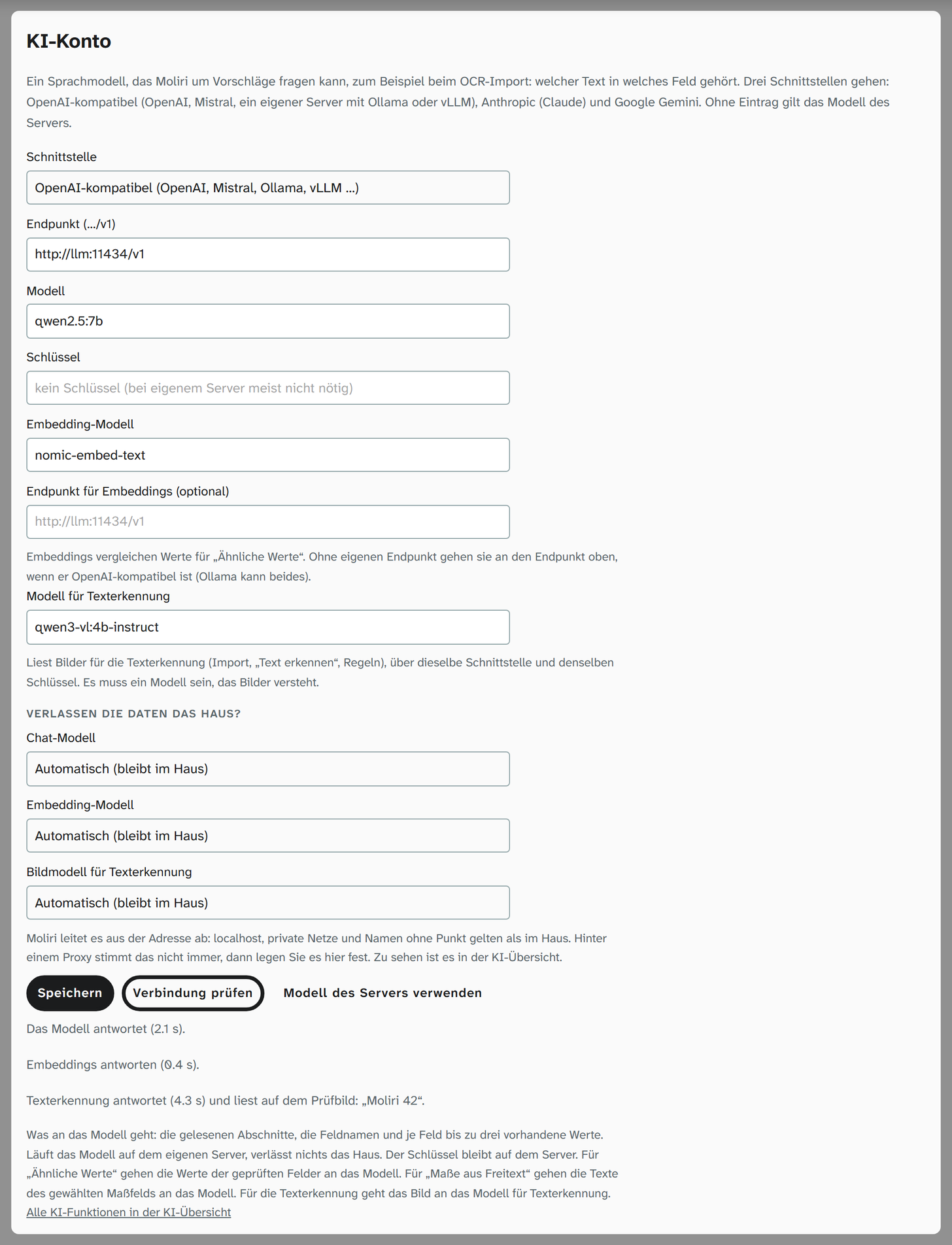
The AI account tells Moliri which language model it can ask. You set it up under Settings, section Data, AI account. Only administrators (status 9) can change it.
| Setting | Meaning |
|---|---|
| Interface | OpenAI-compatible (OpenAI, Mistral or a server of your own with Ollama or vLLM), Anthropic (Claude) or Google Gemini |
| Endpoint | With OpenAI-compatible, the address of the interface, ending in /v1. With the others, leave it empty for the provider’s address |
| Model | Name of the model at the provider or on your own server |
| Key | The provider’s access key. A server of your own usually needs none. A saved key stays on the server; leaving the field empty keeps it |
| Embedding model, Endpoint for embeddings | Only for the AI run under Similar values on the Check tab |
| Model for text recognition | A model that understands images, through the same interface and with the same key. It reads for text recognition by the AI service : in the OCR import, with Recognise text on the Text tab and in rules. Without this model, the AI service does not appear anywhere in text recognition |
| Does the data leave the house? | For each account (chat model, embedding model, image model for text recognition) Automatic, Runs in the house or External. Automatic derives it from the address and gives the result in brackets; behind a proxy that is not always right. You can see it in the AI overview |
Test connection asks the model with the details in the form, even unsaved, and gives the response time or the provider’s message. If a model for text recognition is entered, it reads a small test image with the words “Moliri 42”; the page shows what it has read, for example Text recognition answers (4.3 s) and reads on the test image: “Moliri 42”. Save stores them. Remove key deletes the key, Use the server’s model deletes the whole account. The AI overview in the profile offers the same test for a single saved account.
Without an entry, the model that the server brings through its environment applies (MOLIRI_AI_PROVIDER, MOLIRI_AI_URL, MOLIRI_AI_MODEL, MOLIRI_AI_KEY, for text recognition MOLIRI_AI_OCR_MODEL). The page then says The server’s model applies now.
An account saved here takes precedence.
The AI account is used by Ask AI in the OCR import, the AI run under Similar values, Dimensions from free text and, with the model for text recognition, the AI service. At the bottom of the page it says what goes to the model: in the OCR import, the sections read, the field names and up to three existing values per field, for text recognition the image. If the model runs on your own server, nothing leaves the building. If you do not want to hand the images to a provider, switch off text recognition by the AI service on the Text recognition page.
Further reading
- Excel import : mode, options and preview after Continue to Excel import
- Recognised text : the same editor in the file window and the places of text recognition on the Text tab
- Resolve references : values that the Excel import parks
- Text recognition in the profile : your own default place