
Reference
Views
The same selection of objects in five presentations. Switching changes nothing in the data and nothing in the selection, only the way you look at it.
| Mode | Shows | Editing in the view |
|---|---|---|
| Gallery | Cards with a preview image and the chosen text fields | Yes, per field, if a click is set to Edit field |
| Table | Rows, with the chosen text fields as columns | Yes, in the cell |
| Kanban | Columns made from the values of one field | Yes, dragging a card into another column changes the value |
| Calendar | Objects at their date values, as day, month, year, agenda or timeline | Yes, dragging an entry onto another day changes the date |
| Wall planner | Walls and floor plans with the objects of the exhibition, to scale | Yes, hanging and moving objects |
There is no map view that shows objects on a map. A geolocation field does show its map preview as a preview image, though, when it is chosen in the view settings under File fields.
Which fields a view shows is set in the view settings . Which objects it shows is decided by the filters and the Wahl filter.
Where to find the views
At the top right of the workspace is the switcher showing the view last chosen in this project; each project remembers its own (see view settings ). The arrow next to it opens the list Gallery, Table, Kanban, Calendar, Wall planner. The sidebar has the same list in its first tab. The two areas choose independently of each other, so you can show the calendar on the left and an object on the right. See Workspace and Sidebar .
The wall planner is only available in projects with a field for plans. Without one, the view of this project switches to the gallery.
What applies in all views
- A click on an object opens it in the object view. In the gallery you can set what a click on a field does.
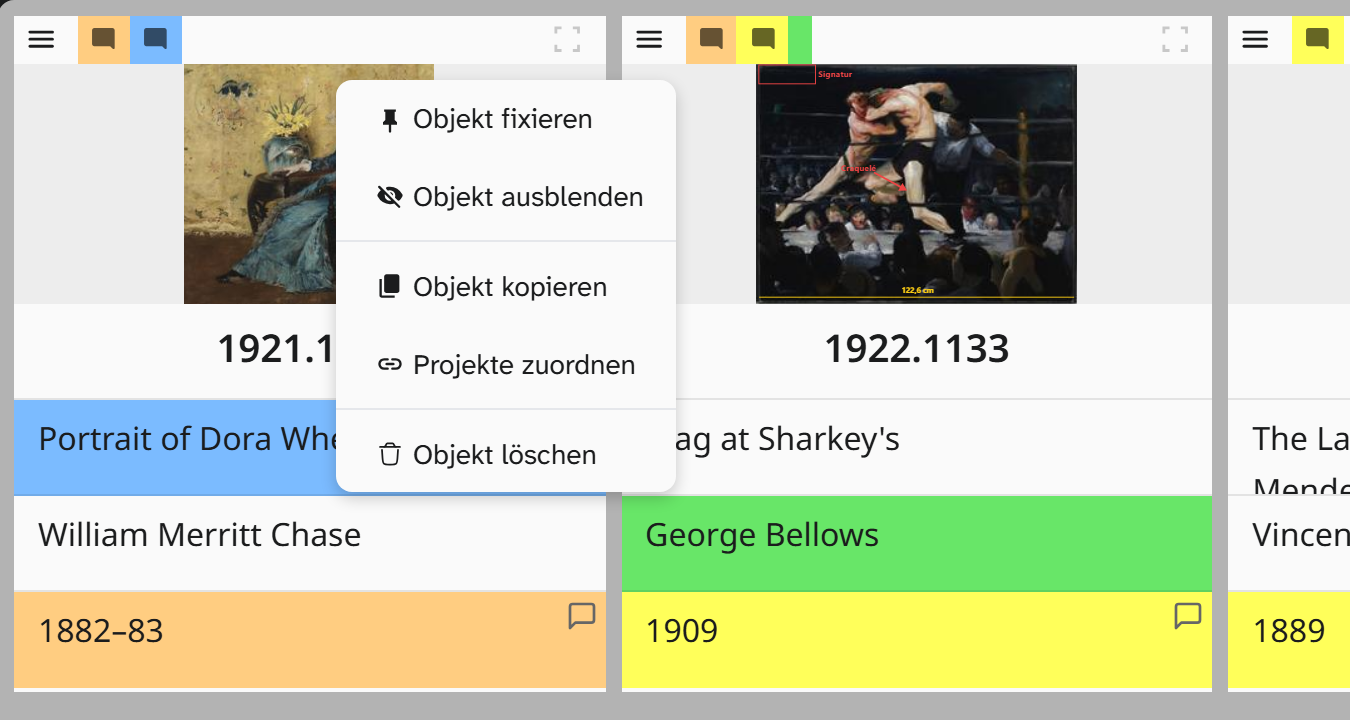
- The object menu on every preview offers Pin Object (or Unpin Object), Hide Object, Copy Object, Assign projects and, with write access to the Wahl, Delete object (or Restore object in the trash).
- Colour markings and comments on a field appear on the preview.
- The footer pages through the objects in the order of the current selection, with
Altand the arrow keys. See Interface .
Large projects load in stages
When you open a project, and after every change to the search, filter or sort order, it shows the first objects straight away. The rest of the list loads in the background. The count in the footer is correct from the start.
| Where | While the list is loading |
|---|---|
| Gallery, table | Grey placeholders for the objects still missing, also in groups. If you jump to the end, the visible part loads first |
| Kanban, calendar | The hint … of … loaded: columns and calendar show only the objects loaded so far |
| Quick search | Searching … of … objects, the rest is still loading. |
| Footer | With no object open, a loading animation turns in place of the position. Hovering over it shows The objects are still being fetched: … of …. |
| Batch editor , Assign projects and Library links in bulk, Resolve references in bulk | Locked with the hint Available once all … objects are loaded. |
In a small project the list is usually complete before you notice any of this.