
Reference
Workspace
The workspace is the right-hand, larger half of an open project. It shows a view of the object selection, a single open object, or bulk edit for many objects at once.
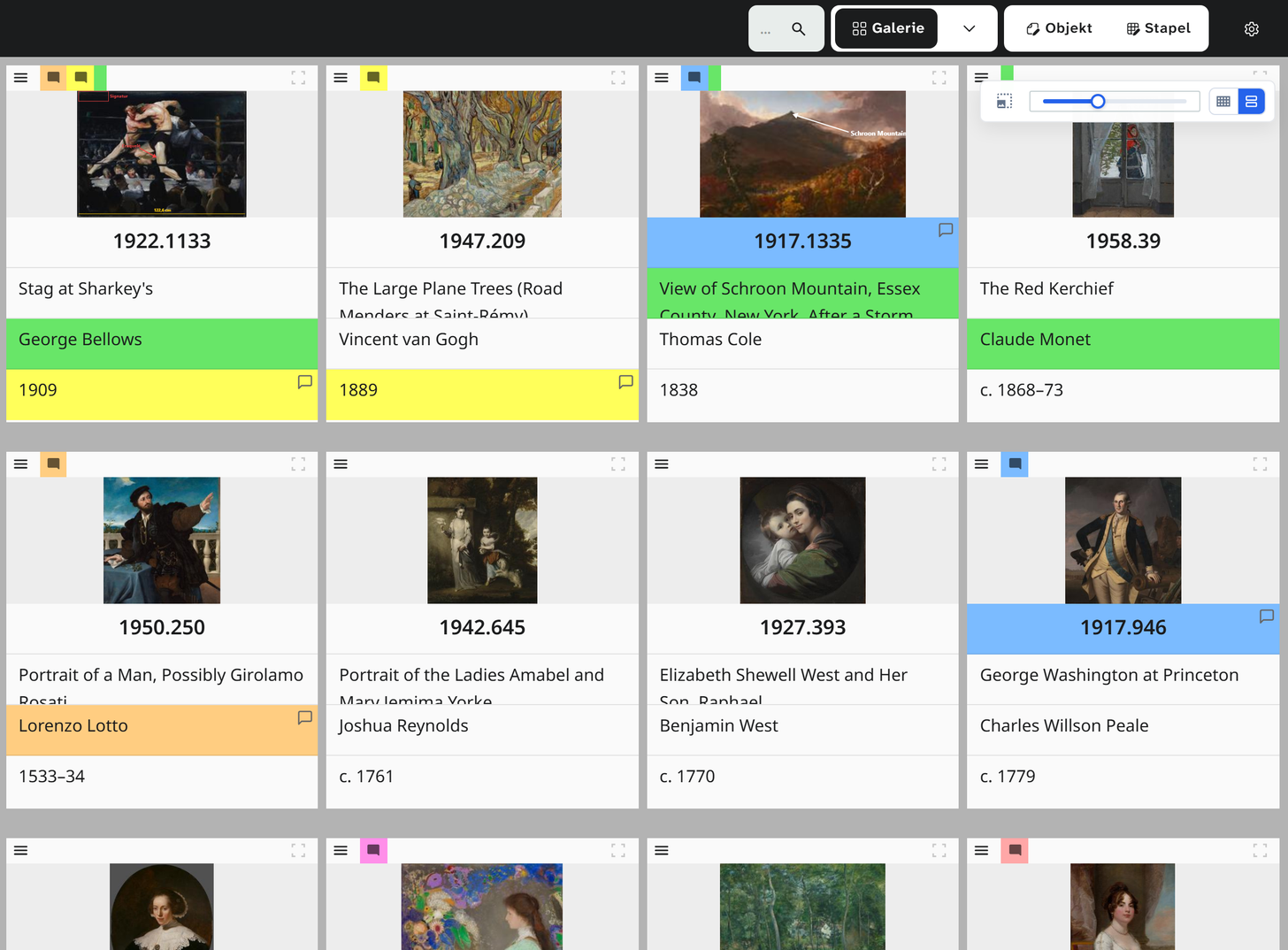
Menu bar
Left
| Element | Effect |
|---|---|
| Project title | Opens a menu with Leave project & go to overview |
| Saved views | Load, create, compare with the current state. See View settings |
The icons of a saved view show which parts it contains (fields, filters, sorting, display). Green means that this part matches the current state. When you hover over it, a breakdown appears in which you can click a single icon to load only that part.
Right
| Element | Effect |
|---|---|
| Quick search | Fuzzy search in the chosen view fields of the current selection. The hits appear in a list below the search box, best first; a click opens the object. The object selection does not change (note in the list: This search filters only the current selection in the visible fields.) |
| View | Shows the view chosen last; the arrow opens the list Gallery, Table, Kanban, Calendar, Wall planner. See Views |
| Object | The object view of the object opened last, otherwise of the first. Shortcut Alt + ↓ |
| Batch | Bulk edit for all objects in the selection. In brackets, the number of changes queued |
| Gear icon | Opens the view settings |

Which view is active when you open a project is saved globally per user, not per project. See Where a setting lives .
Bar above the object
When an object is open, the tabs of the layouts (input forms) appear below the menu bar. An eye on a tab means that this layout is read-only. If the project allows it, there is also a Dynamic tab, which arranges the chosen image and text fields in a grid automatically.
To the right of the tabs, Tools opens a menu:
| Entry | Effect |
|---|---|
| Compare Images | Two images of the object side by side, for example before and after conservation. Only with an open object |
| Assign projects | With an open object: the projects of this object. In bulk edit: Manage links in bulk for all objects in the selection. See Link an object to projects |
| Library links | Only in bulk edit: add, remove, change or replace links to authority data, addresses, objects, files and events for all objects in the selection. See Bulk edit |
If the object is in more than one project, the scope bar for project-specific values follows below.
Footer
| Area | Content |
|---|---|
| left | Wahl filter |
| middle | First and previous object, position and count in the selection, next and last object. The position is an input: type a number to jump to that object. With no object open it is empty. While the list is loading more , a loading animation spins there |
| right | Create new object. Without write permission it reads Read-only access in this project |
Paging follows the current sorting and filtering. The keyboard shortcuts are listed under Interface .
The sidebar and the workspace are independent. Common combinations:
- Calendar on the left, object on the right. Go through dates and record data as you go
- Table on the left, bulk edit on the right. See the candidates and change them at the same time
- Editing history on the left, object on the right. Trace what happened to the open object