
Objects
Link an object to projects
An object can be in as many projects as you like. It is not copied in the process: in the collection, in the special exhibition and in a loan request it is the same record, with the same dimensions, images and the same history.
Individually
-
Open the object menu: the ☰ icon on the object preview in the gallery or table. In the open object view, the same entry is in the Tools menu.
-
Choose Assign projects.
-
Switch on the toggles of the projects, for example Sonderausstellung 2026 for an object from the Sammlung (collection). The list is grouped by project status, and the search box filters it. The current project is marked as current project; projects without write access are locked.
-
Save.
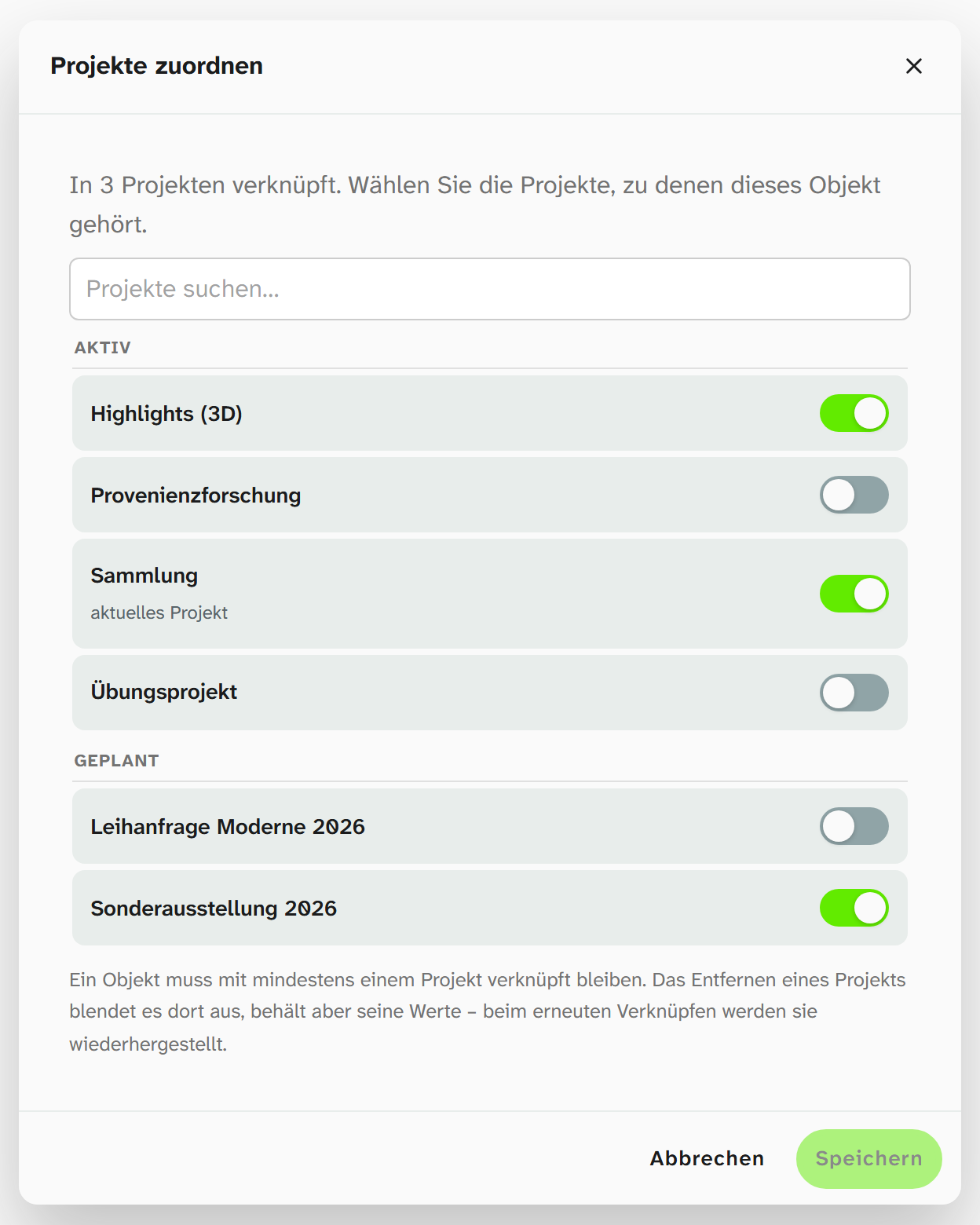
An object must stay linked to at least one project; the last link cannot be removed. Deselecting a project hides the object there but keeps its values: when you link it again, they are back.
In bulk
For many objects at once, such as the whole selection for an exhibition:
-
Narrow down the object selection. The batch covers exactly the objects the view has loaded.
-
In the workspace, open the Batch tab and choose Tools › Assign projects there. The dialog Manage links in bulk opens.
-
Choose one action per project: Link all, Leave unchanged or Unlink all.
-
Click Apply and confirm the prompt Apply link changes?. It gives the number of objects, the projects affected and the number of objects skipped.
Several safeguards apply here. Only one project can be unlinked per run, so that it stays exactly clear how many objects would lose their last link. Objects that are only in that one project are skipped and counted. If the current project is among those being unlinked, the dialog points out that these objects will disappear from the list.
Pinned objects bypass the Wahl filter, so objects from the trash can also be in the batch. If they are linked into another project, they get the Wahl active there.
When a value should apply in one project only
The exhibition title or the catalogue number only apply in the exhibition. For that, the field needs a project-specific value. See Project-specific values . How a field is prepared for this is described in setup under Set a project-specific value .
Assign projects only concerns an object’s projects. What an object is linked to in the libraries, such as authority data, people from the address book or other objects, is shown in the link area of the layout. For many objects there is Tools › Library links in the batch.
Further reading
- Objects in several projects : the model
- Delete an object : trash and removing links
- Create a project : creation rules that link automatically