
Objects
Edit an object
Enter and change values on an object, for example the loan status of a loan in the special exhibition.
-
Open the object. Click the object in the gallery, table, kanban or calendar. It opens in the Object tab of the workspace.
-
Choose a layout (input form). Above the object are the tabs of the layouts that are enabled in the project. In the special exhibition of the demo holdings these are, for example, Kurzübersicht (summary), Erfassung (cataloguing) and Leihverkehr (loan management). An orange eye on the tab means that this layout is read-only for you.
-
Enter a value. Click into the field and type. Selection lists and trees have a search box that also finds parts of words. You can also dictate into text fields if speech input is set up in your profile: click the microphone on the right of the field, or hold down
Strg+Leertaste(Ctrl + Space) while you speak. -
Leave the field. This saves it. Each field is saved on its own; there is no save button. The field shows its state in colour:
Colour Meaning Grey Being saved Green, briefly Saved as entered Orange, for a few seconds, with the message Value saved with modifications Saved, but adjusted in the process. Check the saved value Red, flashing until something happens Not saved. Reload the page and enter the value again

Still: the field Leihstatus before the change. The green confirmation after saving is not shown.
Add annotations
Every field has a field menu: the ☰ icon next to the field label, or right-click the field. The annotations are there:
| Annotation | What it is for |
|---|---|
| Colour | Free highlighting from a colour grid. The team decides what it means, not Moliri |
| Comment | Coordination within the team, such as “dimension from the lender, not measured again” |
| Source | Where the value comes from |
| Hesitant | The value is an assumption |
The same menu has Open field details (with the field’s history), Copy raw value and Copy formatted value.
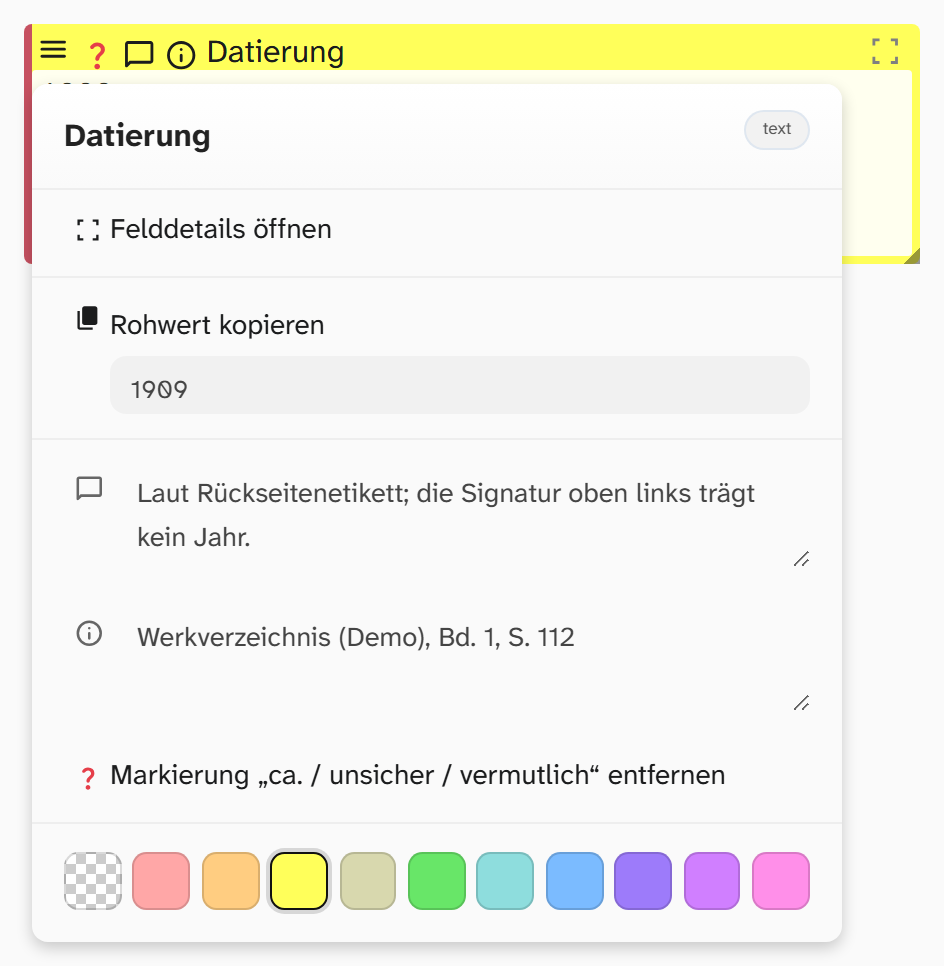
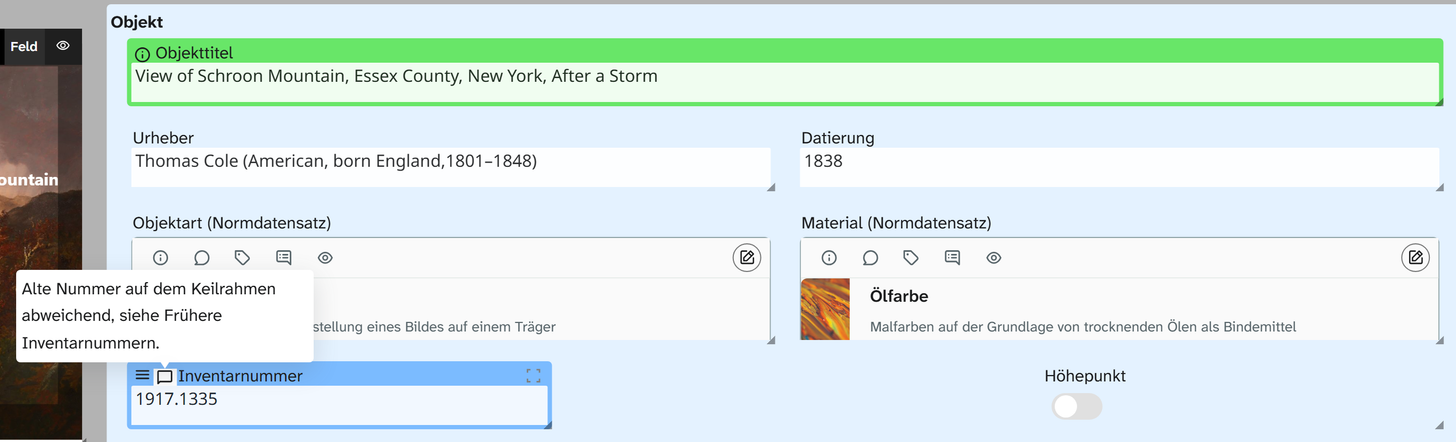
ca. 1900 cannot be entered in a date field. 1900 with the uncertainty marker set, on the other hand,
can still be sorted and filtered and is shown as uncertain in the report. The same applies to dimensions
and numbers.
When a field is locked
| Cause | How to recognise it |
|---|---|
| Read-only access to the project | Orange eye in the project header |
| Read-only access to the layout | Orange eye on the layout’s tab |
| No write access to the field | Only this field is locked |
| Scope Other Projects (Read Only) selected | The scope bar above the layout shows it |
| Virtual field | It is calculated from other fields and has no input |
The scope bar appears for objects that are in several projects. With it you choose whether a value applies to all projects or, as a project-specific value, only to this one. See Project-specific values and, for setup, Permission model .
Further reading
- Object view : all annotations in detail
- Field types : how each kind of input behaves
- Trace changes