
Reference
Object view
The object view shows a single object through the layouts (input forms) available in the project. It is where values are created.
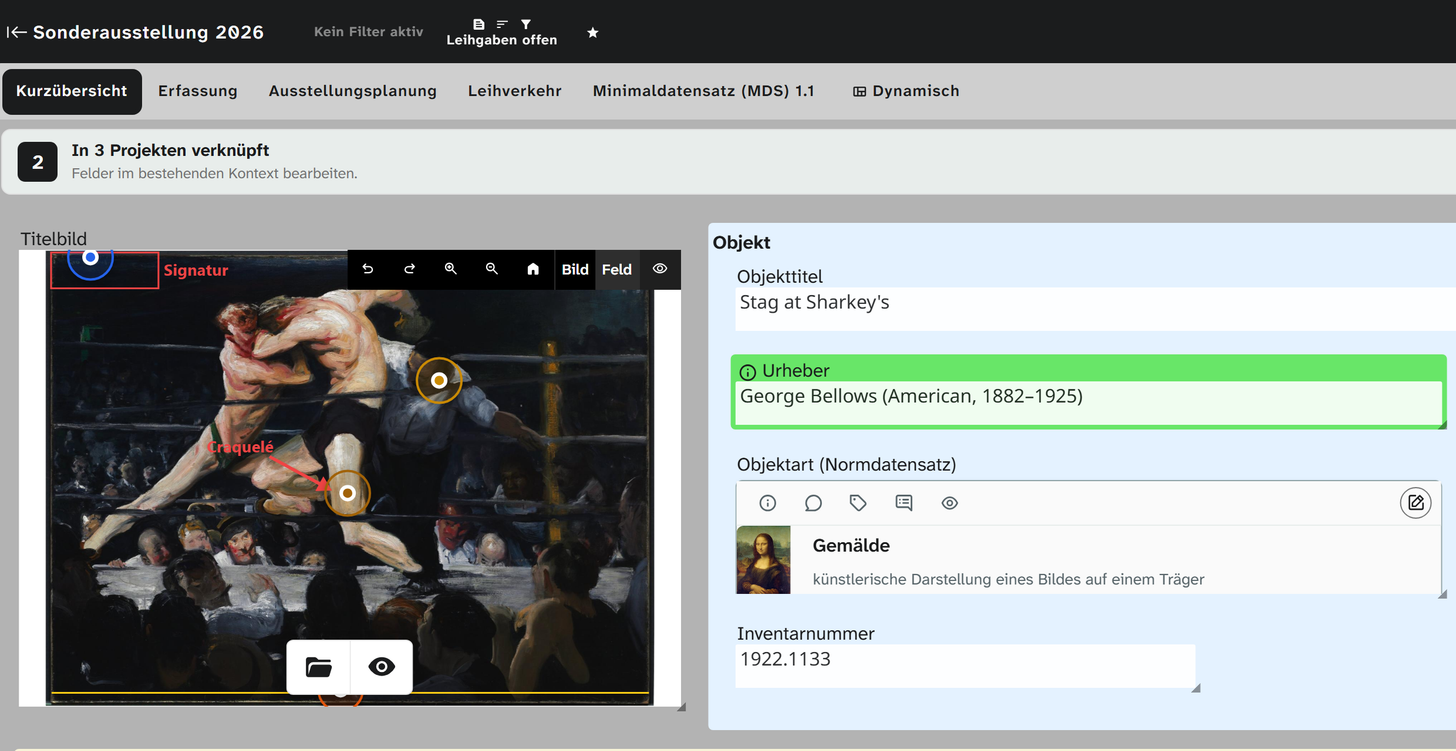
Layouts
Which layouts exist is a matter of configuration. The administration creates them, assigns them to the project and grants access to them. A layout is a free arrangement of fields; the same field can sit on several layouts in different places and shows the same value everywhere. See Layouts .
If a layout you expect is missing, there are exactly two possible causes: it is not assigned to the project, or you lack access to it. See Permission model .
Divisions that have proved themselves in practice:
| Layout | Purpose |
|---|---|
| General | Quick overview, a few central fields |
| Registration | Full cataloguing on acquisition |
| Loans | Contract, partner, dates, insurance value |
| Design | Dimensions, plinth, showcase, wall assignment |
| Conservation | Condition, treatments, climate, materials |
| Storage | Location, permanent location, packaging |
| Touch | A few large fields for data entry on a tablet |
| Publication | Rights, shares, publication data |
IIIF
If an object is shared publicly and has an image, the IIIF button appears next to the layout tabs. It opens a menu:
| Entry | Effect |
|---|---|
| Open manifest | Shows the object’s IIIF manifest in a new window |
| Open in Mirador | Opens the object in the IIIF viewer Mirador |
| Open the project’s IIIF collection | The collection of all public objects in the project |
| Copy manifest address | Puts the address on the clipboard, for example for an online exhibition |
You can also drag the button itself into an IIIF viewer. All other objects do not have it. What is public is decided by the administration, see Shares .
Saving
There is no save button. A field saves as soon as you leave it and reports the result through its colour:
| Colour | Meaning | What to do |
|---|---|---|
| green flash, message Saved | Saved as entered | Nothing |
| orange, message Value saved with modifications | Saved, but changed in the process | Check the saved value. The message names both: Entered: … • Saved: … |
| red, flashing | Not saved | Reload the page and enter the value again. If the error persists, contact support |
The orange case occurs when the saved value had to differ from the one entered, for example because a date was completed or a number was converted to the base unit. Most field types prevent invalid input while you type; that is why the case mostly occurs after an Excel import, where data comes from outside.
Before saving, every value runs through the cleanup the administration has set up, for example removing spaces at the edges or turning a decimal comma into a point. If the cleanup changed something, cleaned briefly appears next to the field, the Saved message lists the steps, and the field shows the saved value. See Cleanup .
Conditions
The administration can set conditions on fields, for example must not be empty or unique in the project. They do not prevent saving. A field that does not meet its condition carries a red exclamation mark at its label; the tooltip on it gives the reason.
A bar then appears above the input form: 2 fields do not meet their condition. The value is saved either way. It counts all fields of the object, including those on other tabs. Each field appears there as a button. A click brings it into view and makes it light up briefly; if it is on another tab, the button names that tab (Leihgeber on “Erfassung”) and switches to it. If the field is on no tab you are allowed to open, not in this view appears next to it.
Field menu and field details
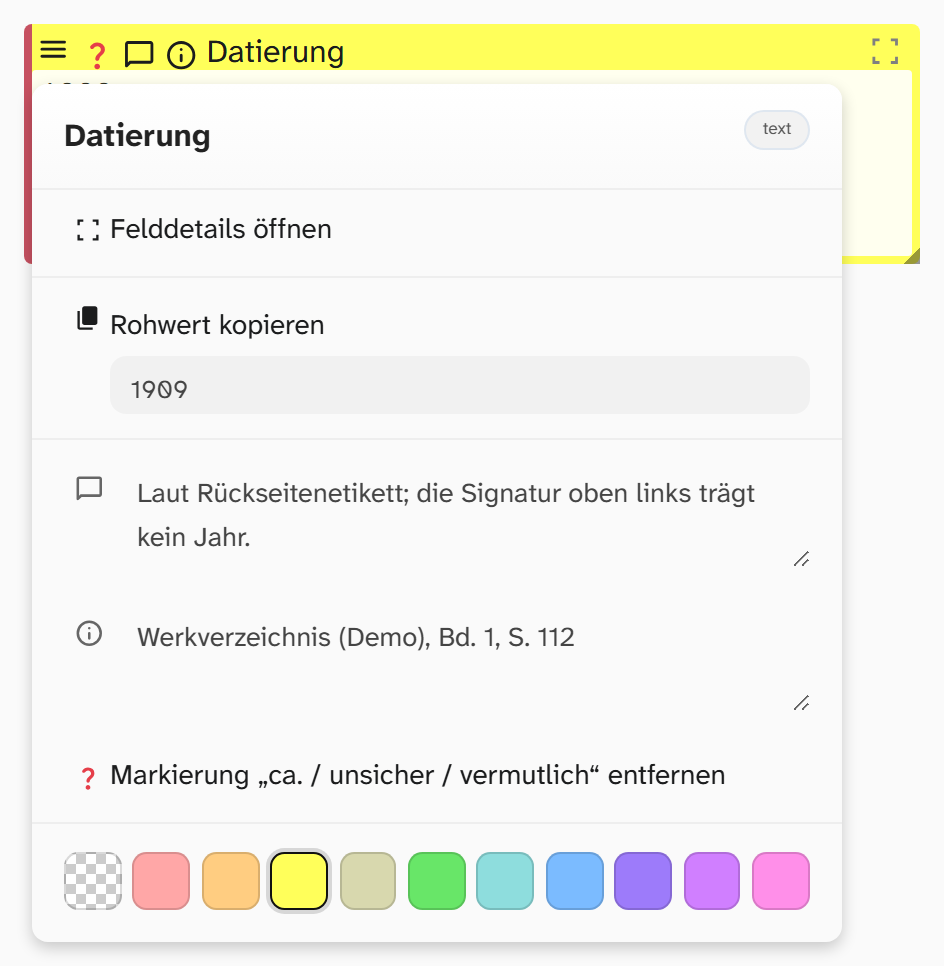
The field menu opens at the top right corner of every field. Existing comments, sources and values marked as uncertain show up as icons on the field. You can also show comment and source directly in the field with Show inline metadata in the global settings.
The field menu contains:
| Entry | Meaning |
|---|---|
| Field name, field type, other labels, hint | Header of the menu, read-only |
| Open field details | Opens the Field details dialog, see below |
| Copy raw value / Copy formatted value | Puts the stored or the formatted value on the clipboard, with a preview |
| Comment (Comment …) | Free text for coordinating within the team. Appears in previews |
| Source (Source …) | Where the value comes from |
| Hesitant | Marks the value as presumed (approx. / uncertain / presumably) |
| Colours | Free highlighting without a fixed meaning. Also appears in previews and can be filtered |
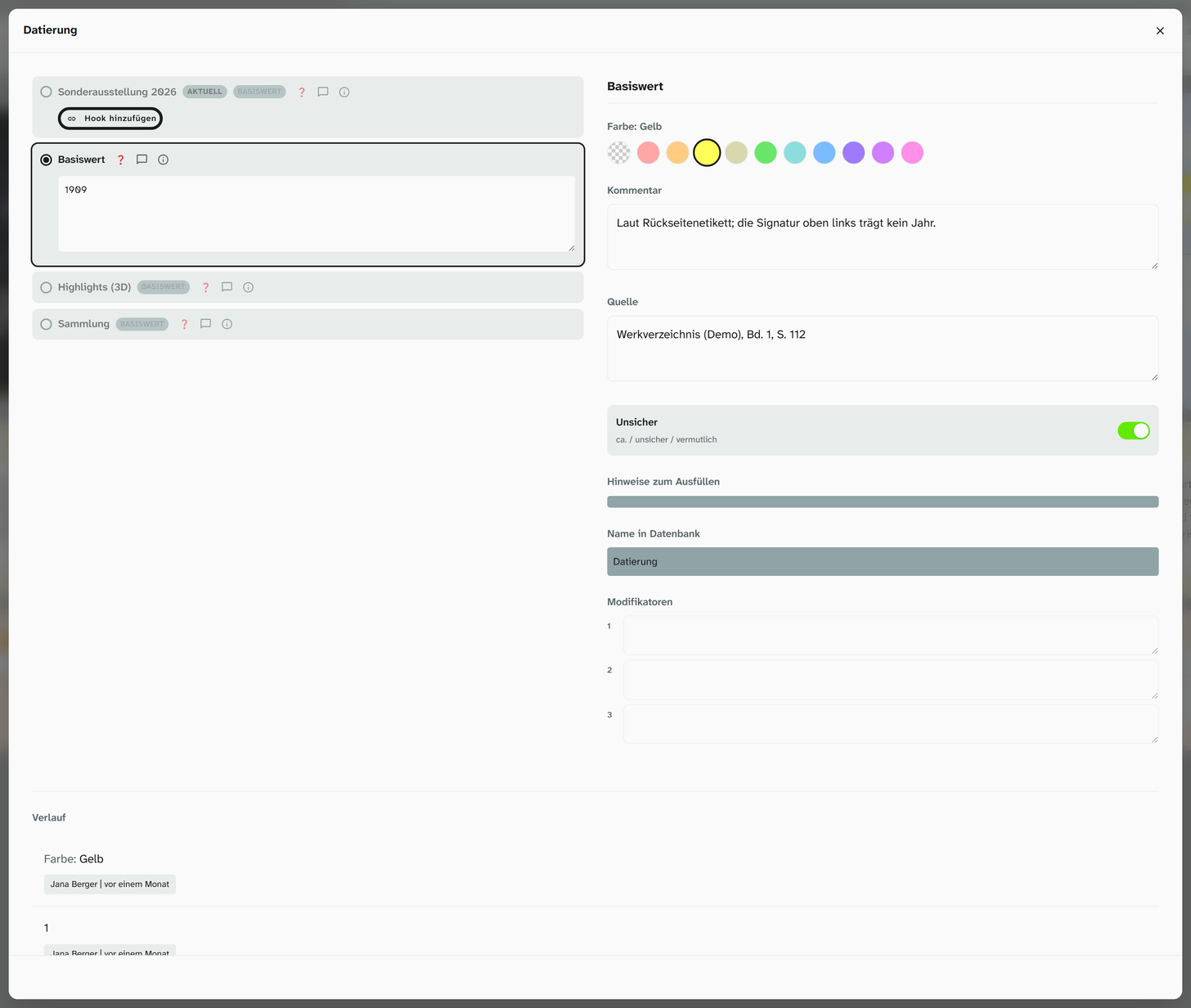
The Field details dialog shows the value on the left, and for objects in several projects each version per project (see Project-specific values ), the details on the right and the history at the bottom:
| Detail | Editable | Meaning |
|---|---|---|
| Color | yes | as in the field menu |
| Comment, Source, Hesitant | yes | as in the field menu |
| Filling instructions | no | The setup’s note on the field |
| Name in Database | no | The field name. Stable, and the identifier for filters, templates and exports |
| Other names in Layouts | no | The labels the field carries on other layouts |
| Modifiers 1 to 3 | no | Internal extra columns: image markings, crops, chosen unit. Normally you can ignore them |
| History | no | Every change to this field with person, time and, where relevant, project. See History |
If a value was parked during import, it appears at the top of the dialog. It is not saved yet; a field that already has a value stays unchanged when the parked value is resolved. Resolve opens it in Resolve references .
“Uncertain” is more than a note. In number and date fields it is the only way to express uncertainty
without making the value unusable: ca. 1900 cannot be saved in a date field, whereas 1900 with
uncertainty set can be sorted and filtered and is recognisable as uncertain in a report.
AI suggestions on the field
If an AI assistant has suggested values for this object, a bar appears above the input form, for example 3 AI suggestions for this object, with one button per field. On the field itself, a badge with a number shows how many suggestions are open. The buttons in the bar also reach fields that are not on the open tab.
A click on the badge or the button opens the field’s suggestions: value, reasoning, evidence, the model with its confidence, and the current value. For each suggestion there are Apply, With source, edit and Reject, with the same rules as under Check › AI suggestions . With source also writes the reasoning and evidence into the field’s source; the source tooltip on the field shows them with their line breaks. A value never gets into the field without a click.
Annotations in exports
Colour, comment, source and “uncertain” can be exported and queried in templates. This lets you control
reports: highlight uncertain values, hide fields marked red, output sources as footnotes. See Template functions (function deco) and Excel export .
Modifiers: what they are good for after all
Modifiers (Modifier in the glossary) are system columns. In the field details they are read-only, but in bulk edit you can edit them. The practical use: transfer an image crop or a marking set on one object to many objects at once. If you do not need that, you can ignore them completely.