
Import and export
Resolve references
A lender sends an Excel list in which the same artist appears as Kirchner, E. L., E. L. Kirchner and Ernst Ludwig Kirchner. An authority data field, however, does not store text but a reference to an authority record. That is why the Excel import does not simply write such values in. It marks them in the preview with to resolve and parks them.
The tool for this is labelled Resolve references in the app. It collects all parked values, each term once, sorted by frequency. You decide per term, not per cell: if Kirchner, E. L. appears in forty rows, that is one decision. Moliri suggests matches; confirming them is done by hand.
Values are parked for authority records, addresses, locations and files, as well as values that do not occur in a select list or on a switch, text in a JSON field that cannot be placed automatically, and values of a link column without a unique target.
Opening the tool
There are three ways in:
| Way in | Where |
|---|---|
| After an import | The closing message of the Excel import offers Resolve (n) |
| From the menu | Sidebar, Check tab, box More tools, Resolve references (see Check ) |
| From an object | Above the layout there is the bar n values waiting to be assigned. Clicking a field opens the tool at exactly this term |
The Bulk view has the same button. There the tool applies to the objects of the current selection.
Deciding parked terms
-
Choose the “From import (n)” tab. On the left is the list of terms, with the number of cells each one appears in. The most frequent are at the top. The search field and the status filter (Open, Assigned, Ignored, All) narrow the list down.
-
Choose a term. The candidates appear on the right: on the left the entries that already exist in Moliri (Internal), on the right the matches from the sources. For authority data these are the sources set up on the field, usually GND and Wikidata. You can switch on further sources in the row of chips, for example the Art & Architecture Thesaurus of the Getty Research Institute (Getty AAT), Iconclass or GeoNames. Which sources a field offers is decided in the setup.
-
Accept a match. An internal match is assigned at once. A match from a source first opens a draft of the new authority record, which you check and confirm with Take. It is only created when you write. If nothing fits, Create ”…” creates an entry with just the name.
-
Look at the affected objects. Below the candidates you see which objects will receive the value, with Current and New side by side. If an object’s field already holds a value, the header counts it separately: unchanged since import means the field still holds the value the import wanted to replace; newer than the parked value means the field was changed after the import, for example through undo. Each group has a replace switch, on at first for the first group and off for the second. Whatever is not replaced stays open. Other filled fields, for example under Resolve field, are never overwritten and are counted as filled.
-
On to the next term. With the down arrow key or by clicking. A term that is not meant to be a value (such as see list) is marked with Remove without resolving.
-
Write. The Write (n) button in the footer writes all decisions in one run. Only now are new authority records created and the fields filled. The summary states how many values were written, how many authority records were created and how many existing ones were used.
The whole run appears in the history as one batch. Show in history in the closing message takes you there, and from there you can undo it as a whole. As long as nothing has been written, Cancel leaves no trace.
Resolving links
If the Excel import imported a column as a link , its values without a unique target are in the same list as the parked field values. Instead of a field name, the row names the link type, Link ”…”. You decide authority data, addresses and files as for a field.
Objects have their own object finder. It searches by registration number, title or #ID and by the label
made up of project and registration number, in the readable projects that can hold a target of this link
type; which ones these are is shown above the matches (in …). An exact match carries the ↵ mark; if several
objects fit, it is missing. You cannot create an object here. If it is missing, take the term out with Remove without resolving.
Under Affected objects each object shows new link ”…”: a link is added and replaces nothing. Write creates links and field values in one run. The summary states how many were linked and how many links already existed, and in the history the run can be undone as one step.
Text in a JSON field
Text that the import could not place in a JSON field appears as a term in the list, for example a title without a language. The term shows Not JSON but plain text and below it Assign as text to a key.
| Setting | Effect |
|---|---|
| Key | Where the text goes. For a field with labels and one subfield, this is the label, for example de; the field’s import label is preselected. If an entry has several subfields, first choose the Entry and then the key |
| If the key already has a value | Fill gaps (keep the value) leaves a filled key as it is, Overwrite replaces it |
| Other keys in the field | Leave unchanged or Replace the whole field |
Assign to this key applies the choice, and Affected objects shows for each object what the field will then hold. After the first assignment, Moliri asks whether the remaining open texts of the same field should be entered the same way (n more open values in ”…”: enter them under ”…” too?). Enter all n does this for all loaded terms, No, thanks leaves them open. Here too, nothing is written until you click Write.
If the text is damaged JSON, the term offers a repair instead (Apply suggestion). If several loaded terms have the same defect, Repair all n repairs them together.
Matches from several sources
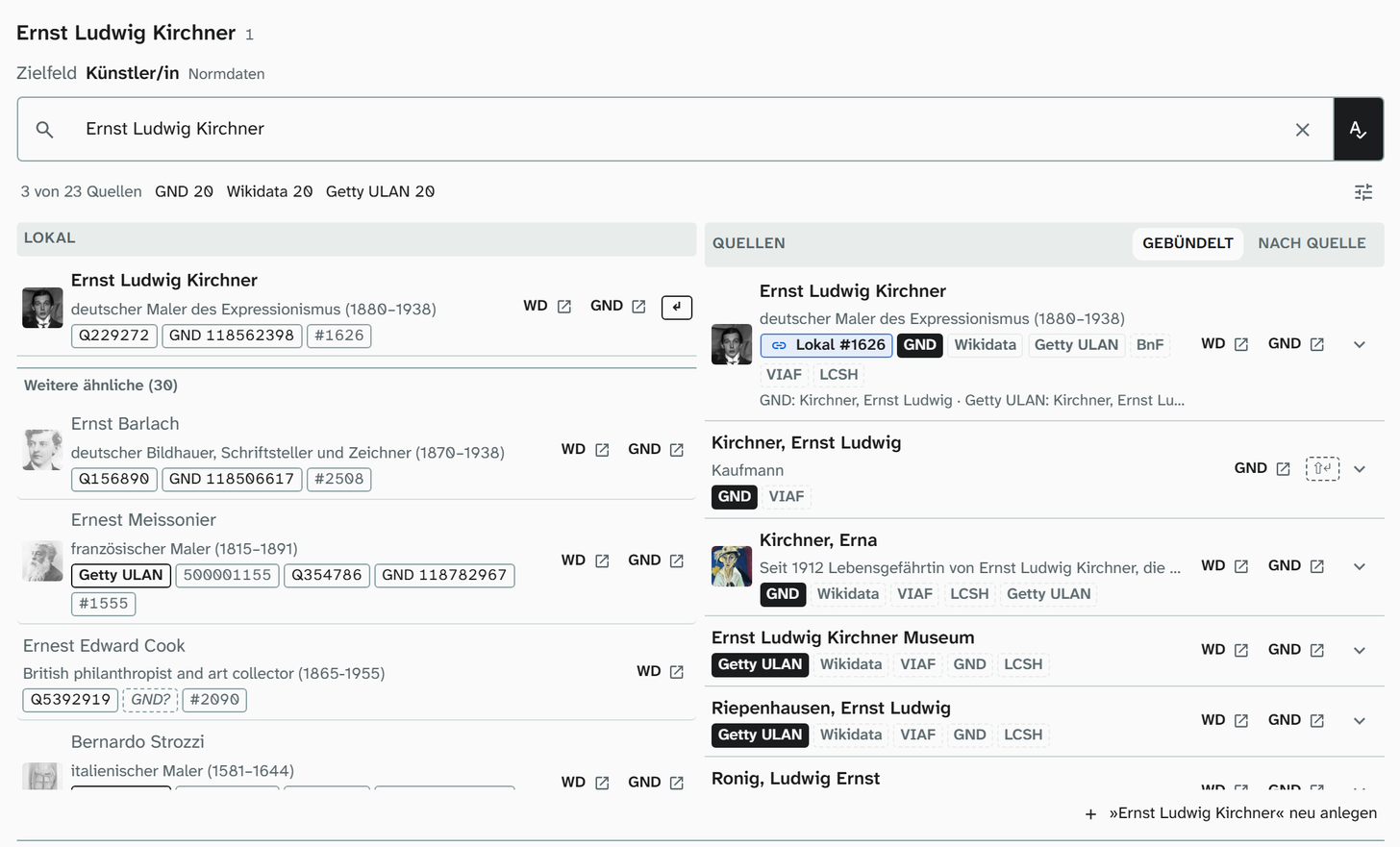
If GND, Wikidata and Getty ULAN all hold the same person, Moliri combines the entries into one match. The card names all the sources involved, and the new authority record receives each of their identifiers. Entries are only combined through identifiers that confirm each other, never through an identical name. Two people with the same name remain two matches.
Suggestions and “safe”
When the tool opens, and straight after an import, Moliri looks in the background for a candidate for each open authority data term and rates it. The progress is shown at the bottom of the list, and you can cancel the run.
| Mark in the list | Meaning |
|---|---|
| safe | Exactly one plausible match, for example an existing entry with the same name |
| Suggestion | A candidate that should be checked |
| n identical names | Several equally good matches. You choose here |
| no match | No source found anything |
| … unreachable | A source did not respond. try again asks once more |
Nothing is accepted without your click. Take all safe ones (n) turns all safe suggestions into decisions at once. The message n taken, not written yet offers Undo. Even then, nothing is written until you click Write. The filter Safe suggestions (n) shows the terms concerned beforehand so you can look through them.
The marks “safe” and “Suggestion”, Take all safe ones and the key help arrive with the release of 30 September 2026. Before that, the tool shows the candidates without a rating.
Working with the keyboard
You can use the tool entirely without a mouse. The most important keys are always shown below the list; ? shows the full help.
| Key | Effect |
|---|---|
| ↑ ↓ | Choose a term |
| ↵ | Takes the match marked with ↵ |
| ⇧↵ | Takes the external match, even if an internal one fits |
| I | Removes the term without resolving it; pressing it again undoes this |
| Esc | Returns from a search field to the list |
| ? | Shows or hides the help |
The ↵ mark only appears on a plausible match. If it is missing, the header of the candidate column says No safe match, please choose, and the Enter key does nothing. This way a keystroke never silently assigns the wrong thing.
Resolving fields that are already filled
The Resolve field tab uses the same mechanics, but without an import. It is meant for older records in which artists’ names are stored as text in a text field and are now to go into an authority data field.
-
Choose target field, for example the authority data field Artist.
-
Choose the basis, that is the field the search term comes from, for example the text field Artist (old). Moliri shows how many objects and how many distinct terms it has found.
-
Leave Only empty target fields switched on if values that are already maintained should stay untouched.
-
Decide the terms and click Write, as above.
Without a selection the tab covers the whole project. Opened from the Bulk view, it applies to the selected objects.
What is recognised in the next delivery
Moliri remembers a decision. If the same value arrives in a later import into the same project, the import assigns it without asking, for field values as well as for links. “The same” here means that upper and lower case and white space do not count.
| Case | What happens |
|---|---|
| The same value as in an earlier decision | The import assigns it as it did then |
| The cell contains an identifier, such as a GND number, a Wikidata identifier or an address that a record carries as its origin | If exactly one record carries this identifier, the import assigns it without asking |
| The cell contains exactly the name of an existing record | The value is parked and rated safe in the suggestion run. One click is enough |
| A different spelling or a different project | The value is parked again and comes up for decision once more |
For select lists and switches a decision applies to its field; for authority data, locations, addresses, files and objects it applies to all fields and links of that kind in the project. Texts that were assigned to a key of a JSON field, and terms that were removed without resolving, are not remembered.
One more reason to pick a match from a source when accepting, rather than just create new: the record then receives the identifiers by which a delivery with a different spelling can recognise it too.
Terms marked with Remove without resolving are deleted by Write, together with their parked cells. The footer warns you beforehand and gives the number. If the term turns up again in a later import, it is parked again.
Further reading
- Import Excel : where the parked values come from
- Authority data : the library new records go into
- Address book : assign addresses from an import column
- History : undo a run