
Import and export
Export to Excel
The lender wants to see the list of their works, the insurer needs values, the shipping company needs dimensions and crate numbers. All three get the same Excel list from the collection, each with its own columns and, if wanted, with images.
-
Narrow down the object selection. The export covers exactly the objects that filters, search and Wahl leave.
-
Open the export. Sidebar, Data In- & Export tab, section Export, Excel Tables.
-
Choose fields. Click them under Available fields, or use Load view fields: this sets the selection to the fields of the current view.
-
Set the order. Drag the chosen fields under Selected fields into the column order you want.
-
Set options. Colours, comments, source, events on a separate sheet, image size.
-
Download Excel File. With many images this takes a while. The export can keep running in the background.
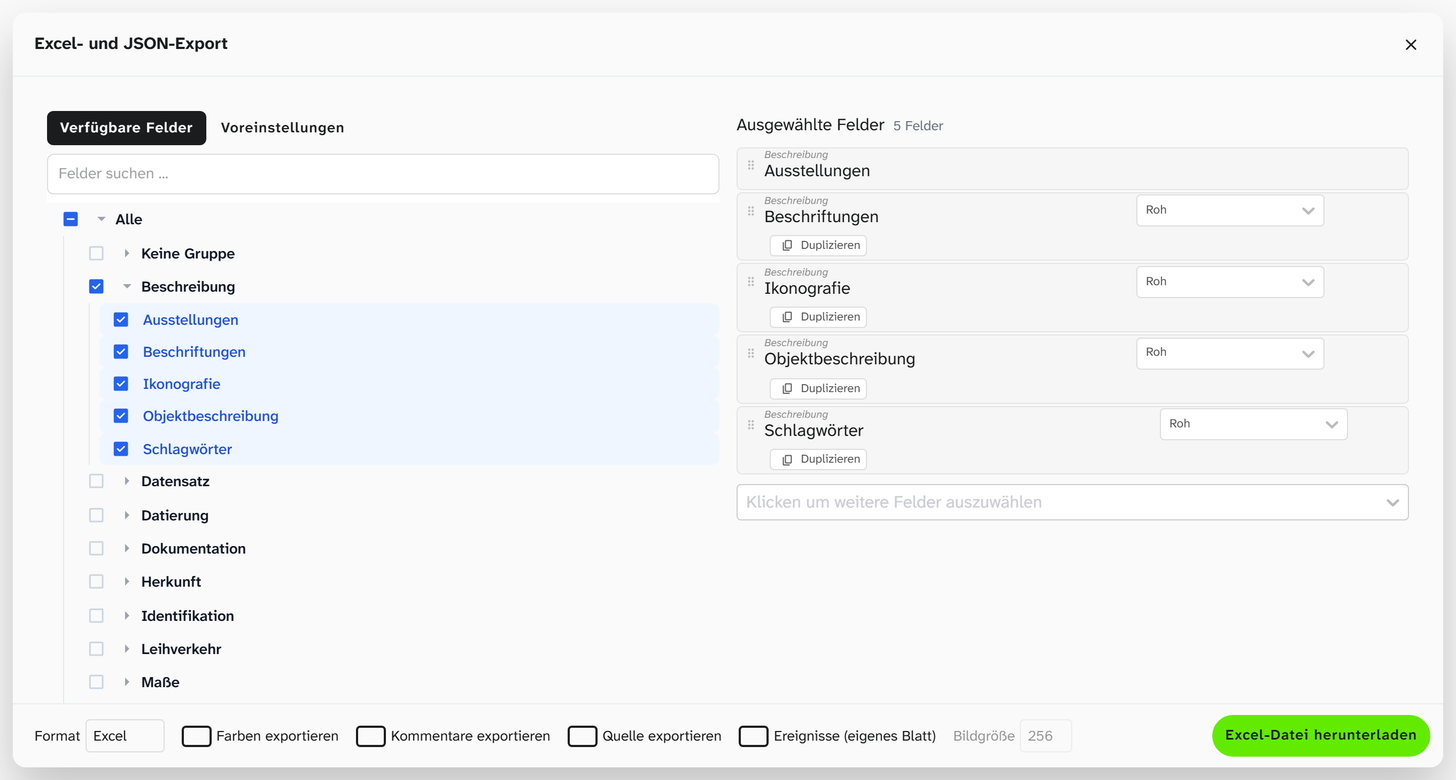
Still: field selection in the Excel export. The downloaded file is not shown.
Including annotations
| Option | Result in Excel |
|---|---|
| Export colors | Colour markings as cell colour |
| Export comments | Field comments as cell comments |
| Export source | The source details of the fields |
| Events (separate sheet) | The events of the objects on a second sheet |
Colours and comments have a counterpart in the Excel import . So you can export a list, have it completed outside the institution and bring it back with its colours and comments.
Images
Each image column has its own settings:
| Setting | Values |
|---|---|
| Markings, Crop, Rotation | Each Field, Image or None: the editing stored on the object’s field, the editing stored on the file, or none |
| Duplicate | Another column for the same image with its own settings |
| Image size | Edge length of the embedded images, applies to all columns |
With Duplicate, the original and the edited version sit side by side.
Raw or formatted
Fields with formatting, such as dimensions in a JSON field , offer a choice of Output for each column:
| Output | Result |
|---|---|
| Raw | The stored value |
| Formatted (or the name of the formatting) | The readable value, for example Objekt: 118,5 × 64 cm |
If you need both, duplicate the column.
Presets
A field selection can be saved under Presets, and presets can be combined:
| Action | Effect |
|---|---|
| Load Preset | Replaces the current selection |
| Add fields | Adds the preset’s fields |
| Remove fields | Takes the preset’s fields out |
Three or four building blocks such as Core data, Dimensions and Loan data cover more cases than twelve complete presets. You put them together as needed with Add fields.
A preset starts out private and can be shared with all users. It can also be used in other projects. Fields that do not exist there are left out.
If you need a fixed form with a letterhead, for a loan agreement say, use a Word report instead of Excel.
Further reading
- Excel export : all options
- Import Excel : the way back