
Reference
Check
The Check tab in the sidebar gathers everything that checks or cleans up a project’s data. It sits between Editing History and Data In- & Export. Each check is a row with its count on the right: red if something was found, a green tick at 0. Similar values and AI suggestions are shown in grey, because nothing is wrong there; something is waiting for a decision. The counts are already there when you open the tab; a click on a row opens the list of findings.
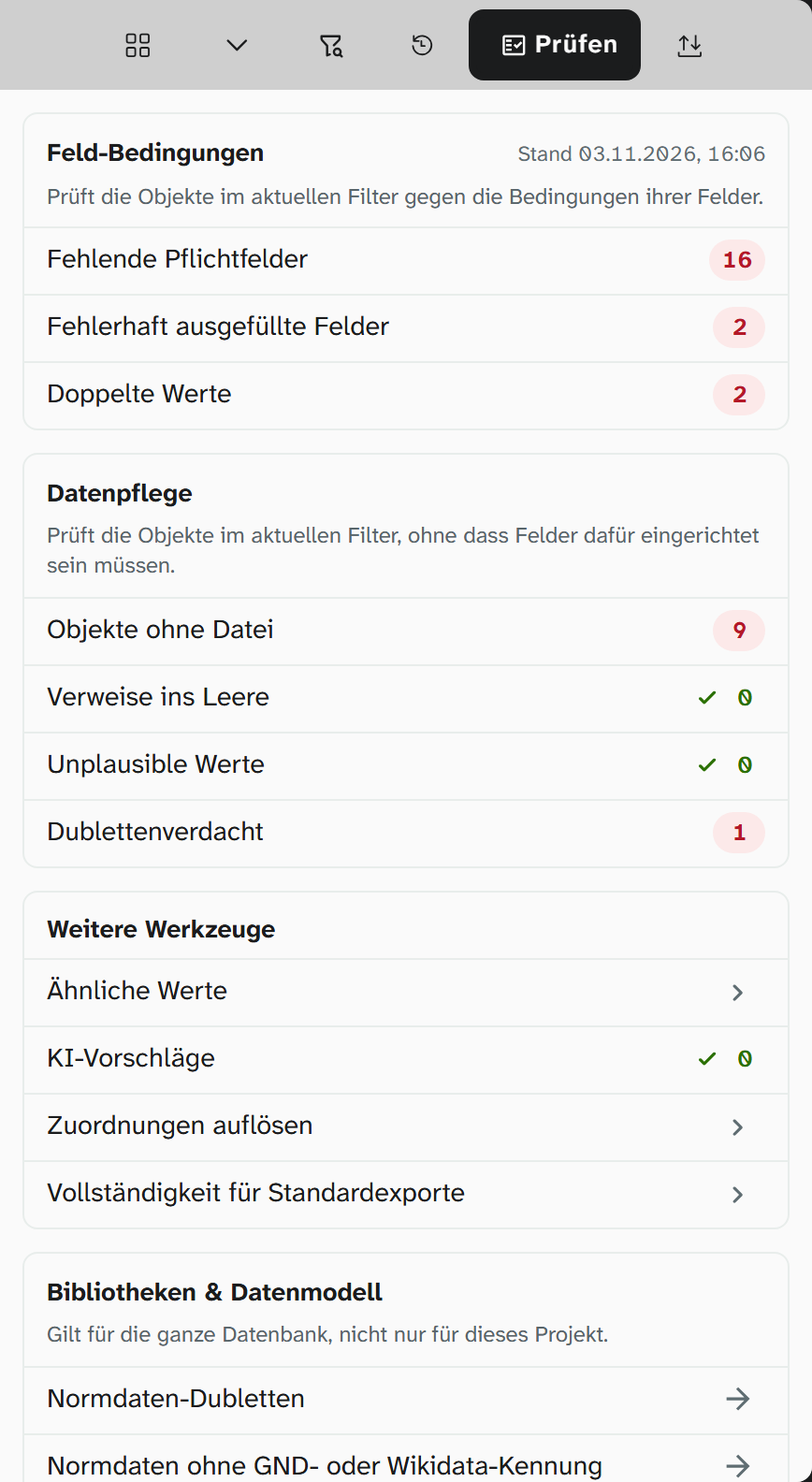
| Box | Checks | Scope |
|---|---|---|
| Field conditions | Missing required fields, Incorrectly filled fields, Duplicate values | Objects in the current filter |
| Data upkeep | Objects without a file, References into the void, Implausible values | Objects in the current filter |
| Suspected duplicates | Whole project | |
| More tools | Similar values, AI suggestions | Whole project |
| Resolve references, Completeness for standard exports | see below | |
| Libraries & data model | Links into the libraries, for administrators only | Whole database |
Objects in the trash do not count in any check. Almost every list of findings has a filter icon on each row and a button Show all … in the gallery; both filter the gallery to exactly the objects found. If you carry on working afterwards, remove the filter again on the Filter tab.
Field conditions
Administrators can set conditions on fields: required field, a rule for the value, unique in the project or in the database (see Fields ). They prevent nothing when you save; they only mark. The box counts which objects in the current filter do not meet their conditions.
| Check | Finds |
|---|---|
| Missing required fields | A required field is empty |
| Incorrectly filled fields | A value breaks the rule of its field |
| Duplicate values | A value that should occur only once in the project or in the database occurs more than once |
The server keeps the list of unmet conditions per project and updates it itself after every save. The head of the box therefore shows As of with the time at which the server last updated it. When a project is checked for the first time, the server builds the list and, until it is done, reports how many objects it has checked so far.
Clicking a check opens the Check field conditions dialog with three tabs and their counts. At the top of each tab is the overview, as in the Excel import report (field, condition, objects), and below it the affected objects with a link. If no field of the project has a condition of the chosen kind, the dialog says so. Check again fetches the server’s state once more.
The filter buttons do not set a fixed set of objects in the gallery but a row of the advanced search: Conditions not met or one of the three checks, optionally for a single field. This filter has no upper limit and stays current: an object that someone has corrected drops out. You can also create the same rows by hand in the advanced search . While the server is building the list for the first time, the gallery reports Filter nach Bedingungen wird vorbereitet (filter by conditions is being prepared).
On a single object, the number of fields that do not meet their condition is shown above the input form, see Object view .
Data upkeep
These checks need no field to be set up. They run when you open the tab and again whenever the gallery’s filter changes.
| Check | Finds |
|---|---|
| Objects without a file | Objects with no file attached in this project |
| References into the void | Object fields and object links whose target is in the trash in this project, is no longer in any project or cannot be read by you |
| Implausible values | A date in the future in a field with the condition not in the future, an event whose to is before its from, a measurement (number field with units) of 0 or less |
At the top, the list of findings shows an overview per field and finding, and below it the objects. For References into the void it names, per object, the field or link type, the ID of the target and the reason. The gallery filter of these lists holds at most 1000 objects.
A date in the future only counts as implausible where the field definition forbids it: with the condition not in the future (see Fields ). Planned dates such as the end of a loan or of an exhibition are often in the future and are not reported without this condition. Field conditions does not list this condition a second time.
Implausible values does not check two separate date fields against each other, such as loan start and loan end, only the two dates of an event.
Suspected duplicates
Suspected duplicates counts pairs of objects in the whole project that are probably the same object, regardless of the gallery’s filter. It compares the fields that have the Suspected duplicates switch turned on under Conditions in the field administration. For fields with a uniqueness condition it is on automatically. If no field is switched on, nothing is compared, and the dialog tells you where to find the switch.
The comparison is generous: case, accents, punctuation, whitespace and leading zeros do not count. 1921.1239 and 1921/1239 count as the same, and so do A-01 and a1.
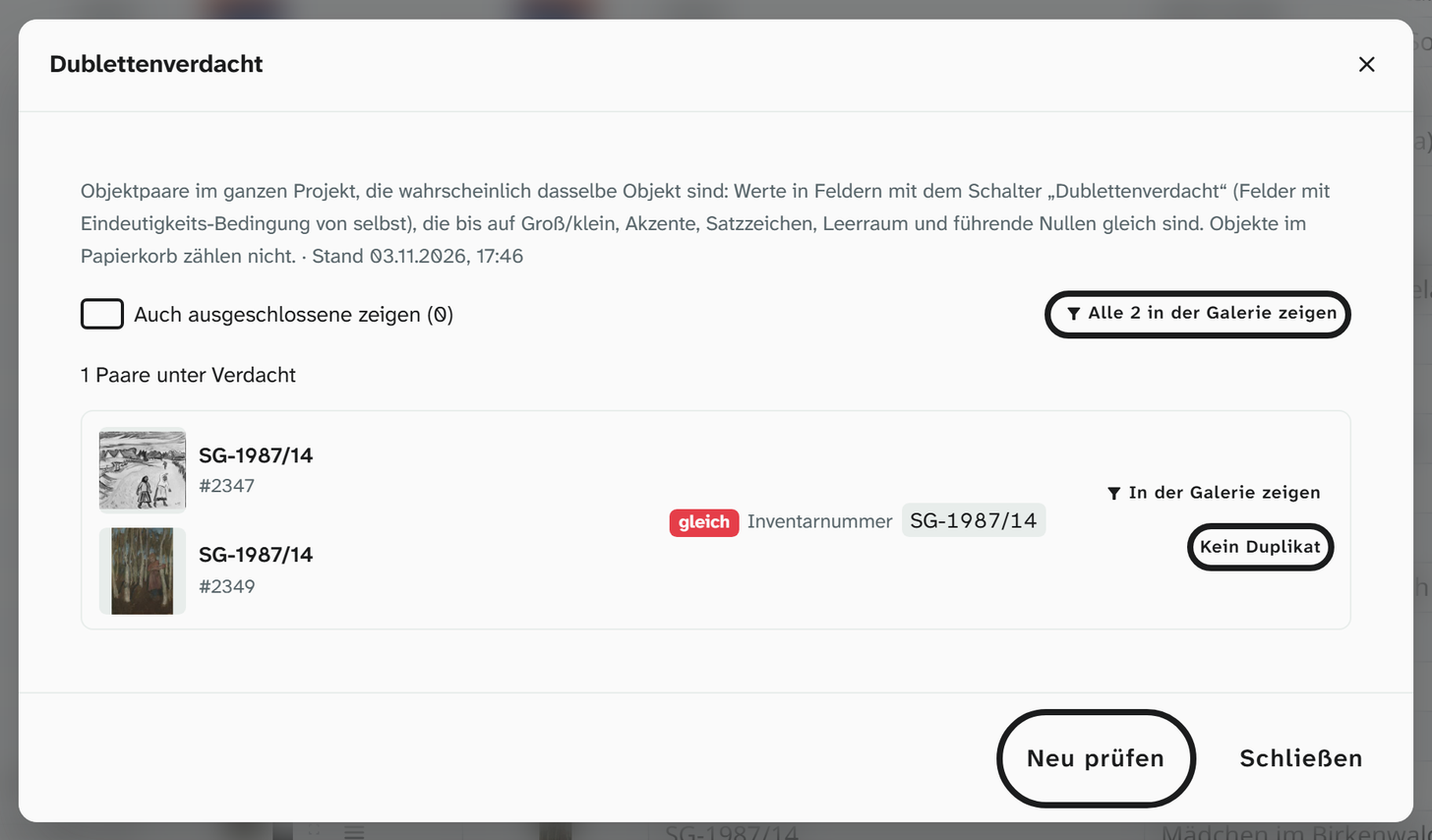
| In the dialog | Meaning |
|---|---|
| Pair | Both objects with thumbnail, name (the first text field of the gallery) and number. A click opens the object |
| equal | The same value, compared as Duplicate values does |
| similar | Only written alike: case, accents, punctuation, whitespace or leading zeros differ |
| Show in gallery | Filters the gallery to both objects |
| Not a duplicate | Remembers the pair for all projects. It no longer appears after that |
| Also show dismissed | Brings such pairs back; Check again removes the mark |
If a value has more than 20 objects, the dialog only names it instead of listing all pairs. It cannot merge objects; you clean up a real duplicate by hand, for example by moving one of them to the trash.
Similar values
Similar values finds values that probably mean the same thing but are written differently. The comparison covers all objects of the project.
| Difference | Example |
|---|---|
| Case, accents, punctuation | Müller and Mueller |
| Typo | Kirchner and Kirchnner |
| Word order | Müller, Hans and Hans Müller |
| Abbreviation | Öl auf Leinwand, Öl a. Lw. and Öl/Lwd., E. L. Kirchner and Kirchner, Ernst Ludwig |
A slash between two words stands for the word that connects them: Tempera/Holz counts as an abbreviation of Tempera auf Holz, Oil/Canvas of oil on canvas.
Numbers must be equal: 1901 and 1902 never count as similar. Free texts over 120 characters are left out.
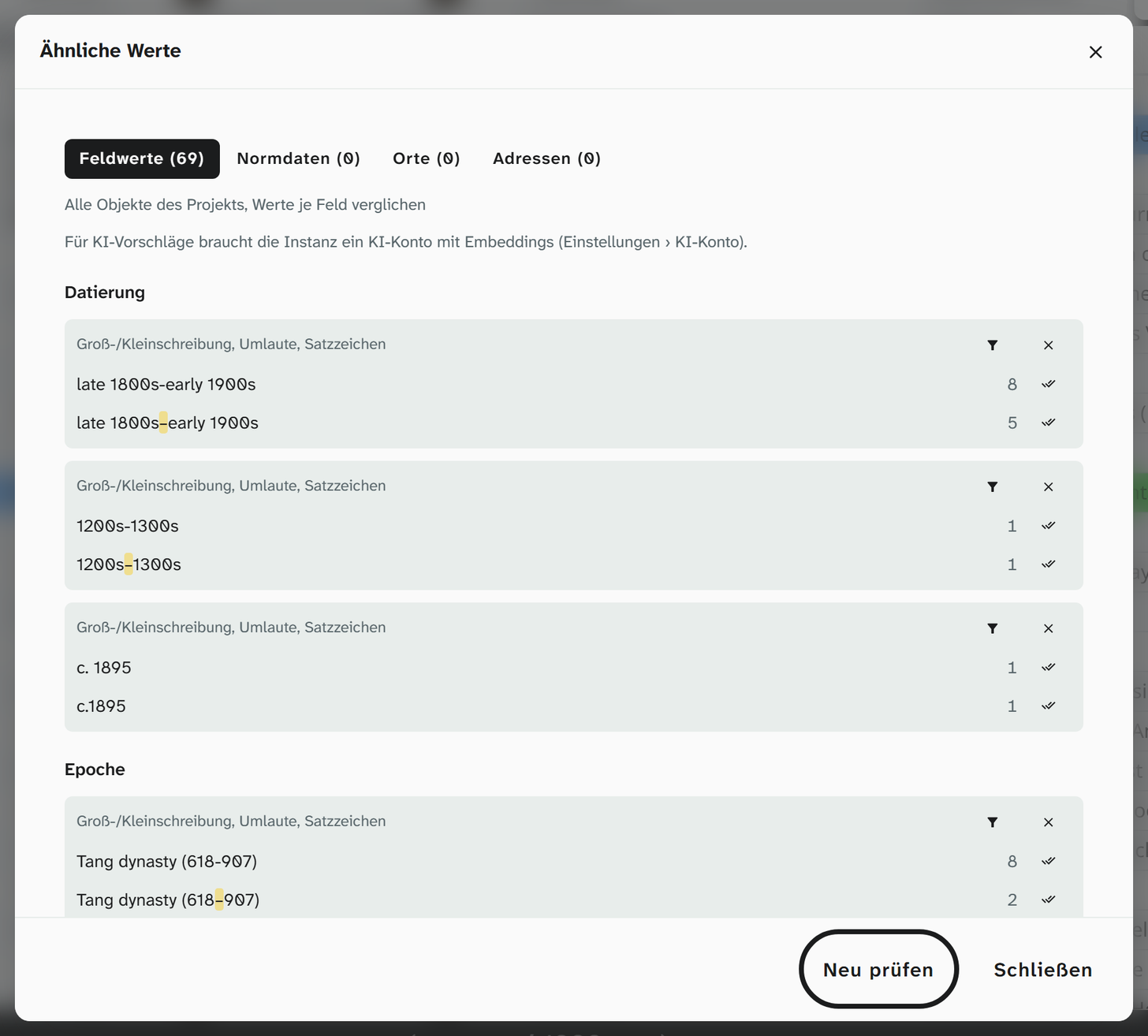
There are four tabs, each with the number of its groups:
| Tab | Compares |
|---|---|
| Field values | Text and select fields, per field. Multiple selections and keywords entry by entry |
| Authority records | The names of the authority records the project refers to |
| Locations | The locations the project refers to |
| Addresses | The addresses the project refers to |
Each value shows the number of objects. What you can do with a group:
| Action | Where | Effect |
|---|---|---|
| Filter icon | every group | Shows the group’s objects in the gallery |
| Use this spelling for all | next to a field value | After a confirmation, sets the whole group to this value, as one entry in the history . Undo on the group takes this back as a whole |
| Merge | next to an authority record, from status 6 | Merges it with the most used one of the group, through the dialog with comparison, selectable direction and trial run (see Authority data ) |
| ✕ (Dismiss) | every group | The group no longer appears in this project. Show dismissed brings it back, Suggest again undoes the dismissal |
Locations and addresses can only be shown and filtered, not merged. Links to authority records and addresses only count for administrators.
AI suggestions among the similar values
Next to the groups from the fuzzy comparison there are groups suggested by a language model: values that mean the same but are written differently, for example in another language (Florenz and Firenze), abbreviated (Holzschn.) or as a synonym (Aquarell and Wasserfarbe). They are at the top and carry the badge AI suggestion and the model’s reasoning. Unifying, merging, filtering and dismissing work as for the other groups. Without a click, the model changes nothing.
A bar above the list names the last AI run with its result, or the current one with its progress. AI run … opens the order:
| In the order | Meaning |
|---|---|
| Fields | Per field the number of values, of open pairs and the estimated time. List fields are preselected: at least half of their values are used by more than three objects. Other fields can still be chosen |
| Cap (pairs) | The run stops there and the next one continues. 0 means no limit |
| Probe run (20 pairs) | Checks 20 pairs and measures the time per pair |
| Start run | Queues the run. Pairs already checked are never asked again |
| Check new values every night | Checks the new values of the list fields for this project every night, in the instance’s night window |
The AI run needs an AI account for the instance with a model for embeddings, set up under Settings › AI account (fields Embedding model and Endpoint for embeddings). If it is missing, the bar says so. The model does not check locations and addresses.
AI suggestions
A language model never writes into a field itself. What it suggests lands under AI suggestions with reasoning and evidence, and a person decides. The number on the entry gives the project’s open suggestions. Suggestions are mostly submitted by an AI assistant that someone has connected to Moliri over MCP with an access token . There are suggestions for text, number, date, select and JSON fields, not for reference fields such as authority records, addresses, files, objects or locations.
Each suggestion shows the object (preview on hover, link to the object), the field, Now (the current value) and Suggestion, and below them the reasoning and the evidence; web links are clickable. At the top right is the origin: the model the assistant stated, otherwise mcp for a suggestion made through an MCP access token, plus its confidence as a percentage if it gives one. The tooltip there also names the program, run, person and time.
| Action | Key | Effect |
|---|---|---|
| Apply | A | Writes the value like an edit by hand, with history and undo |
| With source | Writes the value and also the reasoning and evidence into the field’s source, see below | |
| Edit and apply | E | Changes the value before applying it; then Apply this or Apply with source |
| Reject | R | Files the suggestion away. The same value for the same field does not come back after that |
| Move | J / K | To the next or previous suggestion |
Nothing is shown on the applied value itself, no uncertain marking and no source. In the history the change carries the badge AI suggestion, with the model in the tooltip, also in a field’s history and on batches.
Apply with source writes a line AI suggestion (model, date): reasoning into the field’s source, with the evidence below. An existing source stays, and the entry is added below it after a blank line; the same reasoning is not appended twice. Undo takes back value and source together.
If the field has been changed since the suggestion arrived, it is shown as a conflict: Then, Now and Suggestion side by side. It is then only written with Apply anyway. If you edit the field yourself, the open suggestions for it become obsolete.
| Filters and tabs | Meaning |
|---|---|
| Field, Run | Narrow the list to one field or one run |
| Apply all | Only when a field is chosen. The confirmation gives the number and shows a sample. Conflicts never go into a batch, and With source is not available here |
| Open | What is waiting for a decision |
| Applied | What was applied can be taken back |
| Rejected | What was rejected can be reopened |
| Outdated | Suggestions whose field has been changed by hand since |
The same suggestions are also shown on the object: as a bar above the input form and as a sign with a count on the field, see Object view .
Dimensions from free text
If an object’s size is only given as text in a field (“Blatt 34,5 × 47 cm”, “Framed: 93.5 x 118.5 x 7.5 cm”), the instance’s language model suggests height, width and depth from it. At the top under AI suggestions there is the bar Dimensions from free text for this, with the last run or the one in progress. Order … opens the form: the text field with the dimensions, the number fields for height, width and depth (fields with a matching name are preselected), the number of objects with the estimated duration, and a cap. Probe run reads eight objects, Start run all of them; with Read new and changed texts every night the order carries on at night.
Suggestions are only made for empty fields, and every number is checked: the quoted passage must appear in the text, and the number in it before its unit. Values are converted from mm, cm and m into the field’s unit; inches do not count. Whatever fails the check does not go into the list. The suggestions appear here like all the others, one per field, with the passage as the reasoning; the Run filter lets you choose the run. A text is only read once: a run that stops at the cap is continued by the next one.
The order does not read diameter or weight, and it does not question a value that is already in the field.
Resolve references and completeness
| Entry | Content |
|---|---|
| Resolve references | Parked values from an import, and text fields that are to be resolved into authority records. See Resolve references |
| Completeness for standard exports | Which required details of a metadata standard are missing for which objects, without a download. See Metadata standards |
Libraries and data model
Administrators see a fourth box with links into the libraries, each with a filter set. It covers the whole database, not just this project.
| Link | Opens |
|---|---|
| Duplicate authority records | The authority data library, filtered to possible duplicates |
| Authority records without GND or Wikidata ID | Authority records without an identifier from either of the two sources |
| Authority records: notes from the sync | Authority records with notes from the authority data sync |
| Places without coordinates | The locations library, filtered to locations without coordinates |
| Unused files | Files that are not attached to any object |
| Broken virtual fields | Virtual fields with sources that can no longer be resolved |
| Field value cleanup | The cleanup settings |
Further reading
- Sidebar : the other tabs
- Filters : the advanced search with Conditions not met
- Access tokens : connecting an AI assistant that makes suggestions