
Setup: reference
Metadata standards
You manage these under Data model › Metadata standards (status 9). The model behind them is explained in The concept behind the standards .
The concept hub
More than 60 concepts, compiled by hand and maintained with Moliri. A concept is a meaning, not a format and not a list of fields. You bind it once to your institution’s fields, and it is then part of every standard whose node points to it.
A concept has:
| Property | Meaning |
|---|---|
| Value kind | Text, authority record (term with identifier), date, number, language or structured |
| Language tag | Whether the value can carry a language tag |
| Facets | For structured concepts, the individual parts |
| Vocabulary | Recommended sources, such as AAT, GND or Wikidata |
The standards
| Standard | Basis | Scope |
|---|---|---|
| Minimaldatensatz (minimum data set, MDS) 1.2 | LIDO 1.1 | An explicit selection. Stays small even when the base schema grows |
| DDB-LIDO | LIDO 1.1 | All nodes of the base schema |
| EODEM (loans / exhibition) | LIDO 1.1 | Selection for loans: core identification, dimensions, material, event |
| Dublin Core | Dublin Core | Its own flat schema |
The separation saves maintenance: a new LIDO node extends DDB-LIDO and leaves the minimum data set alone. Beyond the minimum data set, DDB-LIDO contains inscriptions and marks, distinguishing features, related works and rights in the work, among other things.
The same mappings feed the Linked Data documents and IIIF manifests of publicly shared objects, as JSON-LD following the Linked Art profile. See Shares .
Requirement levels
Each node carries a level in the respective profile:
| Level | Meaning |
|---|---|
| Mandatory | Without a value the record does not meet the profile |
| Conditionally mandatory | Mandatory as soon as a precondition applies |
| Recommended | Should be filled in |
| Optional | Free |
The administration shows the level on each concept (Level column) and the progress as n of m mapped, for example 42 of 67 mapped. If you choose a project under Fill level from, it shows the fill level: how many objects have a value for a concept.
Sources of values (Comes from)
In a concept’s dialog the sources are listed under Comes from; you add new ones with Add source.
| Source | Meaning |
|---|---|
| Field | Link an existing field or create a new one. The usual case |
| JSON field | A JSON field supplies a repeatable concept, one entry per row. The row’s label (__label) carries the language or the reference |
| Events of the object | The maintained events , optionally limited to certain types. Without a limit, all of them |
| Files of the object | One media entry per file: path, rights, alternative text |
| Links | The links of a library, optionally of one type. Each link becomes an entry of its own, see below |
| Fixed value | A fixed value for all objects. For the holding institution, the record language, rights statements |
A concept may have several sources; they are merged. Like a virtual field, a field source can concatenate, fall back, combine or compute (As is, Concat, Fallback, Union, JS). In addition, a mapping can carry a filter (equals, contains, in list) so that only certain values are output.
Links as a source
Under Library and Type you choose which links the source supplies (all types is possible). For each entry these attributes are available:
| Attribute | Contents |
|---|---|
| Target label, Target ID | The name and the number of the target |
| Target URI | For authority data, the record’s own URI, otherwise the GND or Wikidata address; for other libraries, the URI of the target, only if it is readable |
| Library, Link type, Link type name | Where the link comes from, and its type as key and name |
| LIDO term of the link type, Concept of the link type | What is set for export under Link types |
| Uncertain, Source | The link’s annotations |
| Order, Link ID | Position in the link area and number of the link |
| Event type | Only for events |
| Extra: … | One per additional field of the type |
| Concept: … | One per additional field to which the type has assigned a concept |
| GND ID of the target, Wikidata ID of the target | Only for authority data |
Creating missing fields
Where a concept has no field yet, Moliri creates one on request, either as individual fields (searchable, sortable and groupable) or as a JSON field (equivalent for the export, not reachable through the search).
Map n open … opens the Map open concepts dialog with all concepts that are not mapped. For each concept: Create new, Link existing, Default mapping, an existing field or Skip. Set all (Create new, Existing only, None) decides for all of them at once, and Create & bind carries it out.
Process templates
Next to the standards, the overview lists templates for workflows under Processes. Ten of them cover the procedures of collections management, each with the concepts a procedure needs. What each procedure involves and how it can be represented in Moliri is described in the Collections management section.
| Process | Concepts |
|---|---|
| Object entry | 8 |
| Acquisition / accession | 14 |
| Inventory / audit | 6 |
| Cataloguing | 17 |
| Location & movement | 6 |
| Loan in | 12 |
| Loan out | 11 |
| Object exit | 6 |
| Condition check | 8 |
| Deaccession / disposal | 9 |
Two further templates bring a library of their own: Literatur creates a library project for references, with fields following CSL, and Equipment one for display cases, plinths and frames.
Processes prepare fields, link types and layouts; the workflow itself is up to your institution. Because they rest on the same concepts as the standards, anyone who has mapped for the minimum data set already has most of the fields for Cataloguing.
Installing
Install in the header of an open process opens the preview. It says what will be created, and only creates it when you click Install in the dialog.
| Row of the preview | Contents |
|---|---|
| Library project | Only for Literatur and Equipment: the project is created or already exists |
| Object types, fields | What is new, what already exists and what is skipped because the name is taken by another field type. Existing fields stay as they are |
| Layout | For Literatur and Equipment, the layout of the library project. For all other processes, a layout template from the mapped fields that appears in new projects. Concepts without a field are listed below it, next to Create missing fields |
| Link types | For each type missing, equal, adapted or deviates. An existing type opens under Link types through the icon next to it |
If a layout with the process’s name already exists, none is added; this also applies to a layout under an earlier name of the template. A second installation of the same template only creates what is still missing. If everything is there, the preview says Everything is in place.
Moliri creates everything in one go. If a step fails, nothing is left half created, and the message names the step. If the existing setup has changed since the preview, for example because someone else has created a field in the meantime, nothing is created and the preview reloads. The same applies to Create missing fields, Create field on a concept and Create layout in a standard.
Log
Under Installed so far in the dialog and through Log in the header of a process or standard you can see who created what and when, with the version of the template:
| Entry | When |
|---|---|
| Installation | First installation of a template |
| Supplement | A further installation that adds what was missing |
| Missing fields created | Fields through Create missing fields or Create field |
| Layout created | Create layout in a standard |
Each entry says what was created: fields, object types, link types, bound concepts, the library project.
Views of the administration
| View | Shows |
|---|---|
| Overview | A card for each standard and each process with n of m mapped and the percentage |
| Standard (card open) | The concepts of a profile in groups, with Level, Comes from and In the export. Plus Check, Create layout and Log |
| Process (card open) | The concepts of a procedure, plus Install and Log |
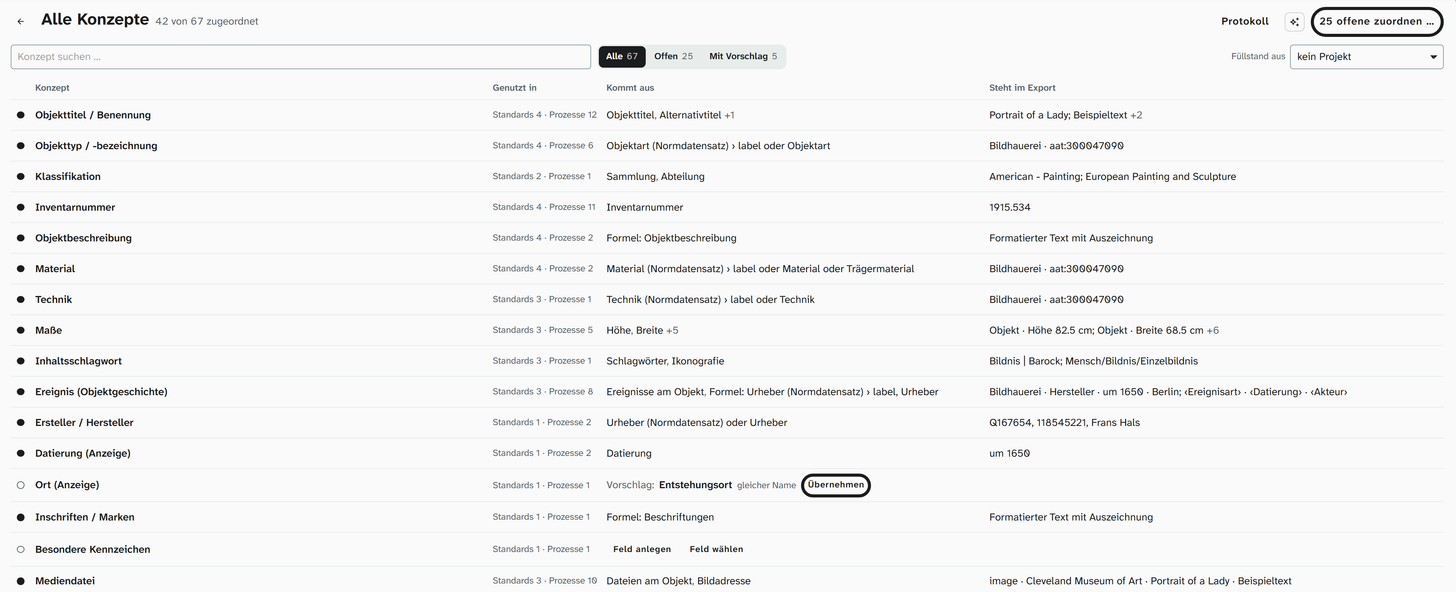
| All concepts | All concepts with their mapping state and Used in (in how many standards and processes) |
In every list, All, Open and With suggestion filter. If a project is chosen above the list under Fill level from, Gaps is added: the mapped concepts that do not have a value on every object in this project. Clicking a concept opens the detail column: In the export shows what the mapping produces for an object, also as XML with Show XML, and below it Comes from with the sources.
A mandatory concept whose mapped fields all lack the not empty condition and have no custom condition carries a red exclamation mark in the Level column. The detail column says so in a note. Set condition below it sets not empty on the mapped field; if there are several, you choose the field in a small menu, because the condition on one of them is enough. Other conditions of the field stay. The note and the exclamation mark disappear at once. Only people who may edit fields see the button. Next to it, the link with the field name, for example “Datensatzsprache öffnen”, opens the field details in a new tab. Moliri never changes existing fields by itself. When Moliri creates a field for a mandatory concept, on the other hand, it gets the condition straight away.
Check checks the objects of a project you choose against the mapping as currently set, including unsaved changes. In the report, Check file also starts the schema validation.
In the header of a standard, a process and All concepts, the Copy prompt for the mapping icon (asterisk) puts a request for a language model of your choice on the clipboard. It contains the concepts of the view with requirement level, facets and mapping state, and the existing fields. At the top is an empty line AUFGABE (task) for your instruction, for example “only the mandatory concepts”. What comes back is a table of suggestions (concept, field, facet, confidence, reasoning) and the concepts without a matching field. Moliri sends nothing to a language model; you then do the mapping by hand in this view.
Export and validation
You export in the project, on the Data In- & Export tab, under Metadata standards. The procedure from the user’s point of view is described under Exporting LIDO .
| Step | What happens |
|---|---|
| Completeness | How many objects meet the mandatory details of a profile, and which concept is missing for how many. A click filters to the objects concerned |
| Check before export | For each object, missing mandatory details and formal errors: missing references, no ISO date, a placeholder instead of a value, control characters. Then: Export anyway, Only complete or cancel |
| Schema validation (XSD) | The finished file is validated against the schema, in the browser and without internet access. Each finding points to its object. For the minimum data set against the profile’s schema, otherwise against LIDO 1.1. There is no binding schema for Dublin Core |
Concepts that are not mapped are missing from the result. Moliri invents nothing.
LIDO import
LIDO files can be read in, also from other collection systems and as EODEM. Preselected by themselves are concepts bound to exactly one field, measurements per measurement type and links with a type; events are created where the event type matches. Names of persons and places are not automatically matched to authority data. Details under Set up the LIDO import , the steps under Import LIDO .
Further reading
- LIDO : nodes and facets
- Dublin Core : the elements
- Binding fields to concepts : the procedure