
Setup: guides
Grant access
Everything else follows from two rules:
- Permissions combine. Of all the places, the most generous one applies. There is no way to forbid.
- Project and layout are upper limits. A field permission is capped by the layout permission and the project permission.
Every place knows three levels: No access, Read only, Edit.
The order
-
Grant the project permission: in the project details for Everyone, and on the Groups and Users tabs for individual groups and accounts. Without a project permission, an account with status 3 does not see the project.
-
Grant the layout permission. A layout needs two things: it must be switched on in the project, and the account needs a permission for it, either for everyone or via a group.
-
Set field permissions where you want to distinguish: in the field details under Permissions, or in the group on the Fields tab.
-
Check with an account that has status 3.
Through groups, not one by one
Assigning directly to accounts is convenient with three people and impossible to maintain with thirty. It works better to divide by activity:
| Group | Contains |
|---|---|
| Erfassung (data entry) | Data entry layout, general fields |
| Restaurierung (conservation) | Conservation layout, condition fields, event type Restaurierung |
| Leihverkehr (loans) | Loans layout, loan and insurance fields |
| Vermittlung (education) | Overview layout, read only |
You then grant the project permissions on the account. They change more often than activities do.
Share a field with a group
| Place | Level |
|---|---|
| Field, row Everyone | No access |
| Group that should edit | Edit |
| Group that should read | Read only |
If the field is set to Edit for Everyone, anyone who may edit the project and the layout can edit it. Group permissions no longer change that.
A hidden field also stays hidden in the full-text search, including its comment and source. If a file is only in such a file field, it is missing from the object’s file area, the search does not find its transcript or its recognised text, and the file itself cannot be retrieved.
A file linked in an object’s file area is not attached to any field. Anyone who may read the project sees it and finds it through the full-text search, including via its transcript and recognised text. A confidential document, such as a loan agreement, therefore belongs only in a file field with suitable permissions. If the same file is also placed in the file area, everyone can see it again.
Checking
Status 6 and 9 bypass every permission table. If you check as an administrator, you always see everything and assume the setting is right. To check, you need a second account with status 3 and the groups of the person concerned.
The checklist:
-
Sign in with the test account. Does the project appear in the overview, and does its tile say read only where that is intended?
-
Are the expected layout tabs there, and only those?
-
Are the fields that should be hidden missing, and can the ones meant for editing be edited? A value from a hidden field must not produce a hit in the full-text search either, and a file from a hidden file field must not appear in the file area.
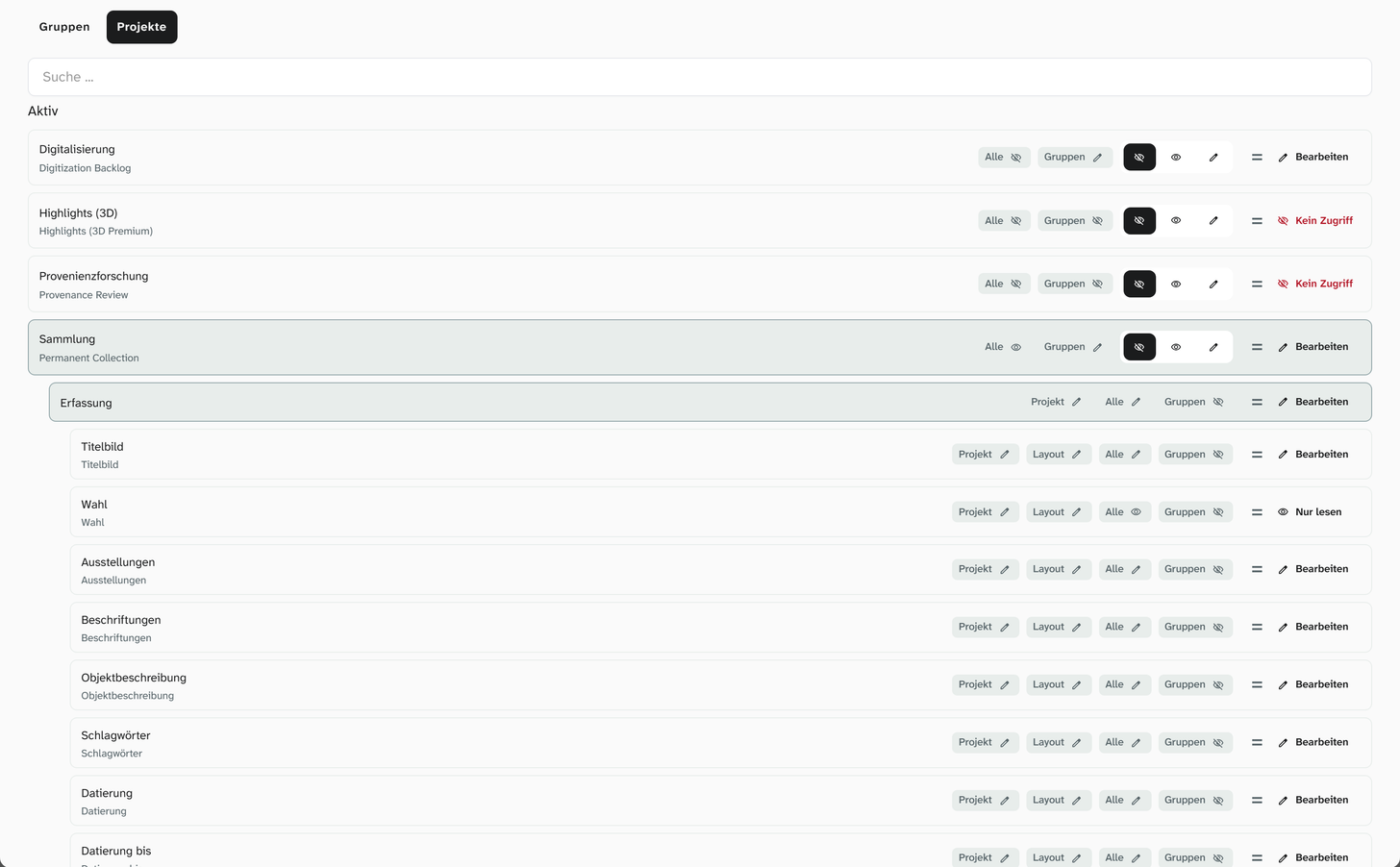
Permissions › Users gives a quicker overview: the Projects tab of an account shows, per project, layout and field, what applies via Everyone and via groups.
Common mistakes
| Mistake | What you see |
|---|---|
| Layout not switched on in the project | The tab is missing even though the permission is set |
| Project Read only, field Edit | Nobody can edit, because the project sets the upper limit |
| Field set to Edit for Everyone, plus group permissions | The group permissions have no effect |
| Checked only with status 9 | Everything looks right and is not |
Further reading
- Permission model : the decision tables
- Roles and status : what each level opens up
- How permissions combine