
Setup: guides
Create a virtual field
A virtual field calculates its value from other fields. It stores nothing and cannot be edited. In field selections it carries a small mark that says where the value comes from.
-
Open Data model › Virtual fields and choose New. The definition opens in a dialog.
-
Enter the Name and Field group, as for an ordinary field.
-
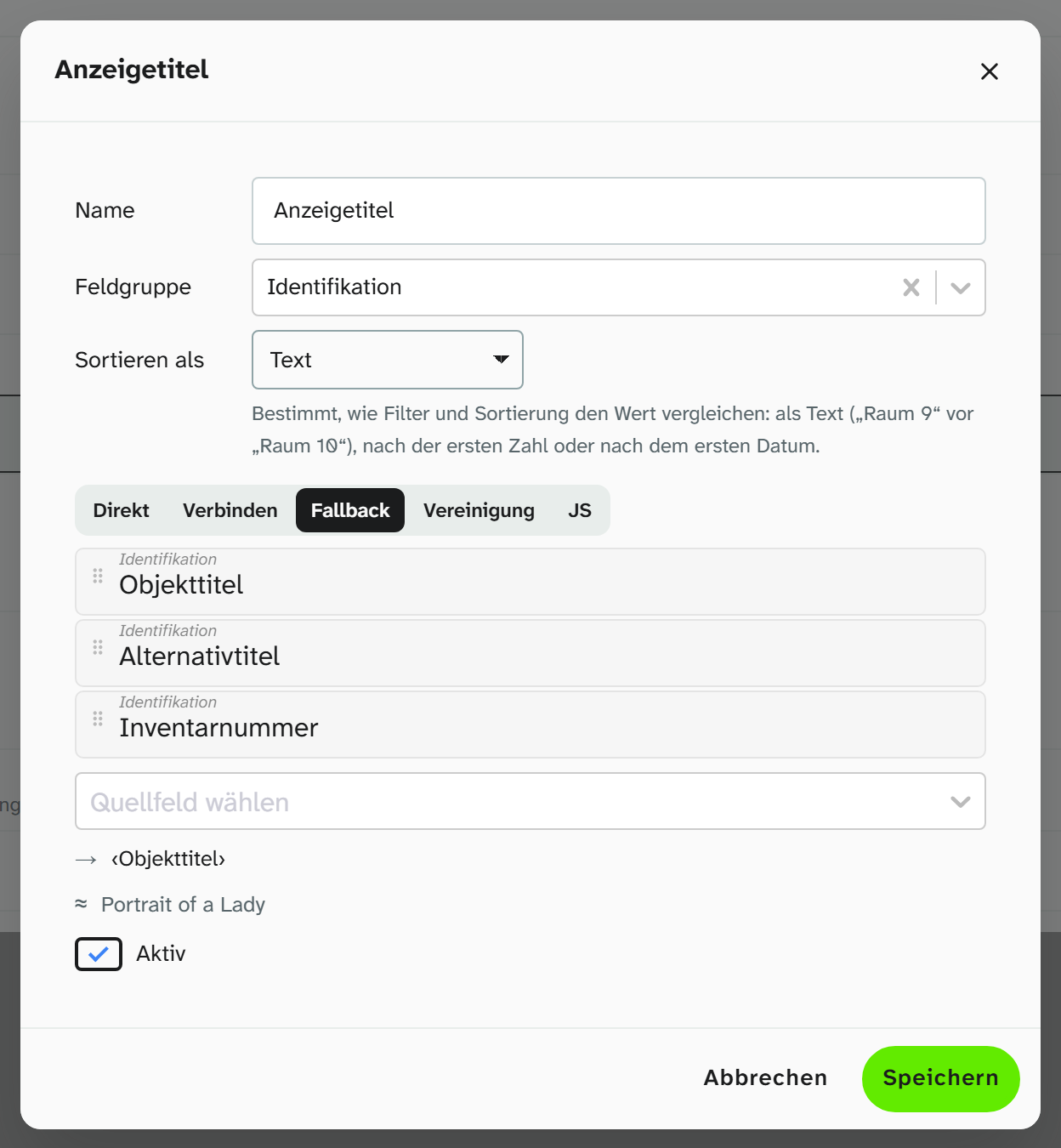
Choose Sort as: Text, Number or Date. This decides how filters and sorting compare the calculated value. For a dimensions line that starts with the height, choose Number; for a date range, Date. Without a choice, Text applies.
-
Choose the source fields. At least one is required. Besides fields, system sources are also available: the object ID and the project data (name, location, start, end, status).
-
Choose the Mode:
Mode Result As is The value of one source, unchanged Concat Several sources, joined with a Separator. With Join non-empty only, empty sources are left out Fallback The first non-empty value in the chosen order Union All values of all sources, each only once, joined with a Separator. With Split by (multiple entries), each source is first split at that character JS The result of a checked expression -
Save. Moliri checks a JS expression while saving. If it fails, nothing is saved.
-
Place the field in the layout editor with Insert virtual field.
Common uses
Name line. Mode Concat, a space as separator, first name and surname as sources, Join non-empty only switched on. If the first name is missing, no stray space is left behind.
Display title. Mode Fallback, sources in the order you want: working title, original title, German title. The first non-empty value wins.
Places. Mode Union, comma and space as separator, place of production and find spot as sources.
If both are the same, the place appears only once. If one field holds several places, such as “Rom;
Paris”, set Split by to ; and each place counts separately.
Dimensions line. Mode JS, built from separate fields. This is how the field “Objektmaße” (object dimensions) calculates its value in the demo collection:
JSconst teile = [];
for (const n of ['Höhe', 'Breite', 'Tiefe']) {
  const v = werte[n];
  if (leer(v)) continue;
  teile.push(String(Number(v)).replace('.', ','));
}
return teile.length > 0 ? teile.join(' × ') + ' cm' : '';

Time span. Mode JS with two years, see the example “Datierungsspanne” (date range) under Configure a virtual field .
What is allowed in JS mode
The expression is a subset of JavaScript. Variables, conditions, loops of the form for (const eintrag of liste), try/catch and the usual list and text methods are allowed.
Counting loops (for (;;)) and while, functions of your own and calls outside the approved methods are
not allowed. Arrow functions work only as the argument of a list method such as map or filter. new only for Date and some Intl formats. This way every expression is sure to finish. A rejection
names the permitted alternative.
The source values are available as werte['Feldname'], along with the helpers leer, liste, cfg, meta, fmt, spalte, verbinde and tab.
fmt is particularly useful. It returns the finished formatting of another field instead of you having to
rebuild it:
JSreturn fmt('Maße') || werte['Maße'];
Permissions
A virtual field is only as visible as its weakest source. If someone may not read one of the sources, the field disappears for them completely. It has no access setting of its own; otherwise it would be a way round the field permissions.
The administration reports definitions whose sources cannot be resolved. The filter Broken only lists them.
Working with the source fields
Annotations and history live on the source fields, because only the sources have a stored value. Every source is loaded along with the field for display, so a field over five sources loads five fields. Few sources keep the view fast.
Instead of deleting a definition, switch off Active. It disappears from all field selections but is kept. When you delete, the confirmation tells you how many layouts the definition is placed on. Those tiles disappear with it.
Further reading
- Virtual fields : the administration
- Virtual field : the field type
- JSON : formatting and the same helpers