
Data model
Virtual fields
You manage these under Data model › Virtual fields (status 9). The field type itself is described under Virtual field . This page describes the administration. The list is grouped by field group, with search, filter and sorting above it. Clicking a definition opens it in a dialog; New creates one.
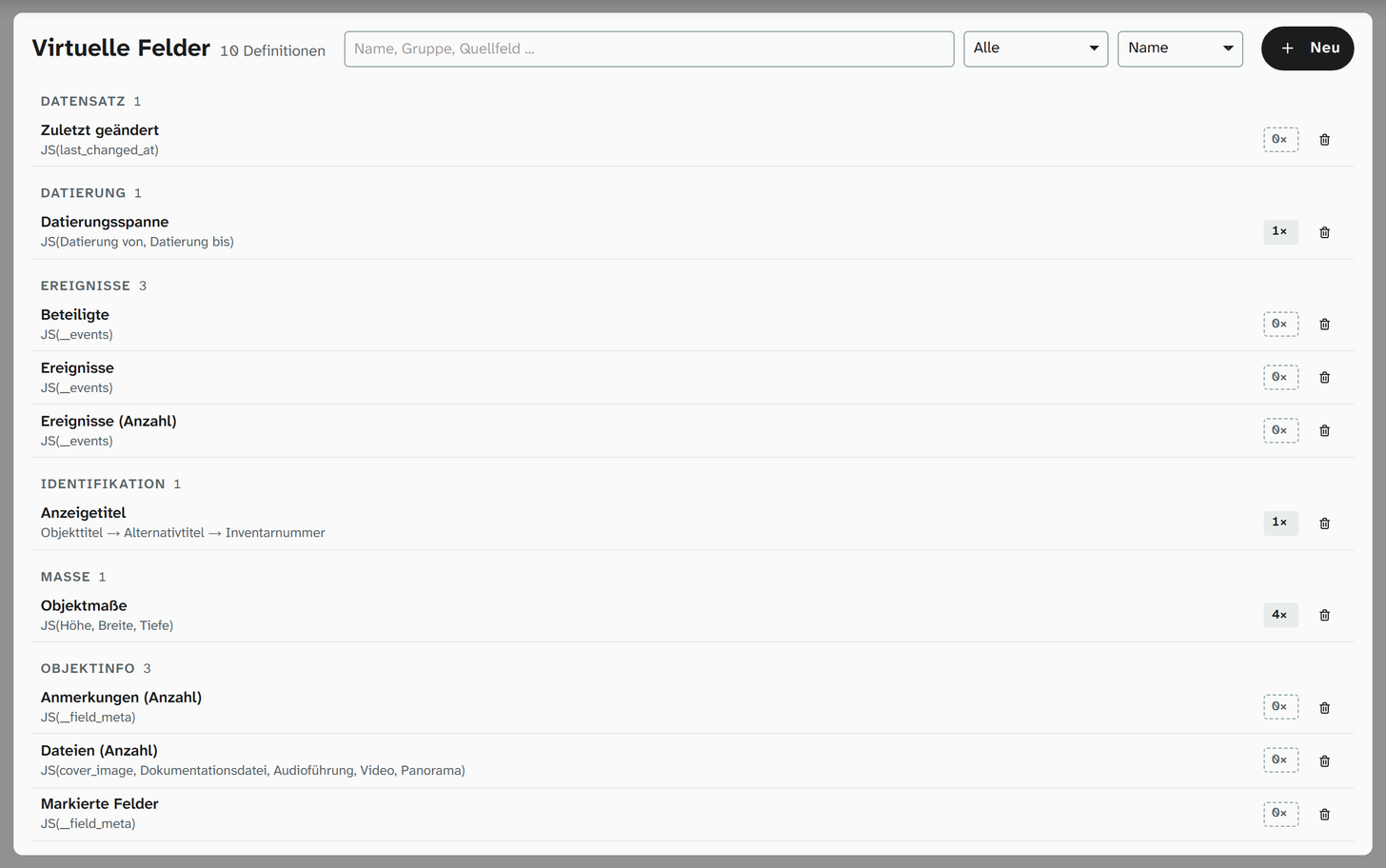
A definition
| Property | Meaning |
|---|---|
| Name | The name under which the field appears in field pickers |
| Field group | Orders the field pickers, as for ordinary fields |
| Sort as | Text, Number or Date: how filters and sorting compare the value. See below |
| Source fields | The fields the value is built from. In addition, system sources: object ID and project data |
| Mode | As is, Concat, Fallback, Union or JS |
| Active | Definitions that are switched off appear nowhere, but are kept |
The modes
| Mode | Result | Settings |
|---|---|---|
| As is | The value of one source | Display: raw, with mask or formatted |
| Concat | Several sources one after another | Separator, Join non-empty only |
| Fallback | The first non-empty value | Order of the sources |
| Union | All values of all sources, each only once | Separator, Split by (multiple entries), order of the sources |
| JS | The result of an expression | See Creating a virtual field |
With Concat, Fallback and Union, each source also has its own Display. A Union compares the values as they are displayed: if place of manufacture and find spot both say “Paris”, “Paris” appears once. Case matters, so “Paris” and “paris” both remain.
Sort as
You can filter, sort and group by a virtual field. What is compared is the computed value, in the way that Sort as specifies:
| Choice | Sorting and less-than or greater-than comparisons |
|---|---|
| Text (default) | Alphabetical, ignoring case and accents, with numbers in the text by size: Room 9 before Room 10 |
| Number | By the first number in the value, with decimal comma or point. A value without a number sorts like an empty one |
| Date | By the first date in the value. An incomplete date such as 1923 counts as that period |
Text comparisons such as contains or a regular expression always work on the text. Moliri computes the values for each field and project in advance in the background, at the first filter or the first sort in a project, and keeps them up to date afterwards. Changing Sort as or the formula triggers a new computation. Who may filter by which field is described under Virtual field .
States
The selection next to the search (default All) filters the list:
| Filter | Shows |
|---|---|
| All | All definitions |
| Active only | Definitions that appear in field pickers |
| Inactive only | Definitions that are switched off |
| Broken only | Definitions with at least one source field that cannot be resolved |
| Unused only | Definitions that are not on any layout |
A broken field appears nowhere. The list says n source field cannot be resolved, the field is shown nowhere. The cause is almost always a source field that was deleted or renamed.
A virtual field is only as visible as its weakest source. If someone may not read a source, the field is missing for them while others see it. This is intentional: a virtual field must not show a value whose source the reader is not allowed to see. See Permission model .
Validation on saving
When you save, Moliri checks a JS expression against a list of permitted language constructs. If it fails, the definition is not saved (The JS code is not approved.). The same check runs again before every evaluation. A definition that is no longer permitted in the meantime is not executed.
A definition without a source field is not saved either (At least one source field is required.). Virtual fields have no fixed value of the kind the metadata standards have.
Placement on layouts
In the layout editor , Insert virtual field places a tile of its own. You choose the definition in its properties.
The tile’s label can contain placeholders, including the value of the virtual field. The label then makes up the whole tile, with the value at that point.
In field pickers a virtual field carries a badge whose tooltip says what the value is built from, for example “Nachname + Vorname”.
Switching off and deleting
When you delete, the confirmation says how many layouts the definition is on. Those tiles disappear with it. No data is lost, because a virtual field stores none.
The more cautious route is to switch off Active. The definition disappears from all field pickers, but is kept and can be switched on again.
Cost
Every source is loaded too, even if only the computed field is displayed. A Concat across five sources costs five field fetches. In galleries with many objects this is noticeable. For overviews, prefer a few targeted definitions to many.