
Data model
Link types
A link type says what a link means: “dokumentiert in” (documented in), “Herausgeber” (editor), “gehört zu Konvolut” (belongs to group). It sets how often it may occur on an object, which targets fit, which details it carries and who may read and set it.
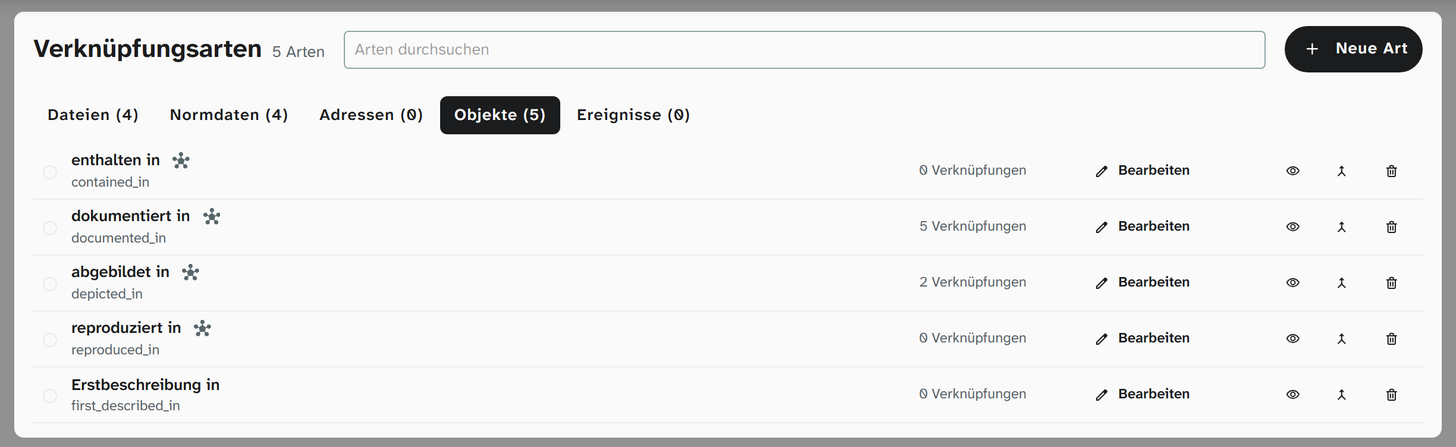
Managed under Data model › Link types (status 9). At the top there is a tab for each library with the number of its types (Files, Authority data, Addresses, Objects, Events), above it the search Search types. Types that a process template brought along and that nobody has confirmed yet come first and are marked unconfirmed.
Creating and editing
New type opens the New link type dialog for the library of the current tab; Create creates it. The type then opens like any existing one.
A click on a type opens its details. They have no save button: choices, switches, colour, access and the restrictions per project take effect at once, text and number fields when you leave the field or press
Enter. At the bottom, *Saving ...* shows that something is being written. When you close it, the dialog writes whatever is still open; if something cannot be written, such as an empty label, it asks *Discard unsaved changes?*.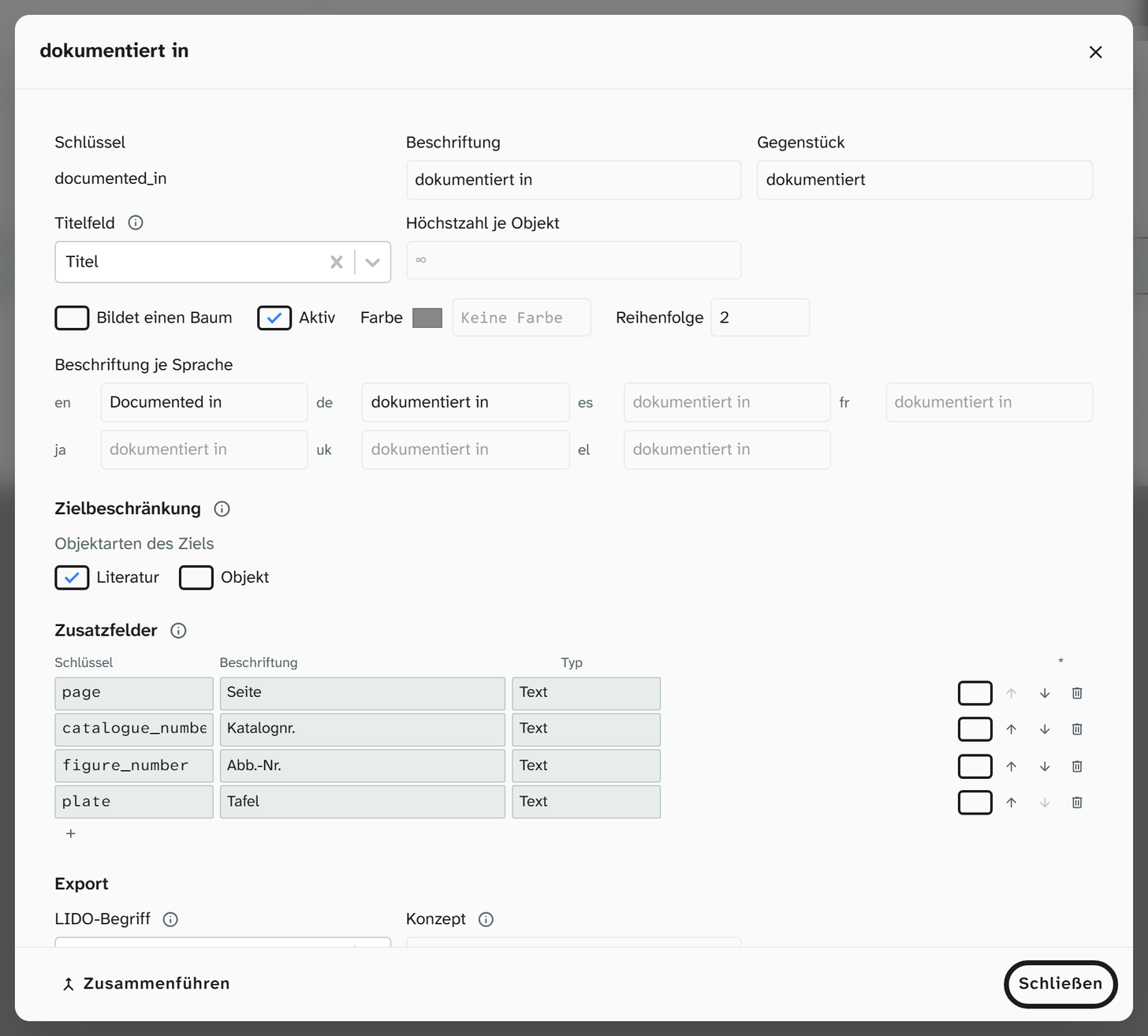
Properties
| Property | Libraries | Meaning |
|---|---|---|
| Key | all | The technical name, for example documented_in. For a new type it is formed from the label and is fixed after that. Renaming means changing the label |
| Label | all | The name in the interface. Required |
| Label per language | all | The name in the other languages of the interface |
| Inverse | Objects | The label as seen from the target, for example “enthält” (contains) for “gehört zu” (belongs to). It appears in the backlinks |
| Title field | Objects | The field of the target object that is shown as its title: in the selection, in the link area, in the backlinks, in the link columns of the views, in the Excel export and in Word templates. Empty: the inventory number, in columns and output preceded by the project |
| Forms a tree | Objects | The type arranges objects above and below one another, for example “Teil von” (part of). The link area then shows the hierarchy, and the detailed search can search with Include narrower terms. If a link closes a cycle, Moliri saves it and warns |
| Maximum per object | all except Files | Empty: any number. With 1, an area showing only this type looks like a field with Replace. More links are saved and marked with a red ! |
| Active | all | An inactive type can no longer be chosen. Its links remain |
| Colour | all | The colour of the chip in areas with several types |
| Order | all | Position in lists and selections |
Target restriction
Which targets fit the type. Without a selection, every target is allowed. Moliri reports deviations when you link (Link saved, please check), but does not block them. Addresses have no restriction.
| Library | Restricted to |
|---|---|
| Objects | Object types of the target, for example Literatur (literature) for “dokumentiert in”. The selection first shows only these |
| Authority data | Vocabularies in which the selection searches |
| Files | File types |
| Events | The event types for which the type is offered |
Additional fields
Details that every link of this type carries, for example page and figure number for “abgebildet in” (illustrated in) or the name as printed for an editor (not for files). Each additional field needs a key of its own, a label and a type (text, number, date …) and can be required. In the link area they appear in the row; an empty required field is marked, not prevented.
Export
LIDO term and Concept determine what the link is output as in the metadata standards . Without a concept, the type is exported as a local predicate with its label. Concept per additional field does the same for the additional fields; they then appear as Concept: … among the attributes of the Links source.
Access
Base access for everyone and one level of access per group: No access, Read only or Edit. The higher of the two applies. Anyone who may not read a type sees only the number of its links in the link area and finds nothing of it in the full-text search and the detailed search. For a new type, group access can only be set once it has been created. Events and files have no access of their own per type.
Projects
Per project, a type can only be restricted, never extended: Hide, lower the access or lower the maximum. For files there is only Hide. A restriction that is not below the type’s value has no effect and is marked as such (No effect: not below the type’s value).
Deleting and merging
A type that is still in use cannot be deleted; the message gives the number of its links, fields and layout areas. Merge moves its links to another type of the same library; fields and layout areas then point to that type, duplicate links are dropped, and the merged type is deleted together with its group access. If you only want to take a type out of the selection, switch off Active.
Further reading
- Links on the object : how the types work during data entry
- Layouts : the link area in the layout
- Permission model : read access to the target