
Data model
Cleanup
Cleanup consists of small, named transformations that a value goes through before it is saved: removing whitespace at the edges, turning a decimal comma into a point, replacing one character with another. It only changes the value of the field that is being written. Annotations such as comment or colour stay untouched.
You set it up in three places, each requiring status 9:
| Place | Applies to |
|---|---|
| Data model › Fields, field details, Cleanup section | One field, on the All projects tab or per project |
| Data model › Field types, per field type | Every field of that field type |
| System › Settings › Cleanup | Every field of the instance, where a step fits its values |
Steps
| Step | Effect | Acts on |
|---|---|---|
| Remove whitespace at the edges | Spaces, tabs and line breaks at the beginning and end are dropped, non-breaking spaces too | Text, numbers, authority records |
| Collapse repeated spaces | Several spaces or tabs in a row become one. Line breaks remain | Text |
| Remove line breaks | Every line break becomes a space | Text |
| Normalise Unicode (NFC) | Characters that look the same but are encoded differently (a ü made of two parts) are stored the same way | Text |
| Decimal comma to point | 1.234,5 becomes 1234.5, -3,5 becomes -3.5. Without a comma the value stays as it is; so does anything that is not a number (ca. 1900) | Integer, decimal |
| Replace text | Replaces every occurrence of a text literally, without regular expressions. The replacement must not contain the search text | Text |
| Convert text to JSON | Turns plain text into an entry in the JSON field, see below | JSON fields only |
Fields with code or markup (formatted text, JSON, template fields) only accept Remove whitespace at the edges and Normalise Unicode, and JSON fields also Convert text to JSON. A step that does not fit a field appears in its chain with the note no effect here and is skipped. This means you can set Collapse repeated spaces for the whole instance without it touching numbers.
The chain
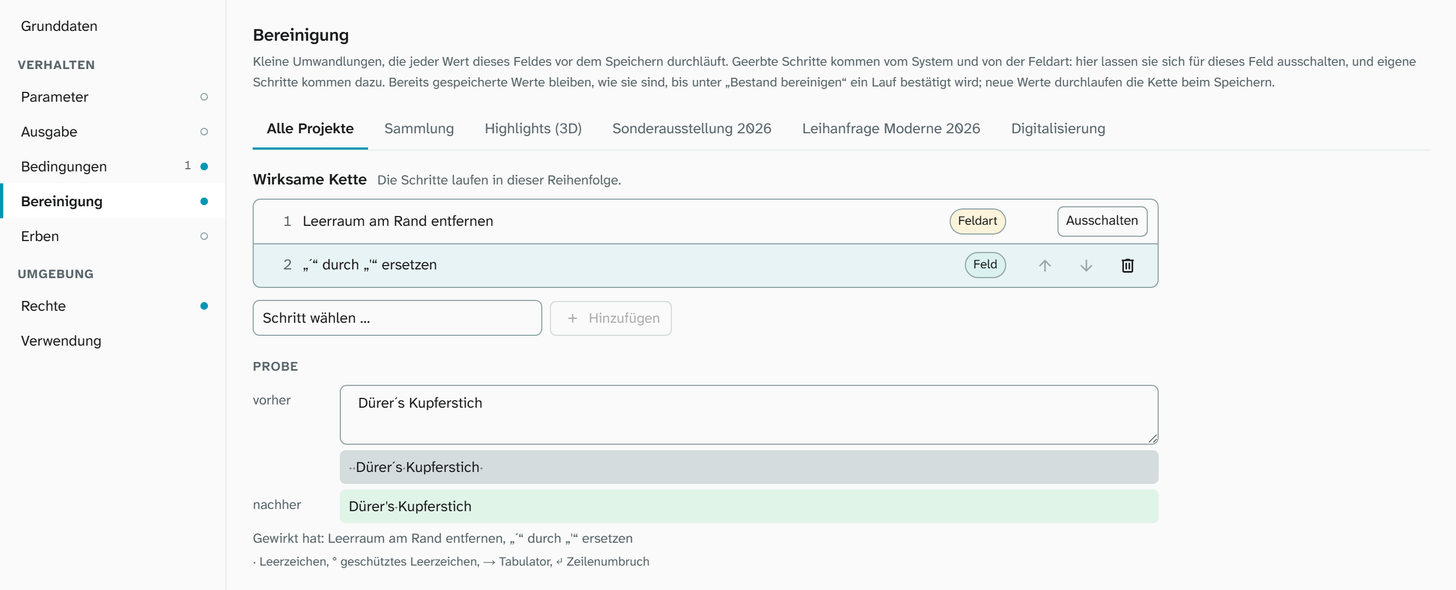
The steps form a chain with four levels, from broad to narrow: system, field type, field, project. Each level takes over the steps of the broader ones, can switch individual steps off and add its own. The Effective chain section shows the result in the order in which the steps run, each step with its origin (System, Field type, Field, Project …).
| On a step | Meaning |
|---|---|
| Switch off | An inherited step no longer applies from this level on. It is then listed under Switched off, with the level that switched it off, and you can switch it on again there |
| Arrows, bin | Only on the level’s own steps: move and remove |
| Add step | Choose a step from the list; Replace text and Convert text to JSON ask for their details |
The Project level only exists in the field details: next to All projects there is a tab for each project in which the field occurs. A project step only applies to values saved in that project, not to shared values of the field. A dot on the tab shows that something is set for the project.
Every change is saved immediately. It applies to values saved from then on. Values already saved stay as they are until someone confirms a run across the existing values.
Factory defaults
Out of the box only two steps are set, both on the field type level:
| Field types | Step |
|---|---|
| All whose values are stored as text, such as text and JSON | Remove whitespace at the edges |
| Integer, decimal | Decimal comma to point |
The system level is empty out of the box. The Field types page shows the notice Cleanup by default once, listing the field types that have defaults. From there you can start a dry run across the existing values for each field type. Hide notice removes it.
Sample
Below the chain is the Sample. A value entered under before appears under after the way
the chain would save it. Below that it says which steps had an effect. So that you can see whitespace,
a second line shows the value with symbols for invisible characters: · space, ° non-breaking space, → tab, ↵ line break. On the system level the sample belongs to no
field, so Sample as chooses the value table: d_varchar (text), d_int and d_decimal (numbers)
or d_normdata (authority records).
The sample uses the same part of the program that cleans values on saving. If a chain does not settle on a value (one step undoes what another did), the sample says so. On saving, such a value would stay unchanged.
Built in
Below the sample are the conversions that the server always applies to certain values. They cannot be switched off:
| Values | Conversion |
|---|---|
| Numbers | A value that is not a number is saved with the notice “is not a number” |
| Date | Separators such as . , / _ : are recognised, missing months and days are filled with 00 |
| Time | Unified to hh:mm:ss, missing parts filled with 00 |
On saving
Values are cleaned when they are saved in the input form, in bulk edit , in the Excel import and in the import from metadata standards. If the chain changed a value, the field briefly shows cleaned, and the Saved message names the steps (Cleaned: Whitespace at the edges removed). The field then shows the saved value. Undo in the history restores the old value without cleanup.
Clean existing values
Below every chain is the Clean existing values area. It applies the chain to values that are already saved: in the field details to all values of the field in all projects, on the Field types page to all fields of the field type, in the settings to all fields.
-
Dry run. It checks all values and writes nothing. The result says how many values would change (12 of 840 values would change), how often each step had an effect, and up to 20 examples before and after with object and field. It does not show every single change. After every saved change to the chain the dry run starts by itself; you can start it by hand with Start dry run.
-
Clean now. Only this button writes the values that the dry run found. If the chain has changed since the dry run, Moliri asks for a new one. Discard leaves everything as it is.
-
Undo if necessary. The run appears in the history as one batch. Undo in the same area resets all cleaned values to their state before the run. If some of them have been changed again since, Moliri asks before it overwrites those later changes too.
Both runs work in the background and appear in the worker view as Clean existing values. The area shows the last run the next time you open it. The dry run counts separately the values for which the chain does not reach a stable result; they stay unchanged.
Dry run and cleanup are computed in the server’s media service with the same rules as the browser. If an older version of the service does not yet know a step, the dry run fails with a notice saying so, or leaves the values unchanged.
Convert text to JSON
When a text field is switched to the JSON field type, its values remain plain text. The JSON field then shows them as raw content. The Convert text to JSON step turns them into entries the field can read:
| Setting | Meaning |
|---|---|
| Split at | A separator such as , or ;. Empty: the whole text goes into the first key |
| Keys | The subfields, separated by commas. Prefilled with the field’s columns |
The parts fill the keys in order, and any remaining keys are added empty. If there are more parts than keys, the rest, separators included, ends up in the last key; no text is lost. Quotation marks in the text are escaped. A value that is already JSON stays unchanged.
With the separator , and the keys ort, datierung, kommentar,
Berlin "Ost", 1950
becomes this entry. The third part is missing, so kommentar stays empty:
JSON[{ "ort": "Berlin \"Ost\"", "datierung": "1950", "kommentar": "" }]
For existing values: add the step to the field, then under Clean existing values look at the dry run first and convert with Clean now. The Excel import also converts a cell with plain text this way if the target field’s chain has the step. See JSON .
Cleanup, condition, import function
| Cleanup | Condition | Import function | |
|---|---|---|---|
| When | Before every save, and as a run across existing values | When displayed | During Excel import |
| Effect | Changes the value of its own field | Warns, changes nothing | Reshapes a cell, also into several fields |
| Form | Named steps | Switches and a custom rule | Custom code |
Further reading
- Fields : the other sections of the field details
- Field types : defaults per field type
- Admin areas : the other settings