
Reference
History
For every change to a field value or an annotation, Moliri stores who made it, when, what was there before and what was there afterwards, and in which project. Every change can be undone, including a whole import or a whole bulk edit.
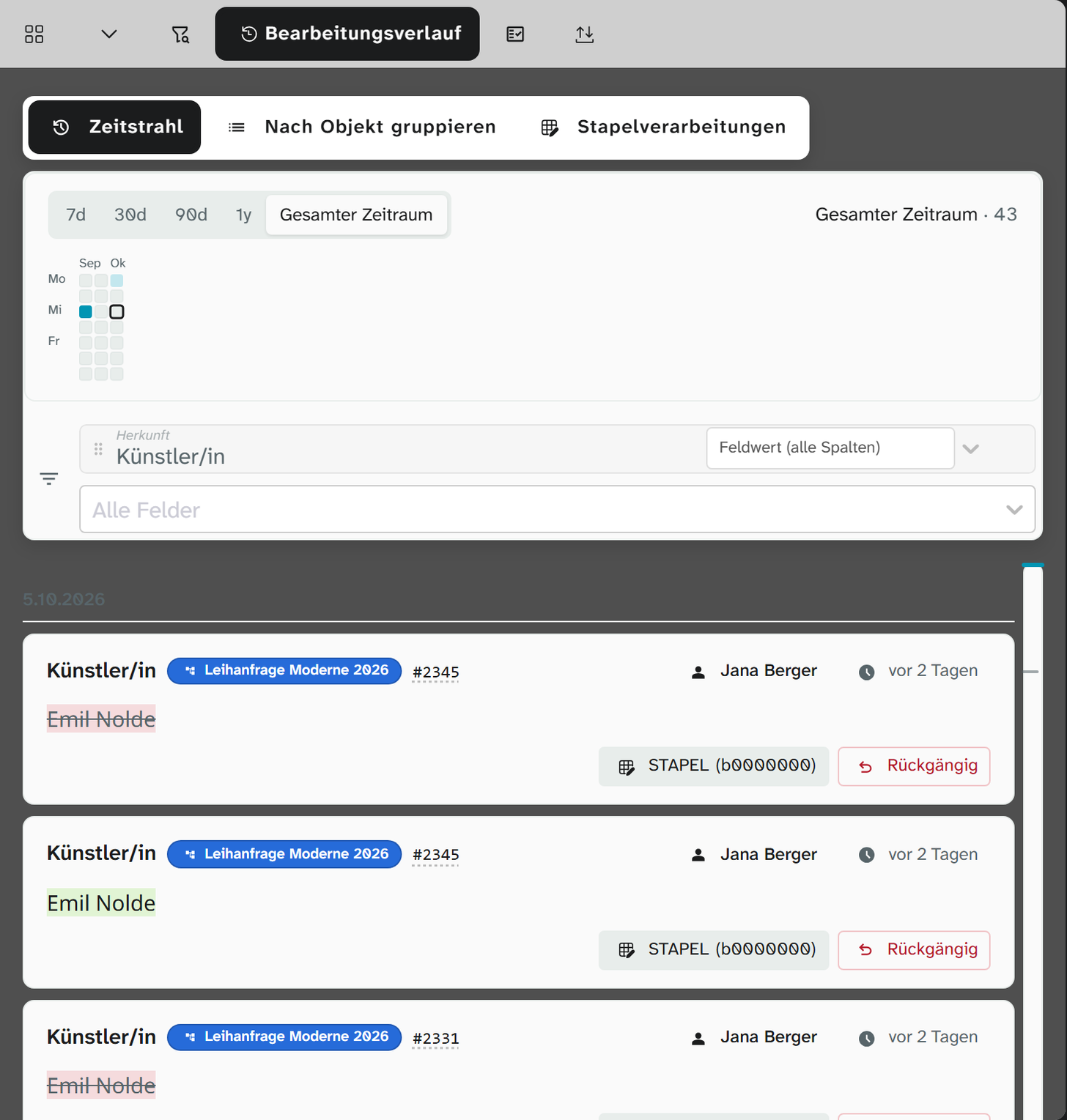
Where the history is
| Level | Where | Shows |
|---|---|---|
| Project | Sidebar, Editing History tab | Changes to the objects of the current selection |
| Object | The same tab with an object open | Only changes to this object |
| Field | Field menu › Open field details, History section | All changes to this field |
At project and object level, the history at first shows only part of the changes per object (+ n more changes hidden). Show all changes shows the rest.
For the whole instance there is also System › History (status 9). It also includes changes to the data model and to users.
The three views
| View | Structure |
|---|---|
| Timeline View | All changes by time, newest first |
| Group by Object | One section per object, the most recently changed at the top |
| Batch operations | Only bulk runs and imports, with the number of changes, objects and fields per run |
Above the list, a calendar grid shows on which days work was done: one square per day, coloured more strongly the more changed on that day. The buttons 7d, 30d, 90d and 1y narrow the list to the last days, and you can drag a period in the grid. All Time removes the restriction. Below it, All Fields lets you choose a single field.
Timeline rail
The Timeline View loads 50 changes at a time, More loads the next ones. To go further back, use the slim timeline rail at the right edge of the list. It covers the whole period, including days that are not loaded yet:
| What | Meaning |
|---|---|
| Tick | One day. The longer the tick, the more changes on that day. Over long periods a tick stands for a month, a year or a decade |
| Position of the tick | Where the day starts in the list, not where it lies in the calendar: a day with many changes takes up a lot of the rail, a quiet week little |
| Coloured bar | The day currently at the top of the list |
| Pointing | Day and number of changes, e.g. Sun, 4 Oct · 6,264 changes |
| Click | Jumps to the start of the day. If it is not loaded yet, Moliri loads the list from that day on |
After a jump, Newer changes appears above the list: it loads the changes between that day and the top of the list. The rail also works with the keyboard: arrow keys from day to day, Page Up and Page Down from tick to tick, Enter jumps.
The calendar grid and the rail complement each other: the grid narrows the period, the rail jumps within it. The same rail stands next to the instance’s changes under System › History.
Days count in your browser’s time zone, as the list shows them.
What is logged
| Action | In the history |
|---|---|
| Field value changed | yes, with old and new value. For JSON fields per entry (Objekt: Breite 64 → 65) |
| Annotation changed (colour, comment, source, uncertain) | yes |
| Object created | yes |
| Object moved to the trash (Wahl) | yes, as a field change |
| Image added, edited or removed, file uploaded or deleted | yes |
| Event created, linked, changed, removed, reordered, deleted | yes |
| Import, bulk edit, resolving references, cleaning up the records | yes, as one run with the BULK badge |
| Data model changed (fields, layouts) | yes, in the instance’s history |
By hand or taken over
If Moliri has taken over a value by itself, this is shown next to the person. Inherited from … means: the field has inherited the value from the authority record of the named field; the same goes for setting and removing the inheritance mark. The person shown is whoever triggered the inheritance, for example by saving the authority data field. How a field inherits is described under Fields .
Which project a change is attributed to
A change belongs to the project in which it was made. A change to the shared base value of a field belongs to no project.
A project’s history therefore shows everything that happened to the objects of this project, including changes to shared base values that someone made in another project. If you see a value here, you can also see here how it came about. See Project-specific values .
Undoing a change
Undo on an entry takes the change back. The confirmation names the field, object, current value and the value it will be reset to.
Undoing is itself a change and appears in the history afterwards. Nothing is deleted.
Conflicts
If the field was edited again after the change, Moliri reports Conflict Detected and shows:
| Detail | Meaning |
|---|---|
| Expected Value | What would be there if nothing had happened since |
| Current Value | What is there now |
| Undo to | What the undo would write |
Undo anyway writes the value. Bear in mind that a later correction is lost this way.
Undoing a whole run
An import, a bulk edit or a run of Resolve references appears as one entry in the history. Undo Batch opens the selection.
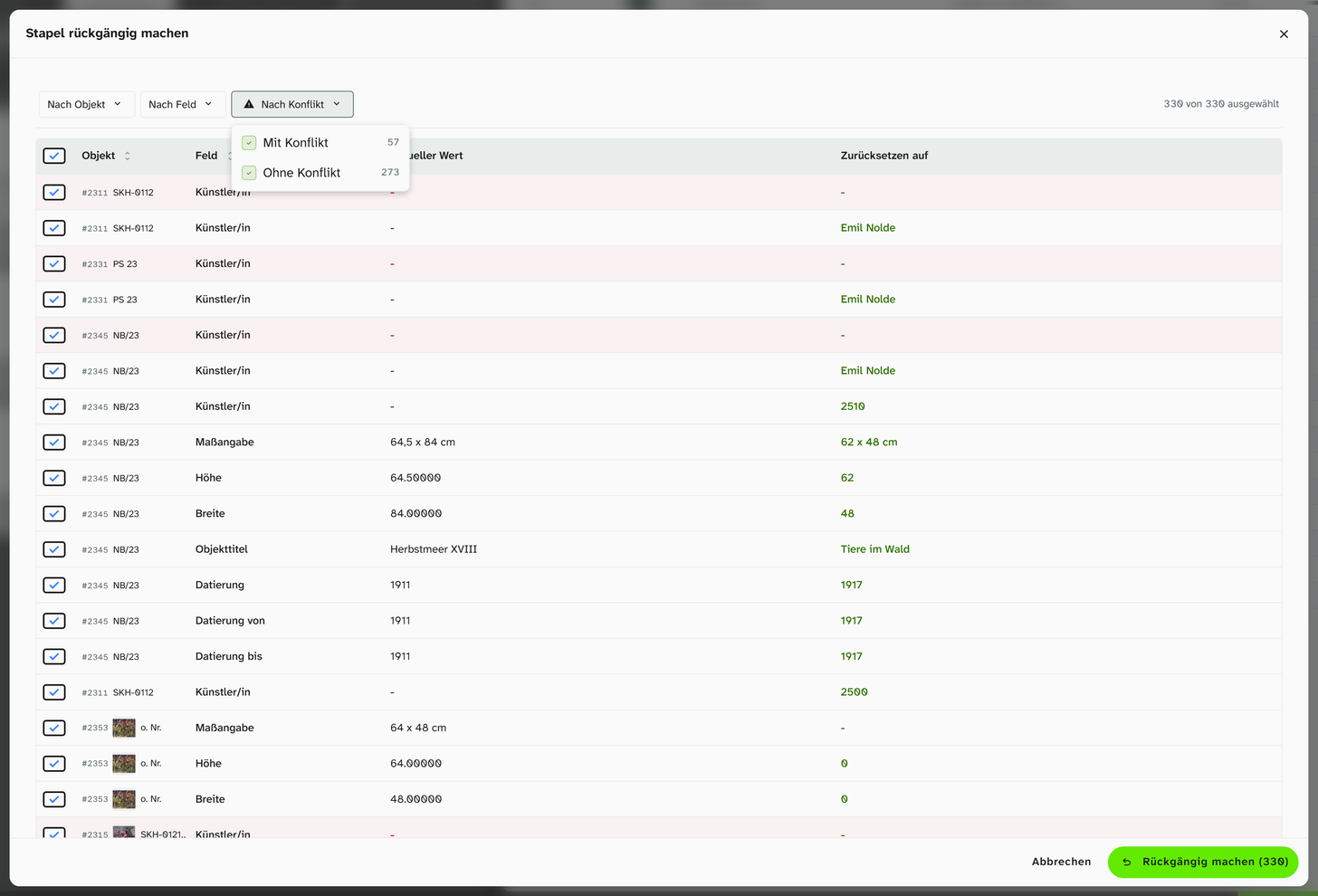
The dialog shows each change of the run as a row with object, field, Current Value and Undo to. Rows with a conflict have a red background. Each row has a checkbox; at the start all are selected. The three menus above select or deselect by group:
| Menu | Selects or deselects |
|---|---|
| By object | All changes to one object, with their count |
| By field | All changes to one field |
| By conflict | With conflict or Without conflict, each with its count |
You sort using the column headers Object and Field. At the top right it says n of m selected, and the Undo (n) button gives the count.
After a failed import, this has proved useful: under By conflict, deselect the With conflict group, undo, and then look at the conflicts one by one.
Permissions
Undoing requires write access to the field in the project concerned, as for normal editing. So being able to see a change does not always mean you can undo it. When you undo a whole run, changes to fields without write access stay as they are.
Further reading
- Trace changes : the procedure
- Object view : the history of a single field
- Bulk edit : what produces a run