
Objects
Trace changes
Find out who changed what and when, and undo it if necessary. Every change is recorded in the history with the field, old and new value, person, time and project.
At project level
-
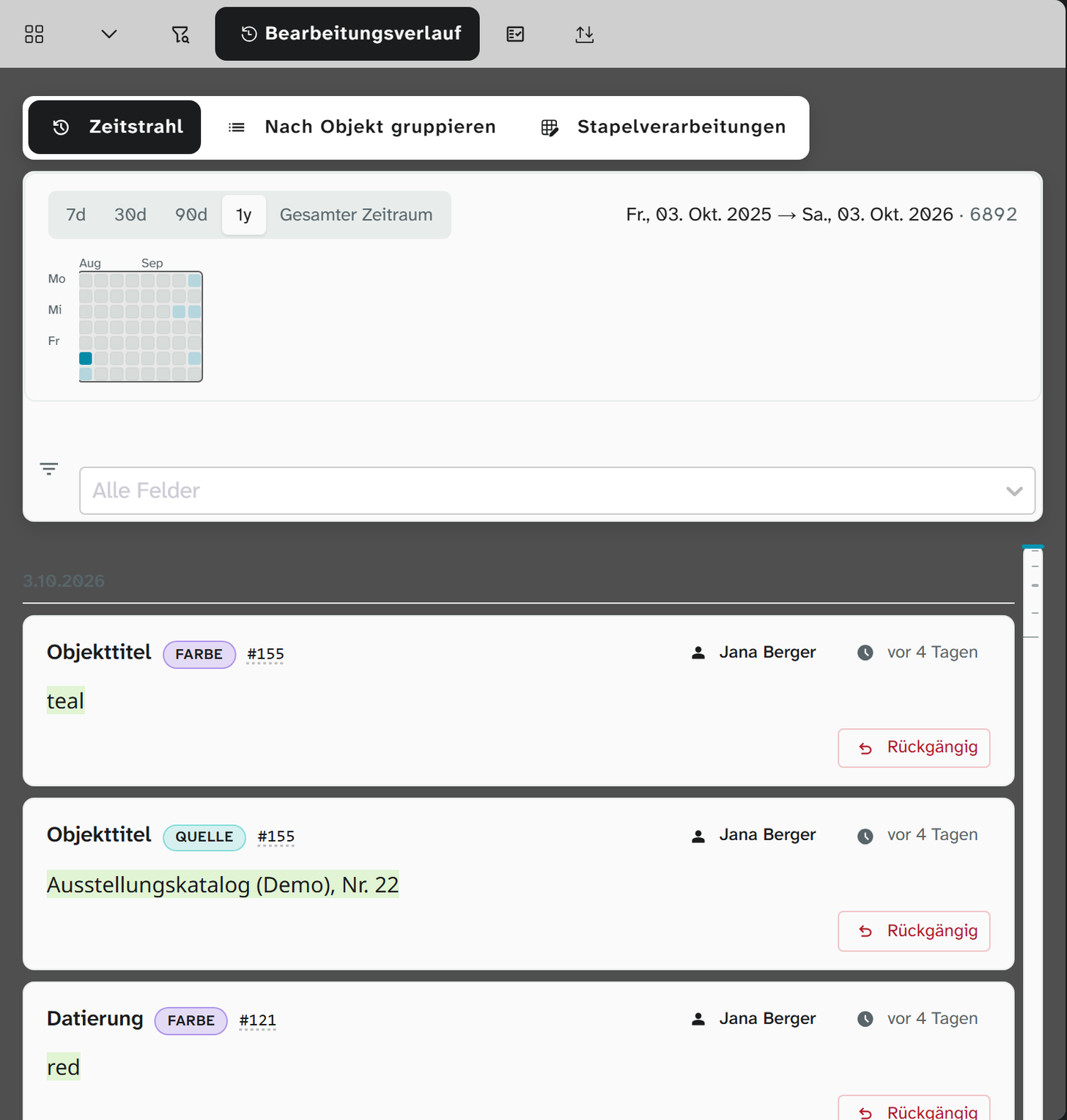
In the sidebar, open the Editing History tab.
-
Choose a view: Timeline View (chronological), Group by Object or Batch operations.
-
In the Timeline View, a calendar grid with one box per day shows when and how much was changed. The buttons 7d, 30d, 90d, 1y and All Time choose a period; by dragging across the grid you can narrow it down freely (Drag on chart to filter time range).
-
Jump to a day: at the right edge of the list is the timeline rail, one tick per day. Pointing at it shows the day and the number of changes; a click jumps there and loads the day, even if it lies far back. Newer changes above the list then loads what lies between that day and today. See Timeline rail .
At object level
Open an object in the workspace; the history in the sidebar then shows only that object’s changes. This way the history and the object are side by side.
At field level
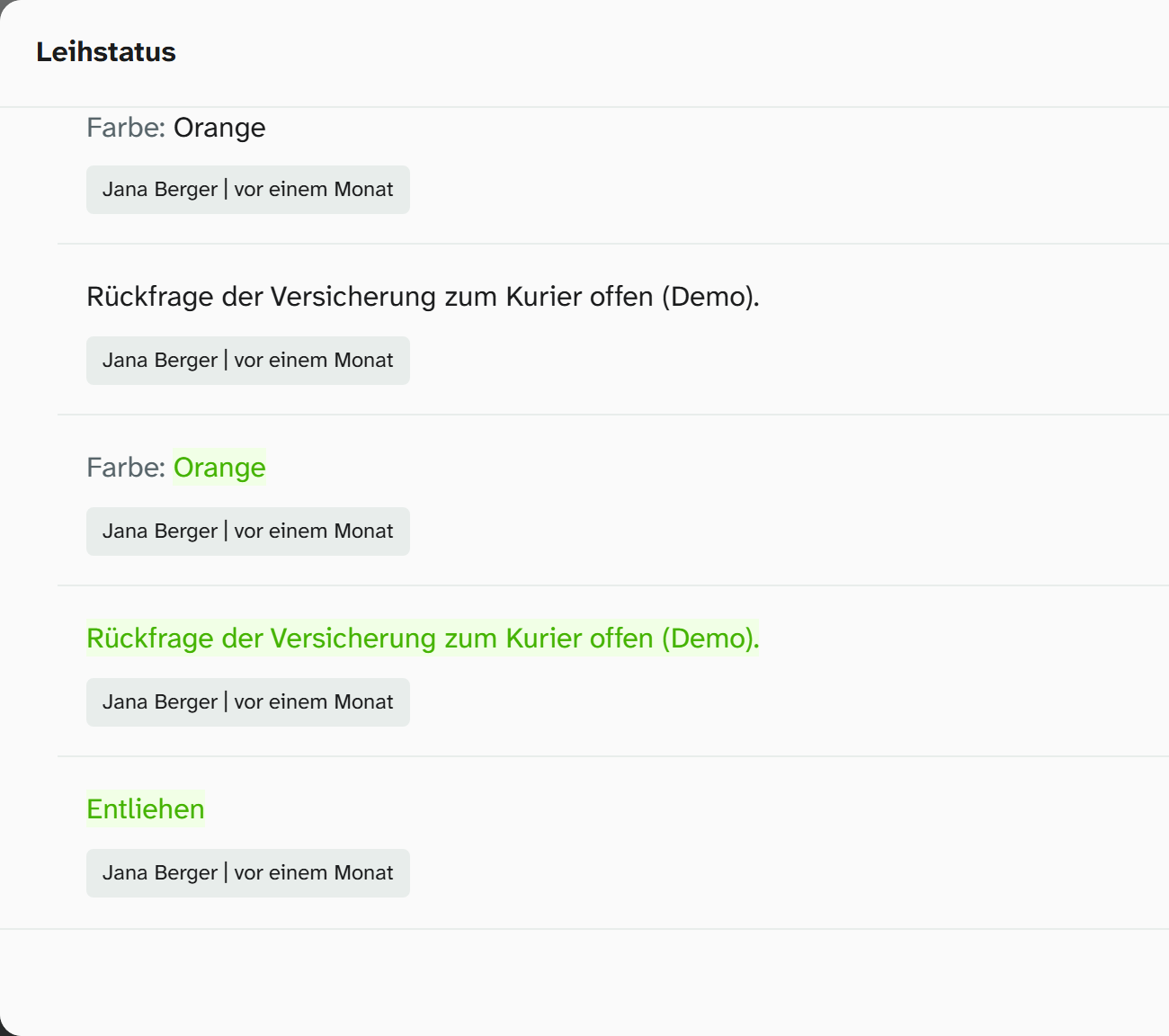
The complete list for a field is in its details: field menu (☰ next to the field label, or right-click the field), then Open field details, section History. For a JSON field, each entry stands for the whole field with all its rows.
Undo a change
-
Find the change in the history.
-
Choose Undo.
-
Read the confirmation dialog: field, object, current value, target value.
If the field has been edited again since, Moliri reports a Conflict and shows the expected, current and target value. Undo anyway discards the later edit, which is why you are asked.
Undoing requires write access to the field. It is a change in its own right and appears in the history.
Undo a batch run or an import
In the Batch operations view, click Undo Batch next to the run. The selection dialog shows every change, with conflicts marked, and lets you select them individually, sortable by object, field and conflict.
An Excel import also appears there as one run. The values it wrote can therefore be undone in one go in the same way.
Get an object back from the trash
You get an object back from the trash with Restore object, see Delete an object .
Further reading
- Editing history : complete reference
- Object view : the field details