
Data model
Fields
A field is a definition that applies across the whole instance. It exists independently of projects and layouts. Values belong to the field, not to the layout.
You manage fields under Data model › Fields (status 9). The list is grouped by field group. Clicking a field opens its details in a dialog: the sections on the left, the selected section in the middle and the description of the field type on the right.
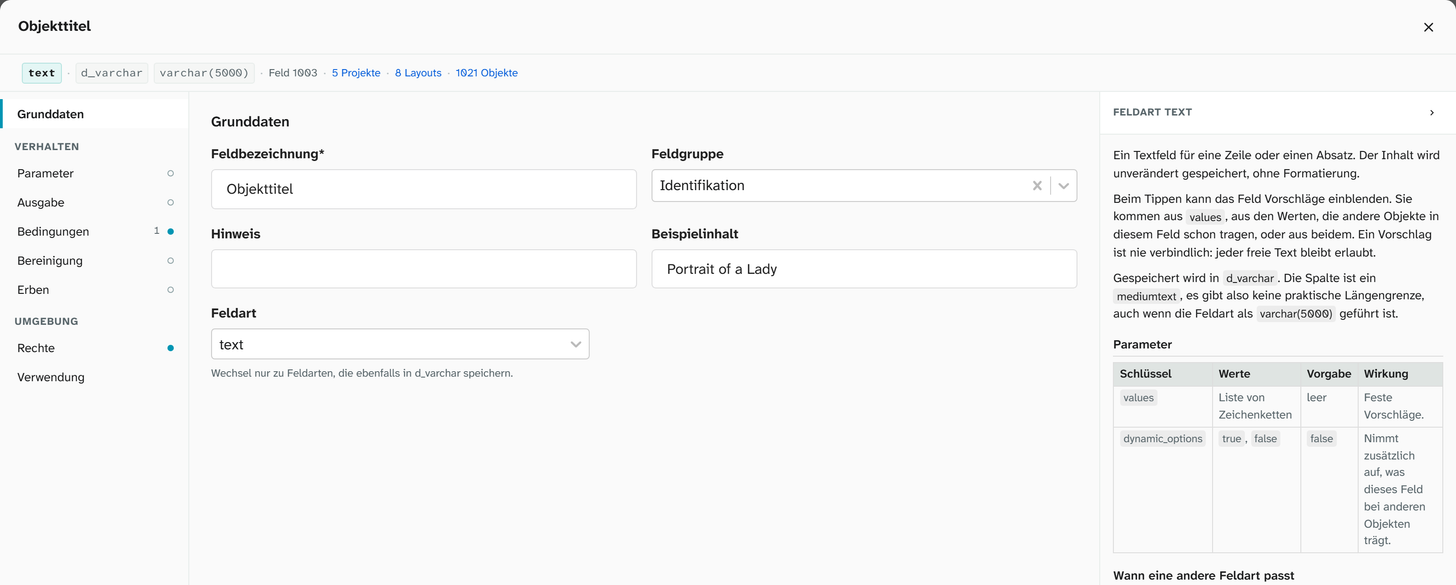
Sections of the field details
| Section | Contents |
|---|---|
| Basics | Field name, Field group, Note, Sample content, Field type |
| Parameters | The configuration of the field, next to it the field type’s default. See Field configuration |
| Output | Your own formatting (output formatters) for views and export |
| Conditions | Checks during data entry. See below |
| Cleanup | Steps that every value goes through before it is saved. See Cleanup |
| Inherit | Only for text, number, date and authority fields: take over values or links from an authority record. See below |
| Custom code | Only for field types with their own display: a Svelte component or HTML template |
| Permissions | Read and write permissions for Everyone and for each group |
| Usage | In which projects, on which layouts and on how many objects the field occurs |
Basics
| Property | Meaning |
|---|---|
| Field name | The name. Unique within the instance. Filters, templates, exports and mappings point to it |
| Field group | Orders the field pickers. Has no effect on permissions or storage |
| Note | Text shown at the field during data entry. This is where cataloguing rules belong |
| Sample content | A value that the layout editor and the standards administration show instead of real data |
| Field type | How the value is entered and stored. See Field types |
The field name is an identifier
You can change it, but many places point to the field by exactly this string:
- Word templates:
$o[`Objekthöhe`]. Moliri updates these when you rename, see below - Saved views and filters
- Excel export presets
- Virtual fields and formatting
Renaming breaks anything that points only by name. Change the label on the layout instead. You can choose it freely for each layout, and it breaks nothing.
After a rename, Moliri rewrites the stored Word templates to the new name in the background, backing up every changed file first. Anything it could not rewrite triggers a warning, and the report of the run lists the places. Runs and reports also appear in the Upload workers and queue view of the file library. Under Word templates: new names you can also check all stored templates against the current names (Dry run, report only) or rewrite them (Rewrite).
Because the name is meant to stay stable, it pays to be careful when you create a field. No units in the name (they
belong in the parameters), no project names, no years, no leading spaces, no
typographic quotation marks. A prefix for each area (Objektmaße_Breite, Leihgeber_Anschrift)
sorts the list by itself.
Changing the field type
You can only switch to field types that store their values in the same form. The picker only offers those. If there are none, it says No switch possible.
A switch does not change the stored values, only the input and the parameters. Turning a text field into a select list is therefore harmless: the values stay.
Conditions
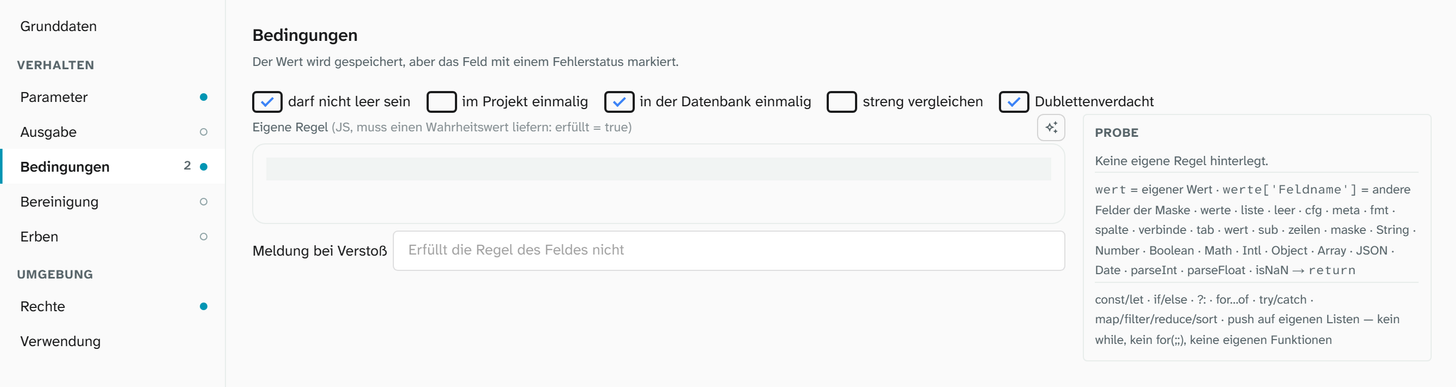
Conditions check a value during data entry. They warn, they do not block: the value is saved in any case, and the violation is marked at the field.
| Condition | Checks |
|---|---|
| must not be empty | Required entry |
| unique in the project | No second object in the project with the same value |
| unique in the database | No second object in the instance with the same value |
| not in the future | Only for date and timestamp fields: no date after today. A partial date such as 2027 only counts once the whole year is in the future |
| Custom rule | A JS expression that returns true or false. Together with a Message on violation |
Next to the conditions there are two switches that report nothing themselves:
| Switch | Effect |
|---|---|
| compare strictly | Only together with one of the two uniqueness conditions. Unticked, Moliri compares text leniently; ticked, every character counts. See below |
| Suspected duplicates | Includes the field in the Suspected duplicates check under Check. Switched on by itself for fields with a uniqueness condition, but you can switch it off. That check also ignores punctuation, whitespace and leading zeros |
When two values are equal
Without compare strictly, two text values count as equal if they differ only in
- upper and lower case: A-1 and a-1,
- accents and ß: Müller and Muller, Strasse and Straße,
- umlauts and their transcription: Müller and Mueller,
- whitespace at the beginning and end.
For inventory numbers this is usually what you want: Gm 1234 and GM 1234 are almost always a typo, not two objects. Where the spelling makes a difference, set compare strictly.
The bar above the form
Above the input form it says n fields do not meet their condition. It counts all fields of the object with a violated condition, not only those of the open layout. A field on another tab carries that tab’s name (Leihgeber on “Erfassung”); a click switches there and briefly highlights the field. If the field is on no layout the person may open, it says not in this view. A custom rule sees the values of all the object’s fields, including fields on other layouts.
The conditions are stored in the configuration under conditions. You can give each condition its own
message by writing it as an object:
JSON{ "conditions": { "required": true, "unique": { "message": "Inventarnummer doppelt" }, "strict": true } }
Check › Field conditions shows which objects in the current filter violate conditions. A date in the future is not listed there but under Check › Data upkeep › Implausible values. A field without not in the future never counts as implausible there, because it often holds a planned date, such as the end of a loan.
Cleanup
The Cleanup section shows the chain of steps that a value of this field goes through before it is saved, with the origin of each step (system, field type, field, project). You can switch inherited steps off for this field or per project, and add your own. A test shows before and after, and below it is Clean existing values for the values already saved. Everything about this is under Cleanup .
Inheriting
A field can take its value from the authority record that sits in an authority field of the same object. The typical example is literature: once the reference is in the authority field, title, year, publisher and ISBN fill in by themselves. The Inherit section only appears for field types that can inherit.
Inheriting values
For fields that store text, a number, a date or a time.
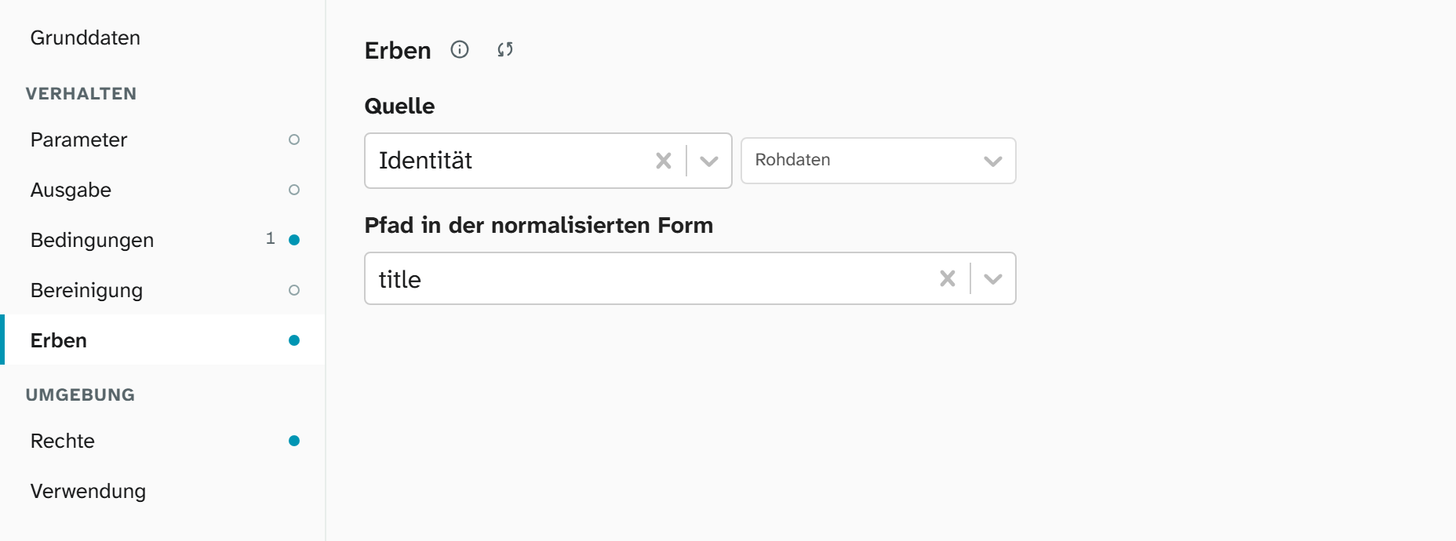
| Setting | Meaning |
|---|---|
| Source | An authority field with one of its entries, for example Identität~label or Identität~description. Choosing only the field means ~label |
| Path in the normalized record | Only for the source ~raw: an entry from the reference, for example title, issued, publisher, ISBN, DOI, page or abstract. The field suggests the paths |
| Apply to all objects | Matches all objects with the field again, for example after records were changed by hand |
Empty values take the value from the authority record and follow it whenever it is synced. Your own values stay untouched. A date from the reference arrives as a year, a year and month or a full date, lists as values separated by semicolons; a number field only takes numbers. Inheriting writes to the shared value of the field. Values that only apply in one project stay untouched, and there is no per-project setting for this. In the edit history , inherited values carry the mark Inherited from … with the name of the authority field.
If the source points to a field that no longer exists or is not an authority field, the section warns: The source field does not exist or is not an authority field.
Inheriting links
For authority fields. With Inherit links, Moliri creates the persons from the authority record as links on the object. Under Roles you find author, editor, translator and contributors, each with the name of the link type the instance has for it; at least one stays ticked. If the link type for a role is missing, the section warns and the role is skipped.
Moliri looks the persons up in the GND, by the GND number in the reference or by a name search at lobid.org. It only links when there is exactly one match. Your own links stay untouched. What inherited links look like on the object and what the message on saving says is described under Authority record .
Syncing in the background
When you set or change the source, or click Apply to all objects, a sync across all objects is queued: Sync queued. The worker view shows its progress. The worker view is the Upload workers dialog under Libraries › Files. It lists the jobs Inherit field values and Inherit links with their results:
| Job | Result |
|---|---|
| Inherit field values | n values inherited, n cleared (the source no longer has a value), n errors |
| Inherit links | Links created, updated and removed, names without a match and without a response from lobid.org, objects that were not fully synced, with a link to the object |
After that, the objects follow the authority record by themselves: when an authority field is saved, when the sync changes a record and when two records are merged. Changing the record by hand in the library does not update the objects; that is what Apply to all objects is for.
Setting up inheritance requires status 9.
Permissions
Under Read and write permissions there is the row Everyone and one row for each group. A group’s permission and the permission for everyone are combined, and the higher one applies. Project and layout cap the result.
The usual setting for a field that only some people should see:
| Row | Level |
|---|---|
| Everyone | No access |
| Group Loans | Edit |
| Group Education | Read only |
You can only test this with an account with status 3. Status 6 and 9 bypass this table.
The permissions also apply in the full-text search. A field that someone may not read gives them neither matches nor a text snippet, not even through comment and source. For a file field the same goes for the transcript and recognised text of the files in it.
For a file field the permissions also apply to the files themselves. If a file sits only in a file field that someone may not read, it is missing for them in the object’s file area, and its transcript and recognised text cannot be retrieved. Files linked in the file area are not attached to any field. Everyone who may read the project sees and searches them, even if the same file also sits in a hidden file field.
Deleting
The field administration offers no delete. To retire a field you no longer need, take it off the layouts (delete the tile in the layout editor, which only removes the tile) and set the permissions for Everyone to No access, with no group. The field then disappears for accounts with status 3, its values remain, and the decision can be reversed. The Usage section shows where the field still occurs.
System fields
Some fields have a fixed meaning. Their name is fixed. See System fields .
Further reading
- Field configuration : parameters and defaults
- Layouts : how fields get onto a form
- Cleanup : making values consistent before they are saved
- Creating a field : the procedure