
Setup: guides
Create a user
-
Open Permissions › Users and choose Create new user.
-
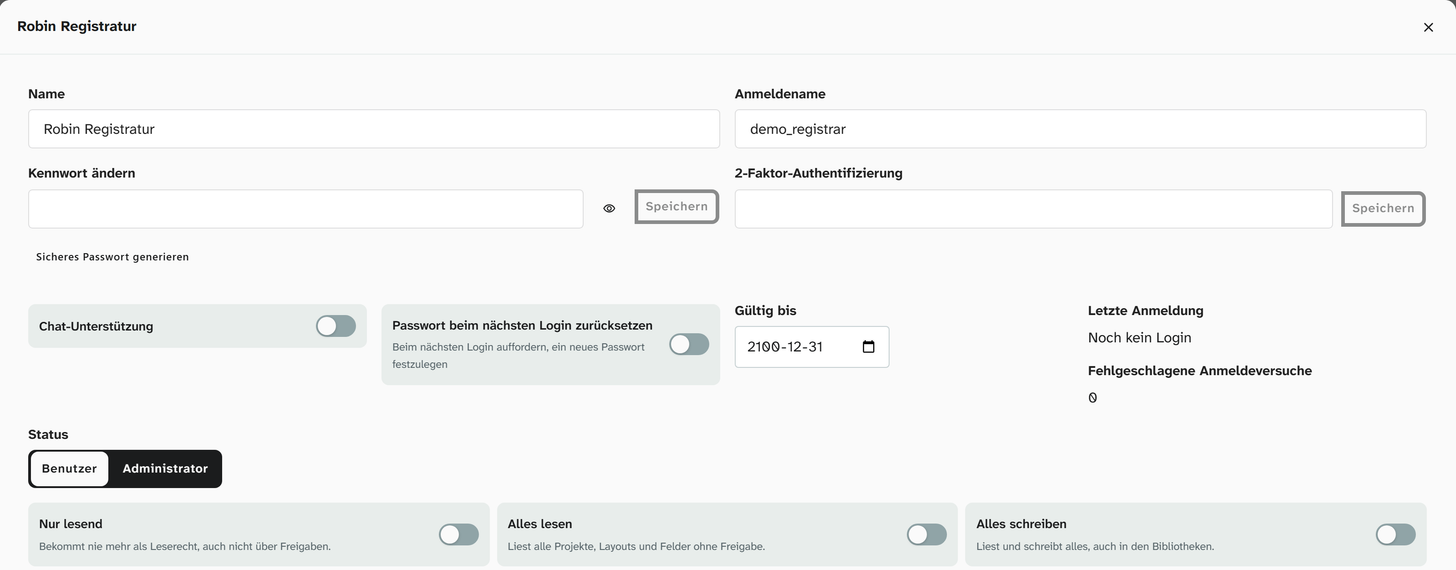
Enter the Name, Loginname and Password. If the login name matches a configured single sign-on, the account needs no password. The dialog tells you so.
-
Choose the Status:
Status Label For 3 Individual read and write permissions The usual case. All permissions come via projects, layouts, fields and groups 6 Unrestricted Read and edit all data, no administration 9 Administrator Setup and administration -
For status 3, assign the groups on the Groups tab. They bring permissions on projects, layouts and fields with them.
-
On the Projects tab, set direct project permissions where no group provides them.
-
If needed, switch on Password reset on next login. The person then sets their own password when they first sign in.
-
Sign in with the account and check that the expected projects, layouts and fields appear.
Status 3 is the right choice
A new account with status 3 and no groups sees an empty project overview. That is not a fault but the starting point. From there you open up access deliberately.
Status 6 solves every permission problem at once and makes permissions impossible to check afterwards. If you raise an account to 6 whenever a permission is missing, you end up with an instance in which everyone sees everything, including purchase prices.
The better way is a group with the permissions needed.
Further account settings
| Setting | Effect |
|---|---|
| 2-Factor authentication | Sets up sign-in with a one-time password for this account. See Sign-in |
| Valid until | From this day on the account can no longer sign in. The list hides expired accounts until Show expired users is selected |
| Chat Support | Switches on the support chat for this account |
| Failed login attempts | A counter. After too many failed attempts the account is locked; Reset unlocks it again |
| Last login | Time of the last successful sign-in |
Delete an account or let it expire
An account that does not appear anywhere in the data yet, such as one created by mistake or twice, can be removed for good with Delete user in the account’s dialog. After a confirmation it disappears from the list, together with its groups, project permissions, personal settings, own presets and filters, single sign-on links and API tokens.
Once the account has left traces in the data (change history, links, events, presets or filters shared with everyone, settings), the dialog does not offer to delete it and names where the account appears. Then set Valid until to a date in the past: the account can no longer sign in, and the history still shows who changed what. Your own account cannot be deleted.
Further reading
- Roles and status : what each level opens up
- Sign-in : password, two-factor, single sign-on
- Create a group
- Grant access