
Permissions
Login
Each person logs in with an account of their own. The login form has three fields: Username, Password and OTP (One-Time Password). You only fill in the one-time password if two-factor login is set up for the account. The button below is called Login.
If a single sign-on provider is set up for the instance, the card also shows OR below it and a Login with … button for each provider. Without a provider set up, neither appears.
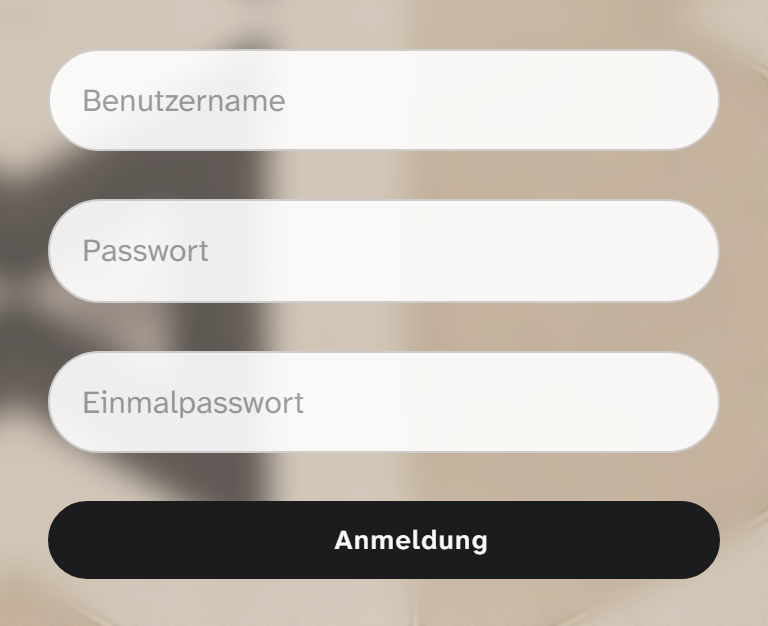
Login name and password
An administrator sets the login name and the first password in Permissions › Users. With Password reset on next login, the person has to choose their own password the next time they log in. A new password has to pass a strength check before it can be saved.
Everyone can change their own password in their profile (on the right of the main menu, under their own name).
Two-factor login
Moliri supports logging in with a second factor: a one-time password from an authenticator app (TOTP) that changes every few seconds.
| Where | Who | Procedure |
|---|---|---|
| Profile, 2-Factor authentication | The person themselves | Scan the QR code with the app, enter the code shown, save |
| Permissions › Users, on the account | An administrator | The same, for example when the setup is done together at the workstation |
Once two-factor login is set up for an account, Moliri does not allow a login without a valid one-time password. Each one-time password can only be used once. The account then shows Set up. Remove switches the second factor off again.
If the app cannot read the QR code, Moliri shows the key as text to type in.
Single sign-on
Moliri can leave login to a provider of your institution, through OpenID Connect (OIDC). Moliri sets up the provider for the instance; there is no setting for it in the interface. Part of this is a pattern for login names, for example all addresses of one domain.
| Situation | Behaviour |
|---|---|
| The username entered matches the pattern | Password, one-time password and Login disappear, and the Login with … button takes their place |
| New account whose login name matches the pattern | Needs no password. The dialog says No password needed, sign-in via … |
| An account without a password logs in through the provider for the first time | The account is linked to the provider. From then on single sign-on is mandatory for this account, and password login is blocked |
| New account matching the pattern but with a password set anyway | The person enters the password once to take the account over for login through the provider. The dialog warns about this |
| Existing account with a password | In the profile, under Single Sign-On (SSO), you can add a login through the provider |
Anyone who adds or removes a login through a provider in their profile confirms this first with their password and, if applicable, a one-time password. The only login of an account for which single sign-on is mandatory cannot be removed.
Whether single sign-on is set up for an instance, and with which provider, is something your institution arranges with Moliri at [email protected] .
Lockout and validity
| Setting | Effect |
|---|---|
| Failed login attempts | After too many failed attempts the account is locked. An administrator unlocks it with Reset |
| Valid until | From this day on, logging in is no longer possible. For internships, freelance contracts and external staff |
| Last login | Shows when the account was last used |
There is no automatic logout after a period of inactivity.
Further reading
- Creating a user : setting up the account
- Roles and status : what an account may do
- Operation : instance, backup, hosting