
Import and export
Excel import
Import spreadsheets from Excel into existing fields. The import does not create fields. It writes into fields that already exist.
You open it in the sidebar under Data In- & Export, section Import, Excel.
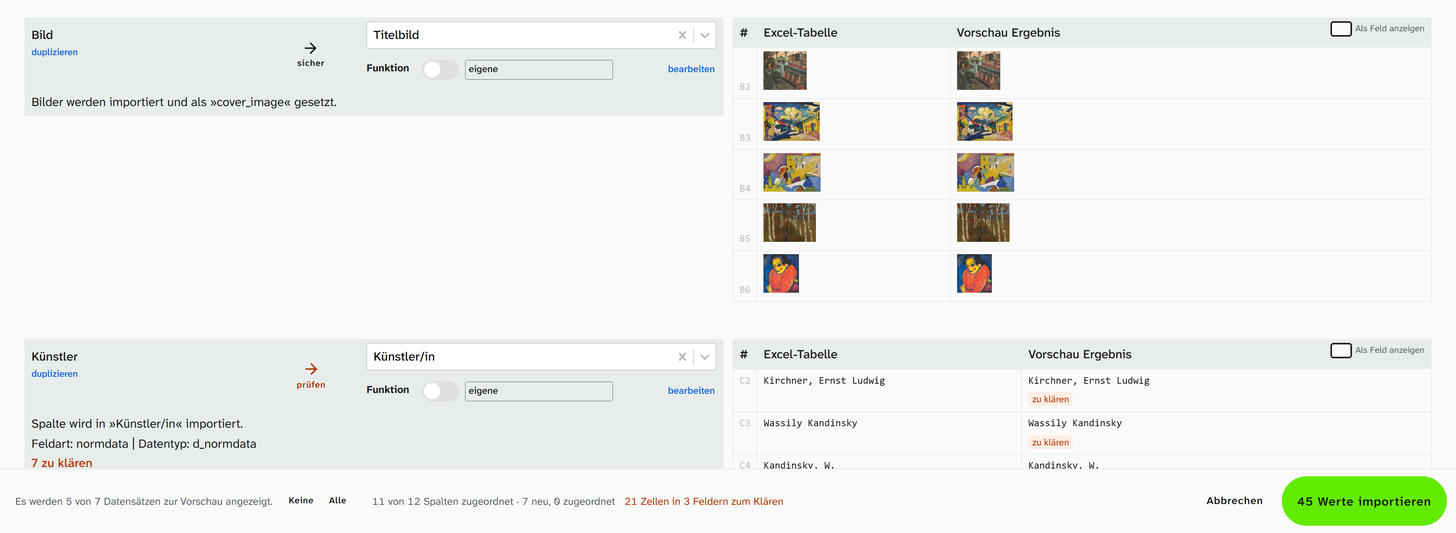
An image column in the column mapping, with the footer below
File formats
| Format | Accepted |
|---|---|
.xlsx, .xls | yes |
.csv and others | no. Save as .xlsx in Excel first |
The file is read in the browser. Large files do not block the interface while this happens.
Range detection
Moliri detects the filled range and shows it under Detected:
| Setting | Meaning |
|---|---|
| Sheet | Which sheet of the workbook |
| From column, To column | Column range |
| Row | First and last data row |
| Header row | Row with the column names |
If there are title rows, intermediate headings or several tables on one sheet, correct the settings and click Re-read.
Column mapping
Moliri suggests a target field for each column, based on how closely the column header resembles the field name. Every column carries a badge that can be read without colour as well:
| Badge | Meaning |
|---|---|
| sure | Exact name match or chosen by hand |
| check | Fuzzy suggestion from the automatic mapping |
| open | No target field. The column is not imported |
| match key | This column finds the object and writes nothing |
Not offered as targets: virtual fields, plan and wall fields, the subfields of address, object and geolocation fields, and the object ID. A column for the RegNr replaces the number that the event rule assigned on creation. Moliri only suggests image and file fields for columns that contain images or have exactly that name, so that Titel does not end up in Titelbild.
| Action on a column | Effect |
|---|---|
| duplicate | Map the same column a second time to import it into another field. The copy carries the badge copy |
| remove | Remove the copy again |
| Several columns on one field | Merged from: …. Under configure, choose the order and the joining. By default the values are appended to each other |
| Show as field | Shows the preview of the column the way the field will display it |
Content of the columns
Besides the column header, Moliri reads what is in the cells: datings, dimensions, years, dates, inventory numbers, yes/no values, web addresses, GND and Wikidata identifiers, file names, lists, categories, names and texts. It reads every row of the spreadsheet; a kind counts for the column if it makes up at least 60 % of the filled cells. Placeholders such as n. d., unknown or a dash are not counted. Moliri also compares the cells with the values already in the project’s fields. No value leaves the browser in the process, and no AI model runs.
This gives notices below the column:
| Notice | When |
|---|---|
| Warning n % of the cells are …, which does not fit this target field | At least 80 % of the cells are of a kind the chosen field does not accept, such as 88 cm for a number field or x for an address field. An example from the column is shown with it |
| Suggested by content: field, Apply | The column has no target field, and its content clearly points to a field that is still free. Apply sets it as the target; the badge becomes sure |
| Chosen by content instead of “…” | The column header had only a fuzzy target, the column has at least 30 filled cells, and the content clearly points to another field. Moliri sets that field, the badge stays check. With fewer rows the content says too little, and the fuzzy target stays |
| This column holds inventory numbers. Use as mapping column | Only with Fill in and Overwrite, as long as no column carries the match yet. The click makes the column the match column |
| Import function: name, Apply | A built-in function would bring the cells into the field’s form, such as Split dimensions into Höhe, Breite (height, width) or Dating → from/to into Datierung von, Datierung bis (dating from, dating to). Apply sets the function and creates a copy of the column for each further target field |
An exact name match (sure) is never replaced, and no open column is mapped without a click. The notices appear a few seconds after the preview, a little later for large spreadsheets; until then you can already edit the mapping.
With the field search
If you have switched on the field search in your profile, you get further suggestions for the remaining columns. It is asked about columns that are still open after the column header and the content, or that have only a fuzzy target. The field search’s language model compares the column header with the meaning of the fields, so Object description finds the field Objektbeschreibung and Is highlight the field Höhepunkt (highlight). It does not read the cells; with sample values, the suggestions were less accurate in measurements.
Only fields that suit the kind of column are considered: a column with yes/no values is not offered a text field, one with dates gets a date field. Fields with an exact name match are left out. The model has to decide clearly for one field, otherwise it stays silent.
| Notice | When |
|---|---|
| Suggested by the column header: field, Apply | The column has no target field. Apply sets the field; the badge becomes sure |
| Chosen by the column header instead of “…” | The column had only a fuzzy target, and the model clearly points to another field. Moliri sets that field, the badge stays check |
The preview does not wait for the model; its notices are added as soon as it has answered. The import never downloads the model itself: if it is not yet in the browser or in Transcribe, only the notices based on the content remain. Column headers and field names do not leave the computer in the process.
The three modes
| Mode | Effect |
|---|---|
| New objects | A new object is created for each row |
| Fill in | Gaps in objects are filled. Existing fields are not overwritten |
| Overwrite | Existing objects are overwritten with the new data. Empty cells from the import are ignored |
For Fill in and Overwrite the import needs a match: a spreadsheet column and the field in the object it corresponds to (… corresponds to field in object), usually the inventory number. Rows that find no object are created with the option New objects, otherwise skipped.
A small diagram for each mode shows, on three sample rows, what File and Object turn into as the Result. It changes with the options.
Options
| Option | Effect | Default |
|---|---|---|
| Log original values | When values change, the original values are appended to the field’s comments | on |
| Pin objects | Pin the affected objects after the import | on |
| New objects | Rows that cannot be matched to an object create a new object. Not in the New objects mode | on |
| Empty cells | Empty cells are imported too and may overwrite existing values. Only with Overwrite | off |
| Merge | New values are appended to the existing ones, text fields only. Not in the New objects mode | off |
| Import images | Detected images are imported and assigned to the object | on, if the file contains images |
| Import colors | Cell colours are taken over as the field’s colour marking | off |
| Import comments | Cell comments are appended to the field’s comments | off |
With Empty cells, Overwrite becomes a complete replacement: empty cells then also clear existing values.
Images in the spreadsheet
Moliri detects floating images that lie over a row, and images in cells (Excel’s newer image feature, shown
as #VALUE! in older programs). For an image to appear as the title image in the object, map an image field
to the image column. Moliri warns you if a column contains images but no image field is chosen.
How values are converted
The conversion depends on the target field. Values that cannot be assigned with certainty are not written but parked. The preview marks them with to resolve (Not a valid reference, parked for resolving instead of written). Above the column it says n to resolve.
| Target field | Conversion |
|---|---|
| Authority record, Address, Geolocation, File | An existing identifier is written, as is a GND number, Wikidata ID, email address, coordinate or address that exactly one record carries. Everything else is parked |
| Link (authority data, addresses, files, objects) | A value with exactly one target is linked. If there is none or more than one, it is parked, see Links |
| Switch | Common spellings for yes and no (ja, wahr, x, yes, true, 1, ✓ and nein, falsch, 0, no, false) are translated. Anything unclear, including a single dash, is parked and never written literally |
| Select list, Selection tree, Hierarchical select list | Values from the value list are written, unknown ones are parked. If the field allows its own values (in the field setup), unknown values are written too |
| JSON | Valid JSON is written. Minor damage is repaired (badge repaired). Text reaches the field under a label, in chosen keys or through the cleanup step Convert text to JSON. Otherwise the cell is parked rather than replacing the field, see JSON targets |
| Date | Brought into Moliri’s date format. The preview shows what arrives |
| Number | Taken over without conversion into the field’s base unit |
| all others | Literally |
Parked values are decided term by term under Resolve references . If the field is already filled by then, you choose there whether the resolved value replaces it.
JSON targets
A JSON field accepts a complete JSON document from a cell. Damaged JSON that ends with its own closing bracket is straightened out and carries the badge repaired. For text there are three routes, depending on how the field is built.
Label. If the field has labels and only one subfield per entry, such as a title in several languages, the
column gets an extra Label setting. The cell value lands under this label, other labels stay as they are.
Preselected is the Label beim Import (label on import) from the field’s setup, such as de; the column can
choose another or enter its own. Without a label the cell is parked.
Keys. If the field has several subfields per entry, such as Herstellung (production) with place and
date, the column chooses one or more of them under Keys (default whole field). One key takes the whole
cell. Several keys take the cell split at the separator (default ,), in order; whatever is left over goes
into the last one. The cell is taken literally.
| Setting on the first key column of a field | Effect |
|---|---|
| Further columns with keys of the same field | Together with it they form one entry per row (Forms one entry with column “…”). If two columns set the same key, the later one wins |
| Fixed: per key without a column | A fixed value for all rows. Fixed values alone do not make an entry |
| Append | Only if the field allows several entries. On: the entry is added beside the existing ones. Off: it replaces the existing entries (under this label). Default from the field’s setup (Beim Import anhängen, append on import) |
| Label | For fields with labels: under which label the entry stands |
If the field allows only one entry, the keys are merged into it; keys without a column stay as they are. The
preview shows the entry as it will look after the import, an appended one with +. Header rows such as Herstellung Ort or Herstellung · Datierung preset the field and key already. If a column function
returns an object, its keys apply instead of the selection.
Convert text to JSON. If the field has the step Convert text to JSON in its cleanup, the import accepts
plain text instead of parking it. With , and the keys Ort, Datierung, Kommentar (place, date, comment), Berlin “Ost”, 1950 becomes an entry with the place Berlin “Ost”, the date 1950 and an empty comment.
The preview shows the result and marks the cell with converted. A chosen label takes precedence over the
step. See Cleanup .
Whatever reaches the field by none of these routes is parked. Under Resolve references such text can then be assigned to a key.
In the Fill in mode, for fields with labels, the label counts, not the whole field: a title with en gets de added, a de that is already filled stays. Key columns with Append also append to a filled
field.
Links
Instead of a field, a column can have a link type as its target. In the field picker they are listed under Links, separated into authority data, addresses, files and objects. Above the column it then says Column is imported as link “…”. Separate several values in one cell with a line break or the separator you have set.
A value with exactly one target shows → and the target in the preview and is linked. Values without a
target or with several are parked (n without target) and resolved under Resolve references . The resolved values
of the same cell are linked straight away.
Column functions
For each column you can enter a small transformation under Function, which every cell passes through before the import. The preview shows the result immediately on real data.
| Available in the function | Meaning |
|---|---|
wert | The cell |
zeile['Spaltentitel'] | Any other column of the same row |
objektWert | The current content of the target field, empty for a new object |
objekt['Feldname'] | Any other field of the matched object |
Example: return wert.trim();. A function that has proved itself can be stored with Save as template.
The templates are kept in the Import functions library (menu Data model, status 9), where they can be
marked as the default per field, per field type or for all fields.
Built-in functions
Moliri comes with some functions of its own. They are listed in the selection next to Function, but only on fields they are written for: Dimensions → height (cm), for example, only on number fields.
| Function | What it reads | Result |
|---|---|---|
| Dimensions → height, width, depth, diameter (cm) | 56x74cm, H. 40 cm, 30 x 40 x 5 cm, H 31,5 cm; B 20 cm, Ø 12 cm, also in mm, m or inches | The one value in cm. a x b x c means height, width, depth; a number without a letter is the height |
| Dating → from, Dating → to | 1910, c. 1910, 1910/12, 1910s, 18th century, mid 19th century, 17th/18th century, before 1910, after 1910, 500 BC, and German forms such as um 1910 or 18. Jh. | The year the dating starts or ends with. c. 1910 counts as 1905 to 1915, before 1910 has no from, after 1910 no to, n. d. stays empty |
| Cut off the unit | 40 cm | 40 |
| mm → cm, Inches → cm | 400 mm, 10 in | 40, 25.4 |
| Excel day count → date | 5854, a cell without a date format | 1916-01-10. Numbers between 500 and 2100 stay as a year |
| Date, day first | 12.03.1987, 1.3.87 | 1987-03-12 |
| Yes/no → switch | ja, x, yes, nein, no | 1 or 0; other words stay as they are |
| Split a list at its separator | a; b; c, a | b, line breaks | a, b, c for a multiple field |
Below the column, the import suggests the matching function (Import function: name, Apply). When splitting, the suggestion names the target fields that the project has and that the cells fill: for a list containing only 56x74cm, height and width, without depth. The column keeps its target field, such as Maßangabe (dimensions statement) for the text, and for each number field a copy of the column with its function is created. If the column has no target yet, the click also applies the suggestion based on content. No splitting suggestion comes if other columns of the file already go to height and width, and none for from and to if the file has year columns. A date field reads Excel day counts and 12.03.1987 by itself, a switch reads ja and nein; there the import suggests nothing.
Field conditions
The import checks the conditions of the fields twice: on the preview before it starts, and on the written objects afterwards. Nothing is blocked by this. Everything is imported, including a row that breaks a condition.
Before the import. If rows of the preview break a condition, Rows with unmet field conditions: n of m appears above the preview, with an overview per field and condition giving the number of rows, and under Affected rows each row individually. The check covers missing required values, rules, values that occur more than once in the spreadsheet, and values that already exist in the project or in the database. If the existing object is visible to you, (view object #…) takes you there. The footer says Rows with unmet conditions: n; a click jumps to the overview.
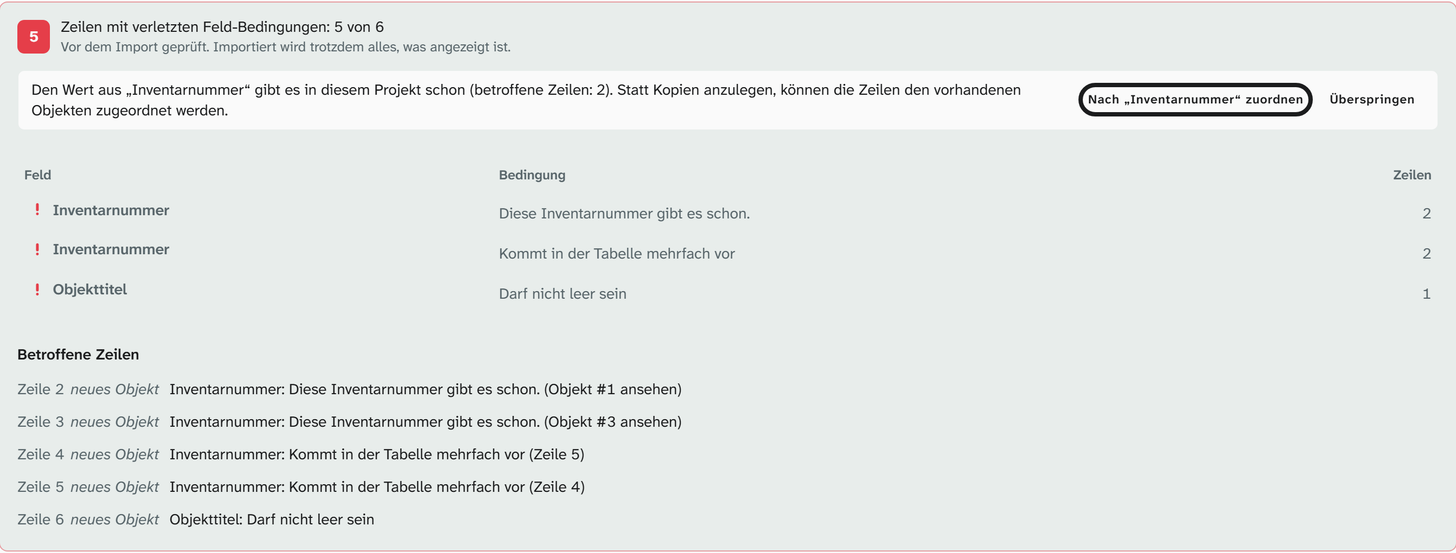
If the value of a unique field already exists, the overview offers alternatives to creating copies:
| Case | Offer |
|---|---|
| The value is in this project | Map by “…”: the rows are matched to the existing objects and the mode switches to Fill in. Or Overwrite |
| The value is in another project | Link all & map or, per row, link & map: the object is linked to this project and the row is imported into it. Or Skip |
| The value is only somewhere in the database | Skip |
The overview lists skipped rows; Import again takes them back into the import.
After the import. Moliri checks each written object once as a whole, so also condition fields that were not in the spreadsheet. While the check runs, the window shows Checking field conditions: i of n objects. If it finds anything, the window stays open and shows the report: Objects with unmet field conditions: n of m, an overview per field and condition with the number of objects, and under Affected objects each object with its spreadsheet row, such as Row 5 #3173. Duplicates within the spreadsheet are listed there as well as duplicates of existing records.
Clicking an object closes the window and opens the object. The report stays available under Data In- & Export, section Import, as Import report (n) until the next import.
Footer
Before the start, the footer shows:
| Item | Example |
|---|---|
| Mapped columns | 12 of 14 columns mapped |
| Objects | 3 new, 118 mapped, 2 skipped |
| To resolve | 18 cells in 2 fields to clarify |
| Field conditions | Rows with unmet conditions: 3 |
| Start | Import 1,432 values |
The preview shows five rows at first. You can change the number in the footer.
After the import
- If you like, the import continues in the background (Continue in background). Tasks shows its progress.
- The closing message names new links, parked values and unmet conditions. It offers Resolve (n) when values are parked, otherwise Report for the report . The window also names the parked values with Resolve (n).
- The history shows the import under Batch operations as one entry that can be undone as a whole.
- With New objects, the project’s creation rules apply: new objects may be created in another project and linked here.
Further reading
- Import Excel : the procedure
- Resolve references : deciding parked values
- OCR import : read PDFs and scans and take the result over here
- Bulk edit : post-processing, such as converting units