
Field types
JSON
A field that holds several entries, each with the same subfields. For anything that repeats with a qualifier: dimensions per part (object, frame), titles per language, several inventory numbers.
What the field looks like
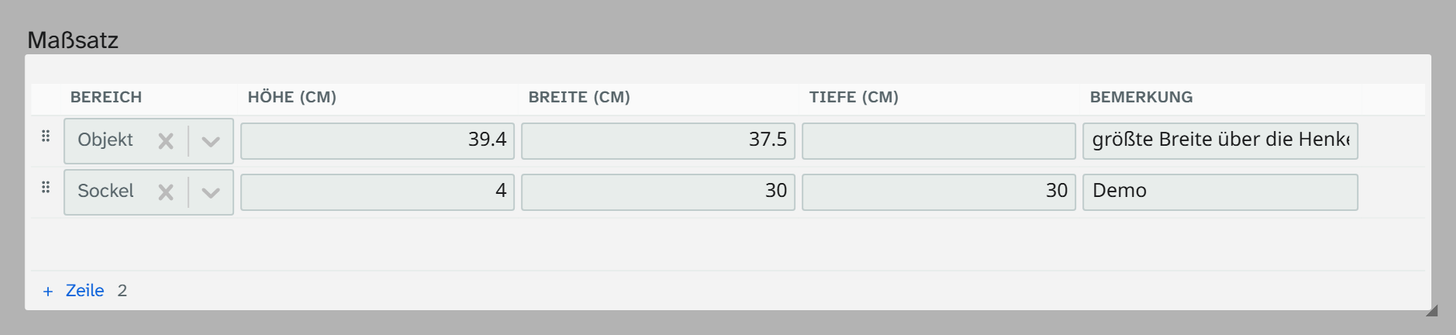
An entry has a label (Objekt, Rahmen, de, en) and the subfields. The administration decides whether the field shows the entries as tabs or as a table. The data is the same either way. In the example below the field is Maße (dimensions) with the subfields height, width and depth and the labels object and frame:
Feld „Maße“, Unterfelder Höhe · Breite · Tiefe, Labels Objekt · Rahmen

als Reiter                             als Tabelle
┌─────────┬────────┐                   ┌──────────┬───────┬────────┬───────┐
│ Objekt  │ Rahmen │                   │ Bereich  │ Höhe  │ Breite │ Tiefe │
├─────────┴────────┴──┐                ├──────────┼───────┼────────┼───────┤
│ Höhe    [118,5   ]  │                │ Objekt   │ 118,5 │ 64     │ 21    │
│ Breite  [64      ]  │                │ Rahmen   │ 130   │ 75     │       │
│ Tiefe   [21      ]  │                └──────────┴───────┴────────┴───────┘
└─────────────────────┘
Some JSON fields have no labels; they are then a plain list of entries of the same shape, for example several inventory numbers.
Input
Tabs. One tab per label, with the subfields inside. When the field opens, the first tab with content is active. The plus offers the labels not used yet; if you may create your own labels, you can also enter a new one there.
Table. One row per entry, with the label in the first column. You can add, duplicate and remove
rows and sort them by dragging, or with the keyboard using Alt + ↑/↓.
Narrow tiles. If the columns do not fit into the tile, each entry becomes a block with the labels on the left. That way nothing stays hidden behind a scroll bar.
The subfields can be text, multi-line text, number, date, selection or checkbox.
Saving
The field is saved shortly after the last input and when you leave the tile, and it is always the whole field that is saved.
If two people edit the same field at the same time, for example the dimensions of an object, the second does not overwrite the first. Moliri compares both versions entry by entry and subfield by subfield with the state from which your own editing started:
| Case | Result |
|---|---|
| Different entries or subfields changed | Both are merged, and the message says Merged with a change made at the same time |
| The same spot changed differently | Your own version is saved. The dialog Changed at the same time shows both values for each spot, with Keep mine and Take the other |
| Raw content edited | Your own text is saved, and the dialog offers the other version for you to take over |
In every case the history contains both versions. For JSON fields it shows what changed per entry, for example Objekt: Breite 64 → 65 or Entry Italiano added, instead of comparing the whole text. Undo still applies to the whole value of the field, not to a single entry.
Notices, not blocks
A required subfield without a value and a number field containing text get a red border, and the
field’s footer counts the notices. The value is saved anyway. The number check is lenient: 48.000,00 and 1 200 count as numbers, ca. 5 does not.
If the field contains a label the configuration no longer knows, it is shown and marked, not discarded. If the content is not valid JSON at all, the field shows a text box with the raw content.
Searching, sorting, editing
| Action | Behaviour |
|---|---|
| Full-text search | Yes, on the stored text, so also on the names of the subfields |
| Filter | Text operators on the stored text. For a partial value you usually need a regular expression |
| Sorting, grouping | Not useful |
| Bulk edit | Text tools on the whole value. Use with care |
If you need to search, sort or group by a value, it belongs in a field of its own. The administration decides that when creating the field.
Excel import
On import, a JSON field accepts three things: a complete JSON document (the way back from Moliri’s own export), a cell that a column rule distributes across the subfields, or a value under a label chosen in the preview. Everything else is parked and marked “to resolve”. See Excel import and Resolve references .
If the field was exported with a formatting, the file contains the display, not the structure. Re-importing it leads to the value being parked.
Display and export
| Formatting | Result |
|---|---|
| Raw value | The stored JSON |
| Entries on one line | Each entry as a label with its values, for example Objekt: 118,5 · 64 · 21 |
| The field’s own formattings | Whatever the administration has set up, for example Objekt: 118,5 × 64 cm; Rahmen: 130 × 75 cm |
The column heading names the chosen formatting in brackets, for example “Maße (kurz)“. In the Excel export you can duplicate a field to output the raw value and the formatting side by side. See Excel export .
In Word templates, $o is the raw value and $fmt the formatting, also for a single entry; in loops
over several objects, use ffmt(). See Output formatters in templates .
Setup
Labels, subfields, display and formattings are set by the administration. See Configuring JSON .