
Field types
Date and time
A point in time: date and time in one value. For the arrival of a loan, the handover to the courier, the start of an installation.
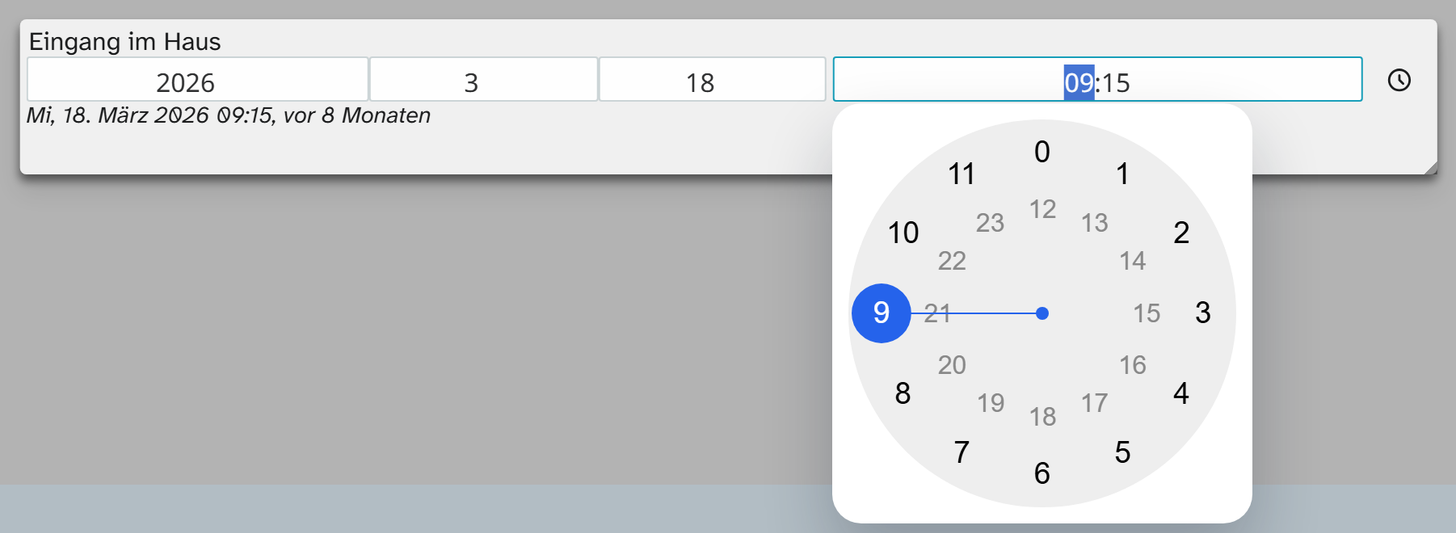
Input
On the left are year, month and day as in the date field , on the right the clock face as in the time field . If the tile is too narrow, the clock face moves below the date inputs.
A click into one of the date inputs opens the calendar at the matching level, a right-click opens it
without a preselection. Clicking a day sets year, month and day at once and then opens the clock face,
so that date and time are created in one go. If you click the clock face away, the time stays 00:00.
The Now button enters the current moment and saves immediately.
Every click saves: year, month, day, hour, minute. If you stop halfway through the calendar, what you have clicked so far is saved. Typed numbers are only saved when you leave the input.
Partial values are possible, but only cut off from the end: a year without month and day, a date
without a time. Whatever is missing appears as 00 in the value.
What is stored
YYYY-MM-DD HH:MM:SS. Zeros mean “not given”: 2026-08-14 00:00:00 is a day without a time, 1850-00-00 00:00:00 means “some time in 1850”.
The advantage over two separate fields is sorting. A point in time in one value sorts and filters chronologically. If date and time are in two fields, sorting by time puts all times of the first day before the second day.
| Action | Behaviour |
|---|---|
| Sorting | Chronological |
| Filter | Comparisons on YYYY-MM-DD HH:MM:SS |
| Full-text search | Yes |
Display and export
In the views the display follows your setting. For the export there is the formatting Timestamp DD.MM.YYYY HH:MM. It shortens partial values and leaves out a time of 00:00:00, because
here it means “not given”. See Excel export . For Word templates see Template functions .