
Field types
Selection tree
A choice from values with levels, such as a classification, a location scheme or a breakdown of places. The tree is shown open in the field. With multiple selection every value has a checkbox; with single selection the chosen value is highlighted.
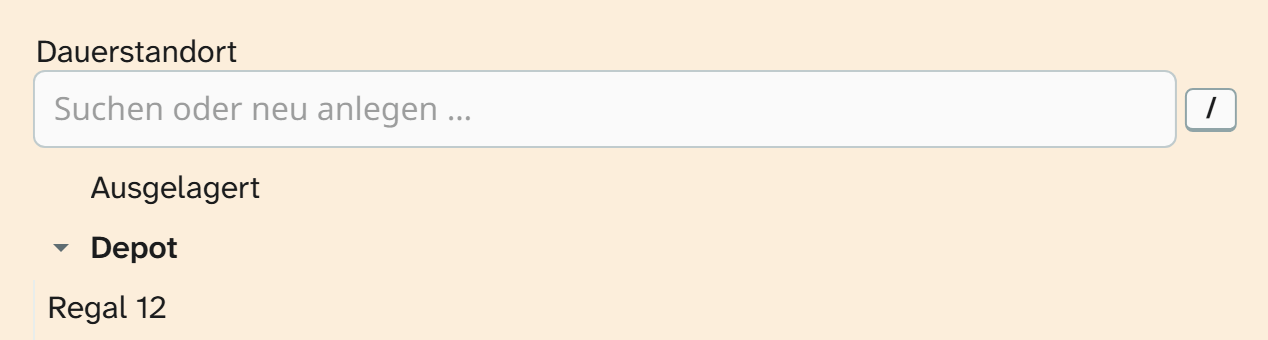
The same values are available in a space-saving drop-down list: the hierarchical select list . Which of the two a field uses is decided by the administration.
Input
Expand and collapse levels with the arrow in front of them, and click a value (with multiple selection, its checkbox). Every click saves.
| Situation | Behaviour |
|---|---|
| Single selection | A newly chosen value replaces the old one |
| Multiple selection | Ticks add up, up to a maximum number if one is set |
| Click on a level | Sets all values below it at once, unless intermediate levels can be chosen themselves |
| Search box above the tree | Filters the tree as you type |
| Own values allowed | The box above the tree reads “Search or create new …“. A path with separators creates the levels along with it |
Whether you may search and create new values is decided by the administration.
What is stored
A value is a path, with the levels separated by a separator:
Europa/Deutschland/Berlin
Depending on the setup, the whole path is stored or only the last level (Berlin). Several values are joined, usually with a comma and a space.
If an object holds a value that the list no longer contains, the value is kept and still displayed. This happens when the administration renames a level: existing values keep the old path.
Searching, sorting, editing
| Action | Behaviour |
|---|---|
| Filter | Text operators on the stored path. Contains Deutschland finds all places below it |
| Sorting | Alphabetical by path, and therefore also ordered by level |
| Grouping | Split by the separator, it groups per level, depth 1 for example by continent. See Sort and group |
| Full-text search | Yes |
| Bulk edit | All text tools |
| Excel import | Accepted are the whole path or the last level alone, if it is unambiguous: Berlin finds Europa/Deutschland/Berlin. Everything else is parked, see Resolve references |
Display and export
| Formatting | Result |
|---|---|
| Raw value | Europa/Deutschland/Berlin, Asien/Japan/Tokio |
| Lowest level only | Berlin, Tokio |
“Lowest level only” reads better in lists but can make values ambiguous: Raum 1 (room 1) in building A and in building B then look the same. You choose the formatting in the view settings or in the Excel export . For templates see Output formatters in templates .
Setup
Values, separator, multiple selection and the search box are set by the administration. See Configuring the selection tree .