
Organise
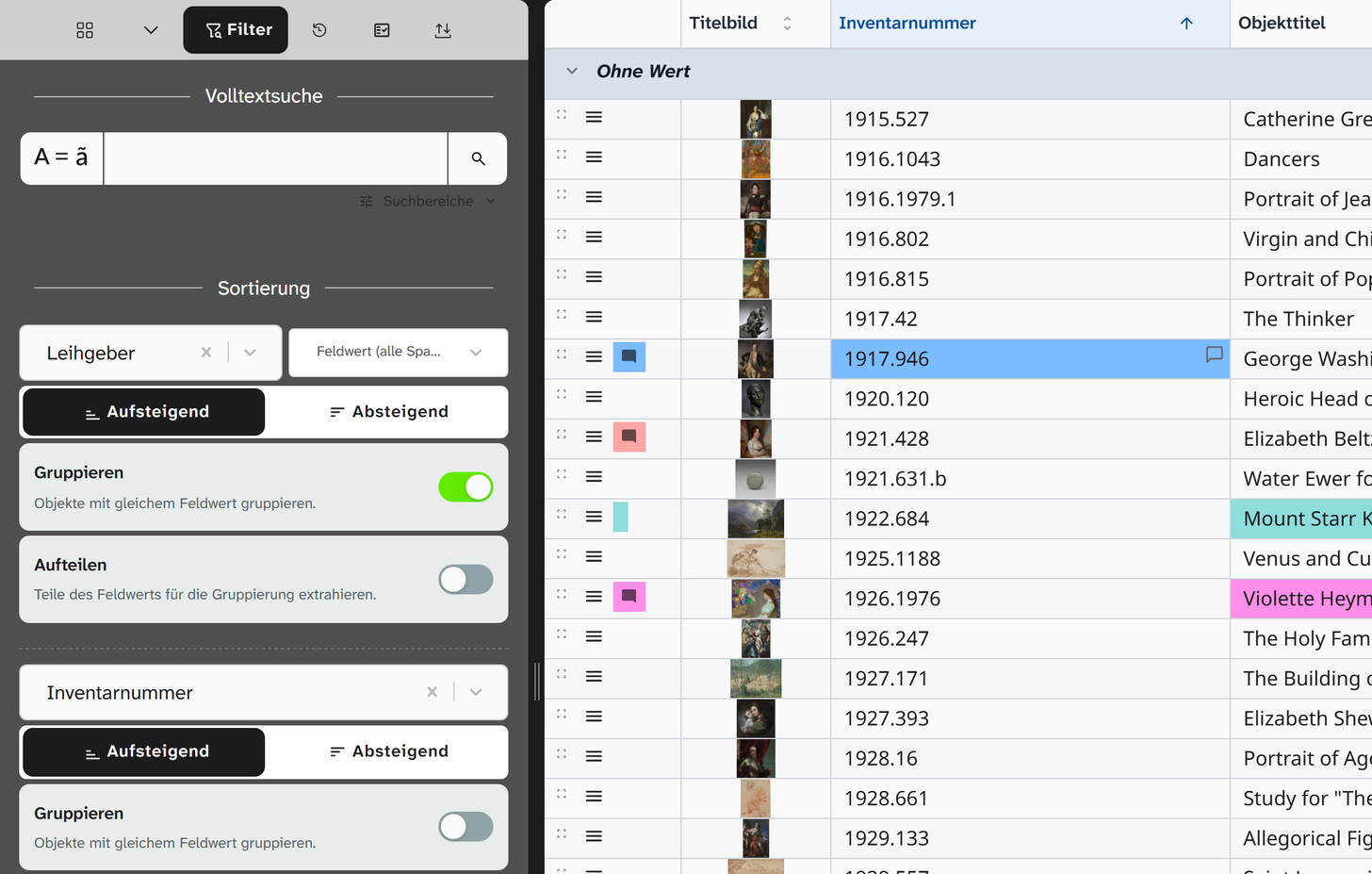
Sort and group
Sorting
-
In the sidebar, open the Filter tab.
-
In the Sorting area, choose a field, for example Leihbeginn (loan start).
-
Set Ascending or Descending.
-
For a second level, choose another field in the next empty box below. You can add as many sorting levels as you like.
The sorting also applies to exports and to the order in which you page through objects in the footer. A Word template can bring its own sorting and so override it.
Scroll rail at the right edge
The gallery and the table show a slim rail at their right edge in place of the scroll bar. It stands for the whole list, including the objects that have not loaded yet, and shows what the list is ordered by:
| Order | Ticks | Pointing shows, for example |
|---|---|---|
| Grouped | One tick per group | Painting · 337 objects |
| By date (Date, Date and time, Last changed) | Per day, month, year or decade, depending on how far apart the dates lie | 1910s · 58 objects |
| By number (Whole number, Decimal number, Object ID) | Per range of numbers, for example a century for Datierung von | The range and the count, for example 1600 to 1699 with 84 objects |
| By text (all other fields) | Per initial letter; two or three characters where the first alone tells little apart, as with inventory numbers | R · 33 objects |
| Not sorted | None | The value of the first field of the view at that place, and the place itself, for example 1958.34 · 300 / 1,000 |
The longer a tick, the more objects. A tick stands where its stretch begins in the list: a decade with many objects takes up much of the rail, a decade with few takes up little. The coloured bar shows which place is currently at the top of the list.
A click jumps to the first object of the stretch, or without ticks to the place clicked. If that place has not loaded yet, Moliri loads that part of the list first. With the keyboard: move into the rail (Tab), choose with the arrow keys and jump with Enter.
Incomplete dates such as 1920-00-00 count towards their year, 1920-05-00 towards their month. Objects
without a value get no tick. A dating written as text such as c. 1765 is a text and is marked by its
letters. When the list is sorted by a virtual field, the rail shows no ticks but the value at the place
you point at.
Grouping
Turn on the Group switch for a sorting level. The objects are then divided by this field into sections, each with a subheading and a count, for example per lender or per loan status. Objects without a value end up in the No value group.
You can group the first level and every level that follows a grouped one. The grouping also provides the columns of the kanban view .
Group by part of the value
Once Group is on, the Split switch appears (“Extract parts of the field value for grouping.”). It comes with two inputs:
| Input | Meaning |
|---|---|
| Separator (scissors icon) | The character at which the value is split. Default ,. Empty means: after every character |
| Depth (tree icon) | How many parts are taken into account. Each part becomes a grouping level of its own |
Tried and tested settings
| Goal | Field | Separator | Depth |
|---|---|---|---|
| Alphabetical groups | Object title | empty | 1 |
| Loans by year of the loan start | Leihbeginn | - | 1 |
| By year, then month | Leihbeginn | - | 2 |
| Per level of a classification | Selection tree | / | 1 or 2 |
| Per single keyword | Select list with multiple selection | , | 1 |
| By prefix of the inventory number | Inventory number | . or - | 1 |
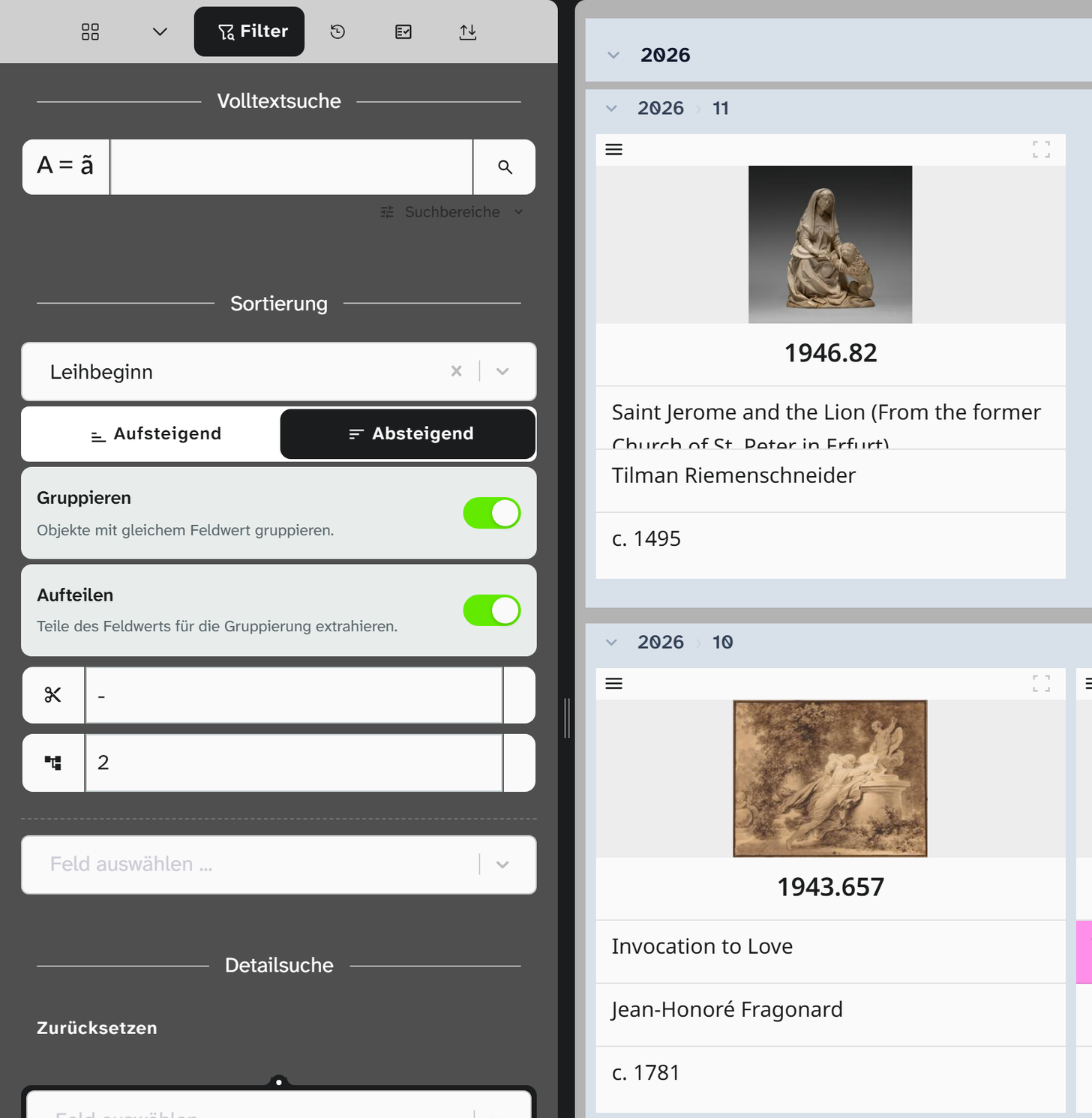
At depth 2, a date such as 2026-00-00 creates a group 00 under 2026. For a clean overview by month, it
helps to put a filter in front that excludes incomplete dates: the date field, Does not contain, -00.
What cannot be grouped usefully
Image and file fields, formatted text and JSON can be chosen, but do not produce useful groups: for files the value is an identifier, for the others a long text.
What does not sort
Some columns are not offered for sorting: link columns, subfields from the target project of an object field
such as Literatur~Jahr, and virtual fields that read from links to
objects, files or events, unless your account reads all projects. Other virtual fields can be sorted and
grouped.
If such a rule is already part of a saved sorting, for example from another view, it stays in the list: the field name is struck through, and the warning icon says Not sorted: this field cannot be used for sorting. The bin icon (Remove sort rule) takes it out.
Further reading
- Set up the kanban : columns from the grouping
- Save a view : keep sorting and grouping
- Table : grouping as sections