
Organise
Pin and hide
Pinning and hiding put the object selection in order for a while, without changing the filter or the Wahl. Both apply per person and per project.
Pin an object
-
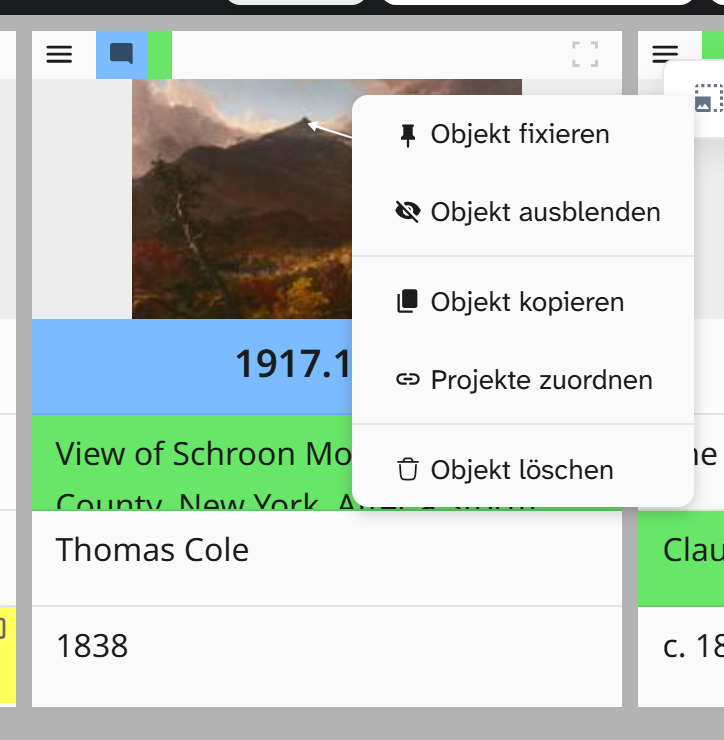
Open the object menu (☰) on the object preview.
-
Choose Pin Object. Afterwards the same entry reads Unpin Object.
A pinned object stays visible under every filter. In the gallery it has a blue stripe at the top, in the table a grey one on the left. The order of the other objects does not change.
Hide an object
Same menu, Hide Object. The object disappears from the selection, while its Wahl and its links stay as they are.
The buttons at the bottom
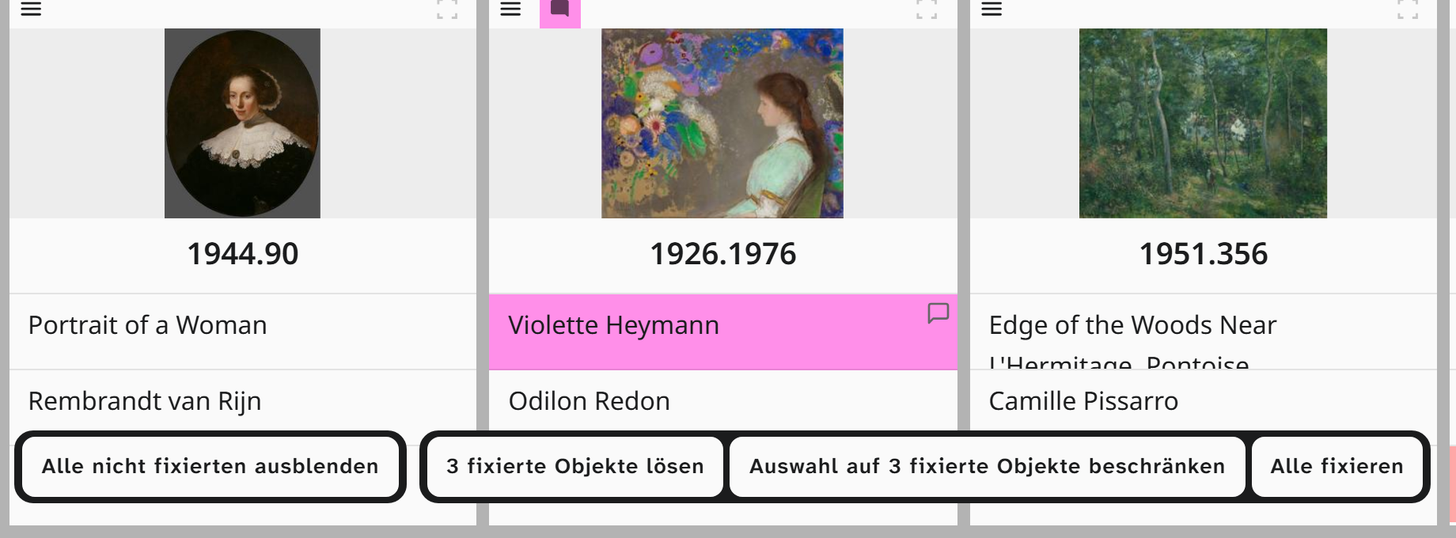
At the bottom of the gallery, just above the footer, are buttons for pinning and hiding. Hide all not pinned and Pin all are always there; the others appear as soon as objects are pinned or hidden. The numbers in them give the count in each case:
| Button | Effect |
|---|---|
| Show … hidden Objects | Shows the hidden objects again |
| Hide all not pinned | Leaves only the pinned objects by hiding all the others |
| Release … pinned objects | Removes all pins |
| Limit selection to … pinned objects | Shows only the pinned objects. The same button lifts the limit again |
| Pin all | Pins all objects in the selection |
What this is good for
| Task | How |
|---|---|
| Put together a work list for the courier | Pin the objects, then Limit selection to … pinned objects |
| Export only these objects | Pin, limit to the pinned ones, then export |
| Keep an eye on one object while filtering | Pin it. It stays visible |
| Get rid of distractions while looking through | Hide them |
A pinned object stays visible even when it is in the Trash. That is why objects from the trash can turn up in a batch or in an export. Bulk edit points this out.
Further reading
- Sidebar : Wahl filter and tabs
- Gallery : the object menu
- Filter objects : lasting narrowing down instead of a temporary one