
Organise
Live camera
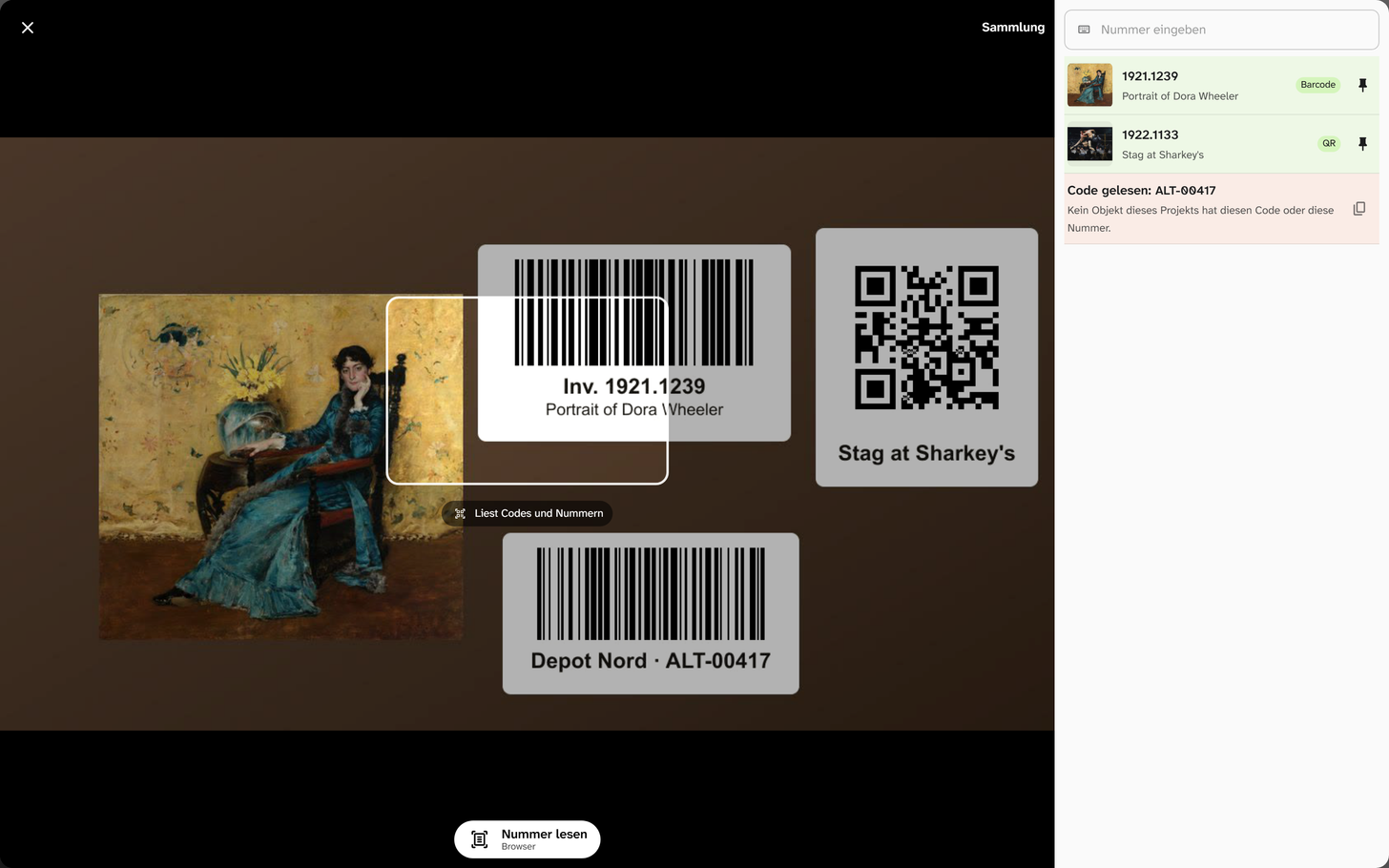
In the store, at the loans shelf or while unpacking, you stand in front of an object with a label and want to see its record. The live camera reads QR codes, barcodes and inventory numbers, printed or handwritten, for this and, while the camera runs, shows the matching objects of the project. You can type a number as well. Opened from the project overview, the camera searches all projects you may read.
Opening the camera
In the Filter tab of the sidebar, the camera icon stands next to the full-text search field. It opens the camera; the first time, the browser asks whether the page may use it. On phones and tablets the rear camera starts.
On a phone the camera picture fills the screen and the hits sit in a sheet below it. Dragging the sheet’s handle upwards makes it larger. On a computer a large dialog opens, with the hits to the right of the picture. Two buttons at the bottom left of the picture switch the light on and change the camera, where the device offers either.
The camera picture stays in the browser. Moliri only receives the text read from a code or a number. Only Read number passes on the part inside the frame, when your text recognition place is not the browser (see Read number ). The camera stops when you close the view, open an object or switch to another browser tab.
Searching all projects
When you do not know which project an object is in, open the camera in the project overview: Live camera stands next to the search field at the top. Where the project’s name usually stands, it then says All my projects, and codes and numbers find objects of every project you may read.
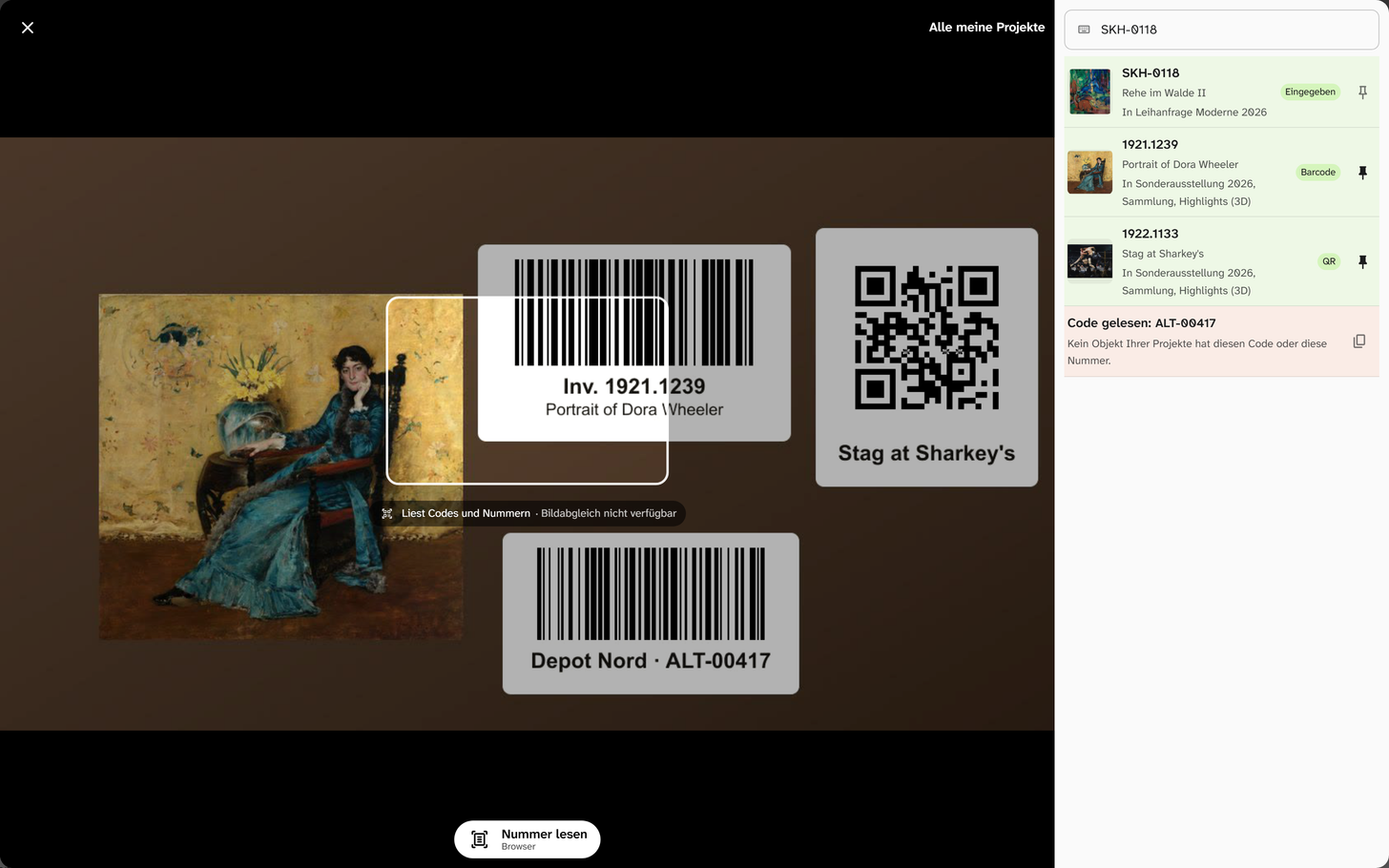
- An object in several projects appears once, and the row names all of these projects you may read below its title
- Tapping the row opens the object in the one of these projects you used last, otherwise in the first by name
- In every project its own fields with a uniqueness condition count as numbers, and the RegNr where the project shows it. A field that is unique in one project only finds the objects of that project by its number
- Objects of projects you may not read, objects in the trash of a project and numbers in fields you may not see do not appear
- The title of a row is the first text field your cards show in the object’s project
- The camera recognises objects by their look only inside a project. Below the frame it therefore says Image matching unavailable, and the Image search icon is missing. It reads codes and numbers as in a project
What the camera reads
It reads QR codes, DataMatrix and the common barcodes (Code 128, Code 39, EAN-13, EAN-8, ITF), anywhere in the picture, and inventory numbers inside the frame in the middle (see Reading inventory numbers ). A code leads to the object like this:
| The code holds | Result |
|---|---|
the address of an object of this Moliri instance, such as …/p/900/o/5 or its permanent address …/id/object/5 | That object, also when it lies in another project you may read. The row then names the project |
| a number | The objects of the project that carry this number |
| anything else | Code read: … with the text read and a note that no object matches it |
Numbers are the fields that carry a uniqueness condition in the project (unique in the project or unique in the database, see Fields ), such as the inventory number, plus the RegNr where the project shows it.
The comparison ignores spaces, full stops, slashes, hyphens, underscores, colons and upper and lower case. G 1923/44 therefore finds g1923.44. The letters O, l and I also count as the digits 0 and 1, because they are easily confused on labels. If a number of five or more characters differs in exactly one character, the hit appears with a tilde on its note (Barcode ~, Text ~). It is a suggestion, not a certain hit.
A code that matches no object stays visible, so a label from an earlier system is not passed over unnoticed. The icon on the right copies the text read, for instance to look for it in the full-text search or in the field Frühere Inventarnummern.
Reading inventory numbers
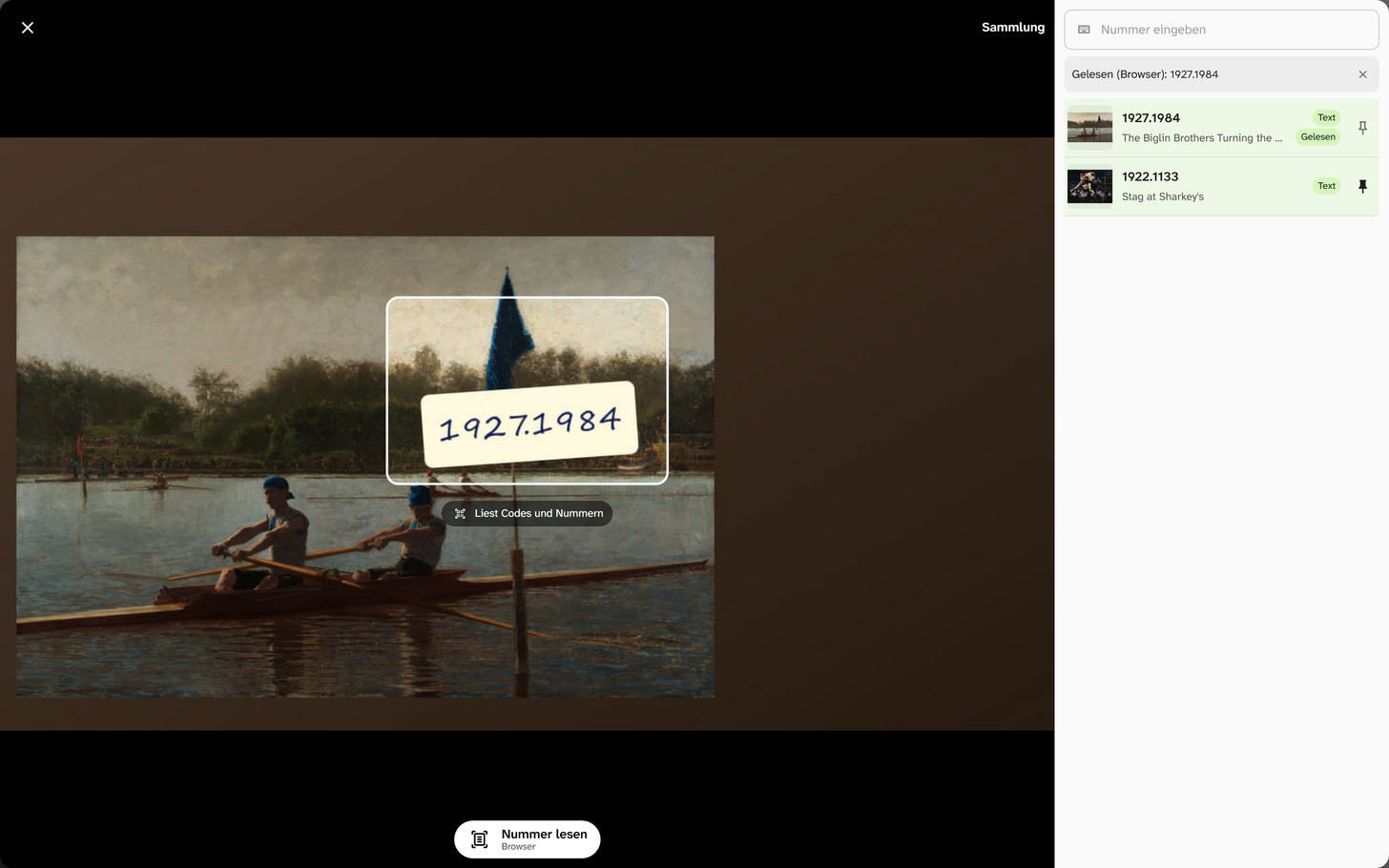
An inventory number without a code, printed on a label or written on a tag or on the object, is read as soon as it stands inside the frame. Hold the number completely inside the frame and close enough to fill about half of it. About once a second the browser’s text recognition reads that part of the picture and looks up every number in it like a typed one. The hits carry the note Text, with a tilde when one character differs. Words cut by the frame do not count, so that a half-read 1921.1 does not suggest other numbers. A number in several parts, such as G 1923/44 or Inv.-Nr. 1923.44, is found all the same.
Printed numbers are usually read at once, handwritten ones often only with a tilde or not at all. That is what Read number is for.
Read number
The button Read number at the bottom of the camera picture stops the picture and reads the part inside the frame once more thoroughly, at your text recognition place from the profile (Text recognition ). The button shows which place that is:
| Place | What happens |
|---|---|
| Browser | This browser’s text recognition reads the part in two ways, as a label and as scattered text. It does not leave the computer |
| Transcribe on this computer | The desktop app Transcribe reads it. It does not leave the computer |
| AI service | An image model of the AI account reads it, handwriting too. This can take up to a minute. The part goes to that service through the server |
| Server | The server’s text recognition service reads it |
The AI service and the server read only for people with write access to the project. Without it the browser reads. If your place cannot be reached right now, the browser reads as well.
While it reads, the picture stands still and a circle with the place turns in the list of hits. Then the camera runs on, and the top of the list shows what was read, such as Read (Browser): 1927.1984, or No object of this project has this number. The hits carry the note Read. They stay until you press Read number again or close the line with the cross.
The list of hits
- Certain hits come first: objects whose address a code held or whose number matches exactly, the most recent first. The suggestions with a tilde follow
- Each row shows picture, number and title and, on the right, where the hit comes from: QR, DataMatrix, Barcode, Text (a number read live), Read (Read number) or Typed. When more than one way found the object, all notes stand one below the other
- A hit stays while the camera sees the code or the number and fades out about ten seconds after it last saw it. The pin on the right keeps it
- Tapping the row opens the object. Back in the browser returns to the camera, with pinned hits still there
Typing a number
The field Type a number at the top of the list looks up a number like a code read, as soon as you pause typing. Its hits stay until you change the input. This helps with labels without a code, with damaged codes and where no camera is available.
If the camera does not start
The view says in the camera picture what is wrong. The number field stays usable in every case.
| Message | Cause |
|---|---|
| The camera is not allowed | The page may not use the camera. Allow it in the browser’s settings for this site (usually the padlock in front of the address) |
| No camera found | The device has no camera, or it is switched off |
| The camera is in use by another app | A video call or the camera app holds it |
| This browser offers no camera here | The browser offers web pages no camera access |
| No camera icon next to the search field, no Live camera in the project overview | Likewise: the browser offers no camera access |
| A code is not read | Too small, blurred or reflecting. Move closer, switch the light on or type the number |
| An inventory number is not read | It is not completely inside the frame, too small or handwritten. Hold the number completely inside the frame, move closer or press Read number |
| Below the frame it says Reading codes · loading text recognition | The first time, the browser loads the text recognition. Codes are read already |
| An inventory number finds nothing | The field carries no uniqueness condition in the project, or the object is in the trash. In the project overview also: the object is only in projects you may not read |
Further reading
- Search : quick search, full-text search and detailed search
- Fields : conditions such as unique in the database
- Text recognition in the profile : the place where Read number reads