
Organise
Filter objects
Narrow down the object selection, for example to all loans from one lender or to all objects in the exhibition that still have no insurance value. The selection determines what each view shows, what a batch changes and what an export contains.
Full-text search
-
In the sidebar, open the Filter tab.
-
Enter the search term in the full-text search field. It searches for one term, without operators or wildcards.
-
If needed, set under Search scope what is searched:
Search scope Searches Default Fields The values of all fields, including those that are not in any view on Metadata Comment and source on the fields off Events The linked events: type, title, actors, place, date, description off Image metadata The details of the linked files: text, keywords, description, creator, copyright, path off Transcripts and OCR The transcripts of audio and video and the recognised text of images, in the file manager and in file fields off Links The links to authority data, addresses, objects and files: type, target, note, comment and source on -
For an exact comparison, toggle the Aa icon next to the search box. Upper and lower case and umlauts then have to match.
While a search is active, each object preview shows a hit counter. The hits appear when you hover over it.
Detailed search
-
Below the full-text search is the Detailed Search with an empty condition.
-
Choose a field, for example Leihstatus (loan status).
-
Choose a comparison: Contains, Does not contain, Equal, Not equal, Greater, Smaller, Greater or equal, Smaller or equal or Regular Expression. The buttons show icons; the name is shown next to the selected one.
-
Enter a search term. When you click into the field, suggestions from the existing values appear, and a click takes one over. Each condition also has its own icon for the exact comparison.
-
Add further conditions with the AND or OR buttons below the last one.
Filter in your own words
If a chat model is set up for the instance, or Transcribe is running on your computer (see Connect Transcribe to Moliri ), you can also describe the filter in words:
-
Above the Detailed Search, type the filter as a sentence, for example paintings after 1900 without a location, and click Suggest.
-
The suggestion appears as conditions of the Detailed Search, outlined in yellow. It does not apply yet: check the fields, comparisons and values and change them if needed. Anything the model had to leave out is listed in the note above.
-
Click Apply filter. Discard restores the previous filter.
More on this under Filter .
Filter by links
For example all objects made of oak or beech, or all paintings that are not illustrated in any catalogue:
-
In the Detailed Search, choose the link type as the field, for example Authority data Material. The link types are listed under the name of their library. Types between objects are also listed in the opposite direction, for example Objects besteht aus (consists of) for works that have components; there you choose the source instead of the target.
-
Choose has or has not.
-
Use the chain icon under Target to choose the targets, for example Eiche (oak) and Buche (beech). Several targets are combined with or; has not then means: none of them. Without a target, has not finds the objects that have no link of this type.
For authority data, Include narrower terms is switched on: Holz (wood) then also finds objects made of Eiche. All the inputs are described under Filter .
Gap lists
| Goal | Field | Comparison | Search term |
|---|---|---|---|
| Loans without a loan contract number | Leihvertragsnummer | Equal | leave empty |
| Objects with a cover image | Titelbild | Not equal | leave empty |
The same pattern works for every field. This gives you the list of what is still missing before the opening.
Compare numbers and dates
Give the comparison value in its stored form:
| Field type | Form |
|---|---|
| Number | In the field’s base unit, without thousands separators |
| Date | JJJJ-MM-TT (YYYY-MM-DD) |
| Toggle | 1 or 0 |
See Field types .
Brackets
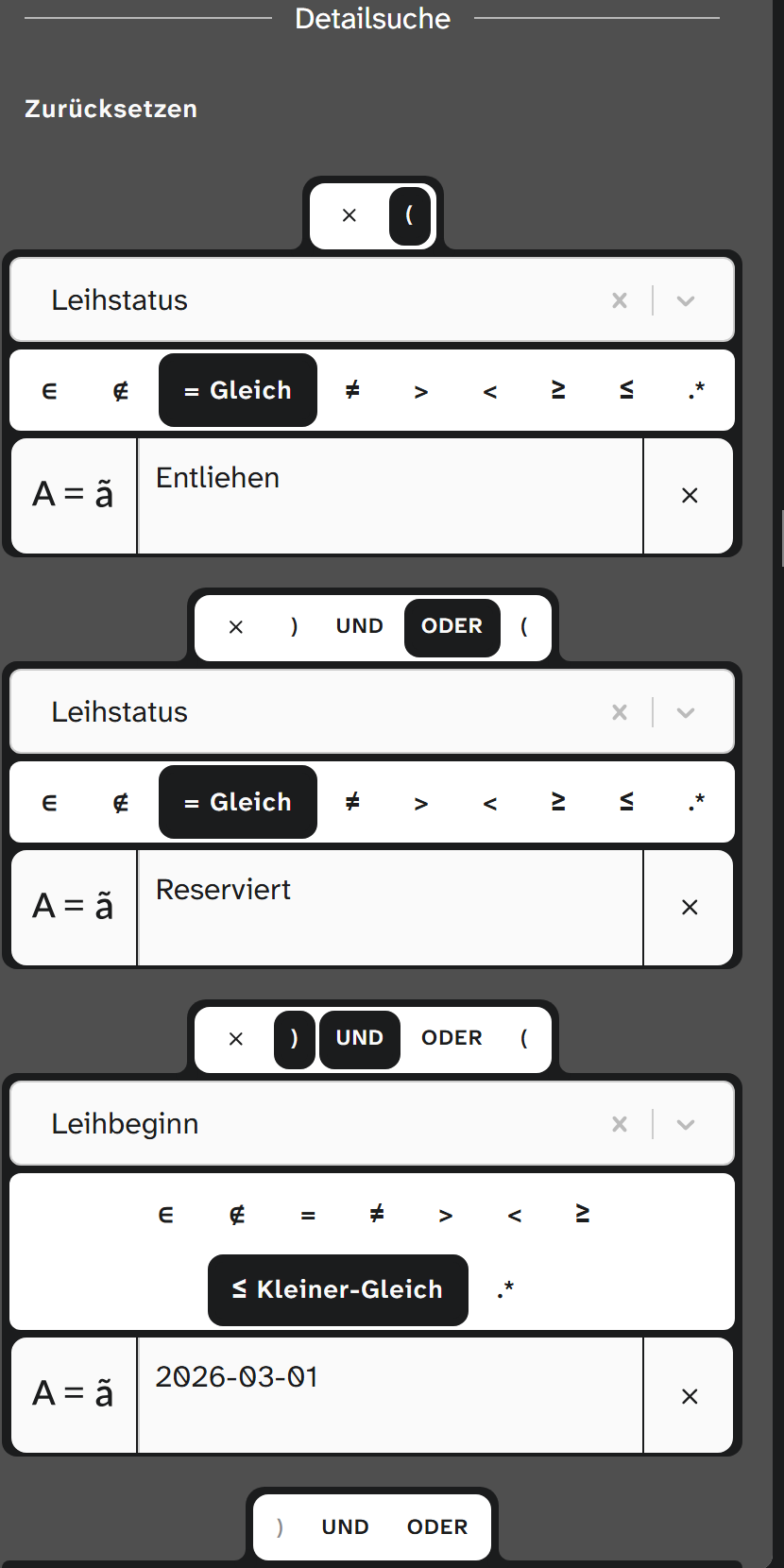
From three conditions on, you can group conditions in brackets. Moliri opens and closes the outermost bracket by itself; you can set the inner ones. If an opened bracket has no closing bracket, the filter is not applied.
Example for objects on loan or reserved, each with a loan start before 1 March:
( Leihstatus equal Entliehen  OR  Leihstatus equal Reserviert )
AND  Leihbeginn smaller 2026-03-01
Remove and save filters
You remove a condition with the ✕ in its header. When you hover over it, the condition concerned becomes transparent. Reset clears the whole detailed search.
A filter you need again and again belongs in a saved view .
Further reading
- Filters : all comparisons
- Search : which search when
- Regular expressions