
Organise
Save a view
A saved view brings together the field selection and the filters. A loan list for the insurer or the list of loans without a contract is set up once and then called up again with one click.
Saving
-
Set up the view the way you want to save it: choose fields, filter, sort.
-
In the project header, click the star (Manage views & filters).
-
Choose Save current view. Give it a name and, if needed, a Category, for example Ausstellung (exhibition).
-
Choose which parts are saved. Each part has its own switch and shows its current content below it:
Area Switches Object view Image fields, Text fields, Calendar fields, Wall planner fields Filter Full-text search, Sorting / grouping, Filter (the detailed search) -
Save.
The view mode (gallery, table, kanban …) and the limit to pinned objects are not saved. Each project remembers its mode by itself anyway.
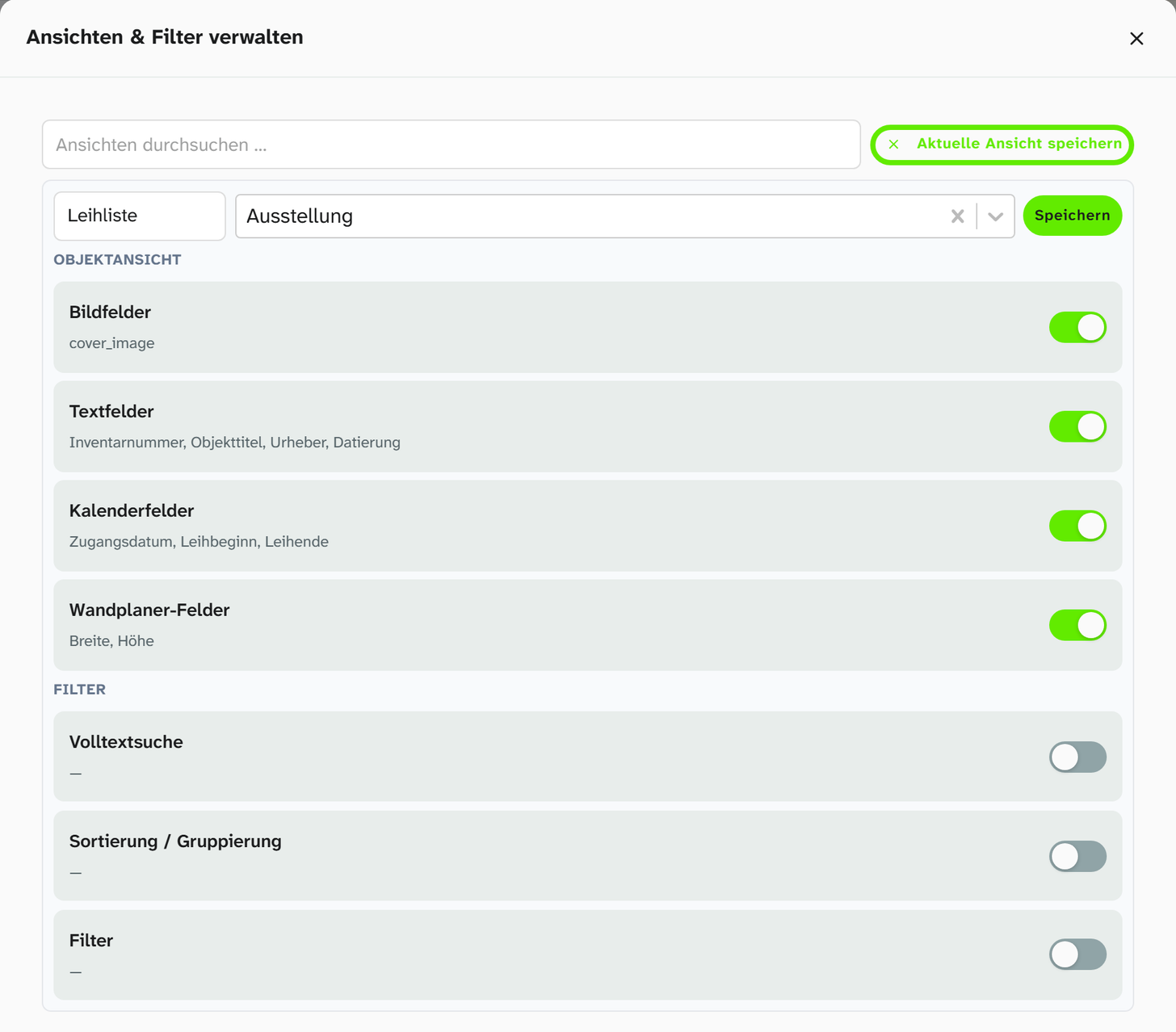
A view Title and image only should bring the field selection along, but not overwrite yesterday’s filter. If you turn on only the switches under Object view, you get exactly that, and the view stays useful in any context.
Favourites and loading
In the Manage views & filters dialog you can Mark as favourite any view, and a whole category with Mark category as favourite. Favourites appear in the bar in the header, and one click loads all the parts they contain. You load all other views in the dialog with Apply.
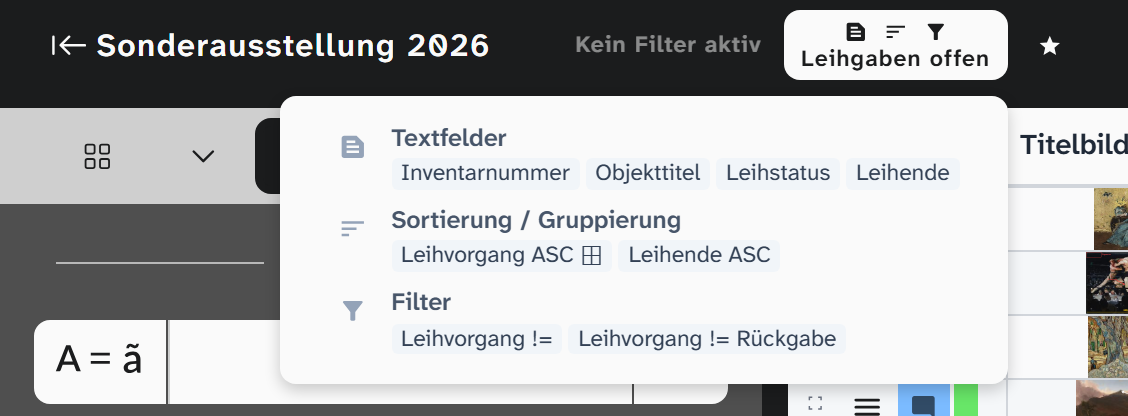
The icons on a view show which parts it contains. Green means: this part matches the current state. When you hover over it, a breakdown appears. There you can click a single icon to load only this part.
Across projects
You can load a view in any project. If it contains fields that do not exist in the project, it shows a warning icon with the note Not present in this project and the missing fields. The other parts are loaded.
This makes views such as Title and image only or Gaps in dimensions useful in all exhibitions, as long as the fields have the same names in the projects.
Sharing
You can share a view of your own with Make available to all users, and a whole category with Share entire category. Stop sharing takes the share back. The label Shared or Private shows the state.
This is how you provide binding working views for your institution: Loans without a contract, Transports this week, Cataloguing gaps.
Further reading
- View settings : all settings and their scopes
- Where a setting lives : precedence and scopes