
Views
View settings
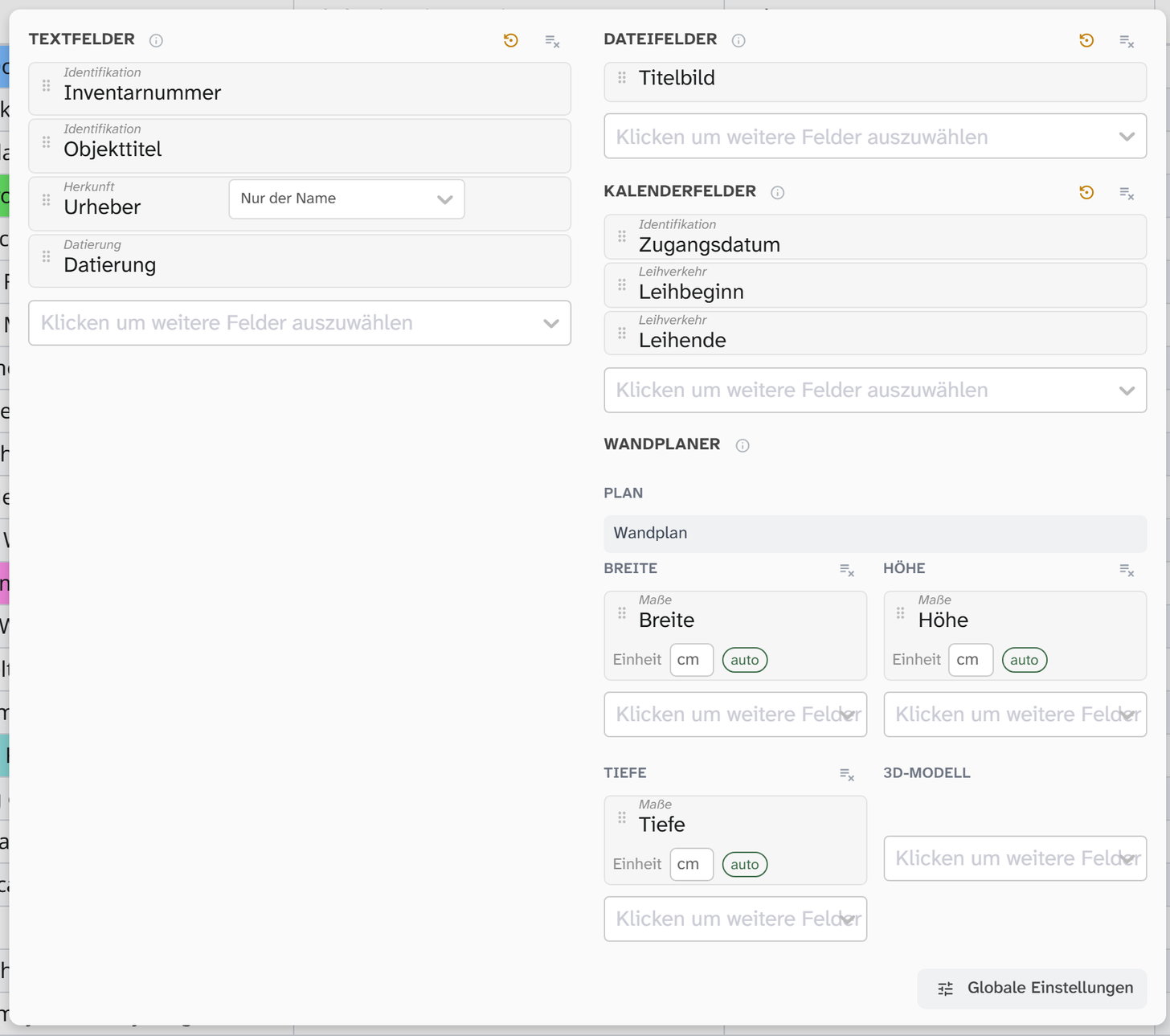
Open them with the gear icon on the right of the top menu bar. The window shows the project’s field-related settings (File fields, Text fields, Calendar fields, Wall planner); from there, Global settings leads to display and formatting. A changed setting can be returned to the instance preset with Reset to global default.
Precedence
A single value can come from the built-in default, the instance preset or your own setting. They override each other per key in this order:
built-in default < instance preset (administrator) < your own setting
If you only change the date format, your number format still comes from the instance preset. A change to the preset therefore still affects every key that nobody has touched. The explanation: Where a setting lives .
Per user and project
Everything that contains field names, plus the chosen view:
| Setting | Effect |
|---|---|
| View mode | Gallery, table, kanban, calendar, wall planner, and in literature projects also the citation list. See below |
| File fields | Which image and file fields supply the preview images in the gallery, table, kanban and wall planner. A geolocation field can be chosen too; it supplies its map preview, with an adjustable Zoom level |
| Text fields | Which fields appear in previews and as table columns. Also decides what the quick search searches in |
| Calendar fields | Which date fields the calendar shows. Can also be switched directly in the calendar |
| Full-text search | The search term with its options, including searching events and searching image metadata |
| Sorting and grouping | Sort field, direction, grouping, split grouping. Also supplies the kanban columns |
| Filter | The advanced filter with all its conditions and brackets |
| Pinned only | Switch to show only pinned objects |
| Wall planner: width, height, depth, 3D model, plan | Which fields the wall planner uses for dimensions, model and plan, with a unit for each dimension field |
| Citation style | Style and language of the citations in the gallery, table and kanban. It only appears below the text fields when the view shows citations: an object field as a short or full citation, or a link column such as documented in in citation mode. Without a choice of your own, the style set on the object field applies, or else the instance’s (As in the instance: …). See Citation style |
The field-related settings cannot be global, because a field name means nothing in another project. When a view is applied across projects, unknown field names are silently dropped.
Per user, global
Everything to do with display and formatting:
| Setting | Values |
|---|---|
| Card density | Compact or normal |
| Card width (gallery) | Pixels |
| Row height (table) | Pixels |
| Column width (kanban) | Pixels |
| Sidebar width | Per cent |
| Language | Language of the interface |
| Show inline metadata | Show comment and source directly in the field |
| Date format | Unformatted · TT.MM.JJJJ · T. Monat JJJJ · TT/MM/JJJJ · MM/TT/JJJJ |
| Number format | 1 234.56 (ISO) · 1,234.56 (US) · 1.234,56 (DE) · 1'234.56 (CH) · 1 234,56 (FR) |
| Display of yes | ✅ · Ja · Yes · X · 1 |
| Display of no | ❌ · Nein · No · empty · 0 |
| Placeholder for empty values | 0 · - · n/a · null · empty |
| Click in the gallery | Open object · Copy content · Edit field · nothing |
| Background in the image viewer | Checkerboard · white · black · light grey |
| Image compression on upload | On/off and maximum edge length |
All values can also be entered by hand when none of the suggestions fits.
The view mode per project
Each project remembers which view you last had it in. If you choose the table in an exhibition, you will still find the literature list in the citation list and the loans in the kanban.
A project in which you have not yet chosen a view opens in your previous default view, otherwise in the instance’s Default view (see below ), otherwise in the gallery. If a project has no literature or no field for plans, it switches from the citation list or the wall planner to the gallery. The other projects keep their view.
A saved view does not carry the mode with it.
Formatting also applies to exports
Date and number format, the display of yes and no, and the placeholder for empty values also apply to Excel exports and are available in Word templates as ui.
This is convenient and has a downside: the same document looks different for two users. For contracts, loan forms and anything that is archived, the formats therefore belong fixed in the template. See Template functions .
Saved views
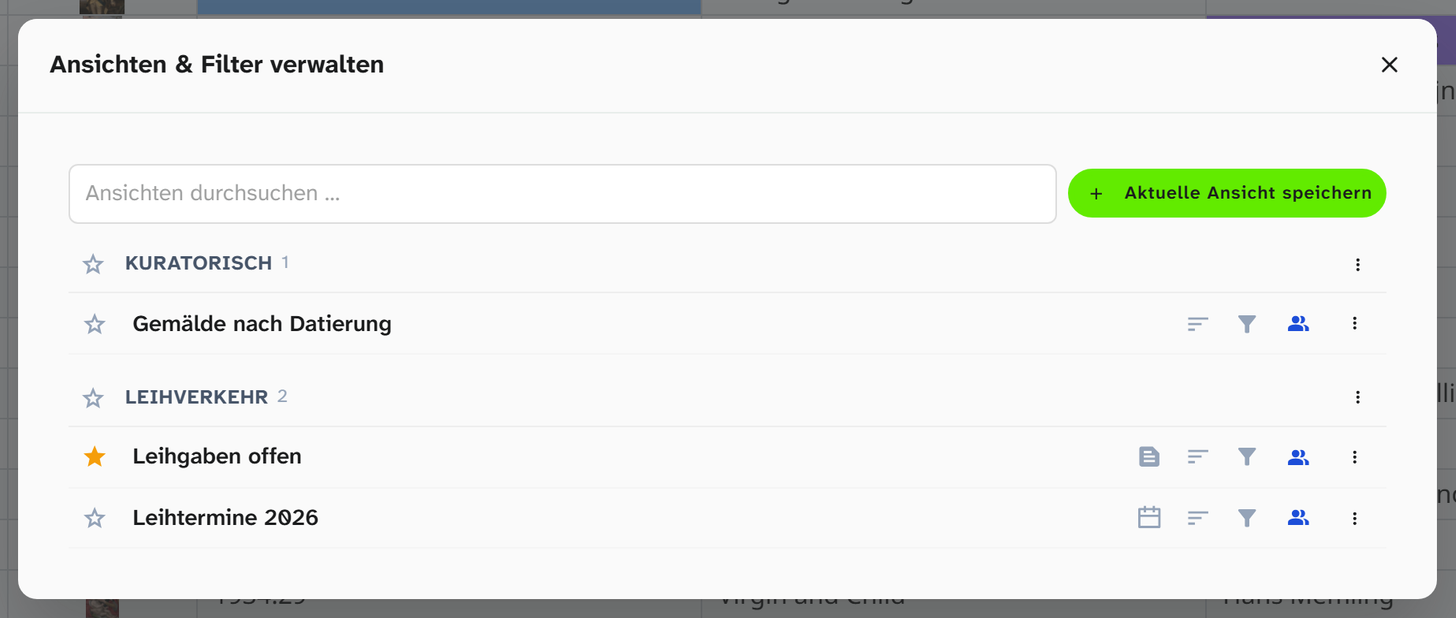
A saved view is a snapshot of selected settings. When you save, you choose which groups go into it:
| Group | Contains |
|---|---|
| Object view | Image, text and calendar fields, wall planner assignment |
| Filter | Full-text search, filter, sorting and grouping |
View mode, Pinned only, sizes and formatting are left out.
Properties:
- It is a copy, not a reference. Changing the live settings does not change the view. The icons show which parts match the current state (green).
- Load individual parts. Clicking an icon in the drop-down loads only that part.
- Usable across projects. Field-related parts are filtered in the process: unknown field names are silently dropped.
- Shareable. A view of your own can be shared with all users, individually or as a whole category.
Instance preset
Under Settings › View (status 9, see Administration areas ) the presets for the whole instance are set, separated into Fields, Display and Formatting. They apply to every key that a user has not changed themselves. The Default view under Display is the view mode for projects in which someone has not yet chosen a view.
The most worthwhile use: set the date and number format and the display of yes and no to the conventions of your institution straight away. Otherwise new accounts carry defaults that nobody wants, and everyone changes them one by one.