
Views
Kanban
Objects as cards in columns. The columns come from the values of a field, and dragging a card into another column changes that value. This turns the loan status into a working board and the lender into an overview.
In the demo project Sonderausstellung 2026, Leihstatus (loan status) is a select list with the five values Im Bestand (in the collection), Verliehen (lent out), Entliehen (borrowed), Reserviert (reserved) and Abgegeben (transferred). The board shows all five as columns, including a value that no object carries at the moment.
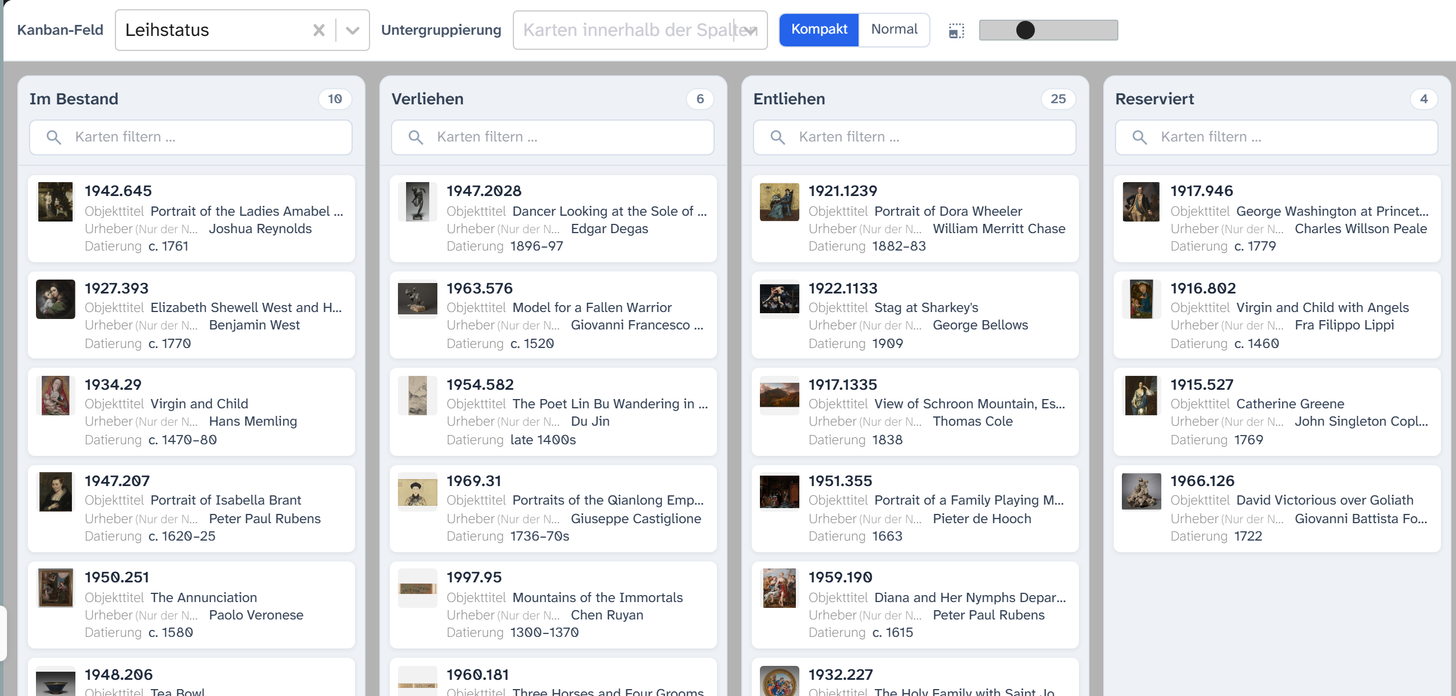
Where the columns come from
You choose the field at the top of the view under Board field (Select a field to build the board). Technically this is the first grouping of the sorting, the same as in Sorting and grouping . Kanban takes over a grouping set there, and one chosen here also applies in the gallery and table.
| Column | Origin |
|---|---|
| A value | Every value that occurs in the selection |
| Empty column | For fields with a fixed list of values (such as a select list), also the options that no object carries yet. Does not apply to split groupings |
| No value | Objects in which the field is empty. Comes last |
The columns follow the sort rule of this grouping. For a fixed order, name the values so that they sort
correctly, for example 1 Anfrage, 2 Zusage, 3 Vertrag.
Without a board field
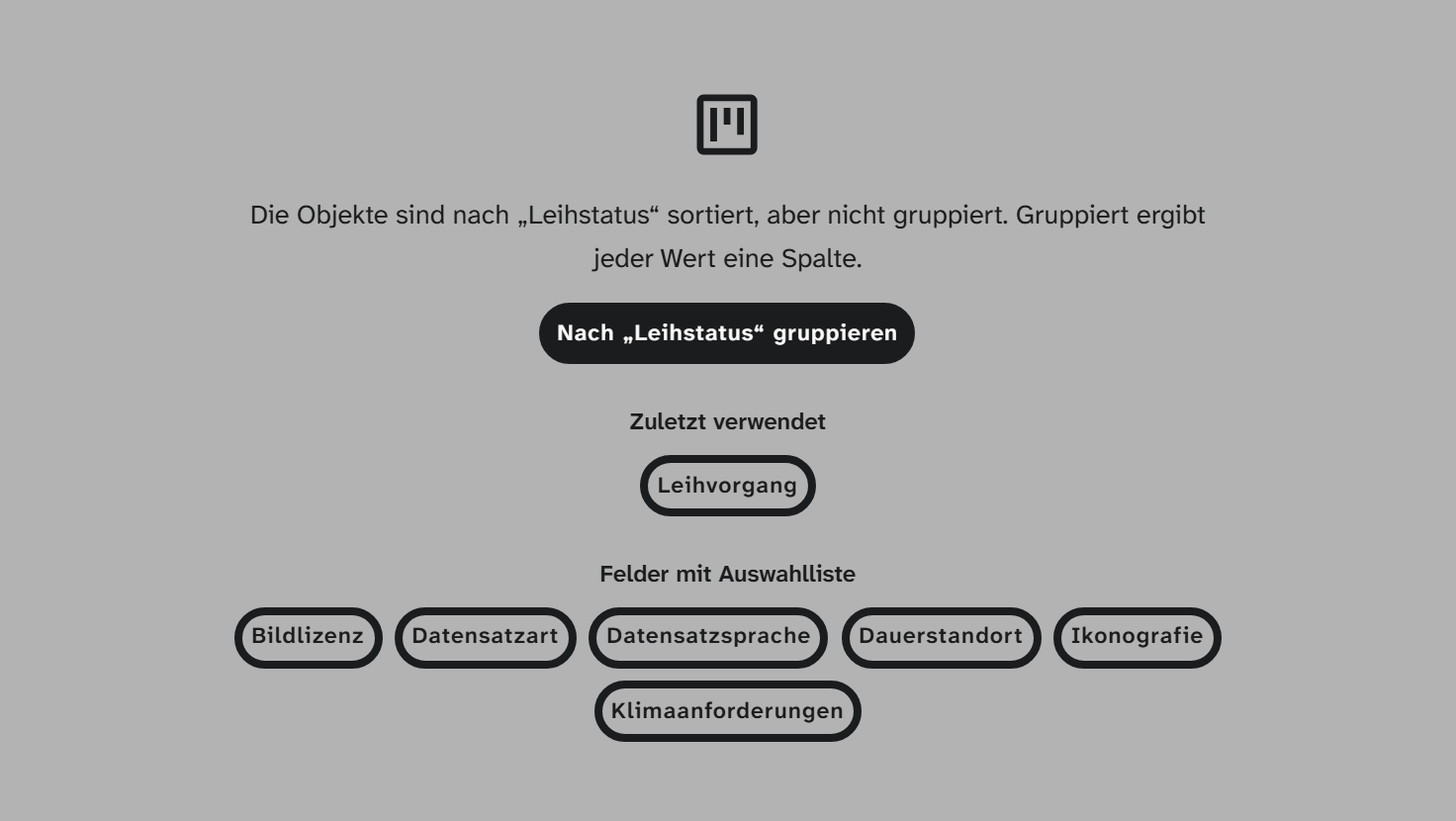
As long as no board field is chosen, the empty view suggests one:
| Suggestion | Source |
|---|---|
| Group by ”…” | The objects are already sorted by a field but not grouped. The click switches on Group for this sort rule; the direction stays. The gallery and table are then grouped as well. Only the first sort rule is offered, and only if its field can be chosen as a board field |
| Recently used | Up to three board fields you last chose in this project. The browser remembers them |
| Fields with a value list | Up to six select list and selection tree fields, those with fixed values first |
A click on a field makes it the board field. Without a suitable sorting, Select a field to build the board appears above the suggestions.
Sub-grouping
Under Sub-grouping (Group cards within columns) a second field divides each column into sections. All columns have the same sections, so that every combination is a target. This way you can, for example, have columns by loan status and sections by lender side by side.
Moving changes values
Dragging a card into another column or section saves the new value. Only what actually changes is changed: the board field, the sub-grouping or both.
| Field | What is saved |
|---|---|
| Select list, text | The value of the target column, such as the new loan status |
| Target is No value | The field is cleared |
With a grouping by an address field, for example by lender, the board shows the objects per lender but is locked (see below). For a working board on which cards move, a select list such as the loan status is the right choice.
When moving is locked
The view then shows a hint that begins with Read-only:
| Hint (after “Read-only”) | Cause |
|---|---|
| no write access to this field, so cards can’t be moved | No write access to the field |
| cards can’t be moved for this grouping | The grouping is split (shows only part of the value), the field is a subfield, or the grouping is by an address field |
| cards can’t be moved for this sub-grouping | The same for the sub-grouping |
The second row is the most common surprise. A split grouping, such as individual keywords from a field with several values, can be shown as a kanban but not edited: there is no way to tell which complete value would be meant. If either of the two levels is locked, the whole board is locked.
Card filter
Each column has a search field Filter cards …. It searches fuzzily like the quick search in the card’s text fields and only hides cards that do not match. If the card shows a link column, it also finds the names of the linked targets, but only of targets you may read. It does not change the selection of objects, and moving still works while you filter.
Display
| Setting | Effect |
|---|---|
| Compact / Regular | Card density, shared with the gallery |
| Column width | Width of a column in pixels |
A card shows the preview image and the chosen text fields, like the gallery card.
While a large project is still loading, the bar shows … of … loaded. The columns show only the objects loaded so far. See Large projects load in stages .
Further reading
- Setting up the kanban : the procedure
- Sorting and grouping : where the columns come from
- Select list : the right field type for kanban columns