
Views
Set up the kanban
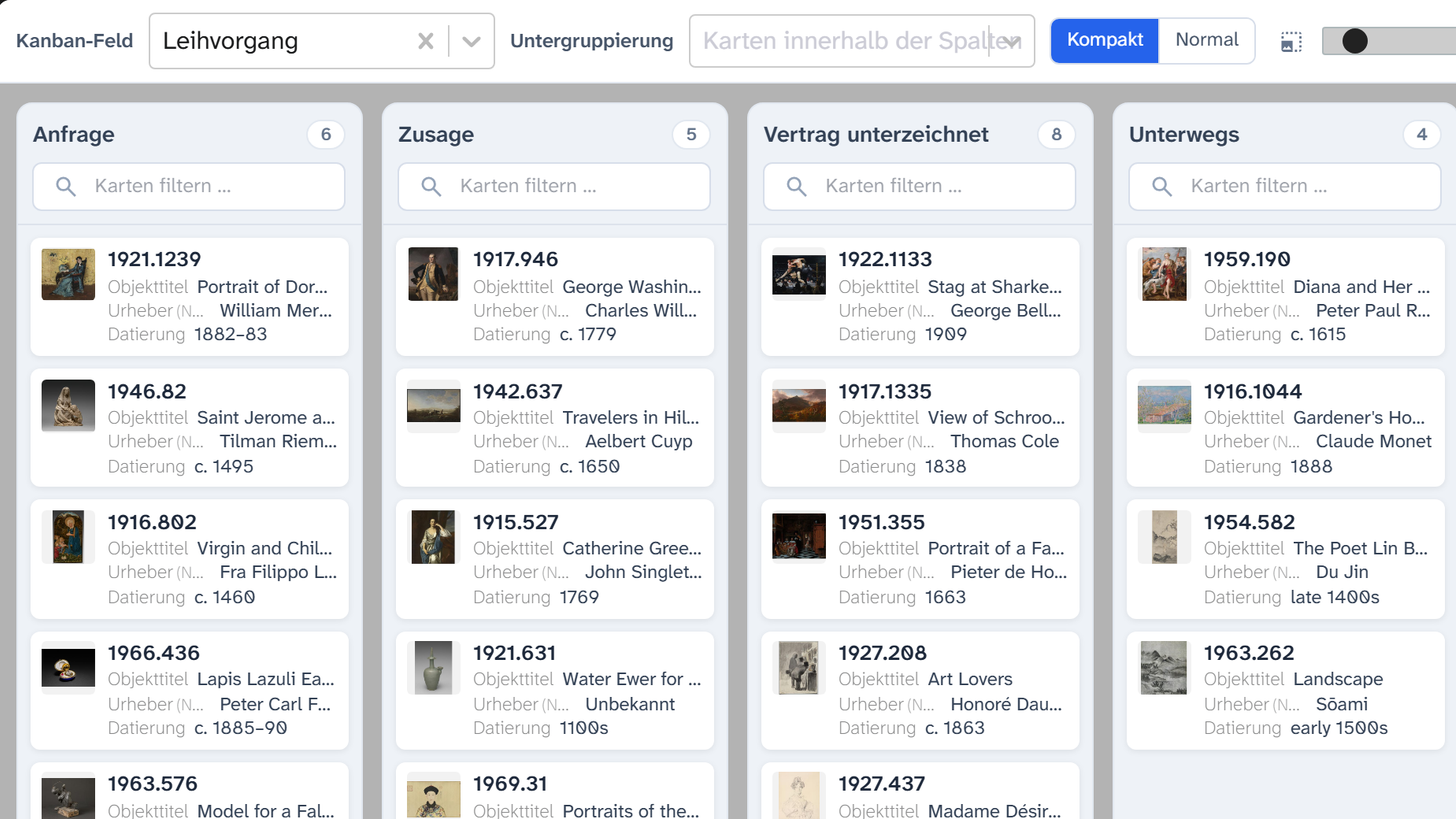
Kanban shows objects in columns made from a field value. Dragging a card into another column changes this value. With the field Leihvorgang (loan process) this becomes a work board for loans: each loan moves from Anfrage (request) via Zusage (commitment) and Vertrag unterzeichnet (contract signed) to Eingetroffen (arrived).
-
Open the Kanban tab, in the workspace or in the sidebar.
-
Choose the Board field, for example Leihvorgang. It is the same setting as the first grouping in the Filter tab. Changes work in both directions.
The suggestions in the empty view are quicker: if the objects are already sorted by a field, Group by “…” groups them by it. Below are the recently used board fields and the fields with a value list; one click is enough.
-
If needed, choose a Sub-grouping, for example Transportart (mode of transport). It groups the cards within the columns.
-
Set the Column width with the slider and the card density with Compact or Regular.
A suitable field
A select list with a few fixed values works best: loan process, loan status, mode of transport, conservation stage.
The values of the select list form the columns in their set order, even when a column is empty. Other values follow in alphabetical order, and the No value column is always at the end.
Objects without a value
The No value column collects them. It is a target like any other: dragging a card into it empties the field. Usually this column is exactly the work list of what is not yet sorted in.
Filtering cards
The Filter cards … box hides cards that do not match. You can still move cards while it is in use.
When moving is locked
The view then shows a note that begins with Read-only:
| Note (after “Read-only”) | Cause |
|---|---|
| no write access to this field, so cards can’t be moved. | Missing field or project permission |
| cards can’t be moved for this grouping. | The grouping shows only part of the value (split grouping), a subfield or an address field such as Leihgeber (lender) |
| cards can’t be moved for this sub-grouping. | The same for the sub-grouping |
The second row is the one that surprises people most often: a split grouping, such as years from a date field, can be viewed as a kanban, but not edited by dragging.
Further reading
- Kanban : full reference
- Sort and group : where the columns come from
- Select list