
Views
Set up the table
The table is the object list as you know it from Excel, but working on the actual records. Use it for a loan list, an insurance list or for checking after an import.
-
Open the view settings (cog on the right of the header) and choose the Text fields. They become the columns. Chosen File fields appear as columns with thumbnails in front.
-
Set the order of the columns by dragging in the view settings.
-
Drag the column width at the right edge of the column header (Change column width). The ✕ in the column header takes a column out (Remove column).
-
Drag the row height at the bottom edge of any row (Change row height). Taller rows show more text per cell.
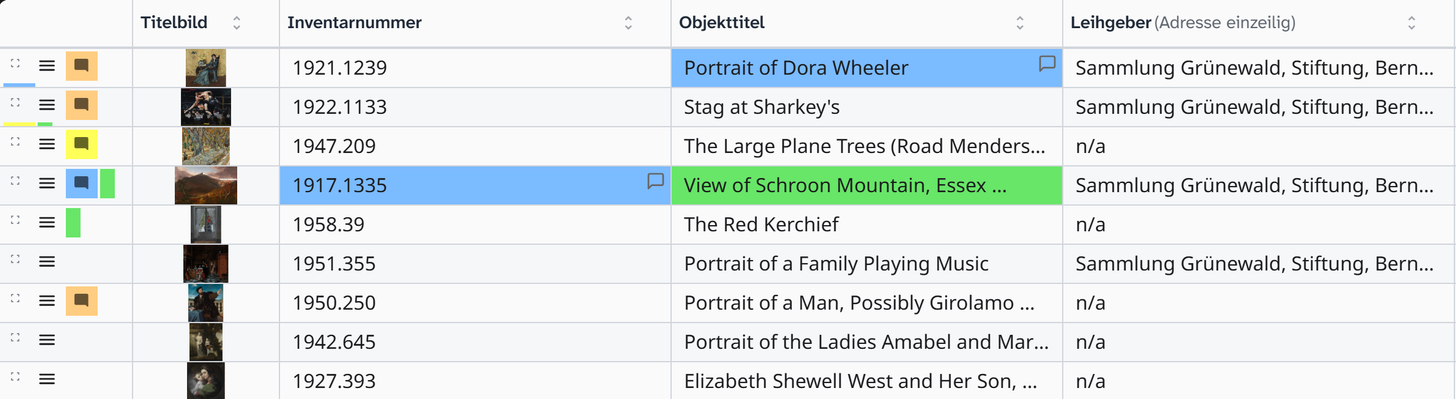
Sorting
A click on a column header sorts in ascending order, a second click in descending order. You set up sorting on several levels, for example first by lender and within that by inventory number, in the Filter tab under Sorting. See Sort and group .
Edit values from the table
A click on a cell follows the same setting as in the gallery (Click on field (gallery)): by default it opens the object. To edit a single value, set the setting to Edit field or use the pencil button Edit in the cell. A small window opens with the same input as in the object view, with the same colour feedback when saving.
For subfields, such as the place in an address, the input of the field they belong to opens.
Tried and tested combinations
| Task | Columns |
|---|---|
| Loan list for the insurer | Inventory number, object title, creator, lender, insurance value |
| Plan a transport | Inventory number, height, width, depth, weight, mode of transport, courier, climate requirements |
| Keep track of contracts | Inventory number, lender, loan contract number, loan start, loan end |
| Find gaps | Inventory number, then the fields that should be filled |
| Check after an import | Inventory number plus exactly the imported fields |
The inventory number as the first column is almost always worth it. It is how you talk to others about a row.
Together with other views
The sidebar and the workspace each show a view of their own:
| Combination | What for |
|---|---|
| Table in the sidebar, Object in the workspace | Check row by row and catalogue completely |
| Table in the sidebar, Batch in the workspace | See the candidates and change them at the same time |
| Table in the workspace, Editing History in the sidebar | Trace what happened last |
Further reading
- Table : full reference
- Excel export : when the list leaves the institution