
Views
Table
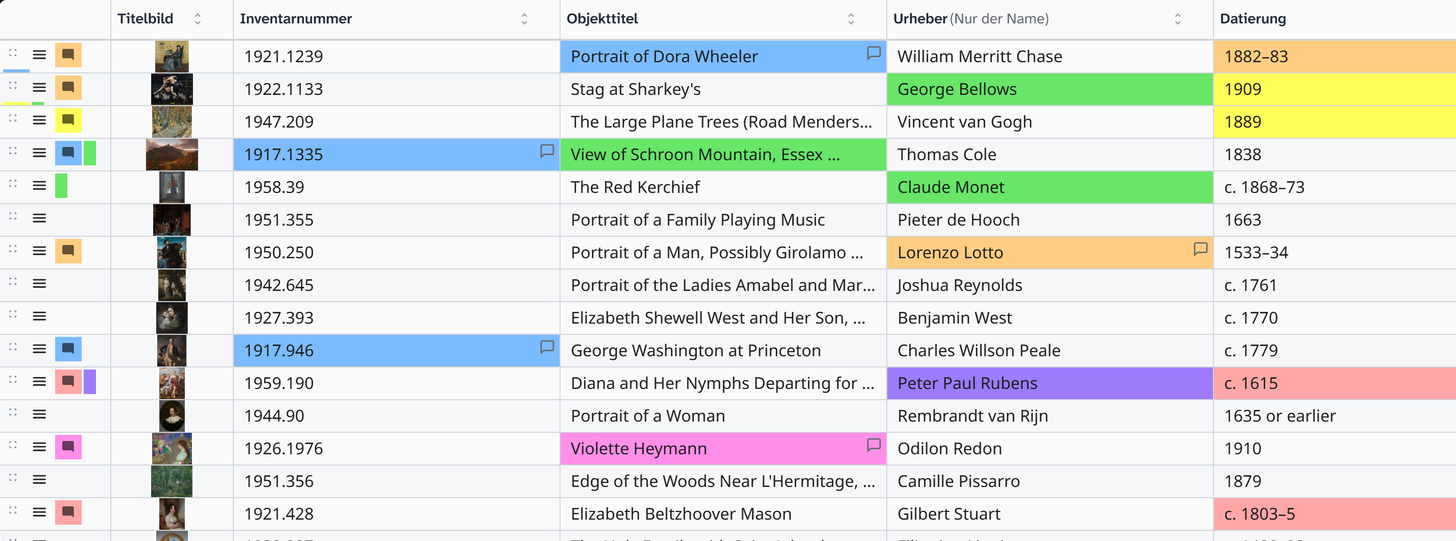
Objects in rows, fields as columns. The view for comparing and for working through records systematically.
Structure
| Element | Behaviour |
|---|---|
| Columns | The chosen text fields, in the order you set |
| First column | Preview image, if file fields are chosen. You can drag a file here to upload it to the object |
| Column header | One click sorts by this column, a second reverses the direction. Link columns cannot be sorted |
| Column width | Drag the right edge of the header |
| Row height | Set globally; with a greater height, more text fits into a cell |
| Header row | Stays in place when you scroll |
| Colour markings | As the cell background |
| While loading | Grey placeholder rows until the objects have loaded, see Large projects load in stages |
| Scroll rail | At the right edge in place of the vertical scroll bar: shows the groups, periods, number ranges or initial letters of the sorting, a click jumps there, see Scroll rail at the right edge |
Which fields become columns, and in which order, is set in the view settings . A click on the column header replaces the first sort rule and leaves groupings as they are. Multi-level sorting is set up in the Filter tab under Sorting, see Sorting and grouping .
Editing in the cell
Cells can be edited directly. The input is the same as in the object view: a select list stays a select list, and a date field gets the calendar. The value is saved when you leave the cell. The colour feedback is the same as in the object view .
The following cannot be edited:
- Subfields (address and object fields). They are edited through the base field.
- Split groupings (Split in the sorting), because they show only part of the value.
When the table is the right view
| Task | Why here |
|---|---|
| Finding gaps | Empty cells stand out in a column at once |
| Making values consistent | Variants sit one below the other |
| Checking two fields against each other | Put two columns side by side |
| Preparing a bulk edit | Table in the sidebar, bulk edit in the workspace |
| Checking after an import | Sort by the imported field |
Grouping
When a grouping is set, the table divides into sections with a subheading and a count. Together with a split grouping, for example by year from a date field, this gives you a quick count without an export. See Sorting and grouping .
Further reading
- Setting up the table : the procedure
- Bulk edit : when the same change affects many rows
- Excel export : when the analysis happens elsewhere