
Field types
3D
A 3D model on the object. The field shows the model itself, not just a preview image.
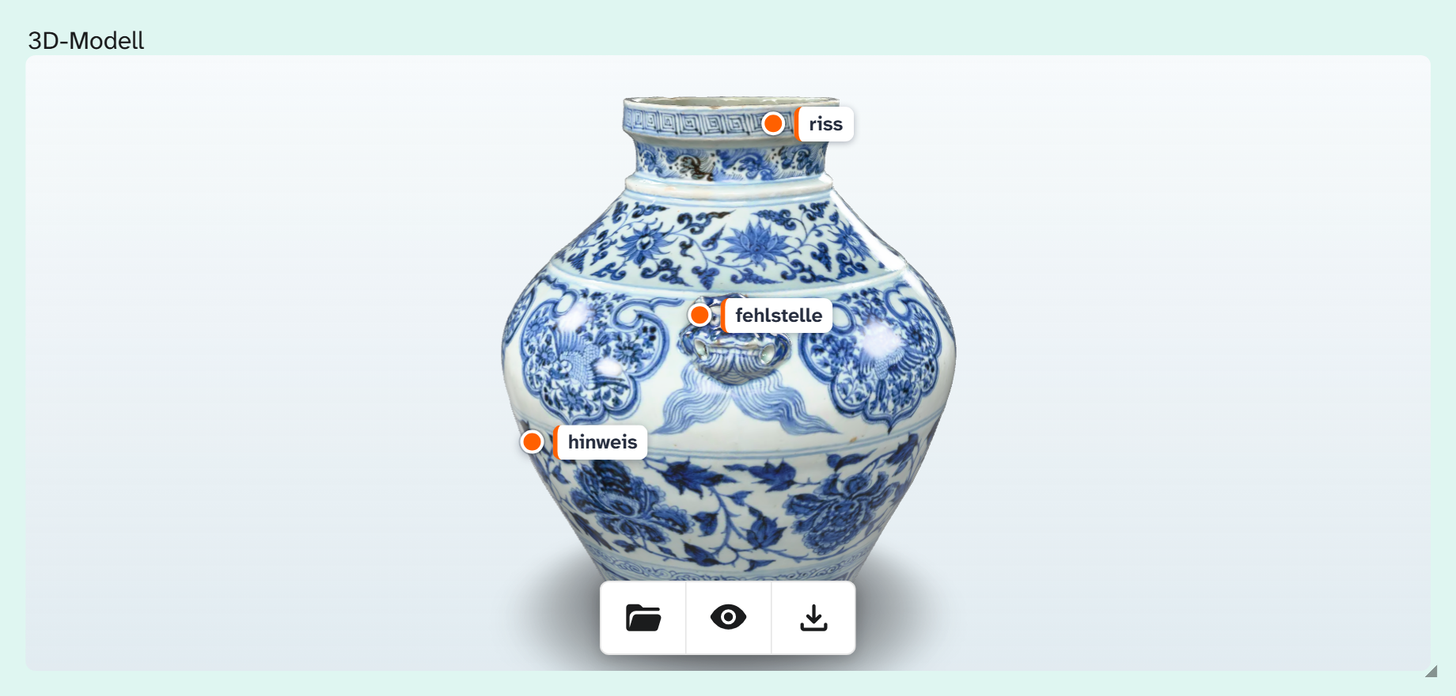
Input and view
Drag a model file onto the field; it is uploaded and assigned to the field. See Upload files . Which formats work is listed under Supported formats .
You can rotate the model directly in the field with the mouse. Zooming is deliberately not possible there, so that the mouse wheel keeps scrolling the layout. Until the model has loaded, the still image created during upload takes its place.
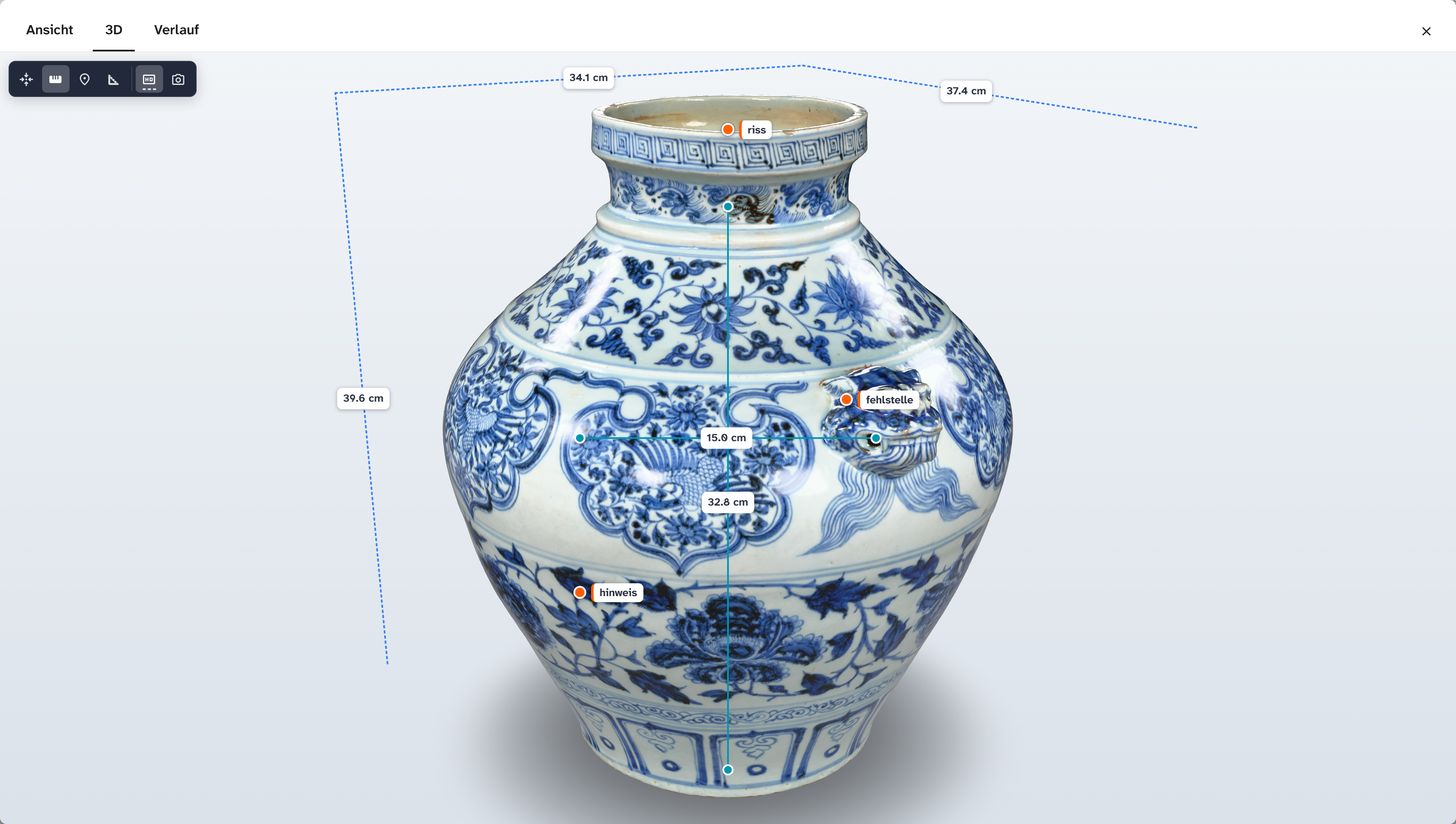
The eye opens the file dialog straight on the “3D” tab, where you find the dimension chain, markers, the measuring tool and the switch between the optimised preview and the original. Everything there is saved automatically.
If the assigned file is not a model, the field says so instead of showing an empty area.
What is stored
As with the file field , a reference to the file in the file library . Details such as creator and rights are attached to the file.
| Action | Behaviour |
|---|---|
| Filter | equals with an empty search term finds objects without a model. The file’s details can be filtered as subfields |
| Bulk edit | Replace and clear |
| Wall planner | An object’s 3D model can stand on the plan in the walkthrough, see Wall planner |
Display and export
| Formatting | Preset in | Result |
|---|---|---|
| Raw value | Export | Identifier and details of the file |
| File title | Gallery, table, kanban | The file’s text, otherwise the description, otherwise identifier and extension |
Setup
The field type has no parameters. See Configuring 3D .