
Import and export
Word reports
Reports from .docx templates: loan agreements, condition reports, crate labels, object lists. You open the
export in the sidebar under Data In- & Export, section Export, Word reports.
This page describes how to use it. How templates are written is covered in the Word templates section.
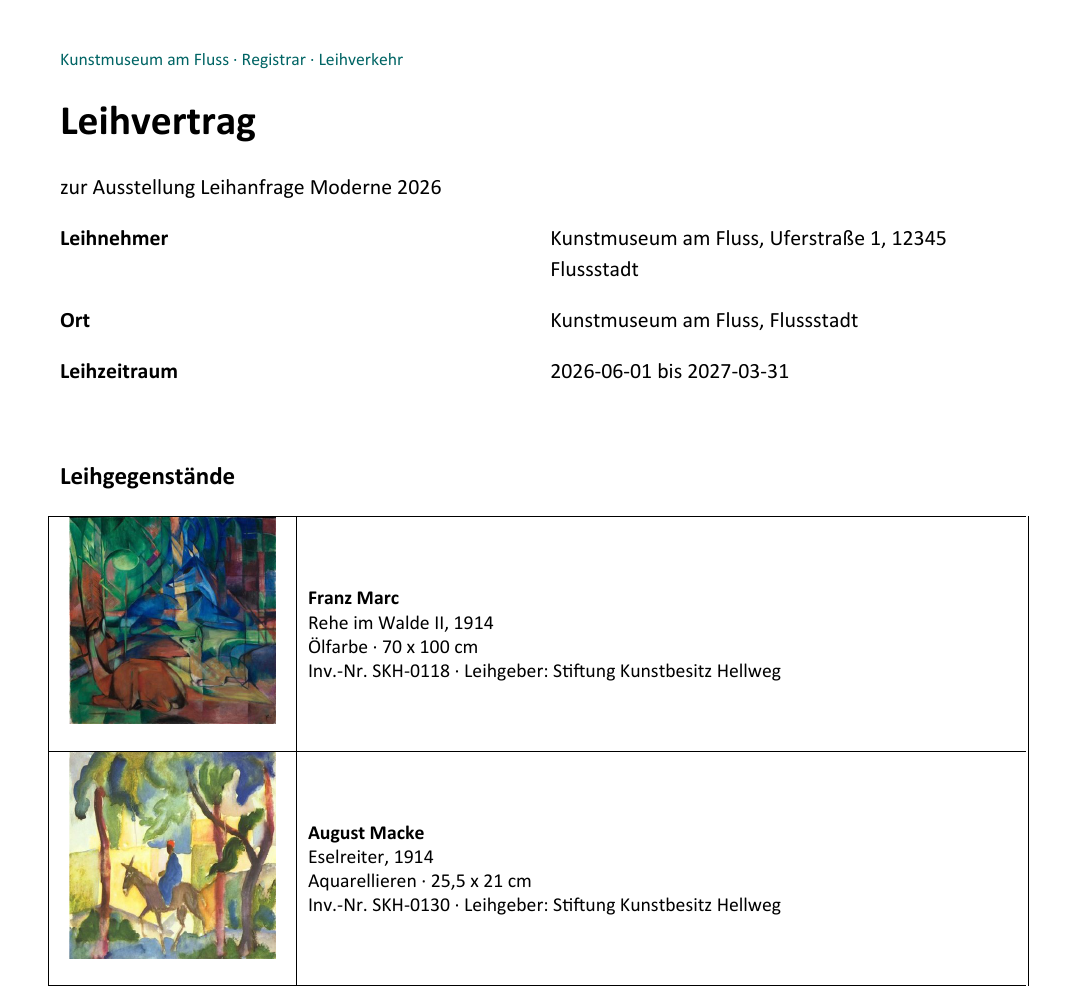
A finished report: the loan agreement from the demo template for two loans
Procedure
-
Choose a template, from the library or as your own
.docxfile. -
Moliri reads the template and detects the fields it uses, whether it runs over all objects and whether it needs images or files.
-
Check the field binding. Unknown fields can be assigned to an existing one here.
-
Check the advanced settings: merge behaviour, content controls, image resolution.
-
Create Report. The result is one document or a ZIP archive with one document per object.
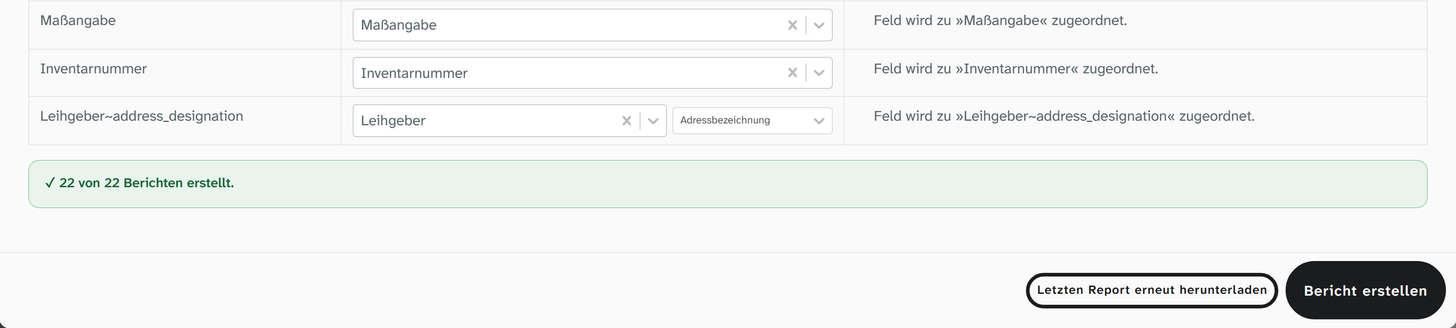
After the run, the dialog reports below the field binding how many reports were created. With Download last report again you can fetch the result once more without generating it again.
Template library
Saved templates are grouped by categories, templates without a category at the end under Uncategorised. The search finds templates by name, category and owner, even with typos. An icon marks shared templates; for other people’s templates the name of the person who created them is shown.
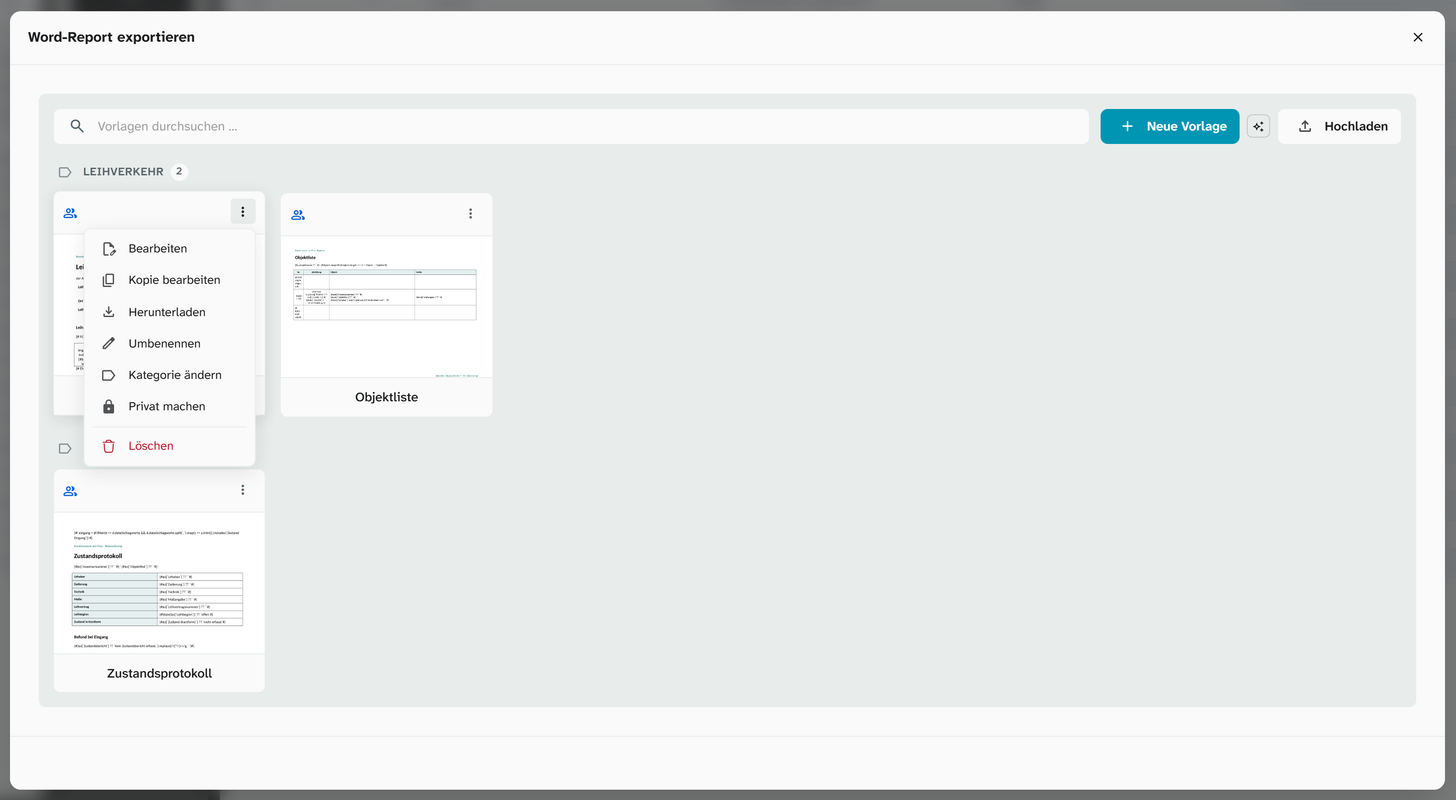
The menu of a template:
| Entry | Who may use it |
|---|---|
| Edit | Owner, status 9. Opens the template in the editor in the browser |
| Edit copy | Everyone who can see the template |
| Download | Everyone who can see the template |
| Rename, Change category | Owner, status 9 |
| Make public, Make private | Owner, status 9. Public means visible to all users of this instance |
| Delete | Only the owner |
The category is a free text field. When you change it, Moliri suggests the existing categories so that no duplicates arise from typos. An empty entry removes the category.
Field binding
Field names apply per project: $o[`Inventarnummer`] means the field that is called Inventarnummer in this project. A template from another project works here as far as the names match.
The Field binding lists every field of the template (Field in Template) with its status. A field that does not exist here carries the note This field is not available in the current project. It can be assigned to an existing field (Bind field to »…«). The template itself stays unchanged.
A binding can also be stored in the template: in the template editor, under Prüfung › Feldzuordnung (check › field binding), you choose an existing field for each missing one, per project. This choice presets the table during the export; the status then also shows from the template. Here you change it only for this one report; the template keeps its binding. See Assign missing fields per project .
Unknown fields do not hold up the export. Without a binding, the place in the report stays empty.
Merge behaviour
Whether one document or one per object is produced is decided by the template: if it runs over all objects, one document is produced. For a template per object, the Merge behavior setting determines how the individual documents are joined:
| Setting | Effect |
|---|---|
| Use template’s section behaviour | Default. Headers and footers, margins and break type follow the template |
| Merge without extra break | Appended directly to each other |
| Insert literal page break only | A simple page break, section settings stay untouched |
| Insert section break (continuous) | A new section on the same page |
| Insert section break (new page) | Each object on a new page, with its own headers and footers |
| Insert section break (even page) | Each object on the next even page |
| Insert section break (odd page) | Each object on the next odd page |
| Do not merge, pack as ZIP | One file per object, together as a ZIP archive |
For crate labels, Merge without extra break suits; for loan agreements, Insert section break (new page); for a hundred individual documents, the ZIP.
Citation style
If the template outputs an object field as a short or full citation, the advanced settings contain the Citation style section. Without a choice of your own, the style at the object field or that of the instance applies (As at the field or in the instance). See Citation style . The citation list produces a bibliography without a template.
Resolve content controls (plain text)
Templates can wrap their building blocks in content controls. With this switched on, they become normal text in the finished report. Switched off, they are kept, for instance if the report is to be edited further in Word.
If you set up a template in the template editor in the browser, you also save its defaults for this dialog there: resolving content controls, merge behaviour and the object mode (right-hand panel, Settings tab). The settings in the export dialog then apply to this one report.
Images
Image data is only loaded if the template uses images. Plain text templates run faster as a result.
The Image resolution is adjustable, default 220 DPI. Word compresses embedded images on its own when saving. For high-quality prints, switch off automatic image compression in Word after opening the file for the first time.
File name
<Vorlagenname>_<JJJJ-MM-TT>.docx (template name and date). For a ZIP, the archive has the same name with .zip, and the entries in it are called <Vorlagenname>_<Objekt-ID>.docx. Download last report again fetches the most recently generated report once more.
Further reading
- Create a Word report : the procedure
- Create a Word template : the starting point for templates
- Template syntax and Template variables
- Word add-in : writing templates in Microsoft Word