
Libraries
Links on the object
A link area in the layout shows what an object is connected to: terms and people from the authority data , people from the address book or other objects, such as the catalogue in which a painting is illustrated. Every link has a link type such as “dokumentiert in” (documented in), “Herausgeber” (editor) or “gehört zu Konvolut” (belongs to group). Which types exist and which area shows which of them is set by the administration.
Unlike a field, an area takes any number of targets, each with details of its own. A target remains an entry in its library: if the catalogue or the person is changed there, every linked object sees the new state.

What a row shows
The area’s label is above it. Without a label of its own, it is the name of the link type or, if the area shows several types, the name of the library. If an area shows several types, each row carries its type as a coloured chip.
| Library | What is shown |
|---|---|
| Authority data | The name of the term or person |
| Addresses | Name or function of the person, followed by the designation of the address or postcode and town, for example Irmgard Seelow · Privatsammlung Seelow. Telephone, email and street are not in the row |
| Objects | The title field named by the link type, otherwise project and inventory number. Project and inventory number also appear if you may not read the title field or it is empty on the target. A click opens the target object |
The same label appears in the link columns in gallery, table and kanban, in the columns of the Excel export and in the link lists of a Word template .
If a target has no name or no longer exists, the row reads Untitled (#1234) with the number of the record. It shows the same for an object you may not read; the row then cannot be clicked either.
Next to the target are the type’s Additional fields, for example page and figure number for “abgebildet in” (illustrated in) or the name as printed for an editor. You edit them in the row, and they are saved shortly after you stop typing. An empty required additional field or a value in the wrong form is marked, but saved all the same.
Linking
-
Click Link (+) in the head of the area. If the area shows several types, choose the type first.
-
In the selection dialog, search for the targets and tick them. You can choose several at once; the top reads Selected: n.
-
Confirm with Link (n).
The selection dialog depends on the library:
| Library | Selection |
|---|---|
| Authority data | The search in the type’s vocabularies. A hit from an external source is created as an authority record when you take it over |
| Addresses | The address search (Designation, city, person, function …). You choose people; for an address with only one person, a click on the address is enough |
| Objects | Search, the project selection if there are several projects, and Show all object types if the type is restricted to certain object types. Each hit shows main image, inventory number, title and object type |
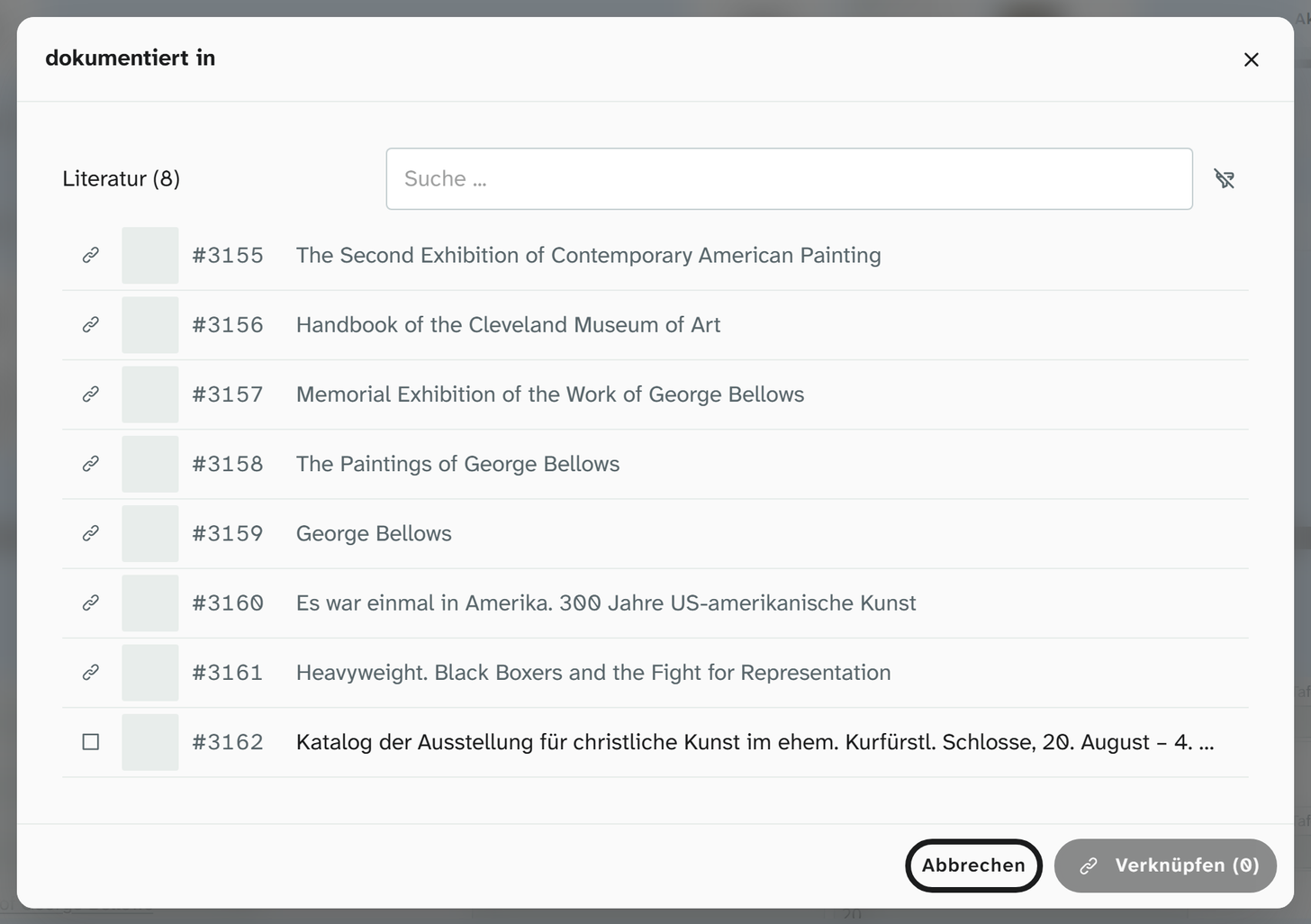
The object dialog shows the first 50 hits. If there are more, it says below them The first 50 hits. Narrow the search to find more. Targets that are already linked are marked Already linked and cannot be chosen a second time; in the address dialog Moliri reports them instead of creating them twice.
If a target does not fit the type’s rules, for example an object type outside the restriction or more targets than intended, Moliri saves all the same and reports Link saved, please check.
Read access to the target
You can only link an object to objects you may read, that is, objects in a project where you have read access. The same applies to files. If the target cannot be read, Moliri answers as it would for a deleted target: The target or the link no longer exists. Authority data and addresses need no check of their own. The authority data apply to the whole instance, and anyone who may write in the project also sees the address book.
Replacing, sorting, removing
One target per object. If a type is set to at most one link per object and the area shows only this type, it looks like a field: label and target in one row. Once a target is set, Replace opens the selection dialog for a single choice. The new target replaces the old one without asking, and the old target’s additional fields are dropped.
Order. With several links, the handle at the start of the row (Drag to sort) changes the order. The links appear in this order in a Word template as well.
Maximum. If an object has more links of a type than intended, the area shows a red ! with the note At most n links of this type are intended per object. Once the maximum is reached, Link no longer offers the type.
Removing. The cross at the end of the row asks Remove the link to “…”? and then removes the link. The target itself stays in its library. An inherited link is only hidden.
Without write or read access
Without write access, Link, Replace, the cross for removing and the handle for sorting are missing, and the additional fields are read-only. The targets can still be seen, people from the address book also by users who may only read in the project.
Without read access to a link type, the area shows only how many links of it there are: n link(s) without read access.
If an area could not load, it says so (Links could not be loaded.) and offers Reload. No links, on the other hand, means the object really has none here.
Backlinks and hierarchy
An area of the Objects library can show the Backlinks instead of its own links: the objects that point to this object. The catalogue then lists the paintings illustrated in it, with the type’s inverse as a chip, for example “bildet ab” (illustrates). Backlinks are read-only; you change them on the object that points here.
If a type forms a tree, such as “Teil von” (part of), the Hierarchy appears below the area: the chain of parent and child objects, expandable and with … for further levels. If the chain leads back to an object that already occurs in it, a ! marks the cycle. Moliri reports such a cycle as soon as you link. If, say, the installation is to become “Teil von” the table that is already “Teil von” the installation, Moliri saves the link all the same and reports: The target already sits below this object in this tree. The link is saved but forms a cycle. This applies equally in bulk edit, when the type is changed and for an object field that creates the link.
In the dynamic layout
The dynamic layout has no areas of its own. Below its tiles is the Links section, with an area for each library that appears as a link area in one of the project’s layouts, even if the object has nothing linked there yet. These areas show all readable types of the library.
Viewing in another project
If you choose another linked project in the scope bar , the link areas, the hierarchy below them and the Links section of the dynamic layout show that project’s links. They are then read-only, like the fields.
Search, filter, bulk edit
| Action | Behaviour |
|---|---|
| Full-text search | Search scope Links: type, target, note, comment, source and additional details, for people from the address book also function, address designation and postcode/town. Between objects it also finds the target by the inventory number and title of the source. See Filter |
| Detailed search | The criterion has or has not with one or more targets. For objects also in the opposite direction, labelled with the inverse, for example besteht aus (consists of). See Filter |
| Bulk edit | Library links adds targets to all objects in the list, removes or replaces them or changes the type. See Bulk edit |
| Kanban | The search of a column finds the names of the readable targets if the card shows the link column |
| Sorting | Objects are not sorted by a link |
Setup
Link types with a maximum, additional fields and a target restriction are described under Link types , the area in the layout under Layouts .