
Profile
Access tokens
An access token connects an AI assistant to Moliri, such as Claude Code, Claude Desktop, Cursor or VS Code. The connection runs over the Model Context Protocol (MCP). The assistant then reads in Moliri with your rights and can suggest field values. It never writes into a field itself: a suggestion is only applied once someone accepts it under Check › AI suggestions.
The page is in the profile under Access tokens. Each person creates their own tokens and sees only their own.
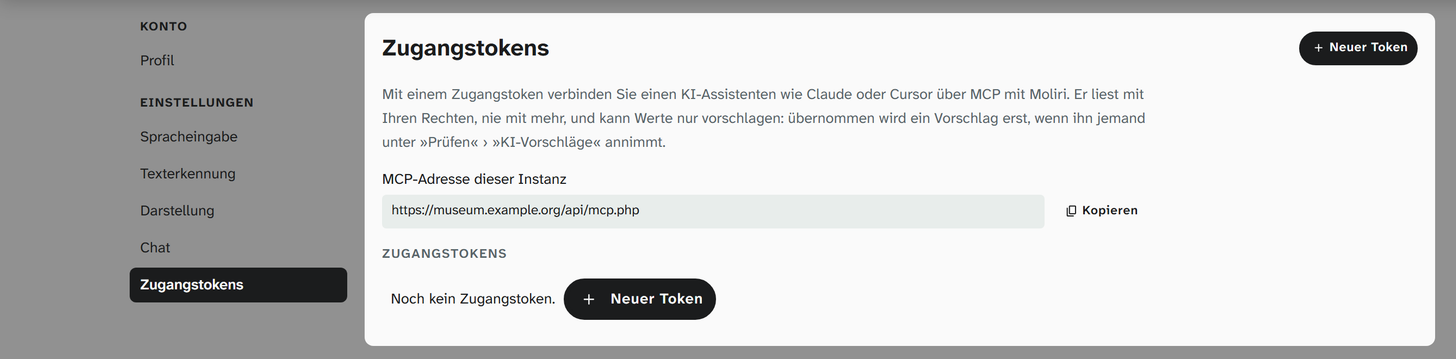
The page
| Area | Content |
|---|---|
| MCP address of this instance | The address the assistant needs, with Copy |
| List of tokens | For each token the name, the permission, Created …, last used … or never used and, if set, expires …. Expired and revoked tokens are marked as such |
| Revoke | Blocks the token at once. An assistant that uses it loses access |
| New token | Top right, opens the dialog for creating one |
Creating a token
| Setting | Choice |
|---|---|
| Name | What you will recognise the token by, such as Claude on my laptop |
| Permission | Read: read the field catalogue, search and read objects. Read and suggest: in addition, suggest field values that you or your team review |
| Valid for | 30 days, 90 days, 1 year or No expiry |
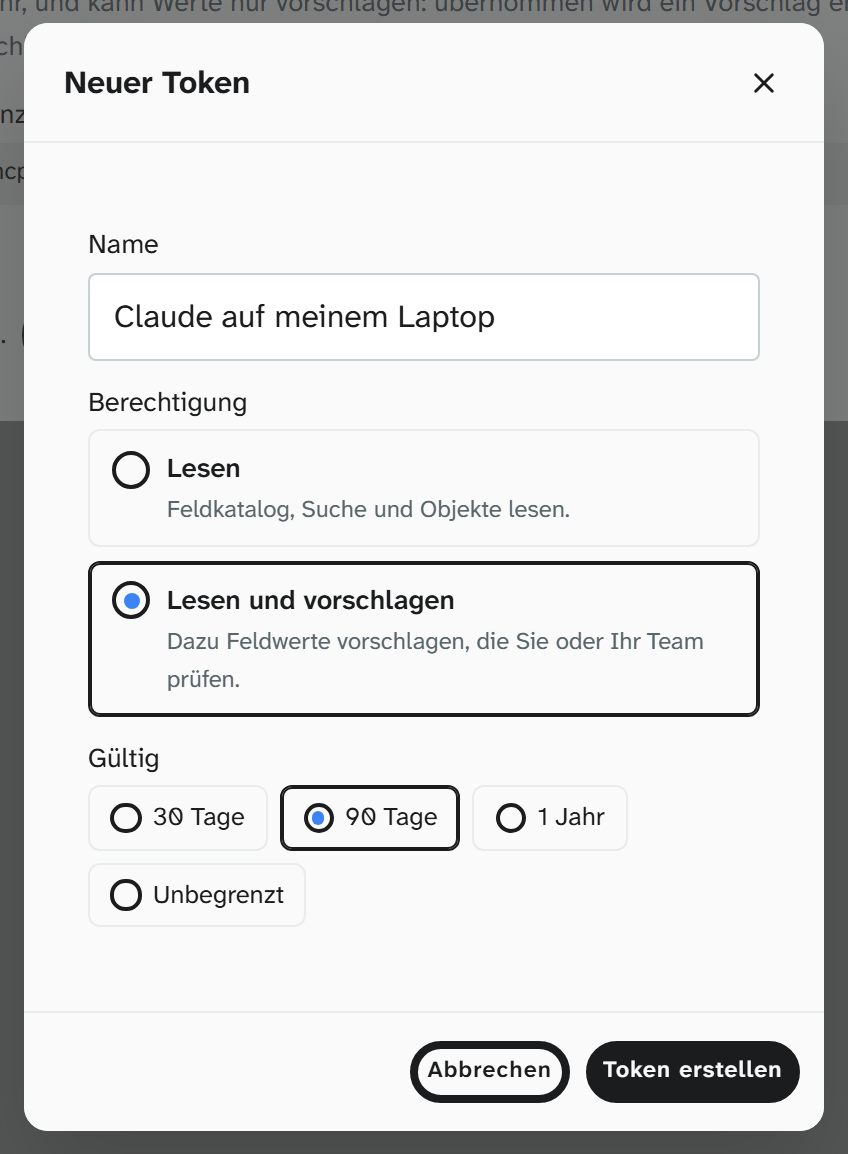
Accounts that may never change data only get Read. The dialog then says: Your account does not change data, so no suggestions.
Create token shows the token once and only once, together with the ready-made command for Claude Code and the JSON block for other programs, both with the token already filled in. Moliri only stores a check value, not the token itself. If you lose it, revoke it and create a new one.
Setting up in Claude Code
Copy the command under Claude Code and run it in the terminal. It has this form:
SHclaude mcp add --transport http moliri https://…/api/mcp.php --header "Authorization: Bearer mol_…"
After that the server moliri is available in Claude Code. claude mcp list shows whether the
connection works, and /mcp does the same in a running session. Without further options the entry
applies to the directory in which you ran the command; with --scope user after add it applies
everywhere.
Setting up in Cursor
Copy the block under Cursor, VS Code and others (JSON). It has this form:
JSON{
  "mcpServers": {
    "moliri": {
      "type": "http",
      "url": "https://…/api/mcp.php",
      "headers": { "Authorization": "Bearer mol_…" }
    }
  }
}
In Cursor, add a new server in the settings under MCP. Cursor opens the file mcp.json for this
(~/.cursor/mcp.json for all projects, .cursor/mcp.json in the project folder for a single one).
Paste the block or, if servers are already listed there, add only the entry moliri under mcpServers,
and save. moliri then appears with its tools in the MCP settings.
Other programs that read mcpServers take the same block. Claude Desktop does not support a token in
the request header and connects through the helper program mcp-remote. Moliri does not offer sign-in
through OAuth, as the connectors in claude.ai or ChatGPT require.
What the assistant may do
| Can | Cannot |
|---|---|
| See the projects you have access to | See more than you see yourself |
| Read a project’s field catalogue, with the same description as Copy field catalog for AI | Change fields, layouts or settings |
| Search objects by fields and full text and read individual objects | Write a field value |
| With Read and suggest: suggest a value with reasoning and evidence, and check what became of its suggestions | Apply a suggestion itself |
A suggestion ends up under Check › AI suggestions and as a note at the field. Its origin shows the model the assistant names, otherwise mcp. Only when a person applies it does the value appear in the field and in the history , marked as AI suggestion. A rejected suggestion does not come back, even if the assistant submits the same value again.