
Profile
Speech input
With speech input you dictate into any text field in Moliri instead of typing, such as the condition report in the store. Each person sets it up for themselves in the profile under Speech input and chooses the service that recognises the speech. The sound goes straight to that service; with In the browser it stays in the browser. It never passes through the Moliri server.
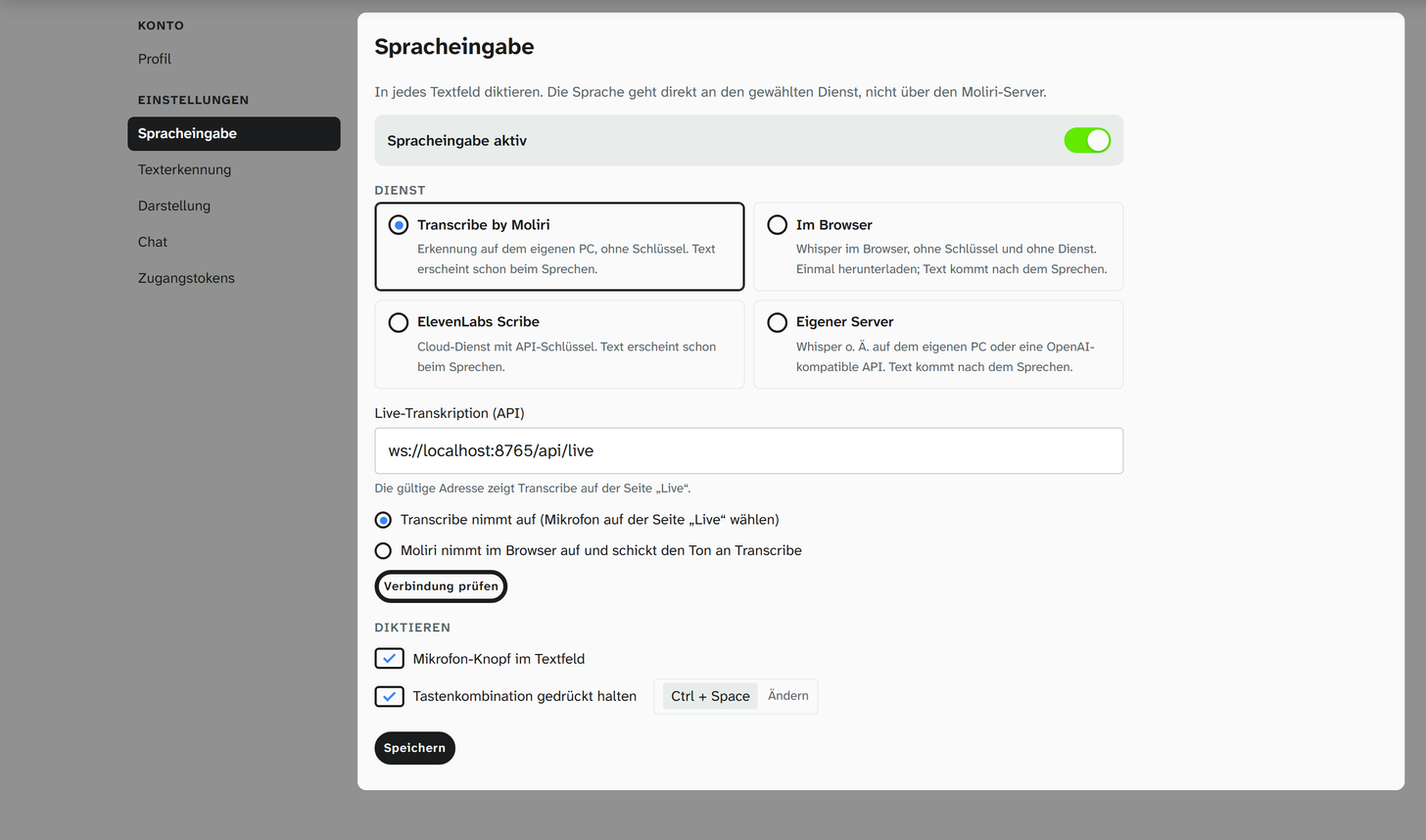
Setting up
When it is switched off, the page only shows the switch Speech input on. When it is on, the service, its fields and Test connection appear below, then the triggers under Dictation. Save applies everything; only then do text fields offer dictation. Until a service is filled in completely, the text next to Save reads: The microphone is offered once a service is set up.
| Service | Recognition | What to enter |
|---|---|---|
| Transcribe by Moliri | On your own PC, with the Windows app Transcribe. No key and no account. Text appears while you speak | The address of the live transcription and who records, see below |
| In the browser | The Whisper model runs in the browser itself. No key, no account and no extra program, but with a one-time download. Text comes after you stop speaking | Nothing. Choose the model and download it, see below |
| ElevenLabs Scribe | Cloud service from ElevenLabs. Text appears while you speak | API key, created at elevenlabs.io under API Keys with the Speech to Text permission |
| Own server | Whisper or similar on your own PC, such as speaches or LocalAI, or an OpenAI-compatible API such as https://api.openai.com/v1. Text comes after you stop speaking | Address, Model and, where the server requires one, API key (optional). The server must accept requests from the Moliri page (CORS) |
In a new setup, Transcribe by Moliri is preselected. If you have already saved a service, you keep it. Test connection queries the chosen service and reports The service responds. or the reason why not. With In the browser, Download or Test model takes its place.
Under Dictation, In the browser, ElevenLabs and your own server have the Spoken language (German by default, also Detect automatically). For Transcribe it is missing: Transcribe recognises the language itself.
Transcribe by Moliri
Transcribe is a Windows app from Moliri that turns speech into text on your own PC. Moliri connects to
its live transcription. The default address is ws://localhost:8765/api/live; Transcribe shows the valid
address on its Live page under Programme verbinden (connect programs).
| Mode | What happens |
|---|---|
| Transcribe records (default) | Transcribe listens with the microphone chosen on its Live page. The browser does not ask for the microphone |
| Moliri records in the browser and sends the sound to Transcribe | The browser records and asks the first time whether the page may use the microphone |
While you speak, the recognised text stands in grey in the field. Each finished sentence is inserted straight away.
Allowing Moliri in Transcribe
Websites can only connect to Transcribe once you allow them there. On your first dictation, Transcribe therefore turns Moliri away. Moliri reports Transcribe refuses the connection., below it the message from Transcribe with the address of your Moliri instance, and offers Try again.
-
Open Transcribe, the Live page, Programme verbinden. Under Wollten sich verbinden (wanted to connect) you see the address of your Moliri instance.
-
Click Erlauben (allow) next to the address. It then appears under Wer sich verbinden darf (who may connect), where Nicht mehr erlauben (no longer allow) blocks it again.
-
In Moliri, click Try again. The dictation starts.
If Transcribe is not running or the address is wrong, Moliri reports Transcribe does not answer. with the hint Start Transcribe and check the address (“Live” page). The first time, Chrome may ask whether the page may access devices on the local network; allow it, because Transcribe runs on the same PC.
In the browser
Here Whisper recognises the speech in the browser, on your own computer. For this the browser downloads the model once from Hugging Face. The files then stay in this browser, speech input works without the internet as well, and your speech does not leave the computer. Each browser and each computer needs the download for itself.
| Model | Characteristic |
|---|---|
| Faster (Whisper Base) (default) | The smaller download, the text comes sooner |
| More accurate (Whisper Small) | Gets more right, takes about twice as long on an ordinary laptop |
Next to each model is the size of the download, roughly 80 to 600 MB. It depends on the model and on whether the browser can use the graphics card: on the processor it loads the smaller files.
Download loads the chosen model and shows Loading … with a percentage while it does. Afterwards the page says Ready, running on the graphics card. or Ready, running on the processor (slower than on a graphics card). If the model is already stored in the browser, the button is called Test model, and next to it Remove from browser deletes the files again. If you dictate without downloading first, Moliri loads the model on the first dictation and shows Loading speech model … at the field. If it is already stored, Moliri starts it in the background as soon as a text field gets the cursor.
The text comes after you stop speaking, after a few seconds on an ordinary laptop, faster with a graphics card than on the processor. Grey interim text while you speak only appears on fast devices. Even More accurate does not always get rare words and names right, so it is worth glancing over the inserted text. If the browser cannot run a model, the page says This browser cannot run a model.
Dictating
You can dictate into any text field of the interface: single-line fields, text areas and fields with formatting, when entering data as well as in dialogs and settings. Password fields are excluded, as are fields that are locked at the moment. There are two triggers, and you can switch off each of them:
| Trigger | How to use it |
|---|---|
| Microphone button in text fields | A microphone appears on the right of the field where the cursor is. One click starts the dictation, a second click ends it and inserts the text |
| Hold a key combination | Hold the combination, speak, release: the text is inserted. The default is Ctrl + Space, shown on the page as Ctrl + Space. Change records a new combination; it needs Ctrl, Alt or a function key so that it does not type text itself |
Esc cancels a running dictation without inserting anything. While recording, a hint at the field shows
what is happening (Connecting …, Listening …, Transcribing …).
The text lands at the cursor position and behaves like typed text: it is saved when you leave the field,
and Ctrl + Z undoes it. After saving, the profile page shows the field Try it, where you can test
the setup.
Messages
| Message | Cause |
|---|---|
| The service rejected the API key. | Wrong key, or the key lacks the required permission |
| The speech recognition service is not reachable. | Wrong address, no network, or the server does not accept the Moliri page (CORS). With In the browser: Hugging Face could not be reached during the download |
| The service’s quota is used up or there were too many requests. | The credit at the provider is used up or the limit has been reached |
| No access to the microphone. Allow it in the browser. | The browser has blocked the microphone for the page |
| Transcribe does not answer. | Transcribe is not running or is listening at a different address |
| Transcribe refuses the connection. | Moliri is not yet allowed in Transcribe, see above |
| The speech model in the browser could not be started. | The model failed while loading or recognising. Use Test model on the profile page; if that does not help, Remove from browser and download it again |
Further reading
- Profile : the other pages of the profile
- Edit an object : entering and saving values