
Files
Recognised text
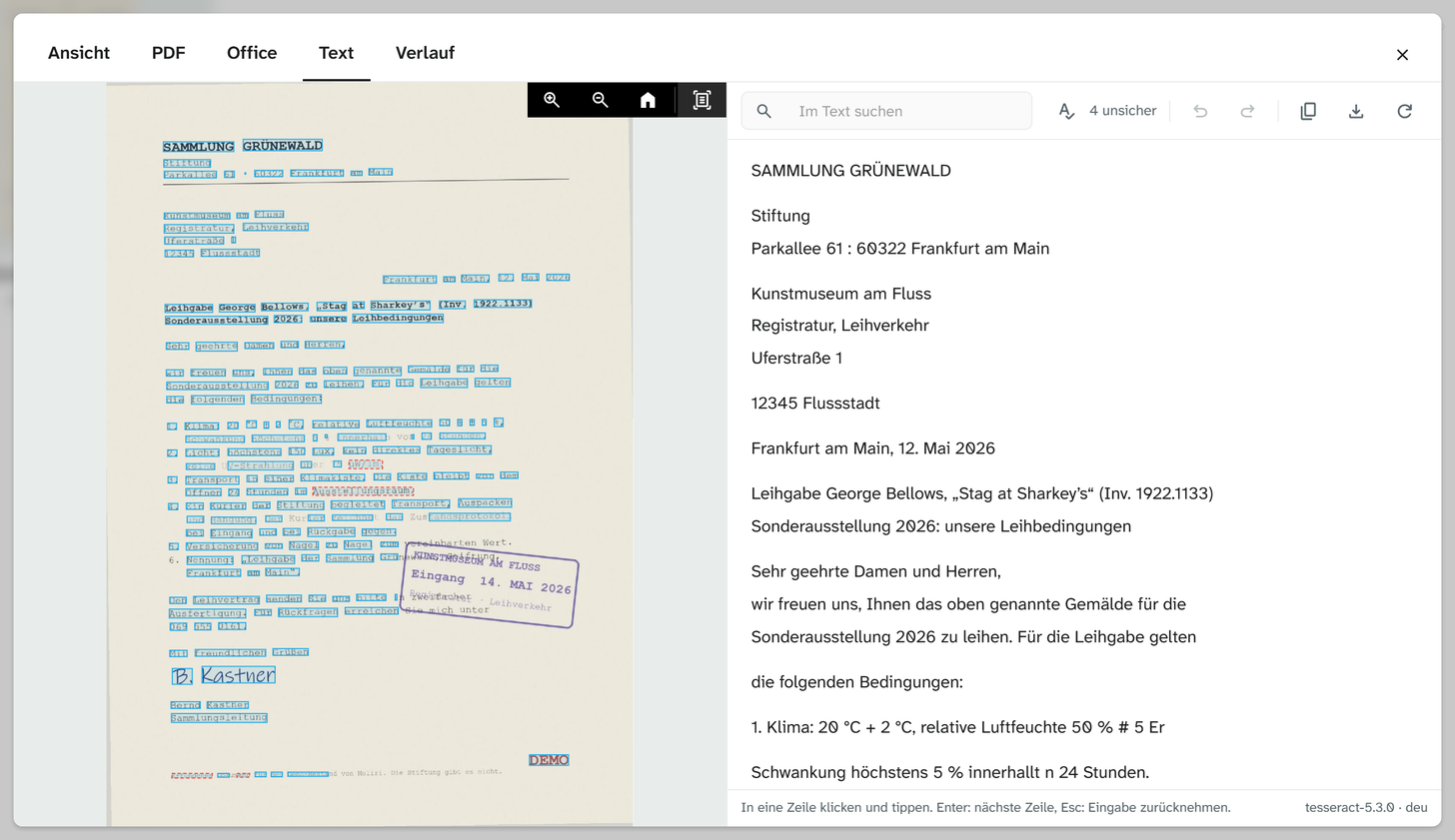
Images and PDFs have a Text tab in the file window. There Moliri recognises the text of a scan or a photographed document, shows it next to the image and lets you correct it line by line. The text is read in the browser, with the desktop app Transcribe on your computer, by the AI service or on the server of your instance. Uncertain passages are marked; what the machine reads is checked by a person.
Recognising text
Without recognised text, the tab shows the image and the settings for recognition. The Recognise text button is visible to anyone who may edit the file.
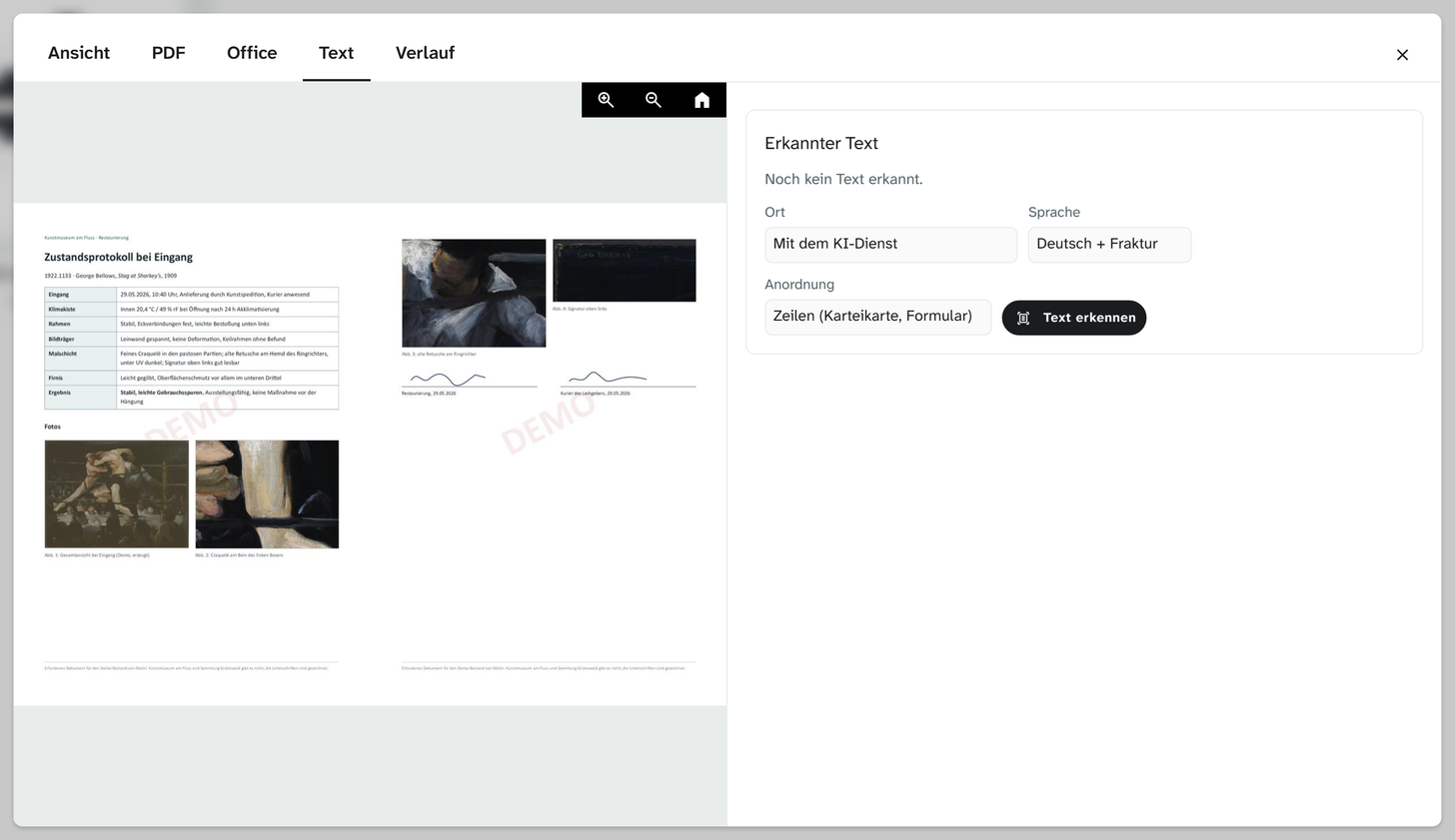
| Setting | Options |
|---|---|
| Place | In the browser, With Transcribe on this computer, With the AI service, On the server |
| Language | German, German and English, English, German + Fraktur |
| Layout | Page (automatic), Lines (index card, form), One block (label), Scattered (writing on objects) |
At the start, Place is set to the default place from the profile, page Text recognition . Only the places that can read at the moment are offered: With Transcribe on this computer if the app is running and allows Moliri, With the AI service if the instance has set it up for text recognition, On the server if the service answers. If the default place cannot read at the moment, the place is set to In the browser. If only the browser can read, the field is not shown.
| Place | Languages | The image |
|---|---|---|
| In the browser | German, German and English, English | stays on the computer |
| With Transcribe on this computer | all, including German + Fraktur | stays on the computer |
| With the AI service | all, including German + Fraktur | goes through the server to the service of the AI account |
| On the server | all, including German + Fraktur | is read on the server |
German + Fraktur reads blackletter and roman type on the same page. Language offers only what the chosen place reads: if you switch from Transcribe to the browser, German is read instead of German + Fraktur. The Layout tells the recognition how the text sits on the image: a book page, an index card with fields and lines, a single label, or inscriptions scattered across an object.
In the browser and with Transcribe, Moliri reads straight away. The tab shows Recognising the text in the browser … with the progress in per cent, or Transcribe is recognising the text …. Leave the window open until the text appears.
On the server the job waits or runs; the tab shows its state and, if the service is busy, the position in the queue and how long it has been waiting. Text recognition runs on the server with low priority. The text appears even if the window is closed. For a multi-page PDF, recognition reads the first page.
With the AI service, recognition also runs as a job, and the text appears even if the window is closed. While it reads, the tab shows The AI service is recognising the text …. A model on your own server can take several minutes for one page.
The AI service
The AI service is an image model that the instance addresses through its AI account , on a server of its own or at a provider. It also reads handwriting in Latin script: letters, notes and labels in the cursive hand written today. It does not read Kurrent reliably. There the models write fluent sentences that have little to do with the sheet and still look right. The text recognition on the server reads Fraktur more accurately and faster.
This place is only available where the AI account has a Model for text recognition and the instance has not switched off text recognition by the AI service, see Rules and night window . The image goes to the service of the AI account for this. If the model runs on your own server, the image stays in house.
Server busy
If a job waits on the server for longer than about 30 seconds, the tab says that the server is busy at the moment and offers the other places: Recognise in the browser and, if Transcribe is running, Recognise with Transcribe. A click reads the image there straight away, with the same layout and the same language, as far as that place reads it. The job on the server is then dropped. As with Recognise again, corrections stay with their line. A job for the AI service does not get this notice.
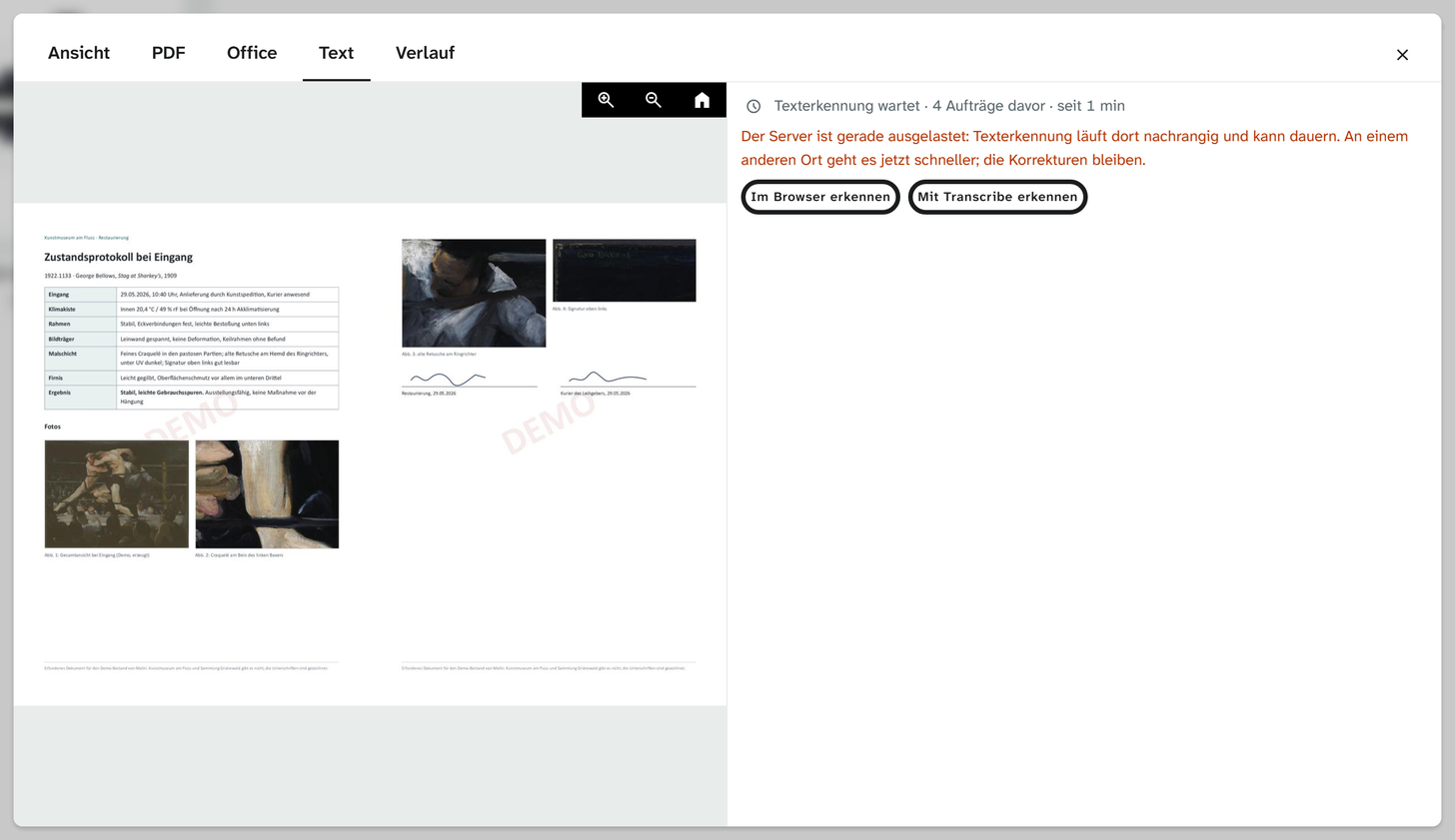
Anyone who may only read the file sees only the note that the text appears even if the window is closed.
Images also get their text through a rule for a file keyword, see Rules and night window .
Image and text
The image is on the left, with Zoom in, Zoom out and Home. On it lie the word boxes of the recognised text, uncertain words with dashed outlines; a button hides and shows them. On the right is the text in lines and paragraphs, with uncertain words underlined with dots.
Image and text are linked. A click on a line highlights its boxes in the image and brings them into view, enlarged if they are too small to read. A click on a box selects the line in the text.
The AI service provides no boxes for the individual words and only the approximate position of the lines. Where word boxes are missing, the image marks the whole line. The AI service does not report uncertain words, so its text has no dotted passages. You still have to read it.
Correcting
Anyone who may edit the file can correct it.
| Key | Effect |
|---|---|
| Click in a line | Typing changes the line |
Enter | To the next line |
↓ at the end of a line | To the next line |
↑ at the start of a line | To the previous line |
Esc | Takes back what you typed |
Ctrl + Z, Ctrl + Y | Undo, redo |
The line is saved when you leave it. A corrected line has a bar in the margin and can be reset to what was recognised (Back to …); a line you empty drops out of the text. The history of the file shows one entry Recognised text corrected per session, with the text before and after. If someone else has corrected the line in the meantime, the tab loads their version.
Toolbar
| Tool | Effect |
|---|---|
| Search the text | Shows the number of matches and jumps to the previous and next one |
| n uncertain | Jumps to the next uncertain line that has not been corrected yet |
| Undo, redo | Like Ctrl + Z and Ctrl + Y |
| Copy | The whole text to the clipboard |
| Download as a text file | The text with all corrections |
| Recognise again | Recognises the text once more, for example at a different place or with a different language or layout |
Recognise again opens the same settings as Recognise text, with Place, Language and Layout. The corrections stay wherever the line is found again, whichever place read it. The tab says how many corrections no longer have a matching line; they stay saved. If the new recognition fails, the previous text stays.
Every recognition appears in the history of the file as Text recognised
(machine), with the recognition before and after and the language. The name of the recognition shows the
place, for example browser:tesseract.js-7.0.0 for the browser, desktop:tesseract-5.0.0 for Transcribe, ai: with the name of the model for the AI service and server:tesseract-5.3.0 for the server.
OCR import
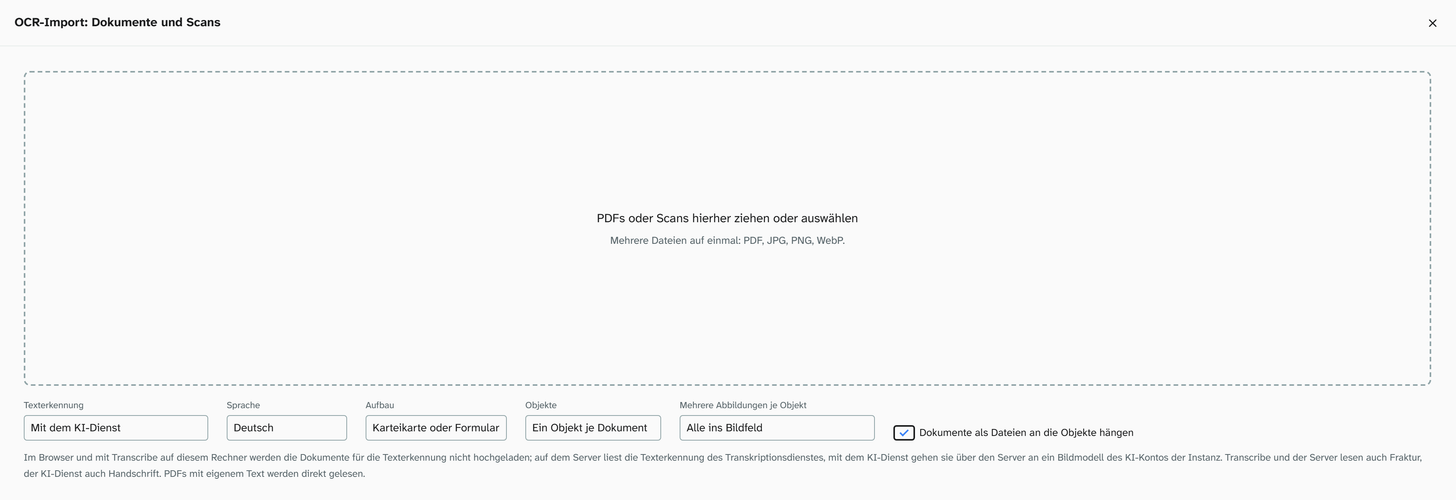
The OCR import (Documents and scans) reads at the same places. Its field Text recognition offers In the browser, With Transcribe on this computer, With the AI service and On the server, as far as they can read at the moment, and at the start it is set to the default place from the profile. The languages follow the place as in the Text tab. With the AI service, the documents go through the server to an image model of the instance’s AI account; it reads handwriting too. The import then reads page by page while the dialog is open. PDFs with their own text layer are read by the import directly, without text recognition.
The import checks the pages it has read in the same editor: the sheet with zoom and word boxes next to the
text, editing with Enter, arrow keys and Esc, search and jumping to uncertain passages. There each section
also belongs to a field.
Further reading
- Text recognition in the profile : setting up the default place and Transcribe
- AI account : the AI service’s model for text recognition
- Rules and night window : having text recognised by keyword
- Transcript : the Transcript tab for audio and video
- Search : recognised text in the full-text search