
Files
Transcript
Audio and video files have a Transcript tab in the file window. This is where a recording becomes a text with time marks and speakers, and where you read, listen to, correct and export it. Recognition runs on the server of your instance, in the transcription service; the recording does not leave the instance for this.
Transcribing
If a recording has no transcript yet, the tab shows the player and below it the settings for the job. The Transcribe button is visible to anyone who may edit the file.
| Setting | Options | Effect |
|---|---|---|
| Kind of recording | Automatic, Interview (2 speakers), Conversation, Talk (1 speaker), Music, stage | Helps to separate the speakers and to recognise sounds |
| Speakers | automatic, 1 to 10 | A fixed number, if you know it |
| Language | automatic, German, English, French, Italian, Spanish, Dutch, Polish, Czech, Danish, Swedish | The language of the recording |
| When | now, in the night window | in the night window starts the job only during the hours set under Rules and night window |
After that, the same place shows the state of the job:
| State | Display |
|---|---|
| Waiting in the queue | How many jobs are ahead of it |
| Waiting for the night window | From what time. Start now starts it straight away, with the same settings |
| Transcribing | The step (reading the audio, detecting sounds, separating speakers, recognising speech, applying corrections) and the progress in per cent. If the service is busy: waiting for the service with the position |
| Failed | The reason and Try again |
You may close the window in the meantime; the job carries on in the background. If the transcription service does not answer, the tab says so, and the button stays locked until the service runs again.
Audio and video files can also be transcribed without this button: by a rule for a file keyword, see Rules and night window . An upload never waits for a transcription.
The editor
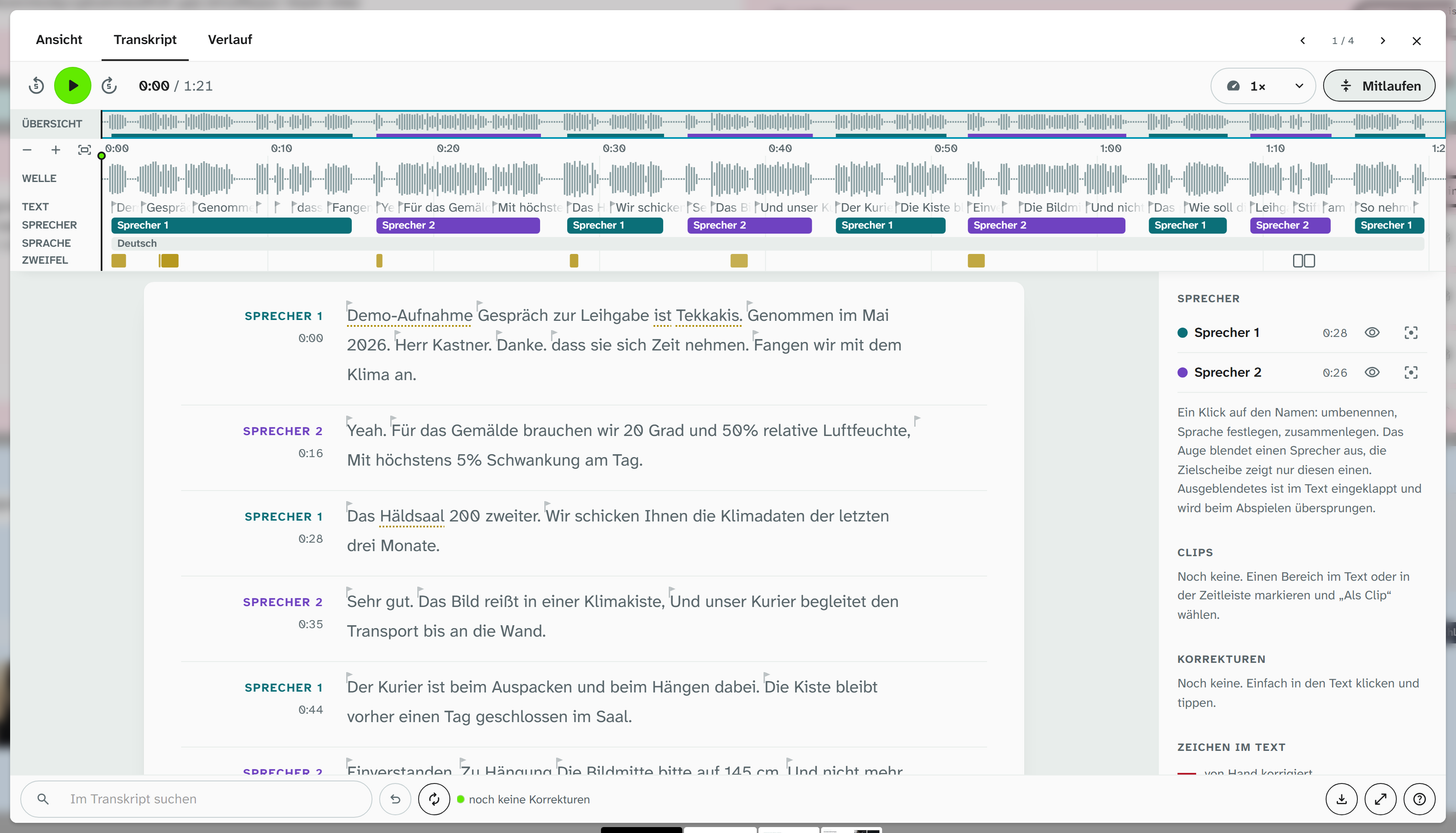
Once there is a transcript, the tab is an editor.
| Area | Content |
|---|---|
| Header | Playback: 5 seconds back, play and pause (also with the space bar), 5 seconds forward (arrow keys), next to it the time, the length of the recording and who is speaking at the moment; if a Loop is running or only one speaker is shown, this appears there with a button to end it. On the right speed and Follow |
| Timeline | The whole recording in lanes: Wave, Text, Speakers, Language, Sounds (music, singing, applause, laughter, cheering), Doubt and Corrections; plus the clips. Lanes without entries are left out. Above it an overview of the whole recording, which also shows the current position |
| Manuscript | The text in paragraphs per speaker, each with a time mark. Sounds appear as a line of their own or in the text, and for videos there are stills next to the paragraphs |
| Sidebar | For videos the picture, then speakers, clips, corrections and the signs in the text |
| Toolbar | At the bottom: Search the transcript, Undo, Transcribe again, the saving status with the number of corrections, Export, Full screen and How it works (a short help) |
During playback the spoken word is highlighted. With Follow, text and timeline follow the current position; if you scroll yourself, it leaves you alone for a few seconds.
| Where | What happens |
|---|---|
| Click on a word | A bar appears above the word: From here plays from this word, next to it are the speaker, the language and how sure the machine was. Ctrl + click plays straight away |
| Click on a time mark | Plays from the paragraph |
| Click on the timeline | Jumps to that position |
| Timeline, mouse wheel | Zooms; Shift + mouse wheel moves sideways. Zoomed in closely, the text appears in the Text lane |
| Drag on the timeline or select text | Selects a passage, also across speakers and paragraphs |
The search shows the number of matches; Enter jumps to the next one, Shift + Enter to the previous one.
Signs in the text
| Sign | Meaning |
|---|---|
| dotted underline | The machine was unsure |
| red | Corrected by hand |
| italic in brackets | Filled in, for example a word in a pause |
| recognised again | A passage with a set language that the server has recognised again |
| small flag before a word | Time anchor; red if it was set by hand |
The same legend is in the sidebar under Signs in the text.
Correcting
Anyone who may edit the file can correct it. Anyone who may only read it can read, listen, search and export.
| Task | How |
|---|---|
| Change text | Click into the text and type. After a short pause in typing the change is applied and saved; Enter or a click elsewhere applies it at once, Esc discards it |
| Insert text in a pause | Select the passage without a word and enter the text |
| Timing of a word | Drag the time anchor in the text to a different word, or move it in the Text lane |
| Passage | Select it, then play it, listen to it in a Loop, give it to a speaker, set a language or keep it As clip |
| Speakers | Click the name, in the text or in the sidebar: rename, set their language, merge with another speaker |
| Hiding speakers | In the sidebar the eye hides a speaker, the target shows only this one. Hidden parts are collapsed in the text and skipped during playback |
Saving is automatic. Undo or Ctrl + Z takes back the last correction, step by step; in the sidebar you
can remove each correction individually. The history of the file shows one entry Transcript corrected per session, and the recognition itself as Transcript created (machine). If someone
else has corrected the transcript in the meantime, the editor loads their version and tells you so.
Language of a passage. If you set a language for a passage or a speaker, the server automatically recognises these passages once more in that language. This works for languages the recognition knows; dialects such as Low German or Bavarian are noted, and the words stay as the machine heard them.
Transcribe again recognises the whole recording once more, with the same settings as the first time or with different ones. The corrections are kept and also apply to the new result. If the run fails, the previous text stays.
Clips
A clip keeps a passage with a title and tags: select a passage and choose As clip. Clips appear in the timeline and in the sidebar; there you can filter them by tag, play them one by one, edit them (title, tags, start, end) and export them.
| Clip export | Format |
|---|---|
| Audio | MP3 |
| Video | MP4, videos only |
| Text | .txt with title and tags |
Several ticked clips can be played one after the other or exported as a compilation; the clips are then joined in time order.
Export
Export in the toolbar at the bottom downloads the transcript with all corrections.
| Format | Content |
|---|---|
Text (.txt) | With speakers and time marks |
Subtitles (.vtt) | For video players |
| HTML (Word, MAXQDA) | In the noScribe format, for further editing in Word or MAXQDA |
Below the text and in every export are the models used for the transcription, with their licence (CC BY 4.0).
Further reading
- Rules and night window : transcribing automatically by keyword
- Recognised text : the Text tab for images and PDFs
- Search : transcripts in the full-text search