
Files
Transcribe and correct an interview
For the loan Stag at Sharkey’s there was a conversation with the lender: climate, transport, hanging, the credit line on the label. The recording is attached to the object, in the Unterlagen area. Moliri turns it into a text with time marks and speakers, which you read, listen to and correct. Recognition runs on your instance’s server. All areas and marks of the editor are in the reference under Transcript .
To transcribe and correct you need the right to edit the file. Those who may only read it can read, listen, search and export.
-
Start the transcription. Click the recording on the object; in the file window, choose the Transcript tab. Below the player are the details for the job. For a conversation between two people: Kind of recording Interview (2 speakers), Speakers 2, Language German. When stays at now, or you choose in the night window so that the server stays free during the day. Then Transcribe.

-
Wait or carry on working. The tab shows the state of the job: how many jobs are waiting ahead of it, then the step, such as separating speakers, with the progress in percent. You can close the window; the job carries on, and the transcript is there when you open the file again.

-
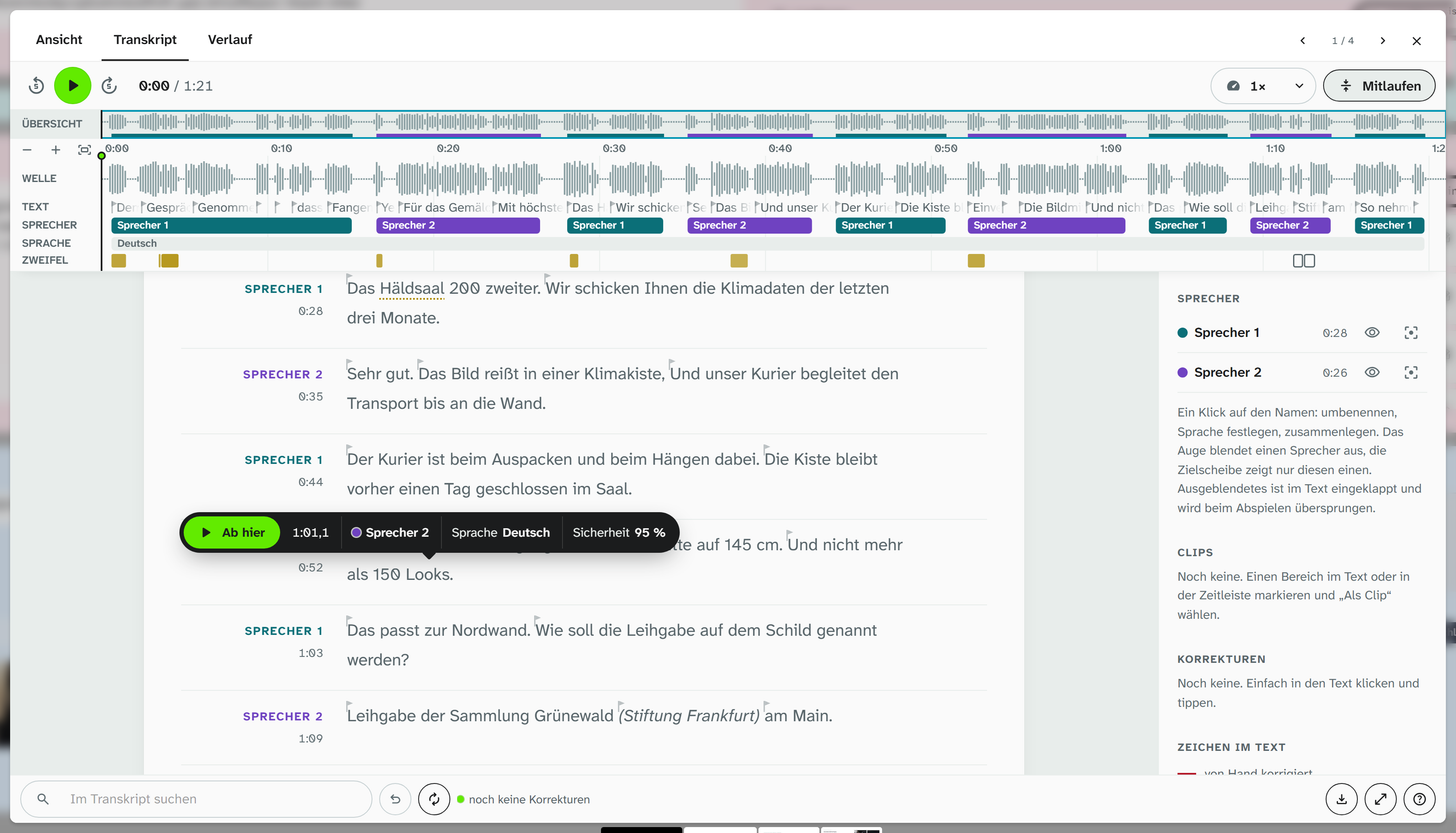
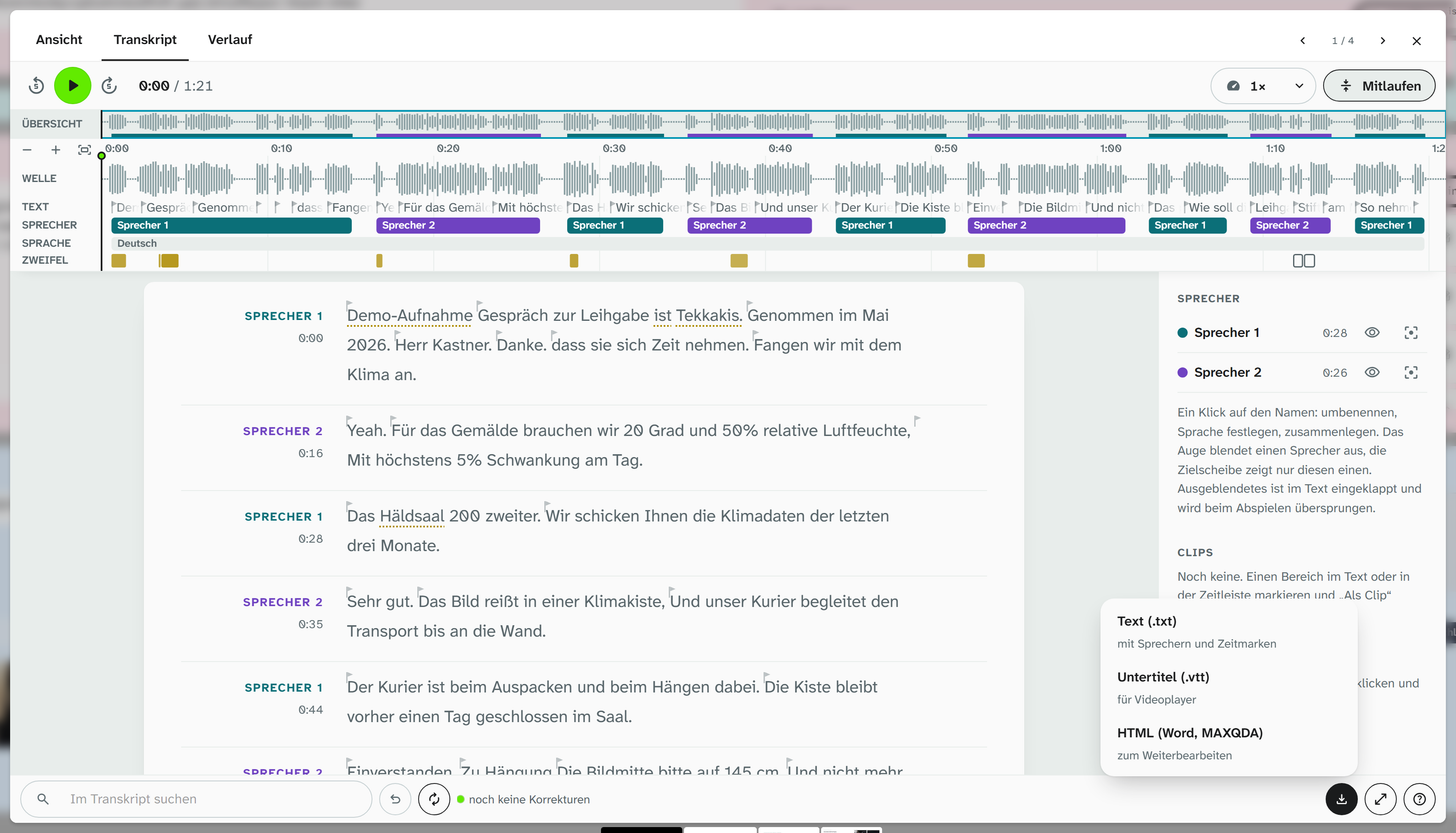
Read and listen. At the top is the timeline with the waveform and the tracks for text, speakers and language, below it the text in paragraphs per speaker. Words underlined with dots are ones the machine was unsure of; the Doubt track shows where they are. Clicking a word opens a bar with From here, the speaker and how sure the machine was. With Follow, the text follows the passage that is playing.
-
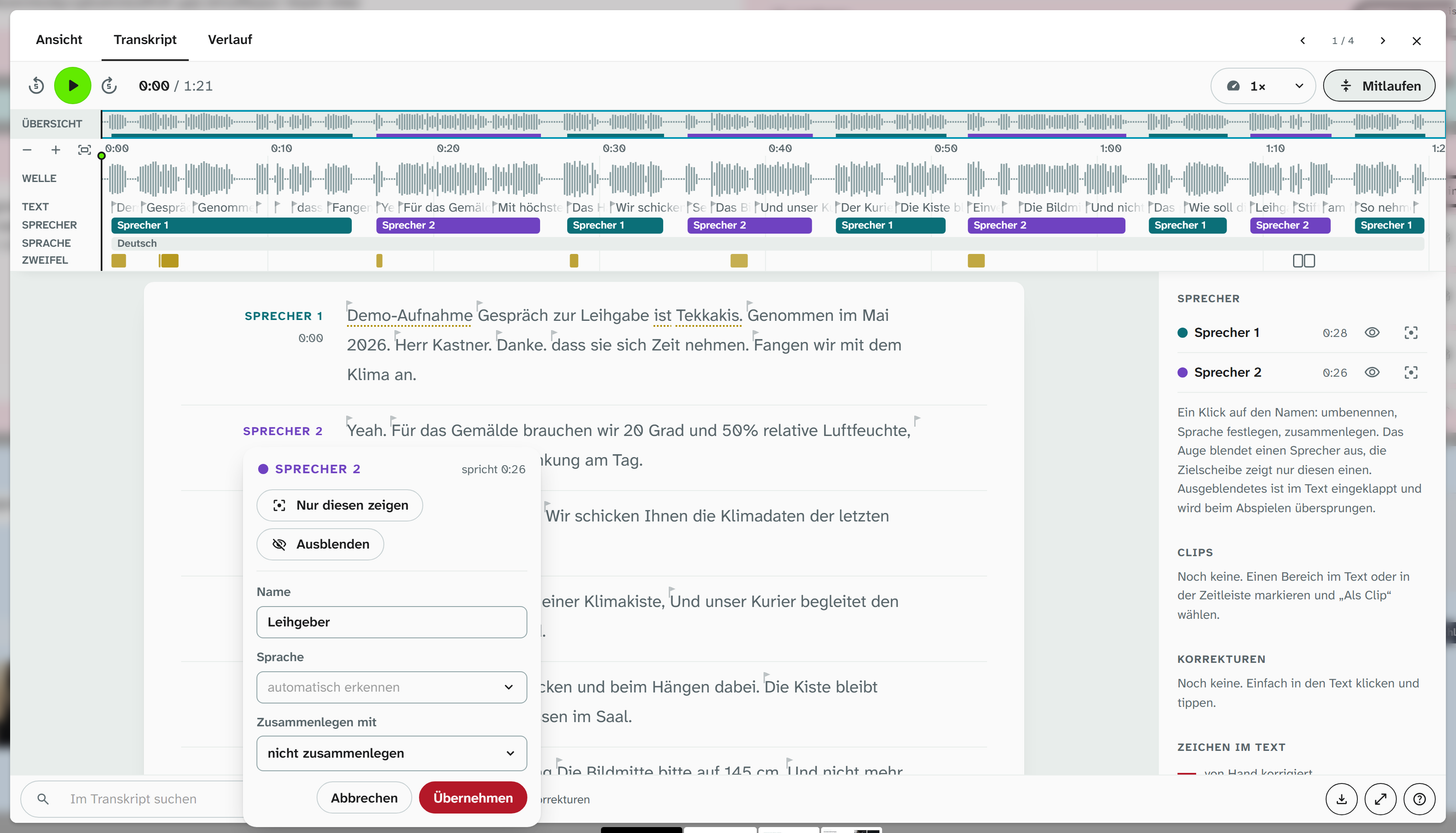
Name the speakers. Recognition calls the voices Sprecher 1 and Sprecher 2. Clicking the name, in the text or on the right in the sidebar, opens the speaker’s menu. Under Name you enter Leihgeber, for example, and choose Apply; the name applies to all their paragraphs. If recognition counted one voice twice, you join them into one under Merge with.
-
Correct mishearings. Click into the text and type, as in a word processor. This turns 150 Looks into 150 Lux. After a short pause Moliri saves by itself;
Enterapplies at once. The corrected word is red in the text, and the correction appears in the sidebar under Corrections and in the Corrections track of the timeline. Undo orCtrl+Ztakes it back. If a passage sounds unclear, listen to it again with From here.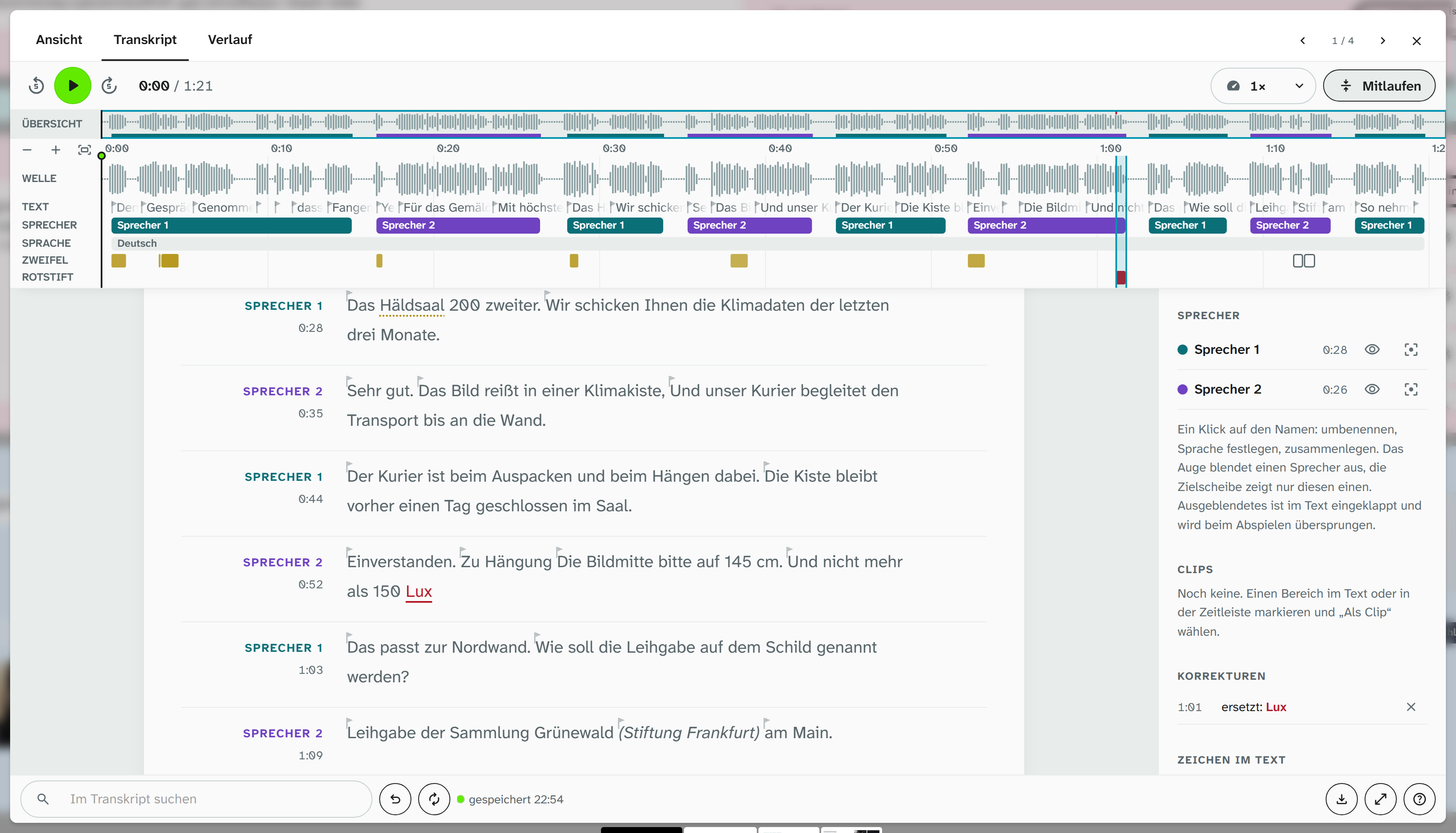
-
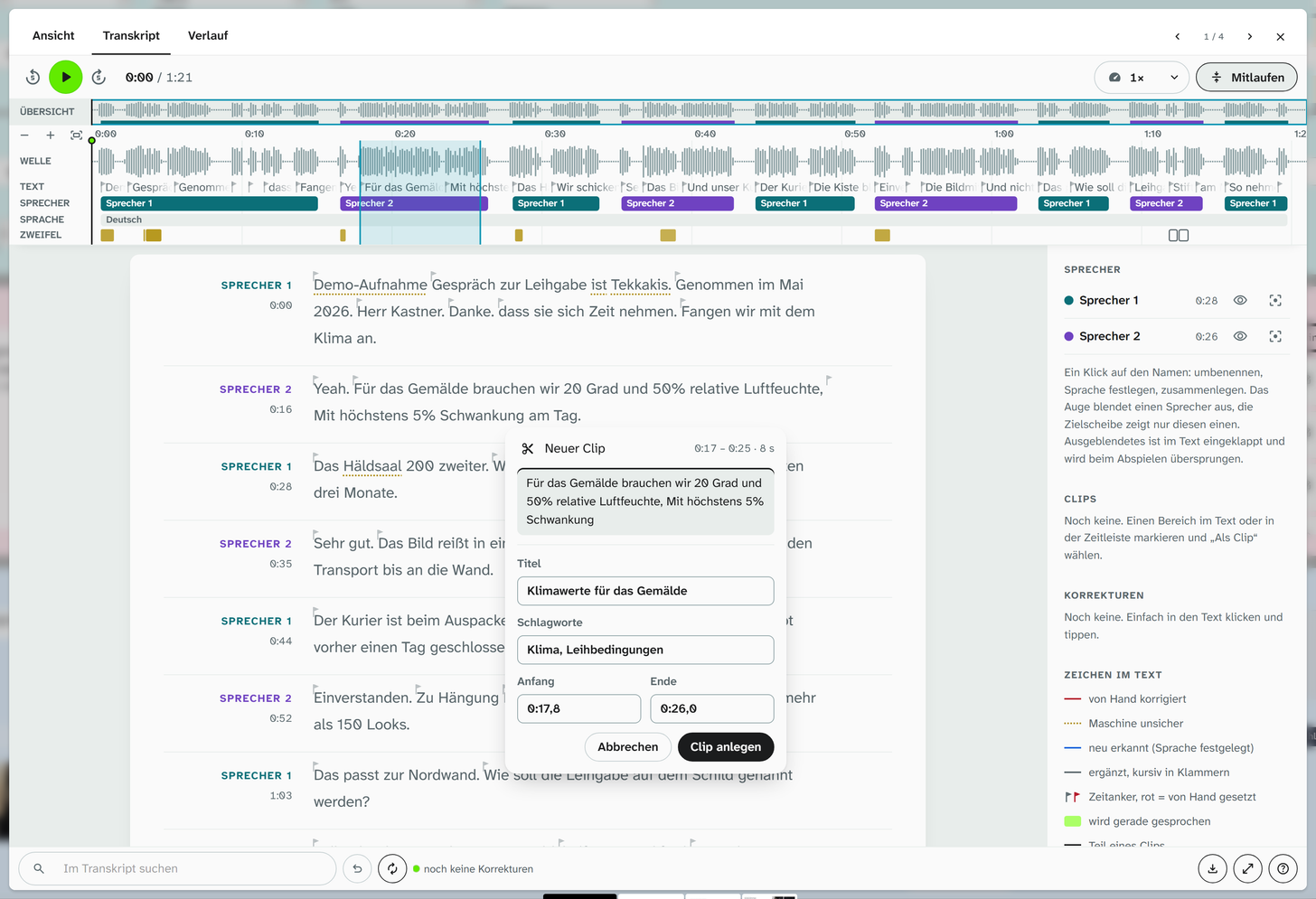
Keep a passage as a clip. Select the sentences about the climate values in the text, from Für das Gemälde to Schwankung. A bar appears above the selection; As clip opens New clip with the wording, start and end. Enter a title and tags, then Create clip. The clip appears in the timeline and in the sidebar, where you can play it and export it as MP3 or text.
-
Export. Export at the bottom right downloads the transcript with all corrections: as Text (.txt) with speakers and time marks, as Subtitles (.vtt) for video players or as HTML (Word, MAXQDA) for further work.
The corrections are in the file’s history , one entry Transcript corrected per session. The project’s full-text search finds the transcript: a hit opens the recording at the point where the word is spoken (Search ).
When it looks different
| What you see | What helps |
|---|---|
| There is no Transcribe button | You may only read the file; someone with the right to edit starts the job |
| The tab says the transcription service is not answering | The button stays locked until the service runs again; open it again later |
| A speaker switches language in the middle of the conversation | Select the passage and set a language; the server recognises it again in that language (Correcting ) |
| The whole transcript is poor, with the wrong language for instance | Transcribe again in the toolbar, with other details; the corrections stay |
| Many recordings with the same keyword are to be transcribed | A rule for the file keyword (Rules and night window ) |
Further reading
- Transcript : all areas, marks and formats of the editor
- Upload files : bring the recording to the object
- Rules and night window : transcribe automatically by keyword