
Libraries
Manage events
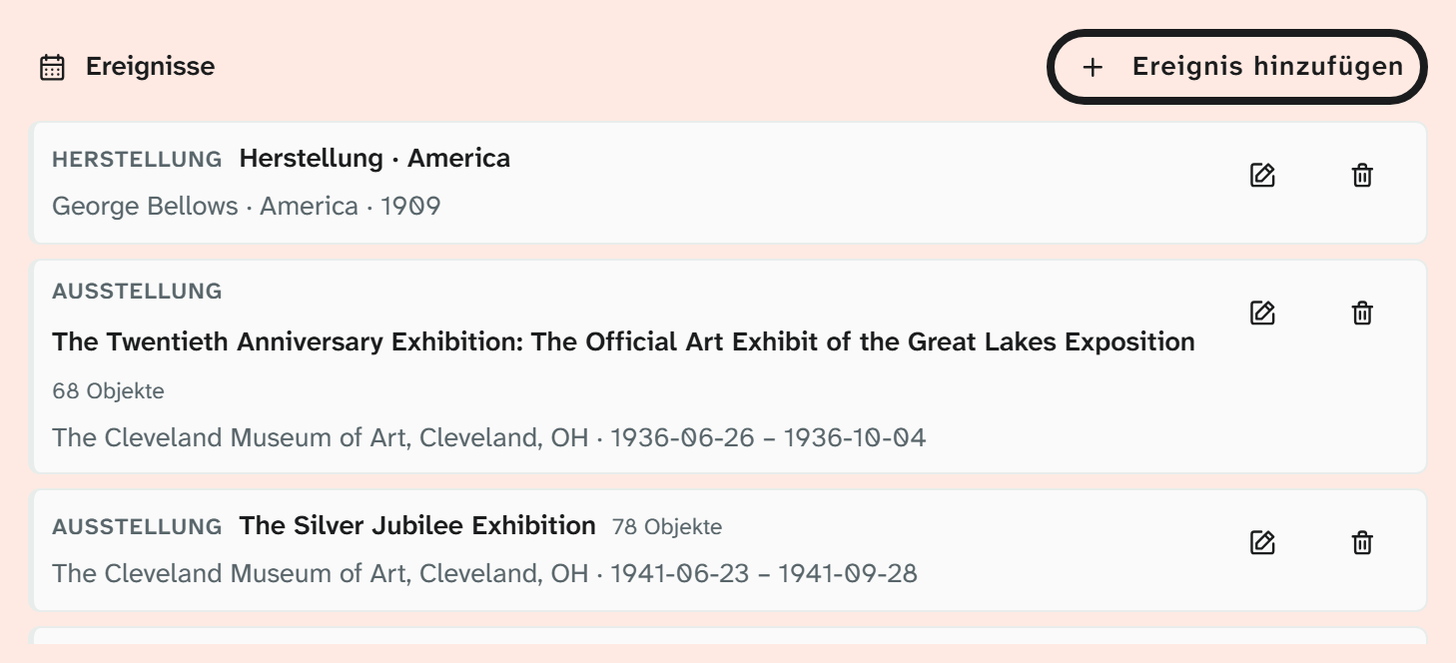
An event is an entry in the object history, such as an exhibition, a loan or a conservation treatment. It is not a field value but is linked to objects. An exhibition is therefore a single event that all its objects are attached to.
Creating an event on the object
-
Open a layout (input form) with an event area.
-
Add event and choose the type.
-
For a shared type, first search whether the event already exists, such as the current exhibition. Otherwise Create new.
-
Enter the details: title, people involved with their role (Who), place, period (When), description.
-
Under Object link, add the details that apply only to this object: Role/catalogue number, a different From and To, Source, Note.
Editing shared events
A shared event shows the note Shared event, changes affect all n linked objects. Before changing anything, think about where the detail belongs:
| What is to be changed | Where it belongs |
|---|---|
| Title, period, place of the exhibition | The event. Affects all objects |
| Catalogue number of this object | The object link |
| Shorter loan period for this object | The object link (From, To) |
| Note on this object | The object link |
The most common mix-up is the second row: a catalogue number in the title of the event then appears on all hundred objects.
Taking over a whole project
This is how you create an exhibition as an event and link all its objects at once:
-
Choose Create from project.
-
Choose the project and enter a title if needed. Without a title, the project name is used.
-
Create & link. A shared event is created, and all objects of the project are linked to it.
A second run links only the new additions. This way you can update the exhibition several times while it is being prepared, without duplicates.
Setting up event types
Under Libraries › Events, area Event kinds (status 9):
-
Create a New kind: Key (stays fixed, for example
ausstellung), Label, Colour. -
Set Shared (picker):
Shared For yes Exhibition, loan, campaign, publication no Production, acquisition, condition check, conservation treatment -
Set Max per object if a type may only occur once, for example Production.
-
In the Slot configuration, decide which inputs the type shows: Authority data (GND/Wikidata), Address book, Free text, Range (from/to), Display text.
-
Save, then set the groups’ access. This needs the saved type.
-
If needed, enter the LIDO terminology URI so that the export names the type of event correctly.
The mappings of the metadata standards and the Word templates point to the key. You can change the label at any time; the key is best left as it is.
Access per type
Each event type has its own access settings, following the same pattern as fields: a basic access on the type and access per group, which extends it. This way the conservation department can maintain condition checks without changing loans.
Further reading
- Events : all details and slots
- Events as shared data : why it is built this way
- LIDO : events in the export