
Libraries
Record and cite literature
The 1917 exhibition catalogue mentions the painting on page 12, the 2001 article reproduces it. In Moliri each of them exists once as a literature record in the literature project and is linked from every object it mentions. What a literature project is and which fields it has is described in the reference under Literature .
Creating a title from a reference
-
Open the literature project and press the button with the book icon in the bottom bar (New from reference, next to Create new object).
-
Enter an ISBN, DOI or title. On the right are the matches from the Deutsche Nationalbibliothek, K10plus, Crossref and Wikidata, on the left the literature already in your records. If the title is on the left, it is already there and you can use it straight away.
-
Choose a match. The preview shows which fields receive which value and which people are linked as author, editor or translator. If something is wrong, Back returns you to the matches.
-
Create. Moliri creates the literature record, opens it and reports how many fields were inherited and how many people were linked.
If the message says Names without a GND match, not linked, the Gemeinsame Normdatei (GND) had no unambiguous entry for that name. The name still appears in the statement of responsibility, and the citation names the person. You can link the person by hand later.
When the title already exists
If a record in the project has the same reference, the dialog shows the note Already in the project before creating. The main button is then named after the inventory number of the existing record, for example Open L-0007, and opens it. If there are several, the others are listed as links in the note.
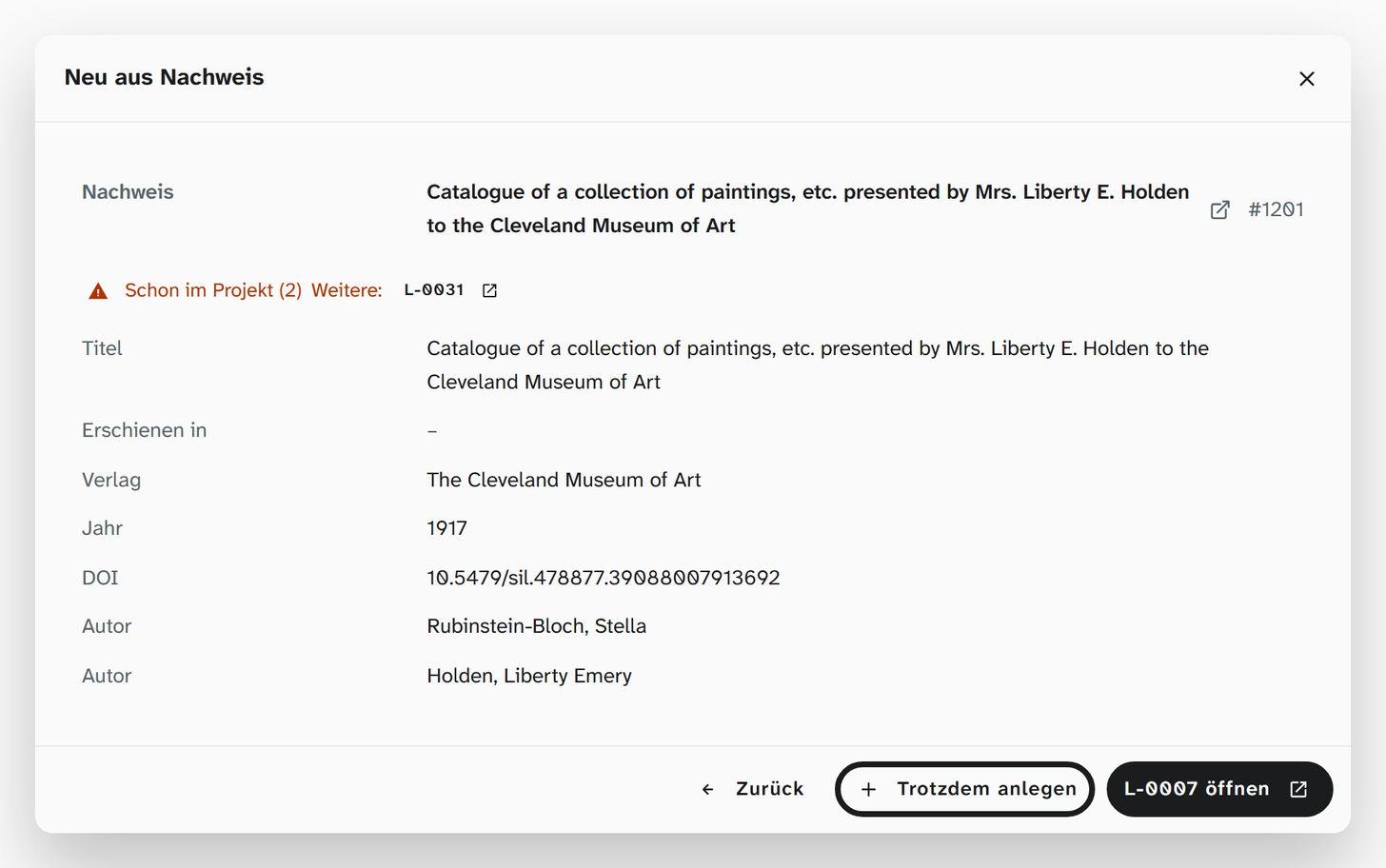
If it really is to be a second record, for example for a second copy with its own shelf mark, Create anyway creates it.
Linking literature to the object
If the layout has a field such as Published in or Illustrated in, you start from there:
-
On the object, press Select object in the field and search for the title.
-
If it is already in the library, click it. If it is missing, press New from reference and create the title from its ISBN, DOI or title as above. It then appears in the field straight away, and you stay on the object.
If the title already exists, Use ⟨inventory number⟩ puts the existing record into the field. The Open target object button in the field’s header takes you to the literature record itself. More about the field under Object .
Producing a bibliography
-
In the literature project, choose the Citation list view (view menu at the top right).
-
Use filters, search or Wahl to narrow down what goes into the bibliography, for example the literature on an exhibition. The list shows exactly the records that the gallery and table would show too.
-
If needed, choose a different citation style for this list through the quotation mark icon.
-
The Word icon (Export as Word bibliography) downloads the bibliography as ⟨project name⟩ - Bibliography.docx.
Choosing the citation style
Administrators set the style for everyone under System › Settings › Citation style. There, Choose style searches the directory of the Citation Style Language, and the preview below shows a short and a full citation in the chosen style. Language of the citations decides, for example, whether “S.” or “p.” comes before the page number.
For a single view, the citation list, or an Excel or Word export you can choose a different style, for example APA for a loan agreement in English. Use default returns to the instance’s style. Which style applies when is described under Citation style .