
Example: the cultural heritage system of Vantaa City Museum
In October 2026 the City of Vantaa in Finland published a market consultation for a new cultural heritage system for its city museum. We take its requirements as an example and show how Moliri meets them today, often with settings a museum makes itself.
This page is an example. It belongs to no bid, and Moliri provides no service to the City of Vantaa or its museum.
The market consultation
Vantaa City Museum keeps its collection, archive, photographs, audiovisual material, the reference library and the city's buildings in one system. With the market consultation the city asks suppliers about a successor that runs as a service in the browser. It is not a tender yet.
The list of requirements is arranged by area of work, from accession into the collection to data migration. This page follows those areas, with some of them combined. We wrote the requirements below ourselves; nothing is copied from the documents.
Moliri meets many points through configuration: an event rule gives the numbers, a link type forms the hierarchy, a choice field becomes a kanban board. Pictures beside each requirement show the feature in Moliri, numbered where it takes several steps. A picture from a film opens the film at that point, a picture from the manual opens large. All films are at the end of the page, each one once.
From the notice
- Contracting authorityCity of Vantaa (Vantaan kaupunki), Vantaa City Museum
- ProcedureMarket consultation, not a tender
- SubjectMarket consultation for a new cultural heritage system as SaaS to replace the collection management of the city museum: collection, archive, photographs, reference library and the built cultural environment
- NoticeHilma, market consultation “Kulttuuriperintöjärjestelmän hankinta”, procedure 629297, 16 Oct 2026
- This page as ofNovember 2026, Moliri 2.1.0
The areas
- 1Accession into the collection5 requirements
- 2Inventory numbers6 requirements
- 3Lot, series, folder and batch editing6 requirements
- 4Files and images6 requirements
- 5Conservation5 requirements
- 6Location, loans and deaccession7 requirements
- 7Buildings, built heritage and places6 requirements
- 8Actors and reference library6 requirements
- 9Search, reports and statistics7 requirements
- 10Baskets and mobile use7 requirements
- 11Roles, permissions and audit trail4 requirements
- 12Publishing and data migration7 requirements
- ▶The films17 films
Accession into the collection
An object arrives, is accepted and gets a signed receipt. The information from the receipt should carry on into inventory and location without anyone typing it a second time.
Record the receipt in the system
The Object entry template sets up the fields and the input form for the receipt. Objects not yet decided on sit in a project of their own, such as “Entry”; a creation rule keeps them out of the collection.
- Creating a project Manual
A receipt form to sign
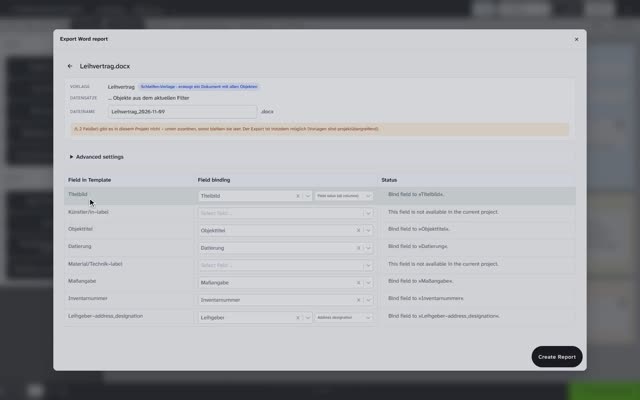
The form is a Word template of the museum's own with lines for signature, place and date. Moliri fills it from the recorded information, for one object or for all objects of a donation.
Record once, use again later
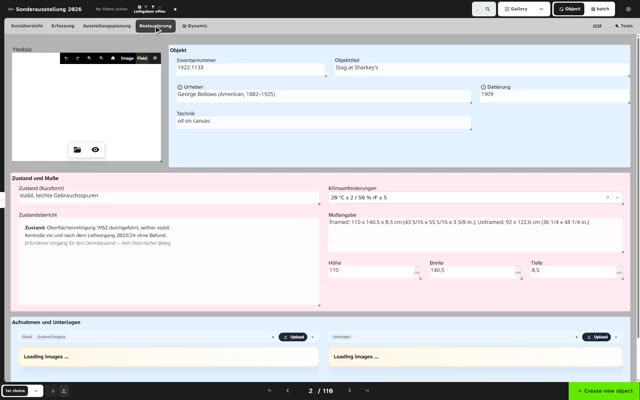
Receipt, acquisition, inventory and location are input forms on the same record. The information from the receipt is already there when the object is inventoried.
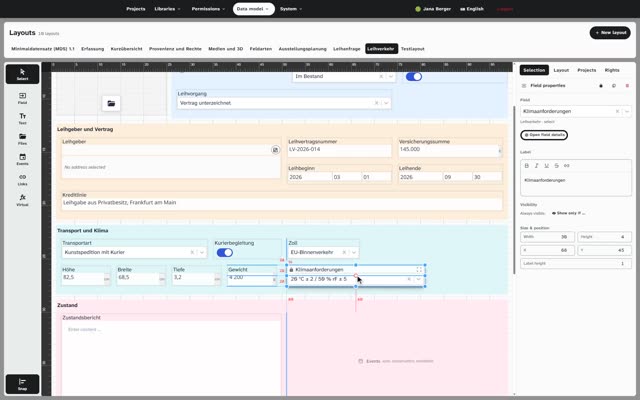 Place it Film “Building an input form”, chapter 2
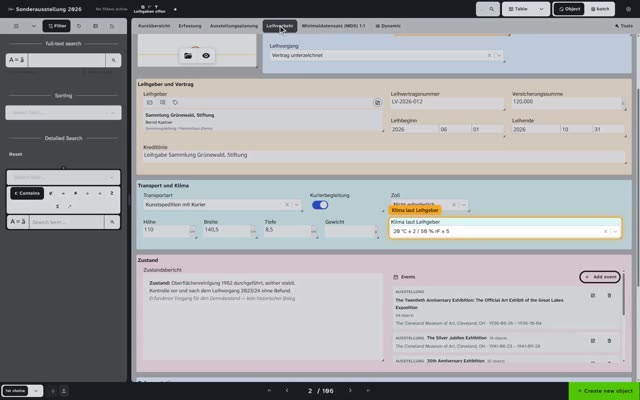 Result Film “Building an input form”, chapter 5
- Building an input form Manual
An accession as a whole, with all its objects
The acquisition is an event with date and people involved. All objects that came with it are linked to it, and each object shows which accession it belongs to.
- Events Manual
Donor and contact person
Owner and contact are kept in the address book and linked on the object. The Word template takes the names from there.
- Keeping addresses Manual
Inventory numbers
The museum numbers its objects by its own scheme, such as a main number with a sub-number. It wants the next free number suggested, duplicate numbers prevented and the old numbers kept.
Numbers by the museum's own scheme, such as “main:sub”
An event rule puts the number together when an object is created, from fixed text, field contents, the date and a number range: for example {feld:haupt}:{nr:objekt} or ADK-{jahr}-{nr:inventar}. The dry run shows the result on an object before the rule applies.
- Event rules Manual
The next free number
A number range counts per project or for all projects, with start value, step and a fixed number of digits. It shows the last number given, the highest value in the collection and the next number.
A warning for a number already in use
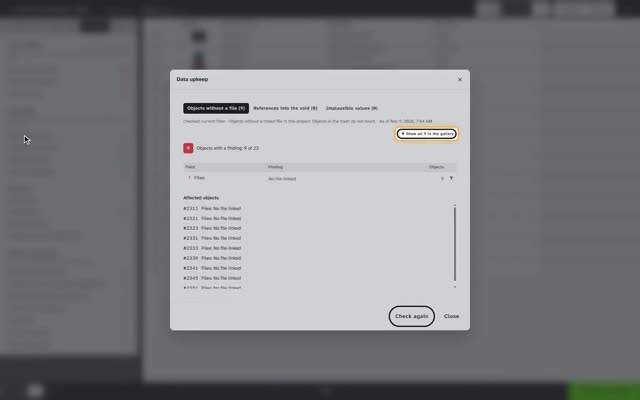
The field condition “unique in the database” marks a duplicate number at once and names the other object with a link. Under Checks › Duplicate values all cases in the collection are listed.
- Checks Manual
Retroactive inventory into free numbers
The suggested number can be overwritten, for instance with a gap in the old collection. The condition shows straight away whether the number is free.
- Editing an object Manual
Keep the old numbers
Old inventory numbers and the numbers of the previous system stay in fields of their own, in any form and length. The full-text search finds them like any other number.
- Creating a field Manual
Numbers when many objects arrive at once
In the Excel import the rule gives the numbers in the order of the rows. Moliri reserves them in advance as a block, even if someone else creates objects at the same time.
Lot, series, folder and batch editing
Archive and photo collections come in levels: a lot holds series, a series holds folders. Information from the upper level should reach the parts, and many records must change in one step.
Lot, series and folder as a hierarchy
A link type such as “contained in” with the counterpart “contains” and the rule Forms a tree arranges objects above and below each other, over any number of levels. On the object the links area shows the hierarchy.
- Link types Manual
- Links on the object Manual
Fields of their own per level and material
Each level and each kind of material gets an input form of its own with the fields needed there. The museum creates fields itself.
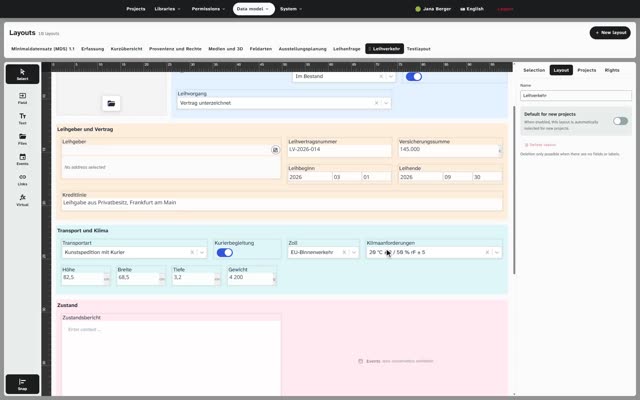 Choose a field Film “Building an input form”, chapter 1
- Layouts Manual
Pass information on to the parts
A new part is created as a copy with all field values; an event rule on creation can give it the next number right away. If information changes later, the advanced search with Include narrower terms finds all parts of a lot across all levels, and batch editing sets the value in one run.
- Copying an object Manual
Links in both directions, with a description
One link is enough: the other record shows the counterpart. Each link carries a note and the extra fields of its type. One click opens the linked record for editing.
- Links on the object Manual
Change many records in one step
Batch editing replaces, clears, prepends, appends or searches and replaces, for all selected objects and several fields in one run. The preview shows the old and new value per object, single objects can be left out.
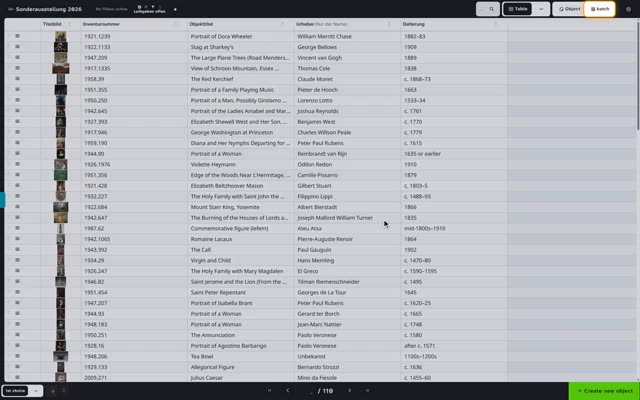 Batch Film “Batch editing”, chapter 1
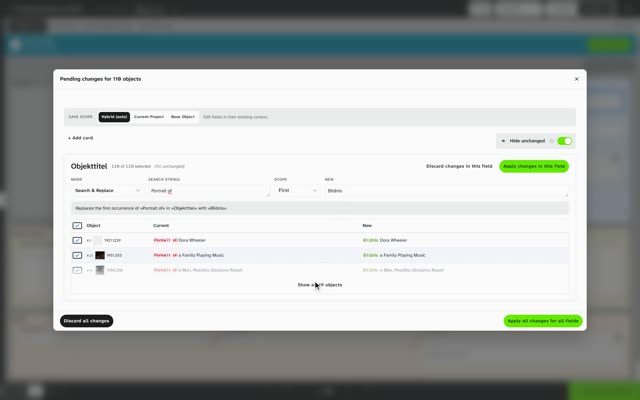 Preview Film “Batch editing”, chapter 2
- Batch editing Manual
Undo batch changes
Each batch is listed as a whole in the history and is undone with one click.
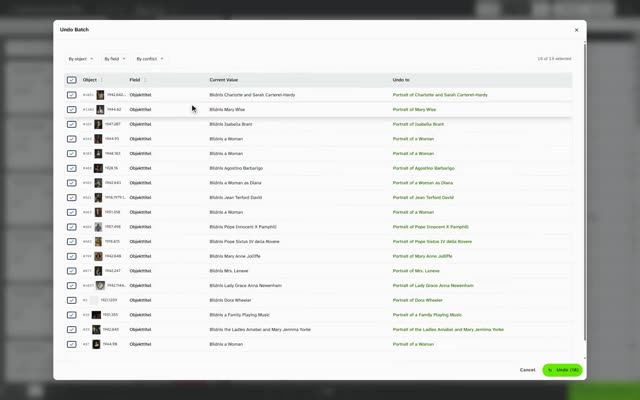 Undo Film “Batch editing”, chapter 3
- Edit history Manual
Files and images
Each record comes with photos, scans, documents, audio and video. They should go in by the hundred, bring their embedded information and carry creator and licence.
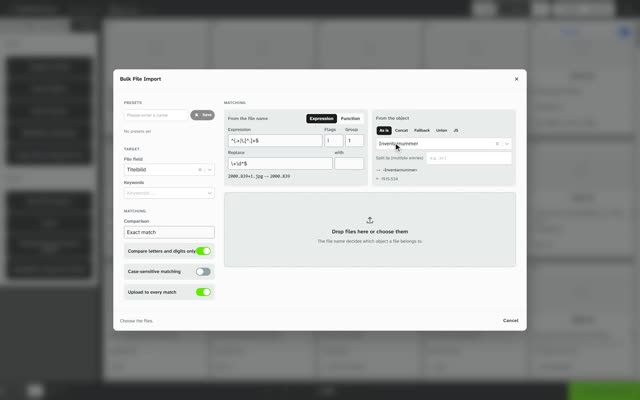
Upload many files in one step
A whole photo campaign goes in at once. If the inventory number is in the file name, Moliri matches each file to its object.
Common file formats
TIFF, JPG, PNG and camera RAW, PDF and Office documents, audio, video and 3D models. For multi-page TIFF, PDF and raw files Moliri creates previews.
Take over EXIF and IPTC data
On upload Moliri reads description, date taken, creator and rights holder from the file's EXIF and IPTC data.
Creator, licence and kind of file
Creator, licence and rights holder belong to the file and apply wherever it is used. File types such as main image, back or condition photo are keywords on the file.
- File library Manual
Preview and full resolution, original unchanged
Images zoom up to full resolution. Crops, markings and measurements sit as a layer on top of the original.
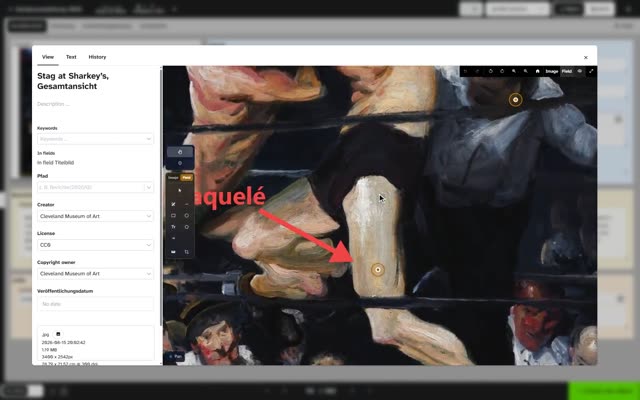 View Film “Image studio”, chapter 1
- Image studio Manual
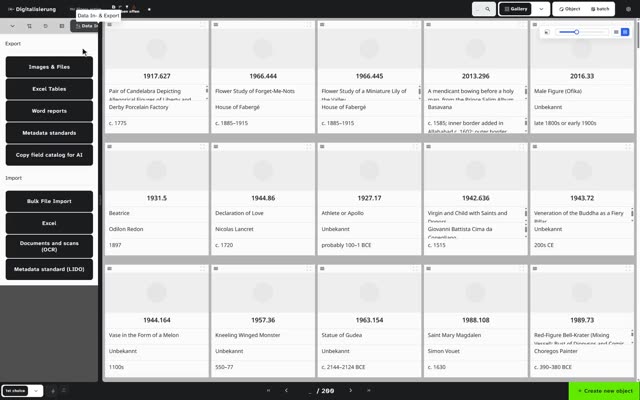
Export files together, with meaningful names
The image export delivers the files as a ZIP. It builds file names and folders from fields, for instance from main and sub-number.
- Exporting files Manual
Conservation
Condition and treatments belong to the object, damage to its place in the image. Each kind of treatment has its own information, and at the end there is a report.
Condition and treatments on the object
The Condition check template sets up the fields. Examination and treatment are events with date, people involved and files, listed on the object in their order.
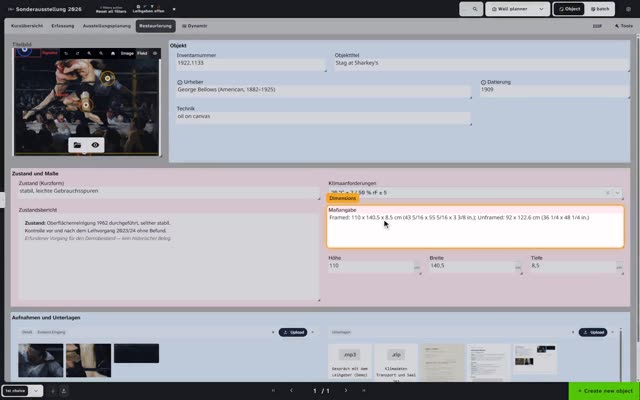 Condition on arrival Film “Condition on arrival”, chapter 1
Information of its own per kind of treatment
Conservation gets an input form of its own that shows only its fields. The museum decides on fields, choice lists and mandatory information.
- Building an input form Manual
Draw damage into the image
Hotspots mark findings in the object photo, with type, text and detail shot; the museum sets the damage types. In the image studio markings, text and measuring lines are added.
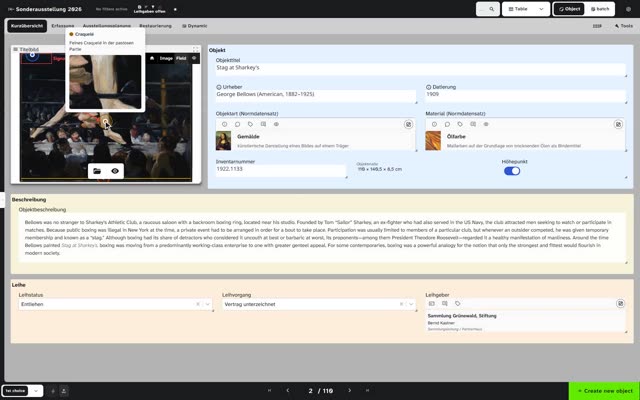 Hotspots Film “Findings in the image”, chapter 1
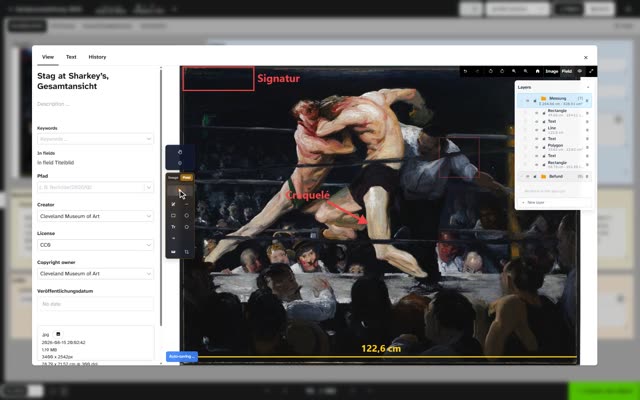 Mark Film “Image studio”, chapter 2
- Editing an image Manual
Compare before and after
Two shots stand side by side and zoom together.
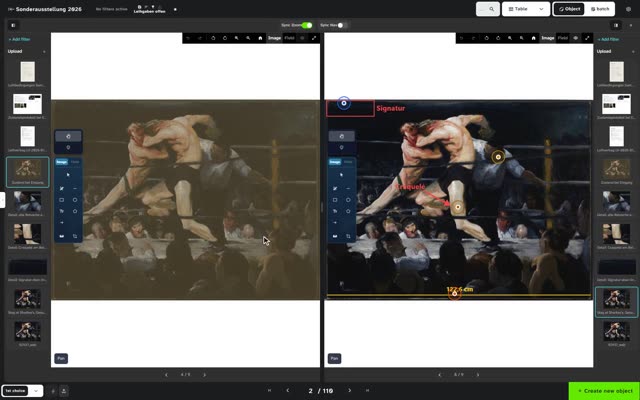 Comparison Film “Findings in the image”, chapter 2
A report with images
The condition report comes from a Word template, with the object's information and images.
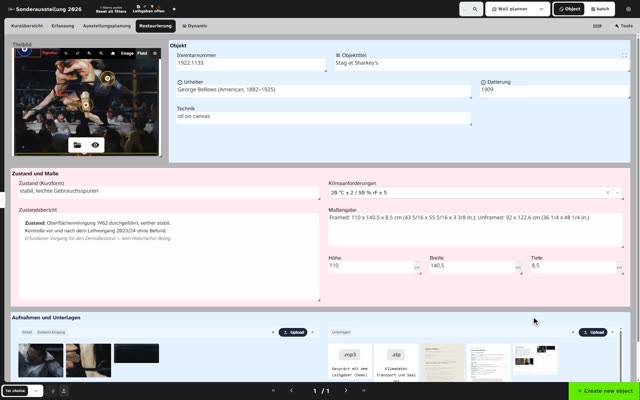 Documents Film “Condition on arrival”, chapter 3
Location, loans and deaccession
Each object has a current location and a permanent place, and every movement can be traced. Loans need contracts, and a deaccession goes through proposal, decision and disposal.
Locations as a hierarchy
Buildings, rooms, shelves and compartments sit inside each other as a tree, each place with a code. Labels with a QR code print straight from the browser.
Current and permanent location kept apart
The Location & movement template sets up the fields Location and Permanent location, both choosing from the tree of locations.
Location history
Each move is an event with date, person, destination and reason. The history shows who changed the location and when.
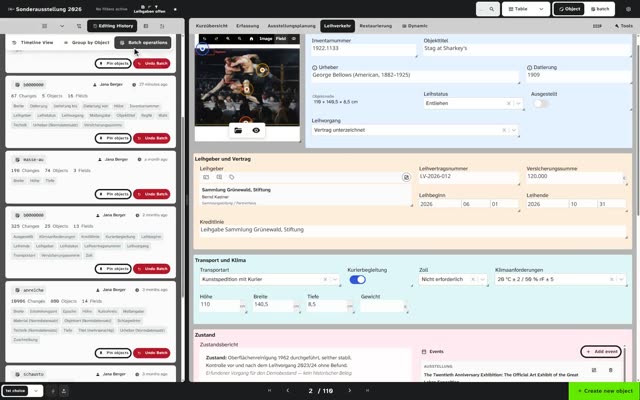 History Film “History and permissions”, chapter 1
Loans with a contract
Loan in and loan out come as templates with their fields. A Word template fills the loan agreement from the data.
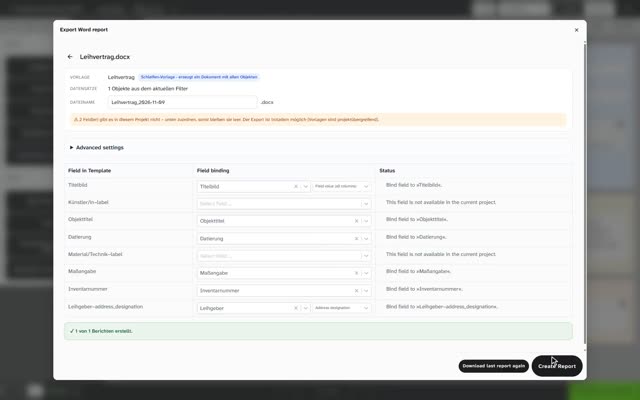 Create Film “A document from the data”, chapter 2
- Loan in and loan out Manual
Stages of a deaccession
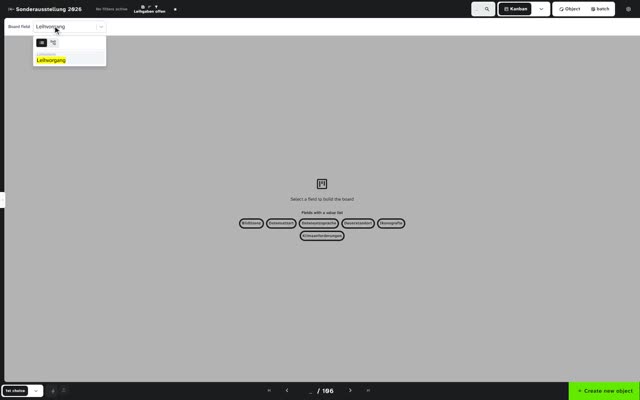
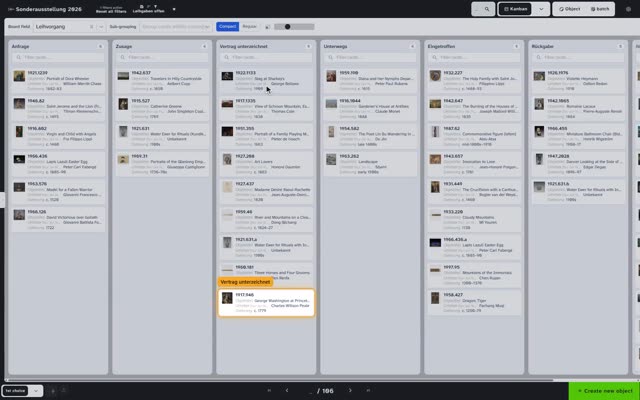
A choice field “Status” with the museum's stages, such as proposal, decision and disposal, becomes a kanban board: dragging a card on changes the stage. The Deaccession / disposal template brings exit method and date; the reason becomes a choice list the museum keeps.
Who decided when
The history on the object shows each change of status with person, time, old and new value. Batch editing sets a stage for many objects at once.
- History Film “History and permissions”, chapter 1
- Batch Film “Batch editing”, chapter 1
- Edit history Manual
Disposal form and search by stage
The disposal form comes from a Word template. The filter by status finds every stage; a saved view shows the collection without the disposed objects, whose records are kept.
- Saving a view Manual
Buildings, built heritage and places
Besides the collection the museum keeps the city's buildings and areas. Each record should have a place with coordinates and a map, and this information should carry on into maps and reports.
Buildings as a collection of their own
The buildings get a project of their own with their own fields and input forms. Site visits and statements are linked to the building as events or as linked records.
- Creating a project Manual
- Events Manual
A place with coordinates and a map
The Geolocation field takes a place from the search, from the places library or by hand with coordinates, and shows a map preview.
- Field type Geolocation Manual
Place names from fixed lists
Country, municipality and district come from a choice tree that the administration keeps.
- Field type Choice tree Manual
Maps in reports
The map preview can be used like an image: in gallery and kanban, in the Excel export and in Word reports.
- Map preview Manual
Place data for a GIS
The GeoJSON export delivers the selected objects as points; you choose which place field supplies the coordinates.
- Excel and JSON export Manual
Protect information taken over from elsewhere
Fields that come from another system are set to read only for staff. Permissions apply down to the single field.
Actors and reference library
People, groups and organisations are kept in a register and linked to the objects with their role. The books of the reference library are catalogued and cited on the objects.
A register of people and organisations
People and organisations are authority records with identifiers from GND, Wikidata and Getty ULAN; institutions and contacts are kept in the address book. Each authority record shows how often it is used.
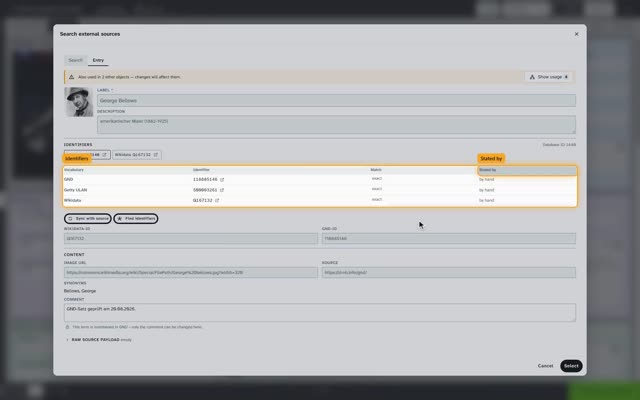 Authority record Film “Authority data”, chapter 1
- Authority data Manual
- Keeping addresses Manual
Role and description on the link
Each link type has extra fields of its own, such as role, period or source, plus a note. The actor shows the counterpart, so the relation reads from both sides.
- Link types Manual
New actors straight from the object
An authority field on the object searches the museum's own library and sources such as GND and Wikidata; a hit taken over is created as an authority record. Duplicate records can be merged.
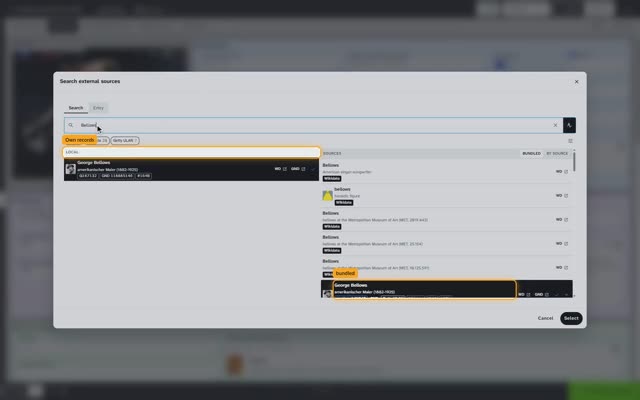 Search Film “Authority data”, chapter 3
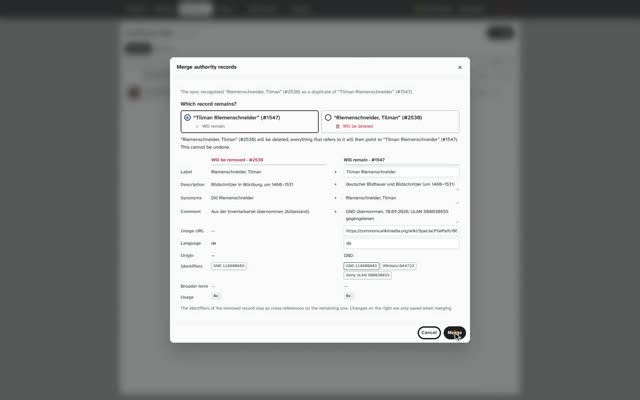 Duplicates Film “Authority data”, chapter 4
- Field type Authority record Manual
The reference library in the same system
The Literature template sets up a library of its own with fields and an input form. A title is created from ISBN, DOI or title, with the information from library catalogues such as the German National Library and K10plus.
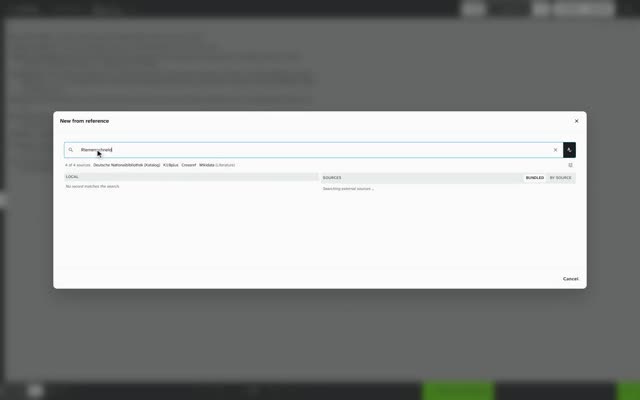 Reference Film “Literature”, chapter 1
- Literature library Manual
Copies with their own shelf mark
A second copy becomes a record of its own with its own shelf mark and location.
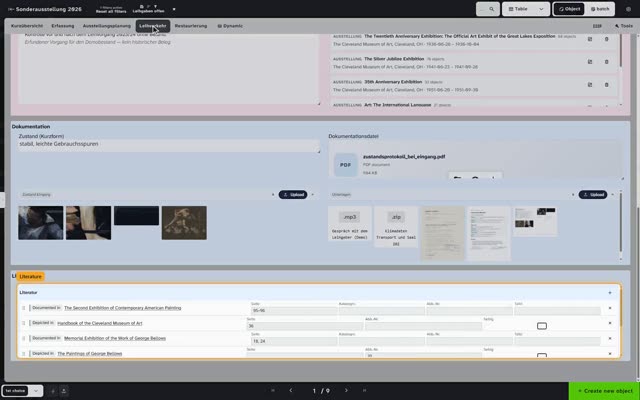
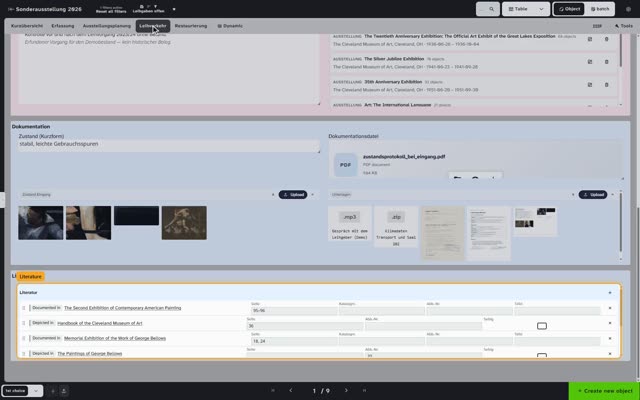
Literature on the objects and as a list
A title is cited on the object with a page number. The citation list outputs the titles in the museum's citation style, also in Word and Excel.
Search, reports and statistics
Searches run across all kinds of collection or within one, with many conditions at once. Every search result should turn into lists, reports and figures.
Free-text and advanced search
The full-text search covers fields, comments, events and links. The advanced search combines any number of conditions with AND, OR and brackets, including greater and less than for numbers and dates.
Search for missing information
Equal with an empty search term finds all objects in which a field is empty; Not equal finds those in which it is filled.
Save searches
Field selection, filters and sorting are saved as a view, kept as a favourite and, if wanted, shared with everyone.
- Saving a view Manual
Results as a list and a gallery
A table with freely chosen columns and multi-level sorting, a gallery with images, plus kanban and calendar. Each row opens the record.
- Setting up the table Manual
- Setting up the gallery Manual
Figures by characteristic
Grouping splits the result into sections with a heading and a count, for instance per object type or per year of acquisition.
- Sorting and grouping Manual
Reports with images in the museum's own design
The museum's Word templates with logo and fonts are filled from the search result, with images and map preview. The Excel export takes images, comments and events along.
- Excel export Manual
Search and reports respect permissions
Hidden fields stay hidden in search, views and export; projects without permission do not appear.
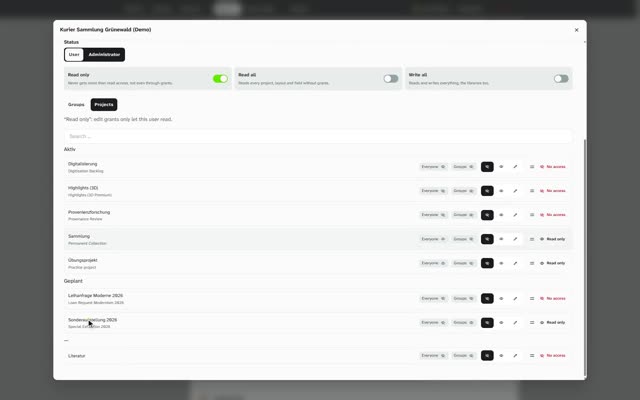 Permissions Film “History and permissions”, chapter 2
Baskets and mobile use
For an exhibition, a stocktake or an enquiry, objects are gathered from all collections. In the store and in the field, staff work with phone and tablet.
One basket across all collections
The work basket gathers the pinned objects of all projects in one place. It belongs to one person and is kept on the server, on the phone as on the PC.
- Work basket Manual
Many objects into the basket at once
Pin all visible takes in the whole search result. An object can be pinned and in several projects at the same time.
- Pinning and hiding Manual
- Work basket Manual
Named baskets for the team and for outsiders
Put in project… puts the content of the basket into a project with a name of its own. Permissions per person or group decide who may see or edit it, also for an external account that sees only this project.
- Work basket Manual
Moliri on the smartphone
On the phone a bar at the bottom holds Camera, Basket, Projects, Follow and Menu. Gallery, table and the object adapt to the width.
- Phone and tablet Manual
Find objects with the camera
The live camera reads QR codes, barcodes and inventory numbers, printed or handwritten, and shows the matching objects.
- Live camera Manual
Move objects in the store
Scan the object at the shelf, then scan the place and confirm: Moliri sets the new location and adds the movement as an event.
Photos from the phone straight to the object
The phone follows the object open on the computer, and each photo goes straight to its files.
- Phone as companion Manual
Roles, permissions and audit trail
Everyone works with an account of their own, signed in through the city. Main users, staff, interns and read-only accounts for the city administration see and change only the data their role opens to them, and every change can be traced.
Sign-in with the city account
Single sign-on via OpenID Connect, for instance with Microsoft Entra ID. Without single sign-on there is a password and a second factor.
- Signing in Manual
Roles through groups
Groups bundle permissions on projects, input forms and single fields in three levels: no access, read only, edit. A person gets their permissions through the groups they are in.
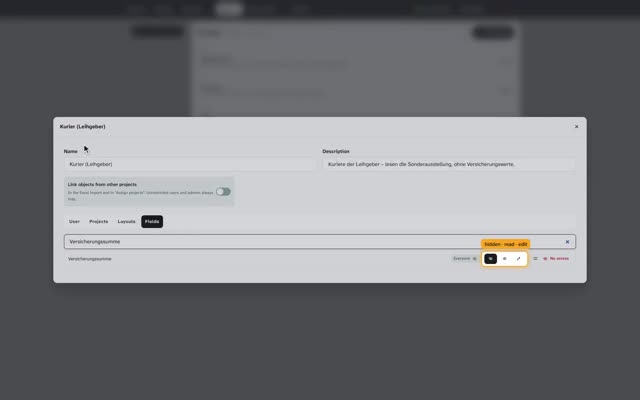 Group Film “Permissions down to the field”, chapter 2
Read-only and time-limited accounts
An account can be set to read only and end on a set day, for instance for project staff, the city administration or the visitor workstation in the museum.
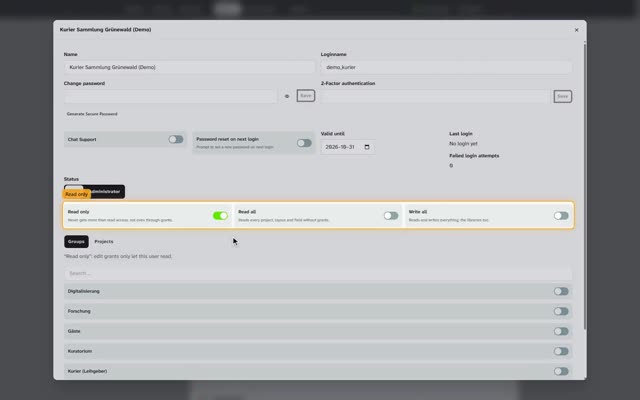 Account Film “Permissions down to the field”, chapter 1
- Creating a user Manual
Audit trail
For each change Moliri keeps field, old and new value, person, time and project. Under System › History the changes to the data model and to users are listed as well.
- History Film “History and permissions”, chapter 1
- Edit history Manual
Publishing and data migration
Shared objects should go to portals such as Finna and be available as open data. The collection of the previous system should move over with all numbers and files.
Sharing by collection and by field
A public share decides which projects and which fields go out. Comments and people from the address book always stay internal.
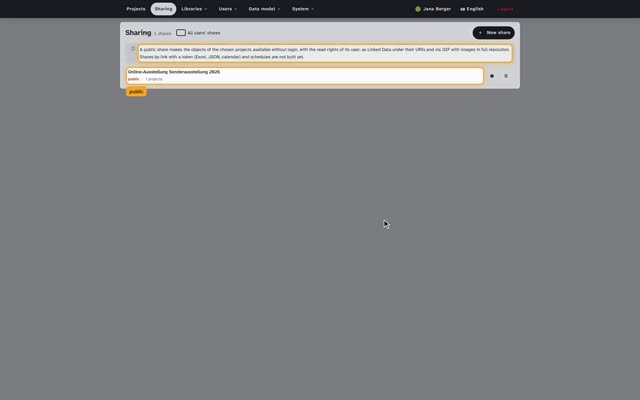 Sharing Film “Linked Data”, chapter 1
- Shares Manual
Delivery to portals in LIDO
The export delivers LIDO 1.1, a format Finna processes. Beforehand Moliri checks mandatory information and schema and names the objects concerned.
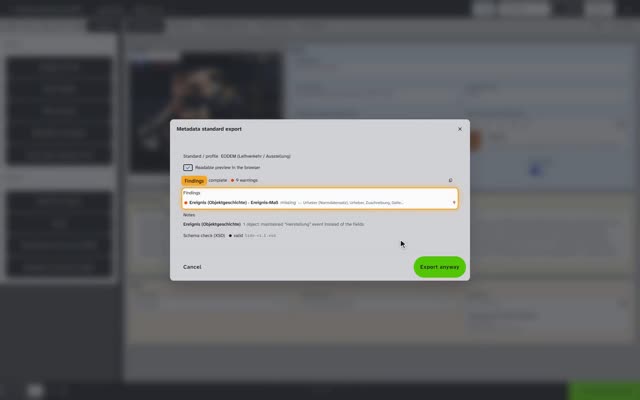 Check Film “Publishing”, chapter 1
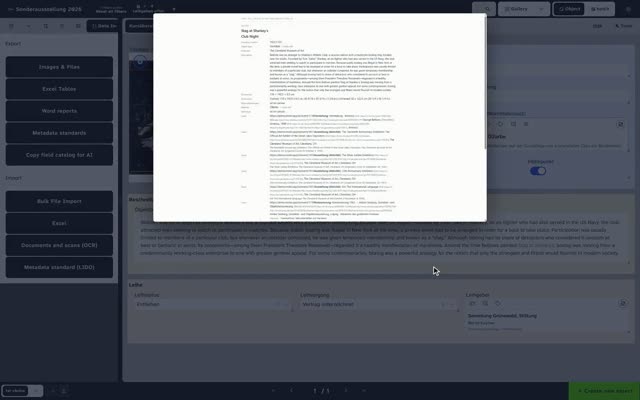 Export Film “Publishing”, chapter 2
- Exporting LIDO Manual
Images via IIIF
Each shared object has a IIIF manifest with its images and information, for any IIIF viewer.
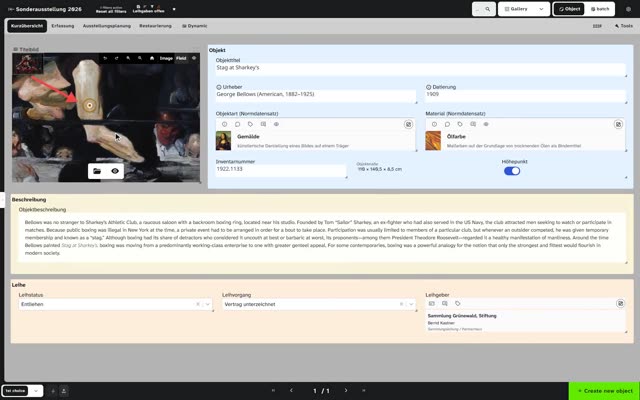 IIIF Film “Publishing”, chapter 3
Linked Data
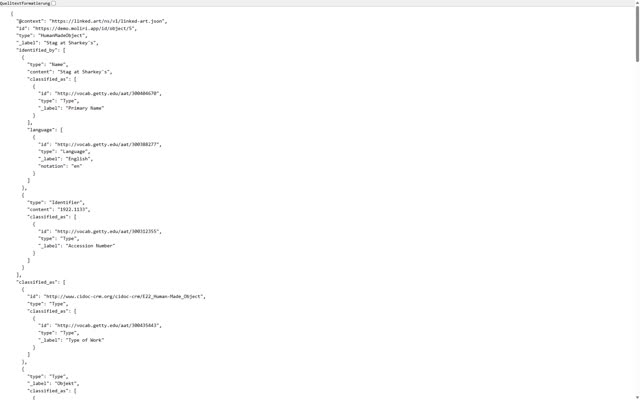
At a stable address each shared object is available as JSON-LD following Linked Art, with the identifiers of its authority data. Changes are in the public data within a minute.
Take over data from the previous system
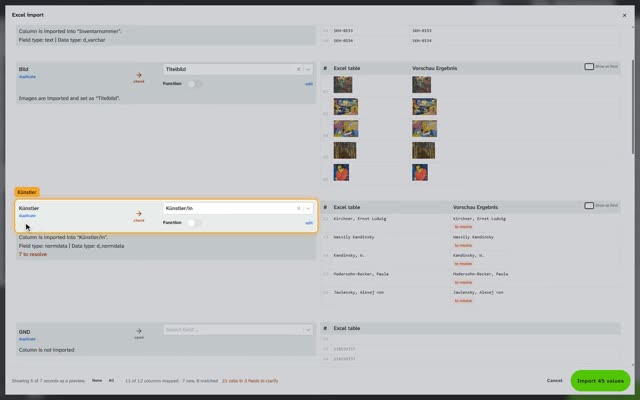
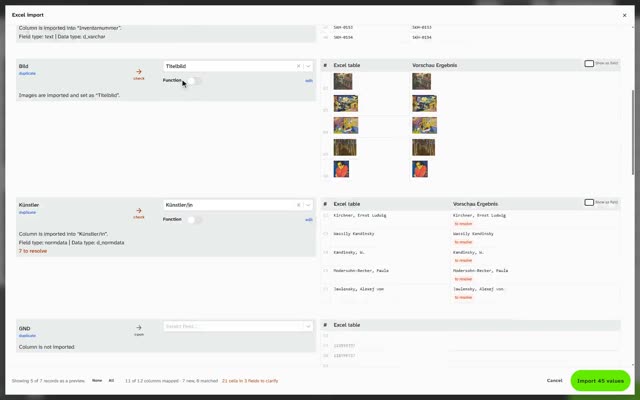
Excel and LIDO are taken over with column mapping and a pre-check. For the direct route from the previous software, the Moliri team adapts an import module.
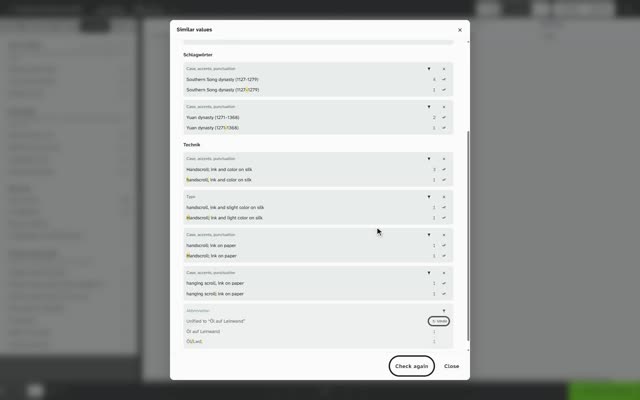
Align terms
Values that do not match clearly are parked and matched once per term to an entry or authority record, instead of cell by cell.
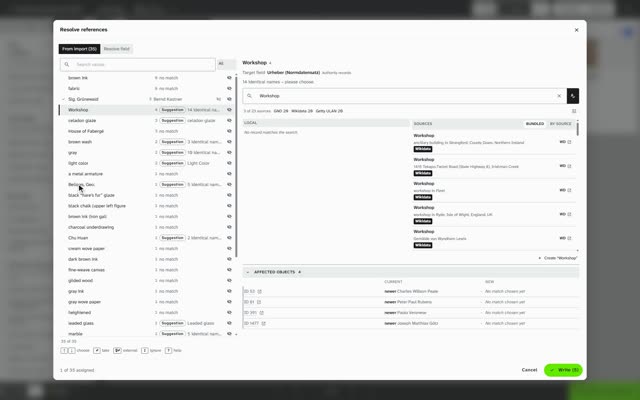 Resolve references Film “Resolving references”, chapter 2
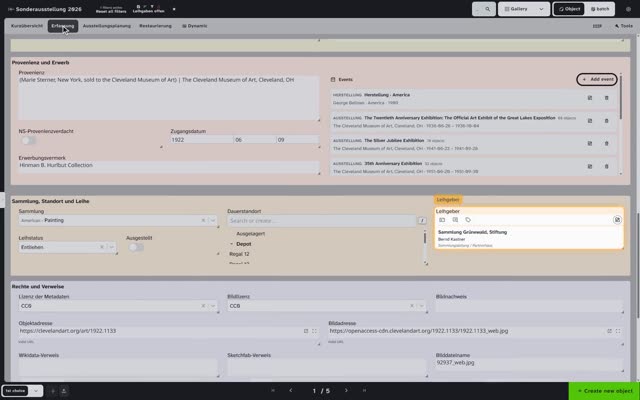 Write Film “Resolving references”, chapter 3
- Resolving references Manual
Check and undo the migration
Mandatory fields, duplicates and spellings show the places that need follow-up work. An import that did not fit is undone as a whole.
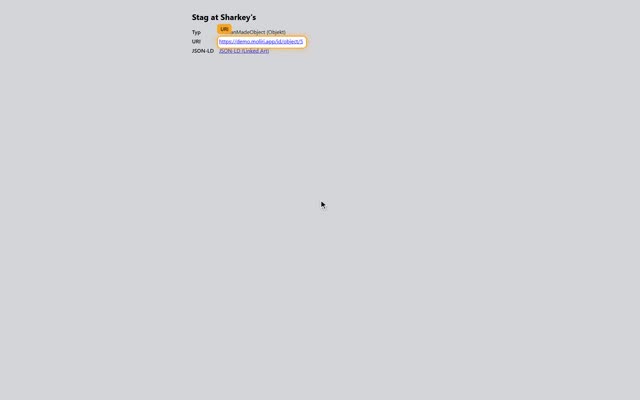
The films on this page
Each film shows one feature from start to end, with subtitles and chapters. The pictures beside the requirements open it at the matching chapter.
See your own requirements in Moliri
In a demo we set up the points that matter to you, ideally with an extract from your current system.